


Introducción
El Ambiente de trabajo Borrador se centra principalmente en la creación y modificación de objetos 2D en FreeCAD. Pero no está restringido al plano XY del sistema global de coordenadas. Sus objetos pueden tener cualquier orientación y posición en el espacio 3D, y algunos objetos de Borrador pueden ser planos o no planos.
Los objetos Borrador se pueden utilizarse para elaboración general, similar a lo que se puede hacer con Inkscape o AutoCAD. Pero también pueden ser la base para la creación de objetos 3D en otros bancos de trabajo. Un Borrador Hilo puede definir la trayectoria de un Arquitectura Muro, un Borrador Polígono puede ser extruido con Pieza Extrudir, etc. Muchas de las Borrador herramientas de modificación pueden aplicarse a objetos 2D y 3D creados con otros ambientes de trabajo también. Puedes, por ejemplo, mover un Croquis o crear un Borrador OrthoArreglo a partir de un objeto Pieza.
The Draft Workbench also provides tools to define a working plane, a grid, and a snapping system to precisely control the position of geometry.
Si tu objetivo principal es la producción de dibujos 2D complejos y archivos DXF, y no necesitas el modelado 3D, FreeCAD puede no ser la elección correcta para ti. Es posible que desee considerar un programa de software dedicado para el dibujo técnico en su lugar, como LibreCAD o QCad.
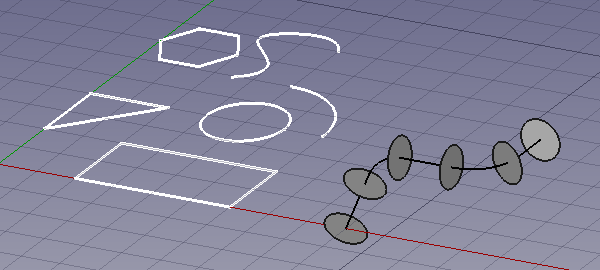
The image shows the grid aligned with the XY-plane.
On the left, in white, several planar objects.
On the right a non-planar Draft Wire used as the Path Object of a Draft PathArray.
Drafting
 Line: creates a straight line.
 Polyline: creates a polyline (also called wire), a sequence of several connected line segments.
 Fillet: creates a fillet, a rounded corner, or a chamfer, a straight edge, between two selected edges.

 Arc Tools:
- Arc: creates a circular arc from a center, a radius, a start angle and an aperture angle.
 Arc From 3 Points: creates a circular arc from three points that define its circumference.
 Circle: creates a circle from a center and a radius.
 Ellipse: creates an ellipse from two points defining a rectangle in which the ellipse will fit.
 Rectangle: creates a rectangle from two points.
 Polygon: creates a regular polygon from a center and a radius.
 B-Spline: creates a B-spline curve from several points.
 Bézier Tools:
- Cubic Bézier Curve: creates a Bézier curve of the third degree.
 Bézier Curve: creates a Bézier curve from several points.
 Point: creates a simple point.
 Facebinder: creates a surface object from selected faces.
 Shape From Text: creates a compound shape that represents a text string.
 Hatch: creates hatches on the planar faces of a selected object.
Annotation
 Text: creates a multi-line text at a given point.
 Dimension: creates a linear dimension, a radial dimension or an angular dimension.
 Label: creates a multi-line text with a 2-segment leader line and an arrow.
 Annotation Styles: allows you to define styles that affect the visual properties of annotation-like objects.
Modificación
 Move: moves or copies selected objects from one point to another.
 Rotate: rotates or copies selected objects around a center point by a given angle.
 Scale: scales or copies selected objects around a base point.
 Mirror: creates mirrored copies from selected objects.
 Offset: offsets each segment of a selected object over a given distance, or creates an offset copy of the selected object.
 Trimex: trims or extends a selected object.
 Stretch: stretches objects by moving selected points.
 Clone: creates linked copies, clones, of selected objects.
 Array Tools:
 Polar Array: creates an array from a selected object by placing copies along a circle. It can optionally create a Link array.
 Circular Array: creates an array from a selected object by placing copies along concentric circles. It can optionally create a Link array.
 Path Array: creates an array from a selected object by placing copies along a path.
 Path Link Array: idem, but create a Link array instead of a regular array.
 Point Array: creates an array from a selected object by placing copies at the points from a point compound.
 Point Link Array: idem, but create a Link array instead of a regular array.
 Edit: puts selected objects in Draft Edit mode. In this mode the properties of objects can be edited graphically.
 Highlight Subelements: temporarily highlights selected objects, or the base objects of selected objects.
 Join: joins Draft Lines and Draft Wires into a single wire.
 Split: splits a Draft Line or Draft Wire at a specified point or edge.
 Upgrade: upgrades selected objects.
 Downgrade: downgrades selected objects.
 Convert Wire/B-Spline: converts Draft Wires to Draft B-splines and vice versa.
 Draft to Sketch: converts Draft objects to Sketcher Sketches and vice versa.
 Set Slope: slopes selected Draft Lines or Draft Wires by increasing, or decreasing, the Z coordinate of all points after the first one.
 Flip Dimension: rotates the dimension text of selected Draft Dimensions 180° around the dimension line.
 Shape 2D View: creates 2D projections from selected objects.
Borrador Bandeja
La Borrador Bandeja Barra herramienta aparece cuando se inicia el ambiente de trabajo, y permite seleccionar el plano de trabajo, junto con algunas propiedades visuales como el color de la línea, el color de la forma, el ancho de la línea, el tamaño del texto y el grupo automático.

 Plano Trabajo: establece un plano de trabajo desde una vista estándar o una cara seleccionada.
 Establece estilo: establece el estilo por defecto para los nuevos objetos, y opcionalmente aplica el estilo a los objetos y grupos seleccionados.
 Modo de construcción: activa o desactiva el modo de construcción Borrador.
 AutoGrupo: coloca automáticamente los nuevos objetos en un determinado
  Grupo Std,
  Capa de Borrador, o uno de los objetos tipo grupo del Am iente de Trabajo Arquitectura, como
  Arquitectura EdificarPieza. introducido en la versión 0.17
 Set Style: sets the default style for new objects. Also available in the menu: Draft → Utilities → Set Style.
 Toggle Construction Mode: switches Draft construction mode on or off. Also available in the menu: Draft → Utilities → Toggle Construction Mode.
 AutoGroup: changes the active Draft Layer or, optionally, the active Std Group or group-like BIM object.
Borrador Widget escala de anotacion
With the Draft Scale Widget the Draft annotation scale can be specified.

Borrador Widget Atrapar
The Draft Snap Widget can be used as an alternative for the Draft Snap toolbar.

Borrador Barra de herramientas Atrapar
La barra de herramientas Borrador Atrapar permite seleccionar el modo de ajuste actual. Su botón se mantiene pulsado cuando un modo está activo.
 Snap Lock: enables or disables snapping globally.
 Snap Endpoint: snaps to the endpoints of edges.
 Snap Midpoint: snaps to the midpoint of edges.
 Snap Center: snaps to the center point of faces and circular edges, and to the DatosPlacement point of Draft WorkingPlaneProxies and Arch BuildingParts.
 Snap Angle: snaps to the special cardinal points on circular edges, at multiples of 30° and 45°.
 Snap Intersection: snaps to the intersection of two edges, and (introduced in 1.1) the intersection of a face and an edge.
 Snap Perpendicular: snaps to the perpendicular points on faces (introduced in 0.21) and edges.
 Snap Extension: snaps to an imaginary line that extends beyond the endpoints of straight edges.
 Snap Parallel: snaps to an imaginary line parallel to straight edges.
 Snap Special: snaps to special points defined by the object.
 Snap Near: snaps to the nearest point on faces and edges.
 Snap Ortho: snaps to imaginary lines that cross the previous point at multiples of 45°.
 Snap Grid: snaps to the intersections of grid lines.
 Snap Working Plane: projects snap points onto the current working plane.
 Snap Dimensions: shows temporary X and Y dimensions.
 Toggle Grid: changes the visibility of the grid.
Borrador Herramientas de utilidad
 Manage Layers: allows to manage the layers in a document. introduced in 0.21
 New Named Group: creates a named Std Group and adds objects to that group.
 Select Group: selects the contents of Std Groups or group-like BIM objects.
 Add to Layer: adds objects to a layer, or removes them from any layer. introduced in 1.1
 Add to Group: adds objects to a Std Group. It can also ungroup objects.
 Add to Construction Group: adds objects to the Draft construction group.
 Toggle Wireframe: switches the VistaDisplay Mode property of selected objects between
 Flat LinesandWireframe.
 Working Plane Proxy: creates a working plane proxy to save the current Draft working plane.
Herramientas adicionales
Herramientas adicionales disponibles desde el menú Bosquejo → Utilidades, o a través del menú contextual del botón derecho, dependiendo de los objeto seleccionados.
 Apply Current Style: applies the current style settings to selected objects.
- New Layer: creates a Draft Layer.
 Heal: heals problematic Draft objects found in very old files.
 Show Snap Toolbar: shows the Draft Snap toolbar.
Características adicionales
- Restricción: limitar el puntero a movimientos horizontales o verticales en relación con un punto previo.
- Ajuste: colocar nuevos puntos en lugares especiales de los objetos existentes o en la cuadrícula.
- Modo de construcción: Permite crear geometrías separadas del resto, simplemente activándolas y desactivándolas.
- Plano de trabajo: permite seleccionar una superficie sobre la que construir las formas.
Menú contextual de vista de árbol
The following additional options are available in the Tree View context menu:
Default options
For most Draft objects the following option is available:
- Edit: edits the object. Depending on the object type either Draft Edit or a dedicated edit solution is used. introduced in 0.21
If there is an active document the context menu contains an additional sub-menu:
- Utilities: a subset of the tools available in the main Draft Utilities menu.
Opciones contenedor capas
For a Draft LayerContainer these additional options are available:
 Add New Layer: adds a new layer to the current document.
- Reassign Properties of All Layers: removes overrides from objects in all layers. introduced in 1.1
 Merge Layer Duplicates: merges all layers with the same base label.
Opciones capa
For a Draft Layer these additional options are available:
 Activate Layer: activates the selected layer.
- Reassign Properties of Layer: removes overrides from objects in the layer. introduced in 1.1
- Select Layer Contents: selects the objects inside the selected layer.
Text options
For a Draft Text and a Draft Label that contains one or more hyperlinks, to a local or remote file or an URL, this additional option is available:
- Open Links: the hyperlinks are opened in the appropriate application (as defined by the OS). There is a warning in the case of multiple hyperlinks. introduced in 1.0
Opciones Hilos
For a Draft Line and a Draft Wire this additional option is available:
- Flatten: flattens the wire on the current Draft working plane.
Plano trabajo opciones proxy
For a Draft WorkingPlaneProxy these additional options are available:
- Save Camera Position: updates the VistaView Data property of the working plane proxy with the current 3D View camera settings.
- Save Visibility of Objects: updates the VistaVisibility Map property of the working plane proxy with the current visibility state of objects in the document.
3D vista menú contextual
The following additional options are available in the 3D View context menu:
Default options
If there is an active document the context menu contains one additional sub-menu:
- Utilities: a subset of the tools available in the main Draft Utilities menu.
Text options
See above.
Herramientas obsoletas
 Array: creates an orthogonal array from a selected object. The created array can be turned into a polar array or a circular array by changing its DatosArray Type property. obsolete in 0.19

 Toggle continue mode: switches continue mode on or off. Not available in 1.0 and above.
Preferencias
 Preferencias: preferencias generales para el plano de trabajo y las herramientas de dibujo.
 Preferencias de importación y exportación: preferencias disponibles para importar desde y exportar a diferentes formatos de archivo.
- Import Export Preferences: preferences available for importing from and exporting to different file formats.
Formatos de archivo
Son funciones para abrir, importar o exportar otros formatos de archivo. Abrir abrirá un nuevo documento con el contenido del archivo, mientras que importar añadirá el contenido del archivo al documento actual. Exportar guardará los objetos seleccionados en un archivo. Si no se selecciona nada, se exportarán todos los objetos. Tenga en cuenta que el propósito del Módulo Borrador es trabajar con objetos 2D, por lo que esas rutinas de importación se centran sólo en objetos 2D, y aunque los formatos DXF y OCA también soportan definiciones de objetos en el espacio 3D (los objetos no son necesariamente planos), no importarán objetos volumétricos como mallas, superficies 3D, etc., sino líneas, círculos, textos o formas planas. Los formatos de archivo actualmente soportados son: El módulo Borrador proporciona a FreeCAD importadores y exportadores para los siguientes formatos de archivo:
- Autodesk .DXF: importa y exporta archivos Drawing Exchange Format creados con otras aplicaciones de CAD 2D. Ver también FreeCAD y DXF Importación.
- Autodesk .DWG: importa y exporta archivos DWG a través del importador DXF, cuando la utilidad ODA Converter está instalada. Ver también FreeCAD y DWG Importación.
- SVG (como geometría): importa y exporta archivos Scalable Vector Graphics creados con aplicaciones de dibujo vectoriales
- Open Cad format .OCA: importa y exporta archivos OCA/GCAD, un potencialmente nuevo formato de archivo abierto para CAD
- Ala Data Format .DAT: importa archivos DAT describiendo Ala perfiles
Pruebas unitarias
Véase también: Ambiente de trabajo Prueba.
Para ejecutar las pruebas unitarias del banco de trabajo, ejecute lo siguiente desde el terminal del sistema operativo.
freecad -t TestDraft
Guionización
Las herramientas de Bosquejo pueden utilizarse en macros y desde la Python consola utilizando la Bosquejo API.
El ambiente de trabajo incluye un módulo para crear muestras de todos los objetos en un nuevo documento. introducido en la versión 0.19
Utilícelo para comprobar que todos los objetos se producen correctamente.
import drafttests.draft_test_objects as dto
doc = dto.create_test_file()
Inspeccionar el código de este módulo es útil para entender cómo utilizar la interfaz de programación.
Tutoriales
Esta página ha sido recuperada de https://wiki.freecad.org/Draft_Workbench