


|
|
| Ubicación en el Menú |
|---|
| Borrador -> Bosquejar forma de cadena |
| Entornos de trabajo |
| Borrador, Arquitectura |
| Atajo de teclado por defecto |
| S S |
| Introducido en versión |
| - |
| Ver también |
| Draft Text, Part Extrude |
Descripción
La herramienta forma de cadena, inserta una forma compuesta representando una cadena de texto a un punto dado en el actual documento. Altura, trayectoria y fuente pueden ser definidas.
The Draft ShapeString command is not intended for standard text annotations. The Draft Text command or the Draft Label command should be used for that purpose.

Como utilizar
For Windows users: please read the Font file selection on Windows paragraph first.
- There are several ways to invoke the command:
- Press the
 Shape From Text button.
 - Draft: Select the Drafting → Shape From Text option from the menu.
- BIM: Select the Annotation → Shape From Text option from the menu.
- Press the
- The ShapeString task panel opens.
- Click a point in the 3D View, or enter coordinates.
- Optionally click the Global checkbox to toggle global mode. If global mode is on, coordinates are relative to the global coordinate system, else they are relative to the working plane coordinate system. introduced in 1.1
- Optionally press the Reset Point button to reset the point to the origin of the current coordinate system.
- Specify the Height.
- Enter the String1.0 and below or Textintroduced in 1.1
- To select the font do one of the following:
- Enter a file path in the Font file input box.
- Press the ... button and select a file.
- Press the OK button to finish the command.
- Optionally change the DatosJustification of the ShapeString. See Properties.
Opciones
- Para ingresar coordenadas manualmente, simplemente ingresa los numeros, luego ENTER entre cada componente X,Y y Z.
- Presionando ESC cancelará la operación.
- Puedes ajustar un archivo fuente predeterminado en Draft/Preferencias.
Relative file path
It is possible to specify a relative path for the font file. For this the FreeCAD document must have been saved at least once.
Some examples:
- ./SomeFont.ttf: The font file is in the same directory as the document.
- ./MyDirectory/SomeFont.ttf: The font file is in the MyDirectory sub-directory of the document directory.
- ../SomeFont.ttf: The font file is in the parent directory of the document directory.
Font file selection on Windows
On Windows access to the default font folder is restricted. This affects the font file selection for ShapeStrings. These are the cases in FreeCAD where a font file for ShapeStrings can be specified: in the ShapeString task panel, when changing the DatosFont File property of a ShapeString, and, 1.0 and below, when specifying the default font file in the Draft Preferences.
Pressing the ... button and then selecting a file from the default Windows font folder is not possible when using the native file dialog. There are a number of workarounds:
- Make sure DontUseNativeFontDialog is set to
true, which is the default value for this preference. This will only call a different, non-native, file dialog when pressing the ... button in the ShapeString task panel. With this file dialog the default Windows font folder can be accessed. - Change DontUseNativeDialog to
true. This instructs FreeCAD to always use the non-native file dialog. - Specify the font file in the input box. You can of course type the full path or copy-paste the path from the Windows File Explorer. But there is also another way to enter the path. If you enter
C:\a dropdown list will appear. SelectWindowsfrom that list and add\F. SelectFontsfrom the new dropdown list. Finally add\and the first letter(s) of the font file, and then select it from the dropdown list. - Create a custom folder for your font files.
See the Preferences paragraph below for the location of the mentioned preferences.
Notes
- A Draft ShapeString can be edited by double-clicking it in the Tree View.
- Supported fonts include TrueType Collection (.ttc, introduced in 1.1), TrueType (.ttf), OpenType (.otf) and Type 1 (.pfb). Note that only the first font in a TrueType Collection file can be used.
- The command is restricted to left-to-right text. Right-to-left and top-to-bottom text are not supported.
- Very small text heights may result in deformed character shapes due to loss of detail in scaling.
- Fonts can generate problematic geometry. This is because font contours are allowed to overlap and have small gaps. These conditions are considered errors in wires used to define faces.
- Draft ShapeStrings can also be created with the Macro Fonts Win10 PYMP.
- To create Draft ShapeStrings arranged in a circular fashion use the Macro FCCircularText.
Tutorials
- Draft ShapeString tutorial: extrude a ShapeString, position it in 3D space, and create an engraving in another body.
- How to use ShapeStrings in PartDesign
Preferences
See also: Preferences Editor, Draft Preferences and Std DlgParameter.
- For Windows users:
- Set Tools → Edit Parameters → BaseApp → Preferences → Dialog → DontUseNativeFontDialog to
trueto use the non-native file dialog when selecting a font file from the ShapeString task panel. - Alternatively, set Tools → Edit Parameters → BaseApp → Preferences → Dialog → DontUseNativeDialog to
trueto always use the non-native file dialog.
- Set Tools → Edit Parameters → BaseApp → Preferences → Dialog → DontUseNativeFontDialog to
Propiedades
See also: Property View.
A Draft ShapeString object is derived from a Part Part2DObject and inherits all its properties. It also has the following additional properties:
Data
Draft
- DatosPosition: El punto base del compuesto
- DatosString: Los contenidos del texto
- DatosSize: La altura de las letras en unidades de FreeCAD
- DatosTracking: El espacio adicional entre los caracteres en unidades de FreeCAD
- DatosFont File: El archivo fuente utilizado para dibujar el texto
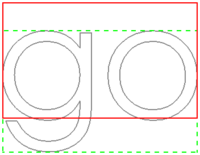
The height of the red rectangle (solid line) is equal to the cap height.
The height of the green rectangle (dashed line) is equal to the shape height.
The corners, the midpoints of the edges, and the center of the rectangles
match the 9 justification options: Top-Left to Bottom-Right.
Scripting
Programación
Esta herramienta se puede utilizar en macros y desde la consola de Python mediante las siguientes funciones:
shapestring = make_shapestring(String, FontFile, Size=100, Tracking=0)
- Convierte un texto en un compuesto usando la fuente especificada.
The placement of the ShapeString can be changed by overwriting its Placement attribute, or by individually overwriting its Placement.Base and Placement.Rotation attributes.
Ejemplo:
import FreeCAD as App
import Draft

doc = App.newDocument()

font1 = "/usr/share/fonts/truetype/msttcorefonts/Arial.ttf"
font2 = "/usr/share/fonts/truetype/dejavu/DejaVuSerif.ttf"
font3 = "/usr/share/fonts/truetype/freefont/FreeSerifItalic.ttf"

S1 = Draft.make_shapestring("This is a sample text", font1, 200)

S2 = Draft.make_shapestring("Inclined text", font2, 200, 10)

zaxis = App.Vector(0, 0, 1)
p2 = App.Vector(-1000, 500, 0)
place2 = App.Placement(p2, App.Rotation(zaxis, 45))
S2.Placement = place2

S3 = Draft.make_shapestring("Upside-down text", font3, 200, 10)
S3.Placement.Base = App.Vector(0, -1000, 0)
S3.Placement.Rotation = App.Rotation(zaxis, 180)

doc.recompute()
Esta página ha sido recuperada de https://wiki.freecad.org/Draft_ShapeString