


|
|
| poziția meniului |
|---|
| Draft → Shape from text ... |
| Ateliere |
| Draft, Arch |
| scurtătură |
| S S |
| Prezentat în versiune |
| - |
| A se vedea, de asemenea, |
| Draft Text, Part Extrude |
Descriere
Instrumentul ShapeString introduce o formă compusă care reprezintă un șir de caractere(text) într-un punct dat în documentul curent. Pot fi definite atribute ca: Înălțimea textului, tipul fontul, etc. The resulting shape can be used with the Part Extrude tool to create 3D letters.
Cele Draft Text instrumentul este o alternativă mai simplă, care nu produce o formă închisă.

Cum se folosește
For Windows users: please read the Font file selection on Windows paragraph first.
- There are several ways to invoke the command:
- Press the
 Shape From Text button.
 - Draft: Select the Drafting → Shape From Text option from the menu.
- BIM: Select the Annotation → Shape From Text option from the menu.
- Press the
- The ShapeString task panel opens.
- Click a point in the 3D View, or enter coordinates.
- Optionally click the Global checkbox to toggle global mode. If global mode is on, coordinates are relative to the global coordinate system, else they are relative to the working plane coordinate system. introduced in 1.1
- Optionally press the Reset Point button to reset the point to the origin of the current coordinate system.
- Specify the Height.
- Enter the String1.0 and below or Textintroduced in 1.1
- To select the font do one of the following:
- Enter a file path in the Font file input box.
- Press the ... button and select a file.
- Press the OK button to finish the command.
- Optionally change the DateJustification of the ShapeString. See Properties.
Opţiuni
- Pentru a introduce coordonatele manual, pur și simplu introduceți numerele, apoi apăsați ENTER între fiecare componenetă pe X, Y și Z.
- Apăsați tasta ESCpentru a abandona operațiunea.
- Puteți defini un fișier de font implicit în Draft/Prefences.
Relative file path
It is possible to specify a relative path for the font file. For this the FreeCAD document must have been saved at least once.
Some examples:
- ./SomeFont.ttf: The font file is in the same directory as the document.
- ./MyDirectory/SomeFont.ttf: The font file is in the MyDirectory sub-directory of the document directory.
- ../SomeFont.ttf: The font file is in the parent directory of the document directory.
Font file selection on Windows
On Windows access to the default font folder is restricted. This affects the font file selection for ShapeStrings. These are the cases in FreeCAD where a font file for ShapeStrings can be specified: in the ShapeString task panel, when changing the DateFont File property of a ShapeString, and, 1.0 and below, when specifying the default font file in the Draft Preferences.
Pressing the ... button and then selecting a file from the default Windows font folder is not possible when using the native file dialog. There are a number of workarounds:
- Make sure DontUseNativeFontDialog is set to
true, which is the default value for this preference. This will only call a different, non-native, file dialog when pressing the ... button in the ShapeString task panel. With this file dialog the default Windows font folder can be accessed. - Change DontUseNativeDialog to
true. This instructs FreeCAD to always use the non-native file dialog. - Specify the font file in the input box. You can of course type the full path or copy-paste the path from the Windows File Explorer. But there is also another way to enter the path. If you enter
C:\a dropdown list will appear. SelectWindowsfrom that list and add\F. SelectFontsfrom the new dropdown list. Finally add\and the first letter(s) of the font file, and then select it from the dropdown list. - Create a custom folder for your font files.
See the Preferences paragraph below for the location of the mentioned preferences.
Notes
Limitations
- Acest instrumente nu este disponibil pentru versiunile anterioarea lui FreeCAD 0.14
- Sunt suportatea următoareal tipuri de fișiere pentru fonturi: TrueType(*.ttf), OpenType(*.otf) și Type1(*.pfb).
- Înălțimile foarte mici ale textului pot cauza distorsionarea glifelor de caractere din cauza pierderii detaliilor la scalare.
- Versiunea actuală este limitată la scrierile de la stânga la dreapta pe o linie de bază orizontală.
- Pentru a crea texte de formă curbă puteți utiliza Macro FCCircularText.
Tutorials
- Draft ShapeString tutorial: extrude a ShapeString, position it in 3D space, and create an engraving in another body.
- How to use ShapeStrings in PartDesign
Preferences
See also: Preferences Editor, Draft Preferences and Std DlgParameter.
- For Windows users:
- Set Tools → Edit Parameters → BaseApp → Preferences → Dialog → DontUseNativeFontDialog to
trueto use the non-native file dialog when selecting a font file from the ShapeString task panel. - Alternatively, set Tools → Edit Parameters → BaseApp → Preferences → Dialog → DontUseNativeDialog to
trueto always use the non-native file dialog.
- Set Tools → Edit Parameters → BaseApp → Preferences → Dialog → DontUseNativeFontDialog to
Proprietăți
See also: Property View.
A Draft ShapeString object is derived from a Part Part2DObject and inherits all its properties. It also has the following additional properties:
Data
Draft
- DATEPosition: Punctul de bază a formei compuse
- DATEString: Conținutul șirului tip text
- DATESize: Înălțimea literelor exprimată în unități FC
- DATETracking: Spațierea dintre caractere exprimată în unități FC
- DATEFont File: Definirea fișierului fontului utilizat pentru a desena șirul de caractere
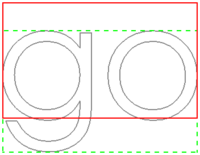
The height of the red rectangle (solid line) is equal to the cap height.
The height of the green rectangle (dashed line) is equal to the shape height.
The corners, the midpoints of the edges, and the center of the rectangles
match the 9 justification options: Top-Left to Bottom-Right.
Scripting
Scripturi
Instrumentul ShapeString poate fi utilizat în macros și de la consola Python folosind următoarele funcții:
shapestring = make_shapestring(String, FontFile, Size=100, Tracking=0)
- Transformați un șir tip text într-o Compound Shape utilizând fontul specificat.
- Creează o formă compusă
ShapeStringutilizând codulStringspecificat
+
FontFileeste obligatorie și trebuie să fie calea completă a unui fișier de fonturi acceptat
+
Sizeeste înălțimea textului rezultat în milimetri
+
Trackingeste distanța inter-caracter suplimentară în milimetri
The placement of the ShapeString can be changed by overwriting its Placement attribute, or by individually overwriting its Placement.Base and Placement.Rotation attributes.
Exempluː
import FreeCAD as App
import Draft

doc = App.newDocument()

font1 = "/usr/share/fonts/truetype/msttcorefonts/Arial.ttf"
font2 = "/usr/share/fonts/truetype/dejavu/DejaVuSerif.ttf"
font3 = "/usr/share/fonts/truetype/freefont/FreeSerifItalic.ttf"

S1 = Draft.make_shapestring("This is a sample text", font1, 200)

S2 = Draft.make_shapestring("Inclined text", font2, 200, 10)

zaxis = App.Vector(0, 0, 1)
p2 = App.Vector(-1000, 500, 0)
place2 = App.Placement(p2, App.Rotation(zaxis, 45))
S2.Placement = place2

S3 = Draft.make_shapestring("Upside-down text", font3, 200, 10)
S3.Placement.Base = App.Vector(0, -1000, 0)
S3.Placement.Rotation = App.Rotation(zaxis, 180)

doc.recompute()
Această pagină este preluată de la https://wiki.freecad.org/Draft_ShapeString