FreeCAD Logo FreeCAD 1.0
  • Inglés Africano Árabe Bielorruso Catalán Checo Alemán Griego Español Español Euskera Finlandés Filipino Francés Gallego Croata Húngaro Indonesio Italiano Japonés Cabilio Coreano Lituano Neerlandés bokmal de Noruega Polaco Portugués Portugués Rumano Ruso Eslovaco Esloveno Serbio Sueco Turco Ucraniano Valenciano Vietnamita Chino Chino
  • Características
  • Descarga
  • Blog
  • Documentación
    Índice de documentación Primeros pasos Documentacion para el usuario El manual de FreeCAD Documentación de entornos de trabajo Documentación sobre FreeCAD + Python Documentación de codificación de C++ Tutoriales Preguntas frecuentes Política de privacidad Acerca de FreeCAD
  • Contribuir
    ¿Cómo puedo ayudar? Sponsor Informar de un error Hacer un pull request Trabajos y financiación Pautas de contribución Manual de desarrolladores Traducciones
  • Comunidad
    Código de conducta Foro The FPA GitHub GitLab Codeberg Mastodon Matrix IRC IRC via Webchat Gitter Discord Reddit Twitter Facebook LinkedIn Calendario
  • ♥ Donate

Donate

$
Información de SEPA
Configure su transferencia bancaria SEPA a:
Beneficiary: The FreeCAD project association
IBAN: BE04 0019 2896 4531
BIC/SWIFT: GEBABEBBXXX
Agencia bancaria: BNP Paribas Fortis
Dirección: Rue de la Station 64, 1360 Perwez, Belgium

While Stripe doesn't support monthly donations, you can still become a sponsor! Simply make a one-time donation equivalent to 12 months of support, and you'll gain access to the corresponding sponsoring tier. It's an easy and flexible way to contribute.

If you are not sure or not able to commit to a regular donation, but still want to help the project, you can do a one-time donation, of any amount.

Choose freely the amount you wish to donate one time only.

You can support FreeCAD by sponsoring it as an individual or organization through various platforms. Sponsorship provides a steady income for developers, allowing the FPA to plan ahead and enabling greater investment in FreeCAD. To encourage sponsorship, we offer different tiers, and unless you choose to remain anonymous, your name or company logo will be featured on our website accordingly.

from 1 USD / 1 EUR per month. You will not have your name displayed here, but you will have helped the project a lot anyway. Together, normal sponsors maintain the project on its feet as much as the bigger sponsors.

from 25 USD / 25 EUR per month. Your name or company name is displayed on this page.

from 100 USD / 100 EUR per month. Your name or company name is displayed on this page, with a link to your website, and a one-line description text.

from 200 USD / 200 EUR per month. Your name or company name and logo displayed on this page, with a link to your website and a custom description text. Companies that have helped FreeCAD early on also appear under Gold sponsors.

Instead of donating each month, you might find it more comfortable to make a one-time donation that, when divided by twelve, would give you right to enter a sponsoring tier. Don't hesitate to do so!

Choose freely the amount you wish to donate each month.

Please inform your forum name or twitter handle as a notein your transfer, or reach to us, so we can give you proper credits!

Offset
Stretch
Draft

Draft Trimex

Ubicación en el Menú
Croquis -> Recortar/Extender
Entornos de trabajo
Croquis, Arquitectura
Atajo de teclado por defecto
T R
Introducido en versión
-
Ver también
Extrusión

Descripción

Esta herramienta recorta/corta y extiende líneas y polilíneas, y extruye caras.
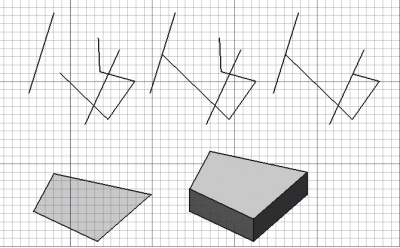
Top: a Draft Wire extended and then trimmed.
Bottom: a face extruded into a solid body.

Trim or extend

Usage

  1. Selecciona el contorno que quieres recortar o extender, o selecciona una cara que quieras extruir
  2. Presiona el botón Recortar, o presiona las teclas T y R
  3. Designa un punto en la vista 3D

Options

The single character keyboard shortcuts available in the task panel can be changed. See Draft Preferences. The shortcuts mentioned here are the default shortcuts.

  • Hold down Alt to invert the default result of the command.
  • Hold down Shift to restrict the operation to the current segment of a Draft Wire.
  • Press S to switch Draft snapping on or off.

Here is an example to explain the modifier keys. The left edge or the bottom edge of the U-shaped wire was extended. All Draft Snaps were turned off.
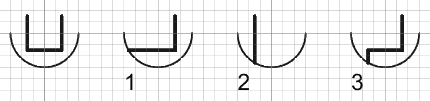
  • Recortar o extender se decide de forma automática en función de la posición del cursor
  • Si mueves el cursor sobre otro objeto, la operación de recortar/extender se ajustará a dicho objeto o segmento
  • Presionando SHIFT se realizará una restricción al segmento que está siendo actualmente recortado o extendido.
  • Presionando ALT se invertirá la dirección del recorte
  • Cuando el objeto seleccionado es una cara, o cuando se selecciona una cara de un objeto existente, la herramienta de recortar/extender cambia al modo extruir. En modo extruir, presionando SHIFT se restringe la extrusión a la normal a la cara.

Extrude

Usage

See also: Draft Snap and Draft Constrain.

  1. It can be helpful to first change the Draft working plane so that it is not coplanar with the face you want to extrude.
  2. Optionally select a single face or an object with a single face.
  3. There are several ways to invoke the command:
    • Press the Draft Trimex button.
    • Select the Modification → Trimex option from the menu.
    • Use the keyboard shortcut: T then R.
  4. If you have not yet selected an object or a face: select an object with a single face in the 3D View.
  5. The Trimex task panel opens. See Options for more information.
  6. To define the extrusion direction and distance do one of the following:
    • Pick a point in the 3D View that does no lie on the same plane as the face.
    • Make sure the pointer is on the correct side of the face in the 3D View and enter a Distance.

Options

The modifier key mentioned here can be changed. See Draft Preferences.

  • Hold Shift to extrude in a direction that is not parallel to the normal of the face.

Scripting

Programación

No disponible. Mira la herramienta Extrusión.

extrusion = extrude(obj, vector, solid=False)
  • obj is the object to be extruded.
  • vector is the extrusion direction and distance.
  • If solid is True a solid is created instead of a shell.
  • extrusion is returned with the created object.

Example:

import FreeCAD as App
import Draft

doc = App.newDocument()

rectangle = Draft.make_rectangle(1500, 500)
doc.recompute()

vector = App.Vector(0, 0, 300)
solid = Draft.extrude(rectangle, vector, solid=True)
doc.recompute()


Offset
Stretch
Draft

Esta página ha sido recuperada de https://wiki.freecad.org/Draft_Trimex

¡Contáctanos!
Forum GitHub Mastodon Matrix IRC Gitter.im Discord Reddit Twitter Facebook LinkedIn

© El equipo de FreeCAD. Créditos de imagen de la página principal (de arriba a abajo): ppemawm, r-frank, epileftric, regis, rider_mortagnais, bejant.

Este proyecto es apoyado por: , KiCad Services Corp. y otros patrocinadores

GitHubMejora esta página en GitHub