


|
|
| Ubicación en el Menú |
|---|
| Croquis -> Mover |
| Entornos de trabajo |
| Croquis |
| Atajo de teclado por defecto |
| M V |
| Introducido en versión |
| - |
| Ver también |
| Ninguno |

Descripción
La herramienta Mover mueve o copia los objetos seleccionados de un punto a otro. Si no se han seleccionado objetos, te invita a seleccionarlos.
The command can be used on 2D objects created with the Draft Workbench or Sketcher Workbench, but also on many 3D objects such as those created with the Part Workbench, PartDesign Workbench or BIM Workbench.
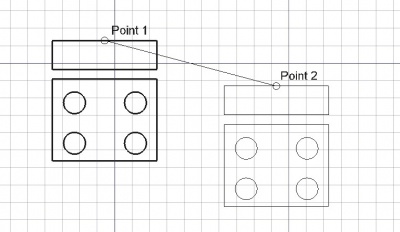
Moving an object from one point to another
Utilización
See also: Draft Snap and Draft Constrain.
- Selecciona los objetos que deseas mover o copiar
- Presiona el botón
 Mover, o presiona las teclas M y V
 - Designa un primer punto en la vista 3D, o tipo en coordenadas
- Designa otro punto en la vista 3D, o escribe unas coordenadas
Opciones
The single character keyboard shortcuts available in the task panel can be changed. See Draft Preferences. The shortcuts mentioned here are the default shortcuts.
- Presiona X, Y o Z después de un punto para restringir el siguiente punto sobre el eje indicado.
- Para introducir coordenadas manualmente, simplemente introduce los números y presiona ENTER entre cada componente X, Y y Z.
- Presiona R o selecciona la casilla para activar/desactivar el botón Relativas. Si está activado el modo relativas, las coordenadas del siguiente punto son relativas al punto anterior. En otro caso, son absolutas, tomadas desde el origen de coordenadas (0,0,0).
- Presiona T o selecciona la casilla para activar/desactivar el botón Continuar. Si el modo continuar está activado, la herramienta mover se reiniciará después de terminar, permitiendo mover o copiar los objetos otra vez sin volver a pulsar el botón de Mover.
- Presionando ALT o C o seleccionando el botón Copy se creará una copia de los objetos, en lugar de moverlos. Si mantienes la tecla ALT pulsada después de designar el segundo punto, serás capaz de ubicar más copias, hasta que liberes la tecla ALT.
- Presiona CTRL mientras dibujas para forzar el ajuste de tu punto a la ubicación de ajuste más cercana, independientemente de la distancia.
- Presiona SHIFT mientras dibujas para restringir tu siguiente punto horizontal o verticalmente en relación con el último.
- Presiona ESC o el botón Cancelar para abortar el comando actual.
Notes
- An Object that is attached cannot be moved with the Draft Move command. To move it either its DatosSupport object has to be moved, or its DatosAttachment Offset has to be changed.
Preferences
See also: Preferences Editor and Draft Preferences.
- To change the initial focus of the task panel to the Length input box: Edit → Preferences → Draft → General → Set focus on Length instead of X coordinate. Note that you must move the pointer in the 3D View for the change to take effect.
- To reselect the base objects after copying objects: Edit → Preferences → Draft → General → Select base objects after copying.
Scripting
Programación
La herramienta Mover se puede utilizar en macros y desde la consola de Pyython utilizando la siguiente función:
moved_list = move(objectslist, vector, copy=False)
- Mueve el objeto dado o los objetos contenido en la lista indicada
en la dirección y distancia indicada por el vector dado.
- Si copymode es True, los objetos actuales no se moverán, sino que
en su lugar se crearán copias.
- Devuelve los objetos (o sus copias si copymode era True)
Ejemplo:
import FreeCAD as App
import Draft

doc = App.newDocument()

polygon1 = Draft.make_polygon(5, radius=1000)
polygon2 = Draft.make_polygon(3, radius=500)
polygon3 = Draft.make_polygon(6, radius=220)

Draft.move(polygon1, App.Vector(500, 500, 0))
Draft.move(polygon1, App.Vector(500, 500, 0))
Draft.move(polygon2, App.Vector(1000, -1000, 0))
Draft.move(polygon3, App.Vector(-500, -500, 0))

list1 = [polygon1, polygon2, polygon3]

vector = App.Vector(-2000, -2000, 0)
list2 = Draft.move(list1, vector, copy=True)
list3 = Draft.move(list1, -2*vector, copy=True)

doc.recompute()
Esta página ha sido recuperada de https://wiki.freecad.org/Draft_Move