


|
|
| poziția meniului |
|---|
| Draft → Move |
| Ateliere |
| Draft, Arch |
| scurtătură |
| M V |
| Prezentat în versiune |
| 0.7 |
| A se vedea, de asemenea, |
| Draft SubelementHighlight |

Descriere
Instrumentul Mutare deplasează sau copiază obiectele selectate dintr-un punct în altul pe work plane. Dacă nu este selectat niciun obiect, veți fi invitat să selectați unul.
The command can be used on 2D objects created with the Draft Workbench or Sketcher Workbench, but also on many 3D objects such as those created with the Part Workbench, PartDesign Workbench or BIM Workbench.
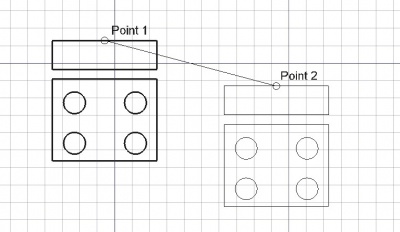
Moving an object from one point to another
Cum se folosește
See also: Draft Snap and Draft Constrain.
- Select objects you wish to move or copy
- Press the
 Draft Move button, or press M then V keys
 - Click a first point on the 3D view, or type a coordinate
- Click another point on the 3D view, or type a coordinate
Opţiuni
The single character keyboard shortcuts available in the task panel can be changed. See Draft Preferences. The shortcuts mentioned here are the default shortcuts.
- Apăsați X, Y sau Z după un punct pentru a restrânge următorul punct de pe axa dată.
- Pentru a introduce manual coordonatele, pur și simplu introduceți numerele, apoi apăsați ENTER între fiecare componentă X, Y și Z.
- Apăsați tasta R sau faceți clic pe caseta de selectare pentru a bifa / debifa butonul 'Relativ' . Dacă modul relativ este activ, coordonatele punctului următor sunt relativ la ultima. Dacă nu, ele sunt absolute, luate din punctul de origine (0,0,0).
- Apăsați tasta T sau faceți clic pe caseta de selectare pentru a bifa / debifa butonul 'Continue' '. Dacă modul continuat este activat, instrumentul Mutare se va reporni după ce îl terminați sau îl închideți, permițându-vă să mutați sau să copiați obiectele altfel fără să apăsați din nou butonul Mutare.
- Apăsând butonul ALT sau C sau făcând clic pe butonul Copiere va face o copie a obiectelor, în loc să le mutați. Dacă țineți apăsat ALT după ce faceți clic pe cel de-al doilea punct, veți putea plasa mai multe copii până când eliberați tasta ALT.
- Apăsați CTRL în timp ce desenați pentru a forța ancorarea snapping punctul dvs. către cea mai apropiată locație, independent de distanță.
- Apăsați pe SHIFT în timp ce desenați constrain următorul punct pe orizontală sau pe verticală în raport cu ultimul.
- Apăsați butonul ESC sau butonul Anulare pentru a întrerupe comanda curentă.
Notes
- An Object that is attached cannot be moved with the Draft Move command. To move it either its DateSupport object has to be moved, or its DateAttachment Offset has to be changed.
Preferences
See also: Preferences Editor and Draft Preferences.
- To change the initial focus of the task panel to the Length input box: Edit → Preferences → Draft → General → Set focus on Length instead of X coordinate. Note that you must move the pointer in the 3D View for the change to take effect.
- To reselect the base objects after copying objects: Edit → Preferences → Draft → General → Select base objects after copying.
Scripting
Script
Instrumentul de mutare poate fi folosit în macros și din consola python utilizând următoarea funcție:
moved_list = move(objectslist, vector, copy=False)
- Mută obiectul dat sau obiectele conținute în lista dată în direcția și distanța indicată de vectorul dat.
- Dacă copymode este True, obiectele reale nu sunt mutate, în schimb sunt create copii. Returnează obiectele (sau copiile lor dacă modelul de copiere a fost Tru)
- Se întoarce o listă a obiectului mutat (sau a copiilor)
Exempluː
import FreeCAD as App
import Draft

doc = App.newDocument()

polygon1 = Draft.make_polygon(5, radius=1000)
polygon2 = Draft.make_polygon(3, radius=500)
polygon3 = Draft.make_polygon(6, radius=220)

Draft.move(polygon1, App.Vector(500, 500, 0))
Draft.move(polygon1, App.Vector(500, 500, 0))
Draft.move(polygon2, App.Vector(1000, -1000, 0))
Draft.move(polygon3, App.Vector(-500, -500, 0))

list1 = [polygon1, polygon2, polygon3]

vector = App.Vector(-2000, -2000, 0)
list2 = Draft.move(list1, vector, copy=True)
list3 = Draft.move(list1, -2*vector, copy=True)

doc.recompute()
Această pagină este preluată de la https://wiki.freecad.org/Draft_Move