


Descriere
Acest instrument rotește sau copiază obiectele selectate cu un unghi dat în jurul unui punct de pe work plane curent. Dacă nu este selectat niciun obiect, veți fi invitat să selectați unul ..
The command can be used on 2D objects created with the Draft Workbench or Sketcher Workbench, but also on many 3D objects such as those created with the Part Workbench, PartDesign Workbench or BIM Workbench.
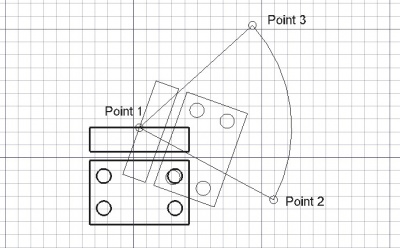
Rotating an object around a center point
Cum se folosește
See also: Draft Snap and Draft Constrain.
- Select objects you wish to rotate or copy
- Press the
 Draft Rotate button, or press R then O keys
 - Click a center point on the 3D view, or type a coordinate
- Click a second point on the 3D view, or give a reference angle
- Click a third point on the 3D view, or give a rotation angle
Opţiuni
The single character keyboard shortcuts available in the task panel can be changed. See Draft Preferences. The shortcuts mentioned here are the default shortcuts.
- Press X, Y or Z after a point to constrain the next point on the given axis.
- To enter coordinates manually, simply enter the numbers, then press ENTER between each X, Y and Z component.
- Press T or click the checkbox to check/uncheck the Continue button. If continue mode is on, the Rotate tool will restart after you finish or close it, allowing you to rotate or copy the objects another time without pressing the Rotate button again.
- Pressing ALT or C or clicking the Copy button will make a copy of the objects, instead of rotating them. If you keep ALT pressed after clicking the third point, you will be able to place more copies, until you release the ALT key.
- Press CTRL while drawing to force snapping your point to the nearest snap location, independently of the distance.
- Press SHIFT while drawing to constrain your next point horizontally or vertically in relation to the rotation center.
- Press ESC or the Cancel button to abort the current command.
Notes
- An Object that is attached cannot be rotated with the Draft Rotate command. To rotate it either its DateSupport object has to be rotated, or its DateAttachment Offset has to be changed.
- The base angle concept can be somewhat confusing. Especially since it works only when selecting points, not when specifying the angle using the input field. An explanation of how it works, with an example, can be found in this forum thread.
Preferences
See also: Preferences Editor and Draft Preferences.
- To reselect the base objects after copying objects: Edit → Preferences → Draft → General → Select base objects after copying.
Scripting
Script
The Rotate tool can by used in macros and from the python console by using the following function:
rotated_list = rotate(objectslist, angle, center=Vector(0,0,0), axis=Vector(0,0,1), copy=False)
- Rotates the given object or the objects contained in the given list with the given angle around the given center if provided, using axis as a rotation axis.
- If axis is omitted, the rotation will be around the vertical Z axis.
- If copymode is True, the actual objects are not moved, but copies are created instead.
- Returns the objects (or their copies is copymode was True).
Exempluː
import FreeCAD as App
import Draft

doc = App.newDocument()

polygon1 = Draft.make_polygon(3, radius=300)
Draft.move(polygon1, App.Vector(1000, 0, 0))

# Rotation around the origin
angle1 = 45
rot2 = Draft.rotate(polygon1, angle1, copy=True)
rot3 = Draft.rotate(polygon1, 2*angle1, copy=True)
rot4 = Draft.rotate(polygon1, 4*angle1, copy=True)

polygon2 = Draft.make_polygon(3, radius=1000)
polygon3 = Draft.make_polygon(5, radius=500)
Draft.move(polygon2, App.Vector(2000, 0, 0))
Draft.move(polygon3, App.Vector(2000, 0, 0))

# Rotation around another point
angle2 = 60
cen = App.Vector(3100, 0, 0)
list2 = [polygon2, polygon3]
rot_list2 = Draft.rotate(list2, angle2, center=cen, copy=True)
rot_list3 = Draft.rotate(list2, 2*angle2, center=cen, copy=True)
rot_list4 = Draft.rotate(list2, 4*angle2, center=cen, copy=True)

doc.recompute()
Această pagină este preluată de la https://wiki.freecad.org/Draft_Rotate