


Description
Ancorarea(Snapping) înseamnă "lipirea" următorului punct 3D pe un punct existent. Snapping este disponibil cu majoritatea instrumentelor Draft Workbench and Arch Workbench și poate fi activat și dezactivat la nivel global cu  Draft ToggleSnap . Fiecare locație de tip snap de mai jos poate fi activată sau dezactivată individual făcând clic pe butonul corespunzător din bara de instrumente snap. View → Toolbars → Draft Snap

Snap tools
These tools are available in the Draft Snap toolbar and in the Draft Snap Widget.
Note that circular edges do not have to be full circles.
- Snap Lock: enables or disables snapping globally.
 Snap Endpoint: snaps to the endpoints of edges.
 Snap Midpoint: snaps to the midpoint of edges.
 Snap Center: snaps to the center point of faces and circular edges, and to the DatePlacement point of Draft WorkingPlaneProxies and Arch BuildingParts.
 Snap Angle: snaps to the special cardinal points on circular edges, at multiples of 30° and 45°.
 Snap Intersection: snaps to the intersection of two edges, and (introduced in 1.1) the intersection of a face and an edge.
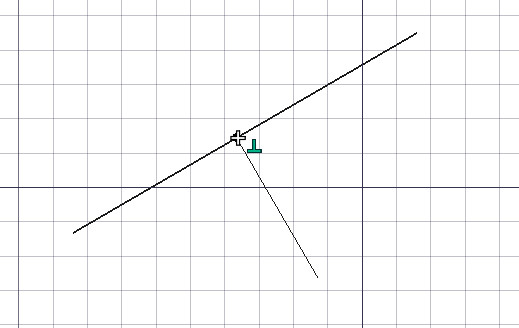
 Snap Perpendicular: snaps to the perpendicular points on faces (introduced in 0.21) and edges.
 Snap Extension: snaps to an imaginary line that extends beyond the endpoints of straight edges.
 Snap Parallel: snaps to an imaginary line parallel to straight edges.
 Snap Special: snaps to special points defined by the object.
 Snap Near: snaps to the nearest point on faces and edges.
 Snap Ortho: snaps to imaginary lines that cross the previous point at multiples of 45°.
 Snap Grid: snaps to the intersections of grid lines.
 Snap Working Plane: projects snap points onto the current working plane.
 Snap Dimensions: shows temporary X and Y dimensions.
 Toggle Grid: changes the visibility of the grid.
Advanced snapping
- Additional snap points can be obtained by combining two snap options. For example combining Draft Snap Ortho and Draft Snap Extension will give you a snap point at the intersection of their imaginary lines.
- Snapping can be combined with constraining.
- Press D anytime during snapping to recenter the working plane onto the currently highlighted snap point. The working plane will jump back to its original position after the command has finished. introduced in 1.1
- Press Q to insert a "hold point" at the current location of the cursor. You can snap to the orthogonal axes of hold points, and to the intersections of these axes. If the Draft Snap Midpoint option is active, you can also snap to the midpoint between two hold points.
- Press ` one or more times to snap to an object that is obscured by other geometry. This is called "snap cycling". Note that you must move the cursor by a small amount in the 3D View after pressing the key.

Snap cycling 1: The red rectangle was created first therefore it has snap priority. Without snap cycling you cannot snap to the green rectangle where it is overlapped by the red rectangle.

Snap cycling 2: After using the snap cycle key once the green rectangle receives snap priority. Snapping to the midpoint of the overlapped green edge is now possible.
Notes
- Multiple snap options can be active at the same time, but it is advisable to only activate the snap options you really need. Activating too many can slow things down.
- 1.0 and below: It is not a good idea to have Draft Snap Near permanently active as it takes precedence over many other snap options.
- introduced in 1.1: Is is possible to have Draft Snap Near permanently active, but it does mean you have to move the mouse more, and point the mouse more accurately, for other on-object snaps.
Preferences
See also: Preferences Editor and Draft Preferences.
Opțiuni
- Lock: activează global ancorarea on/off
- Anumite locații de fixare suplimentare pot fi obținute prin combinarea a două locații snap, cum ar fi extensia orto +, care vă va oferi un punct de fixare la intersecția liniilor lor imaginare.
- Alte locații, mai complexe, pot fi obținute prin utilizarea constraining (by pressing SHIFT or X or Y or Z while drawing).
- apăsarea tastei L în timpul desenării, blochează unghiul curent al segmentului de linie care este desenat.
- Distanta maxima la care un punct este capturat
și un amplasament de captură este specificat în preferences, și poate de altfel să fie schimbat din zbor apăsând tastele [ or ].
- Apăsând Q în timpul desenării, introduce un punct de întrerupere la poziția curentă a cursorului. Veți putea apoi să vă aliniați ortogonal acestor puncte de atașare și intersecții ale axelor lor ortogonale. Dacă este activată ancorarea la punctul median, puteți ancora, de asemenea, la jumătatea distanței dintre două puncte de întrerupere. introduced in 0.17
Această pagină este preluată de la https://wiki.freecad.org/Draft_Snap