


Descriere
Acest instrument vă permite să editați în mod grafic anumite proprietăți ale obiectului selectat, cum ar fi vârfurile unui filament, lungimea și lățimea unui dreptunghi sau raza unui cerc. El nu face decât să intre în modul de editare al obiectului, astfel încât alte moduri de a intra în modul de editare (cum ar fi dublul clic pe obiect în vizualizarea Arbore) dau același rezultat.
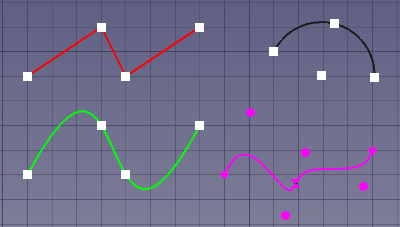
4 objects in Draft Edit mode: a Draft Wire (red), a Draft Arc (black), a Draft BSpline (green) and a Draft BezCurve (magenta)
Usage
See also: Draft Snap and Draft Constrain.
- Optionally select one or more objects. Note that although multiple objects can be in Draft Edit mode, objects can only be edited one at a time.
- There are several ways to invoke the command:
- If you have not yet selected an object: double-click an object in the Tree View. This only works for supported Draft objects.
- Press the
 Edit button.
 - Select the Modification → Edit option from the menu.
- Use the keyboard shortcut: D then E.
- For a single object: select the Edit option from the Tree View context menu. This only works for supported Draft objects. introduced in 0.21
- If you have not yet selected an object: select an object in the 3D View.
- The selected objects are marked with temporary nodes, and the Main task panel opens. See Options for more information.
- Optionally use a node or edge context menu. These context menus are only available for some Draft objects. See Supported objects for more information.
- Do one of the following:
- On all operating systems: hold down E and click the node or edge. To use E you may have to click in the 3D View once to ensure that it has the focus.
- On Windows: hold down Alt and click the node or edge.
- On Linux: hold down Shift+Alt, Ctrl+Alt or Alt, and click the node or edge.
- On macOS: hold down Option and click the node or edge.
- Select an option from the context menu.
- If the selected option requires point input:
- The Edit node task panel opens. See Options for more information.
- Pick a point in the 3D View, or type coordinates and press the
 Enter Point button.
- Do one of the following:
- Optionally move a node:
- Click the node in the 3D View.
- The Edit node task panel opens. See Options for more information.
- Pick a point in the 3D View, or type coordinates and press the Enter Point button.
- The result depends on the object and the selected node.
- Press Esc or the Close button (the button at the top of the task panel, without the image) to finish the command.
Opţiuni
The single character keyboard shortcuts available in the task panel can be changed. See Draft Preferences. The shortcuts mentioned here are the default shortcuts.
Main task panel
- Press Esc or the Close button to finish the command.
Edit node task panel
- Instrumentul Editare funcționează numai pe un obiect selectat la un moment dat.
- Instrumentul Editare funcționează numai pe filamente Draft, dreptunghiuri, cercuri și arce de cerc. Alte tipuri de obiecte trebuie mai întâi să fie convertite în obiecte Draft.
- Faceți clic pe un vertex de editare pentru a o muta, faceți clic din nou pentru a o elibera.
- Apăsați X, Y sau Z după un punct pentru a restrânge următorul punct de pe axa dată.
- Pentru a introduce manual coordonatele, pur și simplu introduceți numerele, apoi apăsați ENTER între fiecare componentă X, Y și Z.
- Apăsați CTRL în timp ce desenați pentru a forța snapping punctul dvs. către cea mai apropiată locație, independent de distanța.
- Apăsați pe SHIFT în timp ce desenați constrain următorul punct pe orizontală sau pe verticală în raport cu ultima.
- Apăsați tasta ESC sau butonul Anulare sau
 Draft Edit pentru a termina editarea.
 - Apasarea tastei
 Add point vă permite să adăugați puncte în Filamente și curbe BSplines făcând clic pe segmente
 - Apasarea tastei
 Del point va permite sa îndepărtați punctele de pe Wire si BSplines facand click pe punctele pe care le eliminati
Supported objects
 Draft Line and
  Draft Wire
- If the start or end node of an open wire is moved so that they coincide, the wire is closed.
- Node context menu:
Delete Point. At least two points must remain. - Edge context menu:
Add Point,Open Wire/Close Wire(introduced in 0.21) andReverse Wire.
 Draft Arc and
  Draft Arc 3Points
- Center node context menu:
Move Arc. - Start node context menu:
Set First Angle. - End node context menu:
Set Last Angle. - Mid node context menu:
Set Radius. - Edge context menu:
Invert Arc.
 Draft Circle
- No context menus for this object.
 Draft Ellipse
- No context menus for this object.
 Draft Rectangle
- No context menus for this object.
 Draft Polygon
- No context menus for this object.
 Draft BSpline
- If the start or end node of an open spline is moved so that they coincide, the spline is closed.
- Node context menu:
Delete Point. At least two points must remain for an open spline. For a closed spline the minimum number of points is three. - Edge context menu:
Add Point,Open Wire/Close Wire(introduced in 0.21) andReverse Spline(introduced in 0.21).
 Draft CubicBezCurve and
  Draft BezCurve
- If the start or end node of an open curve is moved so that they coincide, the curve is closed.
- Node context menu:
Delete Point,Make Sharp,Make TangentandMake Symmetric. - Edge context menu:
Add Point,Open Wire/Close Wire(introduced in 0.21) andReverse Curve(introduced in 0.21).
 Draft Dimension
- Angular dimensions cannot be edited.
- The start and end nodes of parametric dimensions cannot be moved.
- No context menus for this object.
 Draft Label
- The target point can be moved.
- The horizontal or vertical segment can be changed by moving either of its endpoints. If the new point lies on the (extended) line segment (you can use constraints to accomplish this) the length of the segment is changed. If that is not the case the line segment is moved instead.
- No context menus for this object.
 Arch Wall
- A single node to control the height of the wall is displayed above the DatePlacement of the wall.
- No context menus for this object.
 Arch Structure
- No context menus for this object.
 Arch Window
- No context menus for this object.
 Arch Space
- No context menus for this object.
 Arch Panel Cut
- No context menus for this object.
 Arch Panel Sheet
- No context menus for this object.
 Part Box
- No context menus for this object.
 Part Cylinder
- No context menus for this object.
 Part Sphere
- No context menus for this object.
 Part Cone
- No context menus for this object.
 Part Line
- No context menus for this object.
 Sketcher Sketch
- Only sketches that contain a single unconstrained line can be edited.
- No context menus for this object.
Preferences
See also: Preferences Editor and Draft Preferences.
- The color of the temporary nodes is the same as the color of the snap symbols. This color can be changed in the preferences: Edit → Preferences → Draft → Grid and Snapping → Snap symbol color. Note that this color is not used for the temporary nodes displayed for Draft BezCurves. These nodes use the VizualizareLine Color of the curve instead.
- The size of the nodes depends on: Edit → Preferences → Display → 3D View → Marker size. introduced in 1.0
Scripting
Scrip-Programare
Nu e disponibil. Fiecare obiect de mai sus poate fi modificat prin schimbarea proprietăților sale direct.
Această pagină este preluată de la https://wiki.freecad.org/Draft_Edit