


|
|
| Menu location |
|---|
| Arch → Structure |
| Workbenches |
| Arch |
| Default shortcut |
| S T |
| Introduced in version |
| - |
| See also |
| Arch Wall/ro, Arch Rebar/ro |
Descriere
Acest instrument vă permite să construiți elemente structurale, cum ar fi coloanele sau grinzile, specificând lățimea, lungimea și înălțimea acestora sau bazându-le pe un profil 2D(face, wire or sketch)..
În plus, un anumit număr de presetări disponibile în timpul creării obiectului vă permite să construiți rapid un element structural dintr-un profil standard predefinit.

Column based on a 2D base profile; a column and a beam defined by their height, length and width, without a base profile; a metallic structure based on a 2D face
Imaginea de mai sus prezintă o coloană bazată pe un profil de bază 2D, o coloană și o grindă bazate pe nici un profil (definit prin dimensiunile înălțimii, lungimii și lățimii) și un profil metalic bazat pe un contur 2D (fațetă, fire sau schiță). În plus, un anumit număr de presetări disponibile în timpul creării obiectului vă permite să construiți rapid un element structural dintr-un profil standard predefinit.
Cum se folosește
- Select a 2D shape (draft object, face or sketch) (optional)
- Press the
 Arch Structure button, or press S then T keys
 - Adjust the desired properties
Opţiuni
- Când nu este selectat niciun obiect de bază 2D, instrumentul de structură are 2 moduri de desen: Coloană și grindă:
- În modul coloană, vi se cere să alegeți un punct pe ecran sau prin introducerea coordonatelor. Noul obiect structural va fi plasat la acel punct.
- În modul beam, vi se cere să alegeți două puncte pe ecran sau prin introducerea coordonatelor. Noul obiect structural va fi cuprins între aceste două puncte.
- Elementele structurale partajează proprietățile și comportamentele comune ale tuturor componentelor Arch Components
- Înălțimea, lățimea și lungimea unei structuri pot fi ajustate după crearea
- Apăsați tasta Esc sau butonul Cancel pentru a întrerupe comanda curentă.
- Dați dublu clic pe structură din vizualizarea arborescentă după ce este creată vă permite să intrați în modul de editare și să accesați și să modificați completările și subtractele
- În modul de editare, este posibil să adăugați elemente axes systems la elementul structural. La adăugarea unui sistem de axe, elementul structural va fi copiat o dată pe fiecare axă a sistemului. Atunci când se adaugă două sisteme de axe, elementul structural va fi copiat o singură dată pe fiecare intersecție a celor două sisteme.
Proprietăți
An Arch Structure object shares the common properties and behaviors of all Arch Components.
Data
Component
See Arch Component.
Extrusion Path
- DateTool: an optional extrusion path, which can be any type of wire. If this property is empty, the extrusion will be straight, and happen in the direction given by the Normal property
- DateNormal: specifies the direction in which the base face of this structure will be extruded. If this property is kept to (0,0,0), the direction will be automatically set to the normal direction of the base face.
- DateFace Maker: specifies the type of face generation algorithm to use to build the profile. Choices are None, Simple, Cheese and Bullseye.
- DateLength: specifies the length of the structure. This is only used if the structure is not based on a profile.
- DateWidth: specifies the width of the structure. This is only used if the structure is not based on a profile.
- DateHeight: specifies the height of the structure, or the extrusion length when based on a profile. If no height is given, and the structure is inside an Arch Floor object with its height defined, the structure will automatically take the value of the floor height.
- DateNodes Offset: specifies an optional offset between the centerline and the nodes line.
- DateLength: Lungimea structurii (only used if not based on a profile)
- DateWidth: Lungimea structuriie (only used if not based on a profile)
- DateHeight: Înălțimea structurii (or the extrusion length when based on a profile). If no height is given, and the structure is inside a floor object with its height defined, the structure will automatically take the value of the floor height.
- DateNodes Offset: Un decalaj opțional între linia de cetru și linia nodurilor
- VizualizareNodes Type: Tipul nodurilor structurale ale acestui obiect, linear sau matrice.
- VizualizareShow Nodes: Afișează sau ascunde nodurile structurale.
IFC
See Arch Component.
IFC Attributes
See Arch Component.
Structure
- DateFace Maker (
Enum): specifies the type of face generation algorithm to use to build the profile. The options are:NoneSimple: makes faces from all closed wires, ignoring overlaps.Cheese: makes faces with holes, but no faces within holes.Bullseye: makes faces with holes, including islands within holes.
- DateHeight (
Length): specifies the height of the structure, or the extrusion length when based on a profile. If no height is given, and the structure is inside an Arch Floor object with its height defined, the structure will automatically take the value of the floor height. - DateLength (
Length): specifies the length of the structure. This is only used if the structure is not based on a profile. - DateNodes (
VectorList): TBD. - DateNodes Offset (
Distance): specifies an optional offset between the centerline and the nodes line. - DateNormal (
Vector): specifies the direction in which the base face of this structure will be extruded. If this property is kept to (0,0,0), the direction will be automatically set to the normal direction of the base face. - DateProfile (
String): TBD. - DateWidth (
Length): specifies the width of the structure. This is only used if the structure is not based on a profile.
Vizualizare 3D
- VizualizareNodes Type: The type of structural nodes of this object, linear or area.
- VizualizareShow Nodes: Shows or hides the structural nodes.
Setări prealabile
Instrumentul Structură include, de asemenea, o serie de presetări care permit construirea rapidă a profilelor metalice standard sau a elementelor prefabricate din beton.
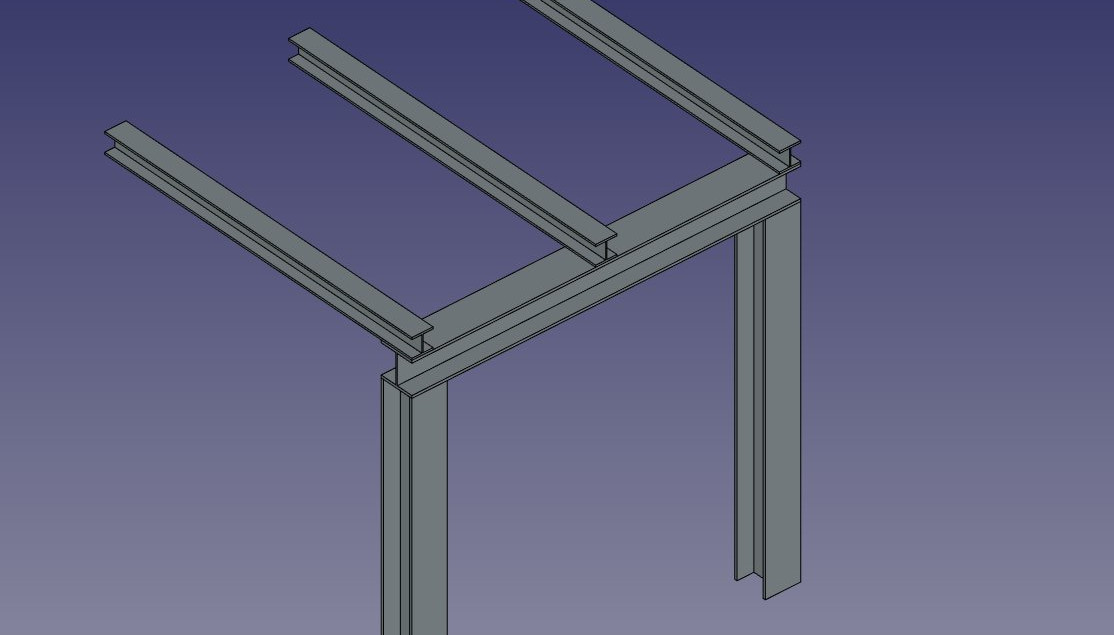
Some presets for steel structures
Presetările sunt obținute prin alegerea unei Category din panoul cu opțiuni de structură. Categoriile disponibile sunt "beton prefabricat" sau orice profil metalic standard industrial, cum ar fi "HEA", "HEB" sau "INP". Pentru fiecare dintre aceste categorii, sunt disponibile mai multe presetări. Odată ce este aleasă o presetare, pot fi ajustați parametrii individuali, cum ar fi Lungime, Lățime sau Înălțime . Cu toate acestea, pentru profilele metalice, dimensiunea profilului este setată de presetare și nu poate fi modificată.
Butonul Comutator L / H poate fi utilizat pentru a comuta valori Lungime și Înălțime și, prin urmare, a construi un grindă orizontală mai degrabă decât o coloană verticală.
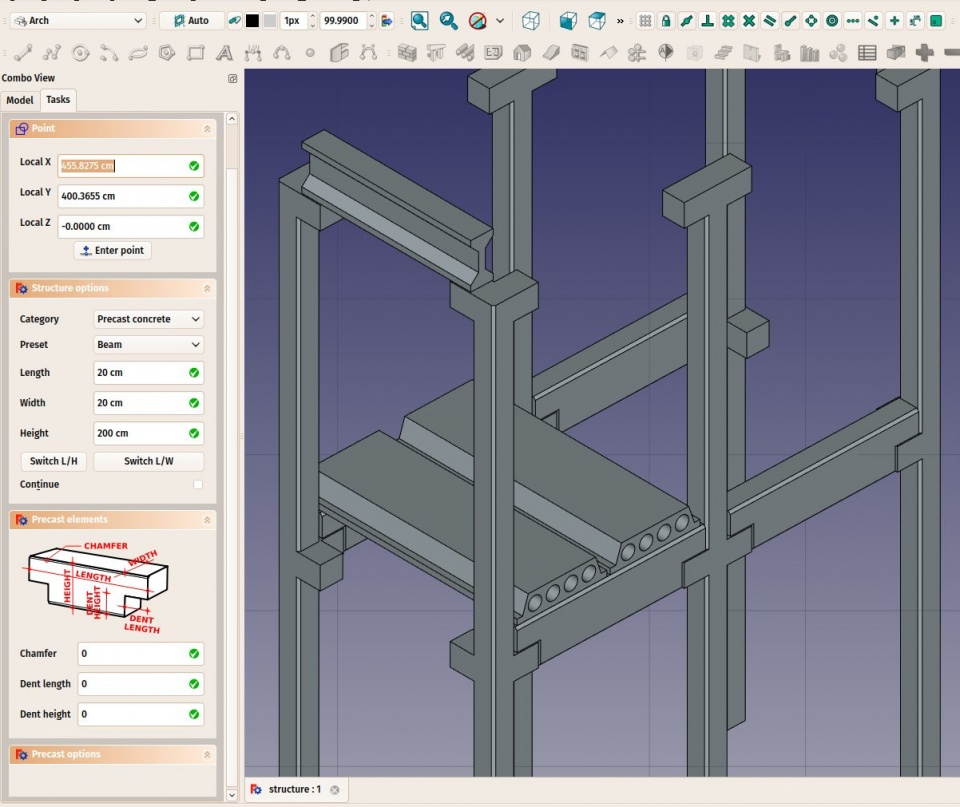
Some presets for precast concrete structures
Noduri Structurale
Obiectele structurale au, de asemenea, capacitatea de a afișa noduri structurale. Nodurile structurale sunt o secvență de puncte 3D stocate într-o proprietate "Noduri". Prin comutarea funcției "Show Nodes" pe proprietatea de pornire / oprire, se pot vedea nodurile structurale ale unui element structural:
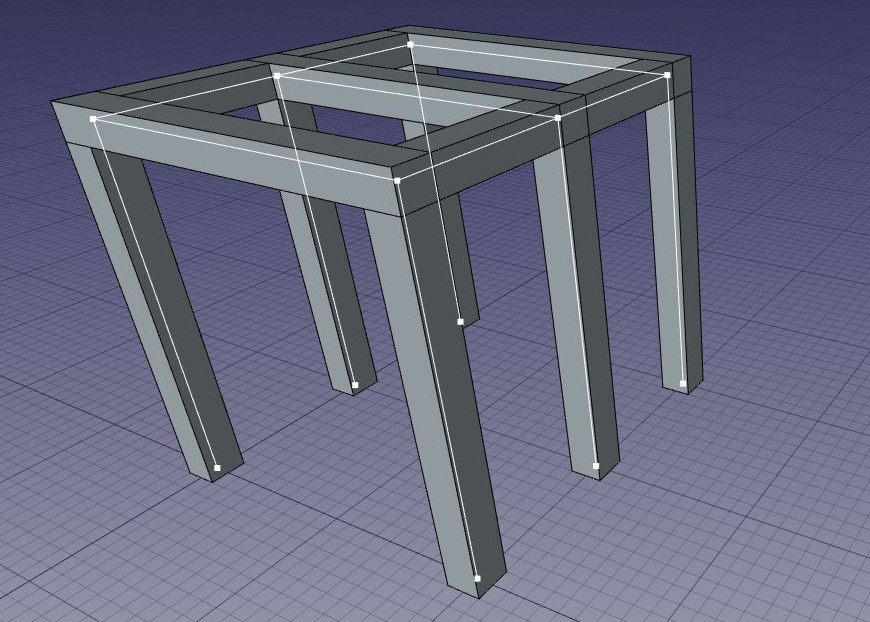
Structural nodes made visible for a set of structures
- Nodurile sunt calculate și actualizate automat, atâta timp cât nu le modificați manual. Dacă ați făcut-o, acestea nu vor fi actualizate dacă se modifică forma obiectului structural, cu excepția cazului în care utilizați instrumentul "Reset nodes" de mai jos.
- Structurile arcului pot avea nu numai noduri lineare, ci și noduri plane. Pentru aceasta, 1- trebuie să existe cel puțin 3 vectori în proprietatea "Noduri" a obiectului, 2 - proprietatea "NodesType" a ViewObject lor trebuie să fie setată la "Area".
- Când calculul nodurilor este automat (adică, dacă nu le-ați atins manual), când setați proprietatea Role a unei structuri la "placă", va deveni automat un nod planar (vor exista mai mult de 3 vectori și NodesType va fi setat la "Zonă").
- Când editați un obiect de structură (faceți dublu clic), în vizualizarea de activități sunt disponibile câteva instrumente de nod:
- Resetați nodurile la calcul automat, în cazul în care le-ați modificat manual
- Modificați grafic nodurile, funcționează la fel ca Draft Edit
- Extindeți nodurile obiectului editat până când atinge nodul unui alt obiect
- Faceți nodul acestui obiect și altul coincid
- Comutați între afișarea tuturor nodurilor tuturor obiectelor structurale ale documentului pornită / oprită
Scripting
Scrip-Programare
See also: Arch API and FreeCAD Scripting Basics.
Instrumentul Structură poate fi utilizat în macros și din consola Python utilizând următoarea funcție:
structure = makeStructure(baseobj=None, height=None)
structure = makeStructure(baseobj=None, length=None, width=None, height=None, name="Structure")
- creează un element de structură bazat pe obiectul profil dat și pe înălțimea de extrudare dată. Dacă nu se dă niciun obiect de bază, puteți specifica lungimea și lățimea unui obiect cubic.
- Creates a
Structureobject from the givenbaseobj, which is a closed profile, and the given extrusionheight.- If no
baseobjis given, you can provide the numerical values for thelength,width, andheightto create a block structure. - The
baseobjcan also be any existing solid object.
- If no
Exempluː
import FreeCAD
import Draft
import Arch

rect = Draft.make_rectangle(200, 300)
structure1 = Arch.makeStructure(rect, height=2000)
FreeCAD.ActiveDocument.recompute()

structure2 = Arch.makeStructure(None, length=500, width=1000, height=3000)
Draft.move(structure2, FreeCAD.Vector(2000, 0, 0))
FreeCAD.ActiveDocument.recompute()
Această pagină este preluată de la https://wiki.freecad.org/Arch_Structure