


Popis
Tento nástroj Vám umožní stavět strukturované prvky jako jsou sloupy nebo příčníky specifikováním jejich šířky, délky a výšky nebo jejich založením na 2D profilu.
If no profile is given, a set of presets are available to quickly build a structural element from a predefined standard profile.

Obrázek nahoře zobrazuje sloup založený na 2D profilu, sloup a příčník založený na ne-profilu (definovaný rozměry výšky, délky a šířky) a kovový profil založený na 2D obrysu (plocha, lomená čára nebo náčrt)
Použití
- Vyberte 2D tvar (nakreslený objekt, povrch nebo náčrt) (volitelné)
- Stiskněte tlačítko
 Arch Struktura nebo stiskněte klávesy S a T
 - Nastavte požadované vlastnosti
Volby
- Není-li vybrán žádný objekt, je vytvořen 3-rozměrný blok
- Výška, šířka a délka struktury může být nastavena po vytvoření
- Stiskněte klávesu ESC nebo Cancel pro ukončení aktuálního příkazu.
- Dvojkliknutí na strukturu v pohledu stromu po jejím vytvoření Vám umožní přejít do editovacího režimu a upravovat vlastnosti
- V editovacím módu je také možné přidat osový systém do strukturálního prvku. Pokud je přidán osový systém, strukturální prvek bude kopírován jednou na každou osu systému. Budou-li přídány 2 osové systémy, strukturální prvek bude kopírován na každý průsečík těchto dvou osových systémů.
Vlastnosti
An Arch Structure object shares the common properties and behaviors of all Arch Components.
Data
Component
See Arch Component.
Extrusion Path
- ÚdajeDélka: Délka struktury (použito pouze v případě, že struktura není založena na profilu)
- ÚdajeŠířka: Šířka struktury (použito pouze v případě, že struktura není založena na profilu)
- ÚdajeVýška: Výška struktury (nebo vysunutí pokud je struktura založena na profilu)
IFC
See Arch Component.
IFC Attributes
See Arch Component.
Structure
- ÚdajeFace Maker (
Enum): specifies the type of face generation algorithm to use to build the profile. The options are:NoneSimple: makes faces from all closed wires, ignoring overlaps.Cheese: makes faces with holes, but no faces within holes.Bullseye: makes faces with holes, including islands within holes.
- ÚdajeHeight (
Length): specifies the height of the structure, or the extrusion length when based on a profile. If no height is given, and the structure is inside an Arch Floor object with its height defined, the structure will automatically take the value of the floor height. - ÚdajeLength (
Length): specifies the length of the structure. This is only used if the structure is not based on a profile. - ÚdajeNodes (
VectorList): TBD. - ÚdajeNodes Offset (
Distance): specifies an optional offset between the centerline and the nodes line. - ÚdajeNormal (
Vector): specifies the direction in which the base face of this structure will be extruded. If this property is kept to (0,0,0), the direction will be automatically set to the normal direction of the base face. - ÚdajeProfile (
String): TBD. - ÚdajeWidth (
Length): specifies the width of the structure. This is only used if the structure is not based on a profile.
View
- PohledNodes Type: The type of structural nodes of this object, linear or area.
- PohledShow Nodes: Shows or hides the structural nodes.
Presets
The Structure tool also features a series of presets that allow to quickly build standard metallic profiles or precast concrete elements.
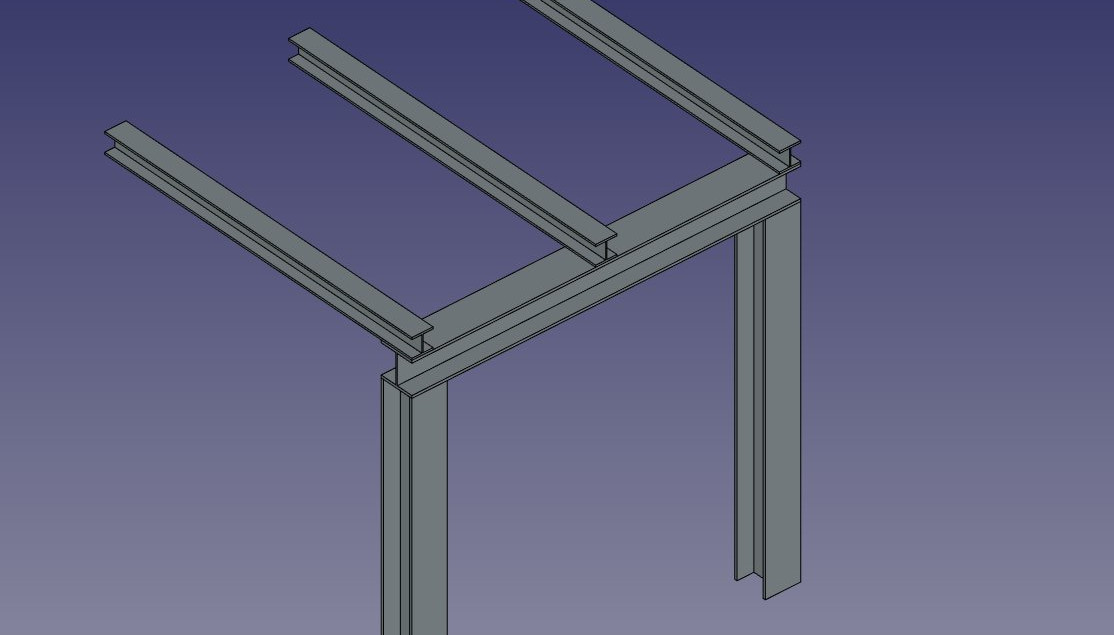
Some presets for steel structures
The presets are obtained by choosing a Category from the structure options panel. Available categories are Precast concrete or any of the industry-standard metallic profiles such as HEA, HEB or INP. For each of these categories, a number of presets are available. Once a preset is chosen, its individual parameters such as Length, Width or Height can be adjusted. However, for metallic profiles, the profile size is set by the preset and cannot be changed.
- The Switch Length/Height button can be used to switch Length and Height values, and therefore building a horizontal beam rather than a vertical column.
- The Switch Length/Width button can be used to switch Length and Width values.
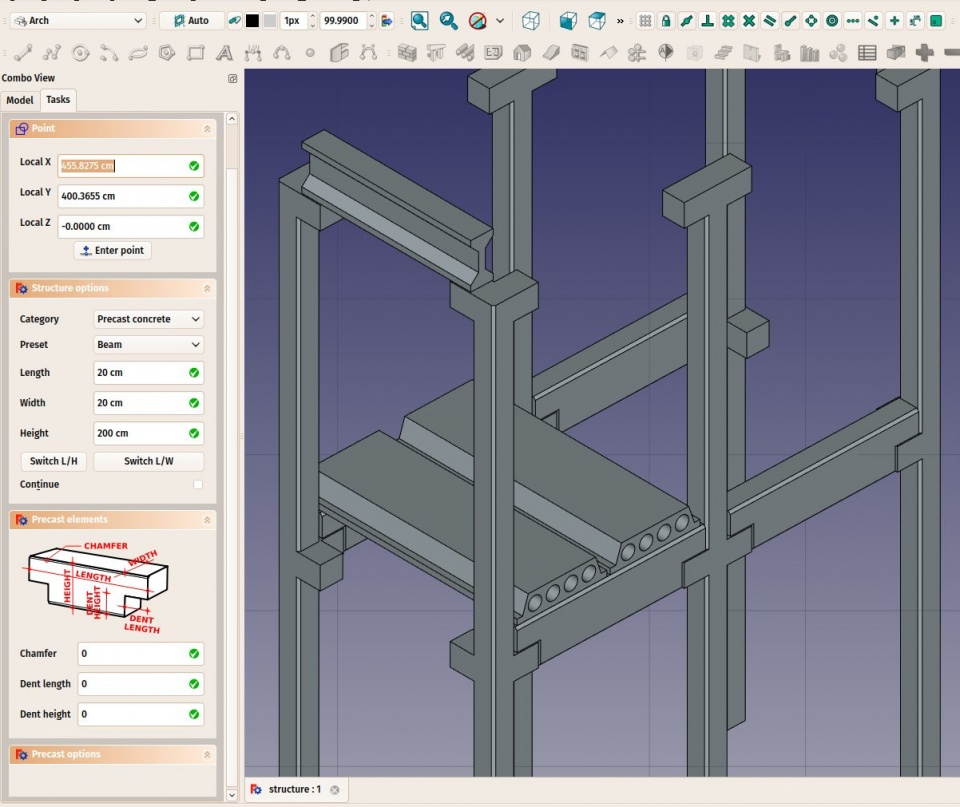
Some presets for precast concrete structures
Structural nodes
Structural objects also have the ability to display structural nodes. Structural nodes are a sequence of 3D points stored in a ÚdajeNodes (VectorList) property. By switching the PohledShow Nodes view property on/off, one can see the structural nodes of a structural element:
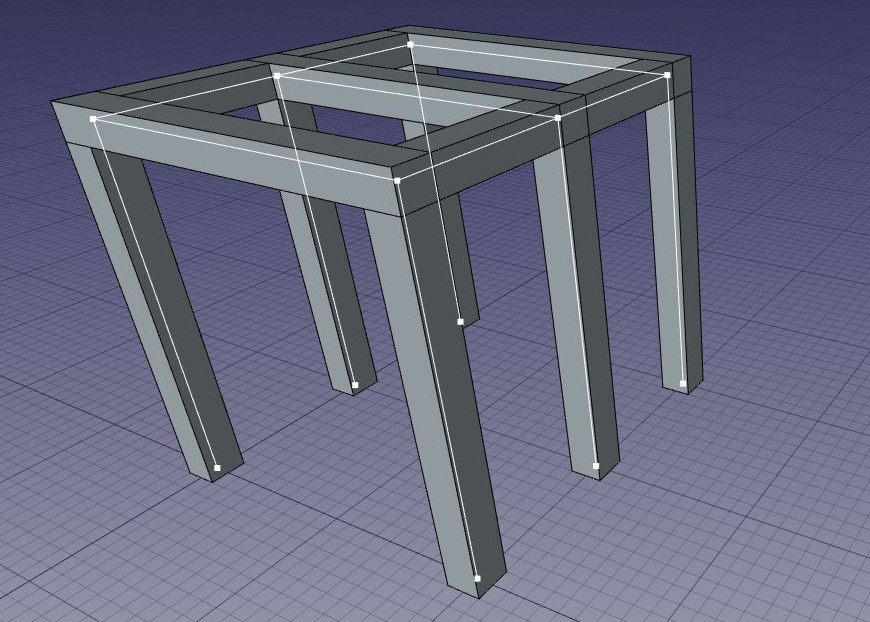
Structural nodes made visible for a set of structures
- Nodes are calculated and updated automatically, as long as you don't modify them manually. If you did, they won't be updated if the shape of the structural object changes, unless you use the "Reset nodes" tool below.
- Arch structures can have not only linear nodes, but also planar nodes. For this:
- There must be at least 3 vectors in the "Nodes" property of the object.
- The PohledNodes Type property of their ViewObject must be set to "Area".
- When the nodes calculation is automatic (that is, if you never touched them manually), when setting the "Role" property of a structure to "Slab", it will automatically become a planar node (there will be more than 3 vectors and the PohledNodes Type property will be set to "Area").
- When editing a structure object (double-click), a couple of node tools are available in the task panel:
- Reset the nodes to automatic calculation, in case you modified them manually
- Edit the nodes graphically, works the same way as Draft Edit
- Extend the nodes of the edited object until it touches the node of another object
- Make the node of this object and another one coincident
- Toggle the display of all nodes of all structural objects of the document on/off
Scripting
Skriptování
Nástroj Struktura může být využit v makrech a z konzoly Pythonu použitím následující funkce:
structure = makeStructure(baseobj=None, height=None)
structure = makeStructure(baseobj=None, length=None, width=None, height=None, name="Structure")
- vytvoří strukturální prvek založený na daném profilu a daném vysunutí do výšky. Není-li zadán žádný profil, můžete specifikovat délku a šířku trojrozměrného objektu.
Příklad:
import FreeCAD
import Draft
import Arch

rect = Draft.make_rectangle(200, 300)
structure1 = Arch.makeStructure(rect, height=2000)
FreeCAD.ActiveDocument.recompute()

structure2 = Arch.makeStructure(None, length=500, width=1000, height=3000)
Draft.move(structure2, FreeCAD.Vector(2000, 0, 0))
FreeCAD.ActiveDocument.recompute()
Tato stránka je načtena z https://wiki.freecad.org/Arch_Structure