


|
|
| Menu location |
|---|
| Drafting → Polygon 2D Drafting → Polygon |
| Workbenches |
| Draft, BIM |
| Default shortcut |
| P G |
| Introduced in version |
| 0.7 |
| See also |
| None |
Description
The  Draft Polygon command creates a regular polygon on the current working plane from a center and a radius. The radius can be defined by picking a point.
A Draft Polygon can be switched from inscribed to circumscribed by changing its DataDraw Mode property. The corners of a Draft Polygon can be filleted (rounded) or chamfered by changing its DataFillet Radius or DataChamfer Size respectively.
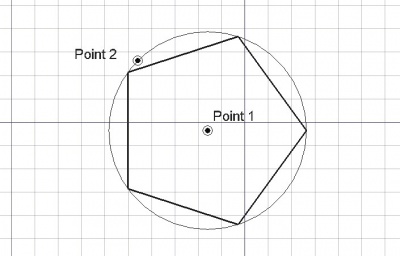
Regular polygon defined by two points, center and radius
Usage
See also: Draft Tray, Draft Snap and Draft Constrain.
- There are several ways to invoke the command:
- The Polygon task panel opens. See Options for more information.
- Adjust the desired number of Sides.
- Pick the first point, the center of the polygon, in the 3D View, or type coordinates and press the
 Enter Point button.
 - Pick the second point in the 3D View, or enter a Radius.
Options
The single character keyboard shortcuts available in the task panel can be changed. See Draft Preferences. The shortcuts mentioned here are the default shortcuts.
- To manually enter the coordinates for the center enter the X, Y and Z component, and press Enter after each. Or you can press the Enter Point button when you have the desired values. It is advisable to move the pointer out of the 3D View before entering coordinates.
- Press G or click the Global checkbox to toggle global mode. If global mode is on, coordinates are relative to the global coordinate system, else they are relative to the working plane coordinate system.
- Press F or click the Filled1.0 and below or Make faceintroduced in 1.1 checkbox to toggle make face mode. If make face mode is on, the created polygon will have DataMake Face set to
trueand have a filled face. - Press N or click the Continue checkbox to toggle continue mode. If continue mode is on, the command will restart after finishing, allowing you to continue creating polygons.
- Press S to switch Draft snapping on or off.
- Press Esc or the Close button to abort the command.
Notes
- A Draft Polygon can be edited with the Draft Edit command.
Preferences
See also: Preferences Editor and Draft Preferences.
- If the Edit → Preferences → Draft → General → Create Part primitives if possible option is checked, the command will create a Part RegularPolygon instead of a Draft Polygon.
Properties
See also: Property View.
A Draft Polygon object is derived from a Part Part2DObject and inherits all its properties. It also has the following additional properties:
Data
Draft
- DataArea (
Area): (read-only) specifies the area of the face of the polygon. The value will be0.0if DataMake Face iffalse. - DataChamfer Size (
Length): specifies the length of the chamfers at the corners of the polygon. - DataDraw Mode (
Enumeration): specifies if the polygon isinscribedin a circle orcircumscribedaround a circle. - DataFaces Number (
Integer): specifies the number of sides of the polygon. - DataFillet Radius (
Length): specifies the radius of the fillets at the corners of the polygon. - DataMake Face (
Bool): specifies if the polygon makes a face or not. If it istruea face is created, otherwise only the perimeter is considered part of the object. - DataRadius (
Length): specifies the radius of the circle that defines the polygon.
View
Draft
- ViewPattern (
Enumeration): specifies the Draft Pattern with which to fill the face of the polygon. This property only works if DataMake Face istrueand if ViewDisplay Mode isFlat Lines. - ViewPattern Size (
Float): specifies the size of the Draft Pattern.
Scripting
See also: Autogenerated API documentation and FreeCAD Scripting Basics.
To create a Draft Polygon use the make_polygon method (introduced in 0.19) of the Draft module. This method replaces the deprecated makePolygon method.
polygon = make_polygon(nfaces, radius=1, inscribed=True, placement=None, face=None, support=None)
- Creates a
polygonobject with the given number of faces (nfaces), and based on a circle ofradiusin millimeters. - If
inscribedisTrue, the polygon is inscribed in the circle, otherwise it will be circumscribed. - If
placementisNonethe polygon is created at the origin and one of its vertices will lie on the X axis. - If
faceisTrue, the polygon will make a face, that is, it will appear filled.
Example:
import FreeCAD as App
import Draft

doc = App.newDocument()

polygon1 = Draft.make_polygon(4, radius=500)
polygon2 = Draft.make_polygon(5, radius=750)

zaxis = App.Vector(0, 0, 1)
p3 = App.Vector(1000, 1000, 0)
place3 = App.Placement(p3, App.Rotation(zaxis, 90))

Polygon3 = Draft.make_polygon(6, radius=1450, placement=place3)

doc.recompute()
This page is retrieved from https://wiki.freecad.org/Draft_Polygon