FreeCAD Logo FreeCAD 1.0
  • Англійська Африкаанс Арабська Білоруська Каталонська Чеська Німецька Грецька Іспанська Іспанська Баскська Фінська Філіппінська Французька Галісійська Хорватська Угорська Індонезійська Італійська Японська Кабільська Корейська Литовська Голландська Норвезька (Букмол) Польська Португальська Португальська Румунська Російська Словацька Словенська Сербська Шведська Турецька Українська Валенсійська В’єтнамська Китайська Китайська
  • Можливості
  • Завантажити
  • Блог
  • Документація
    Індекс документації Перші кроки Документація користувача Посібник FreeCAD Документація робочих середовищ Документація Python C++ coding documentation Посібники Часті питання Privacy policy Про FreeCAD
  • Долучитись
    Як дістати довідку Sponsor Повідомити про помилку Створіть запит на внесення змін Jobs and funding Правила співробітництва Підручник розробника Переклади
  • Спільнота
    Code of conduct Forum The FPA GitHub GitLab Codeberg Mastodon Matrix IRC IRC via Webchat Gitter Discord Reddit Twitter Facebook LinkedIn Calendar
  • ♥ Donate

Donate

$
Інформація SEPA
Будь ласка, налаштуйте свій банківський переказ SEPA на:
Beneficiary: The FreeCAD project association
IBAN: BE04 0019 2896 4531
BIC/SWIFT: GEBABEBBXXX
Банківське агентство: BNP Paribas Fortis
Адреса: Rue de la Station 64, 1360 Perwez, Belgium

While Stripe doesn't support monthly donations, you can still become a sponsor! Simply make a one-time donation equivalent to 12 months of support, and you'll gain access to the corresponding sponsoring tier. It's an easy and flexible way to contribute.

If you are not sure or not able to commit to a regular donation, but still want to help the project, you can do a one-time donation, of any amount.

Choose freely the amount you wish to donate one time only.

You can support FreeCAD by sponsoring it as an individual or organization through various platforms. Sponsorship provides a steady income for developers, allowing the FPA to plan ahead and enabling greater investment in FreeCAD. To encourage sponsorship, we offer different tiers, and unless you choose to remain anonymous, your name or company logo will be featured on our website accordingly.

from 1 USD / 1 EUR per month. You will not have your name displayed here, but you will have helped the project a lot anyway. Together, normal sponsors maintain the project on its feet as much as the bigger sponsors.

from 25 USD / 25 EUR per month. Your name or company name is displayed on this page.

from 100 USD / 100 EUR per month. Your name or company name is displayed on this page, with a link to your website, and a one-line description text.

from 200 USD / 200 EUR per month. Your name or company name and logo displayed on this page, with a link to your website and a custom description text. Companies that have helped FreeCAD early on also appear under Gold sponsors.

Instead of donating each month, you might find it more comfortable to make a one-time donation that, when divided by twelve, would give you right to enter a sponsoring tier. Don't hesitate to do so!

Choose freely the amount you wish to donate each month.

Please inform your forum name or twitter handle as a notein your transfer, or reach to us, so we can give you proper credits!

Reverse Engineering Workbench
Sketcher Workbench
Index
Since version 1.1 this workbench is disabled by default. See Workbenches.
{{{1}}}
Robot workbench icon

Introduction

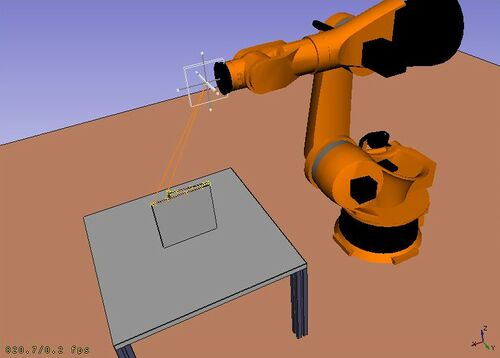
The Robot Workbench is a tool to simulate a standard 6-axis industrial robot, like Kuka.

You can do the following tasks:

  • Set up a simulation environment with a robot and work pieces.
  • Create and fill up movement trajectories.
  • Decompose features of a CAD part to a trajectory.
  • Simulate the robot movement and reaching distance.
  • Export the trajectory to a robot program file.

To get started try the Robot tutorial, and see the programming interface in the RobotExample.py example file.
Tools

Robot toolbar

  • Place Robot: Places a robot in the model.
  • Trajectory: Creates an empty trajectory.
  • Insert in Trajectory: Inserts a robot tool position into a trajectory.
  • Insert in Trajectory (vertex): Inserts a preselected position into a trajectory.
  • Edge to Trajectory: Generates a trajectory from selected edges.
  • Dress-Up Trajectory: Creates a dress-up object that overrides aspects of a trajectory.
  • Trajectory Compound: Groups and connects multiple trajectories into one.
  • Set Home Position: Sets the home position of a robot.
  • Move to Home: Moves a robot to its home position.
  • Simulate Trajectory: Simulates robot movement along a selected trajectory.

Other tools

  • Insert Robot:
  • Tool: Adds a tool shape to a robot.
  • Set Default Orientation: Sets the default orientation for subsequent waypoint creation.
  • Set Default Values: Sets the default values for speed, acceleration, and continuity for subsequent waypoint creation.
  • Export Trajectory:
  • Kuka Compact Subroutine: Exports a trajectory as a compact KRL subroutine.
  • Kuka Full Subroutine: Exports a trajectory as a full KRL subroutine.

Scripting

See the Robot API example for a description of the functions used to model the robot displacements.

Tutorials

  • Robot 6-Axis
  • VRML Preparation for Robot Simulation


Reverse Engineering Workbench
Sketcher Workbench
Index

Цю сторінку отримано з https://wiki.freecad.org/Robot_Workbench

Зв'язатися з нами
Forum GitHub Mastodon Matrix IRC Gitter.im Discord Reddit Twitter Facebook LinkedIn

© The FreeCAD Team. Homepage image credits (top to bottom): ppemawm, r-frank, epileftric, regis, rider_mortagnais, bejant.

Цей проект підтримується: , KiCad Services Corp. and інші спонсори

GitHubПокращити цю сторінку на GitHub