


|
|
| Menu location |
|---|
| Annotation → Section Plane |
| Workbenches |
| BIM |
| Default shortcut |
| S P |
| Introduced in version |
| - |
| See also |
| BIM DrawingView, BIM Shape2DView, BIM Shape2DCut, Draft Shape2DView |
Description
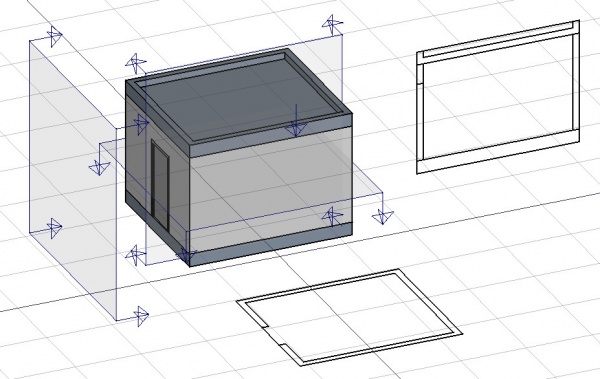
The  Arch SectionPlane tool creates a Section Plane, which defines a section or view plane. It takes its placement according to the current Draft Working Plane and can be relocated and reoriented by moving and rotating it, until it describes the 2D view you want to obtain.
The Section Plane object will only consider a certain set of objects. Objects that are selected when you create a Section Plane will be added to that set automatically. Other objects can later be added or removed from a SectionPlane object with the Arch Add and Arch Remove tools, or by double-clicking the Section Plane in the Tree View.
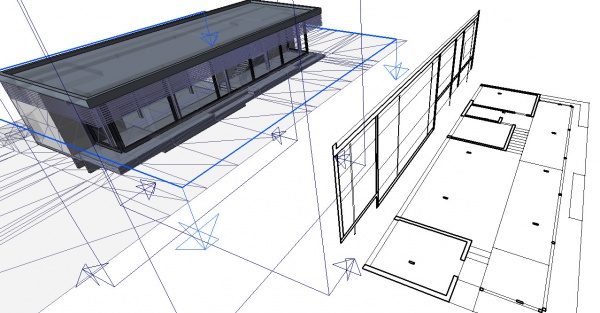
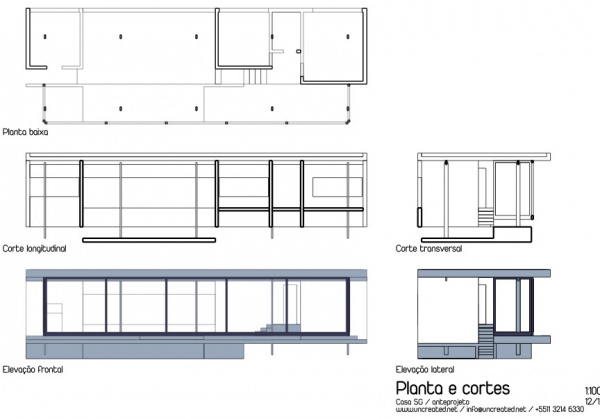
The Section Plane alone won't create any view of its objects set. For that, you must use the 2D drawing production workflow to create a view in a TechDraw page.
Usage
- Optionally, set the Draft Working Plane to reflect the plane where you want to place the Section Plane.
- Select objects you want to be included in your section view. Tip: selecting an Arch Floor will include all objects in it.
- There are several ways to invoke the command:
- Press the Section Plane button.
- Select the Annotation → Section Plane option from the menu.
- Use the keyboard shortcut: S then P.
- Press the
- Move/rotate the Section Plane into a different position if needed.
- Select the Section Plane if not selected already.
- Use the workflow described below to create a drawing.
Typical drawing workflow

The typical workflow to create a 2D drawing involves the following steps, also reflected in the buttons' order in the toolbar:
- Create a Section Plane, and place it correctly in the model. As described before.
- Create a drawing view with the
 2D Drawing tool. A drawing view is simply a BuildingPart that has been modified to be recognized as a 2D drawing (and stripped of some attributes like level, height, etc). Using a BuildingPart has a few advantages: It defines a working plane, you can move it and it will also move its contents, and it has a "title" that shows in the viewport. But fundamentally, the drawing view is just a container for the components of your 2D drawing. If the Section Plane is selected before initiating the 2D Drawing command, both the Section View and Section Cut objects mentioned in the next step are created automatically.
 - Create a
 Section View and if needed, a
  Section Cut from your Section Plane. Both tools produce a Shape2DView, but the first one in "solid" mode, which shows projected lines from what is viewed by the Section Plane, and the second one in "cut lines" mode, so it shows only the cut lines (the intersection between the Section Plane and the model). In plans and sections, you will want both, and give the section Cut a bit thicker line width, in elevations you will typically only need the section View, as there is nothing to cut. Then, of course, you place both these objects, in the drawing view.
 - Create all needed annotations like dimensions, texts, 2D linework, etc… and add them to the drawing view.
- Create a TechDraw page using the
 Page tool of the BIM Workbench. It will pop up a dialog to let you select an SVG file to use as a template (and remembers the last used template).
 - Once you have your drawing view and your page, select both and press the
 View button. This will create a TechDraw view on the page, showing the contents of your drawing view.
Options
- The Section Plane object will only consider a certain set of objects, not all the objects of the document. Objects can be added or removed from a SectionPlane object by using the Arch Add and Arch Remove tools, or by double-clicking the Section Plane in the Tree View, selecting objects either in the list of in the 3D View, and pressing the
 Add Selected or
  Remove buttons.
- With a Section Plane object selected, use the Section View or Section Cut tools to create a shape object representing the section view in the document.
- Create TechDraw ArchView.
- The Section Plane can also be used to show the entire 3D View cut by an infinite plane when the ViewCutView property is set to
true. This is only visual, and won't affect the geometry of the objects being cut.

Properties
Data
SectionPlane
- DataClip: If
true, the generated 2D view will be clipped to the extents of the Section Plane's rectangle, as defined by ViewDisplayLength and ViewDisplayHeight. Geometry outside the rectangle will be excluded. Iffalse, the view will show all geometry from the objects in scope, as seen from the plane's infinite projection. - DataDepth: The distance behind the Section Plane up to which geometry will be shown in the generated 2D view. A value of 0 creates a view with unlimited depth.
- DataObjects: A list of objects that this Section Plane will consider when generating views. If this list is empty, the Section Plane will consider all objects in the document.
- DataOnly Solids: If
true, non-solid objects in the set of considered objects will be disregarded during the view generation process. - DataUseMaterialColorForFill: If
true, when generating a 2D view with filled cut areas (e.g. via Section Cut), the fill color will be taken from the material of the cut object. If false, a default fill color will be used.

The Arch SectionPlane with the DataClip property set to true will behave like a camera, limiting the field of view.
View
SectionPlane
- ViewArrowSize: The size of the arrow symbol at the corners of the Section Plane in the 3D View. This value also controls the length of the lines indicating the view direction. Doesn't affect the resulting view.
- ViewCutDistance: This property is deprecated and has no effect. It was originally intended to create a thick visual slice in the 3D View.
- ViewCutMargin: A small offset distance to apply between the Section Plane and the actual real-time cut plane when ViewCutView is active. This helps prevent graphical artifacts (Z-fighting) on co-planar faces.
- ViewCutView: If
true, enables a real-time clipping effect in the 3D View, visually cutting through the model at the plane's location. - ViewDisplayHeight: The height of the Section Plane's visual representation in the 3D View. This dimension is also used to define the boundary of the 2D view when the DataClip data property is set to
true. - ViewDisplayLength: The width of the Section Plane's visual representation in the 3D View. This dimension is also used to define the boundary of the 2D view when the DataClip data property is set to
true. - ViewFontSize: The size of the label text that is displayed in the 3D View.
- ViewFontName: The font used for the label text.
- ViewShowLabel: If
true, the object's DataLabel will be displayed next to the Section Plane in the 3D View. - ViewTransparency: Controls the transparency of the Section Plane's face in the 3D View, from 0 (fully opaque) to 100 (fully invisible).
Tweaks
- Manually adding a property named RotateSolidRender of type App::PropertyAngle to the Section Plane's View properties (right-click the properties view, select Show hidden from the context menu, right-click again and select Add property) allows to rotate the render when using Solid mode. This is useful when a rendered view has for example both Arch and Draft elements, and the rendering of the Arch elements is rotated in relation to the Draft elements.
Alternative workflows
- The commands Draft Shape2DView and/or TechDraw ArchView can also be used to create a view from a Section Plane. However, it is recommended to use the dedicated BIM workbench tools described here instead.
Scripting
See also: Arch API and FreeCAD Scripting Basics.
The SectionPlane tool can be used in macros and from the Python console by using the following function:
Section = makeSectionPlane(objectslist=None, name="Section")
- Creates a
Sectionobject fromobjectslist, which is a list of objects.
Example:
import FreeCAD, Draft, Arch

p1 = FreeCAD.Vector(0, 0, 0)
p2 = FreeCAD.Vector(2000, 0, 0)
baseline = Draft.makeLine(p1, p2)
baseline2 = Draft.makeLine(p1, -1*p2)

Wall1 = Arch.makeWall(baseline, length=None, width=150, height=2000)
Wall2 = Arch.makeWall(baseline2, length=None, width=150, height=1800)
Structure = Arch.makeStructure(length=1000, width=1000, height=200)
FreeCAD.ActiveDocument.recompute()

BuildingPart = Arch.makeBuildingPart([Wall1, Wall2])

Floor = Arch.makeFloor([BuildingPart])
Building = Arch.makeBuilding([Floor, Structure])
Site = Arch.makeSite(Building)
FreeCAD.ActiveDocument.recompute()

Section1 = Arch.makeSectionPlane([Wall1, Wall2])
Section2 = Arch.makeSectionPlane([Structure])
Section3 = Arch.makeSectionPlane([Site])
FreeCAD.ActiveDocument.recompute()
This page is retrieved from https://wiki.freecad.org/Arch_SectionPlane