This documentation is not finished. Please help and contribute documentation.
GuiCommand model explains how commands should be documented. Browse Category:UnfinishedDocu to see more incomplete pages like this one. See Category:Command Reference for all commands.
See WikiPages to learn about editing the wiki pages, and go to Help FreeCAD to learn about other ways in which you can contribute.


|
|
| Menu location |
|---|
| SheetMetal → Extend by Sketch |
| Workbenches |
| SheetMetal |
| Default shortcut |
| T |
| Introduced in version |
| 0.7.57 |
| See also |
| SheetMetal Extrude |
Description
The  SheetMetal ExtendBySketch command extends a sheet metal plate at a selected edge face.
In connection with an outline sketch it can create interlocking geometry to close a profile:
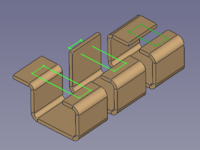

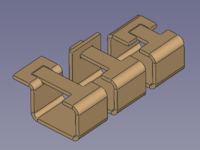
Three profiles with outline sketches to add → three results
Usage
- (Prepare a
 sketch for interlocking tabs)
- Select one or more edge faces to be extended.
- Press Ctrl and select the sketch in the Tree View or the 3D View to add it to the selection.
- There are several ways to invoke the command:
- Press the Extend by Sketch button.
- Select the Sheet Metal →
 Extend by Sketch option from the menu.
 - Right-click in the Tree View or the 3D View and select the Sheet Metal → Extend by Sketch option from the context menu.
- Use the keyboard shortcut: T.
- Press the
- An Extend object will be created and the Extend properties Task Panel opens.
- Optionally press the Select button and add or remove faces.
- Press the Preview button to finish the selection and display the changes.
- Optionally press the Extend Sketch... button to select a different sketch.
- Optionally check the Intersect Clearance check box and adjust the value to make room for interlocking tabs.
- Press the OK button to finish the command and close the Task Panel.
Task Panel
Double-click an existing Extend object in the Tree View to re-open the Task Panel and edit the parameters.

- Select: Changes the amount of faces in the base Object property.
- Extend Sketch…: Replaces the sketch in the Sketch property.
- Intersect clearance check box: Toggles the Use Subtraction property.
- Intersect clearance value: Sets the Offset property.
- Refine: Toggles the Refine property.
Notes
- This command creates the same Extend object as the Extend Face command. Whether or not the DataSketch property is empty controls which Task Panel is displayed when the Extend object is edited.
- See Extend Face for additional notes.
Properties
See also: Property View.
A SheetMetal Extend object is derived from a Part Feature object or, if it is inside a PartDesign Body, from a PartDesign Feature object, and inherits all its properties. It also has the following additional properties:
Data
Parameters
- Database Object (
LinkSub): "Base object". Link to the object and the planar faces to be extended. - Datagap1 (
Distance): "Gap from the left side". Default:0,00 mm. - Datagap2 (
Distance): "Gap from the right side". Default:0,00 mm. - Datalength (
Length): "Length of Wall". Default:10,00 mm.- extension length if Datareversed =
false. - cut out length if Datareversed =
true.
- extension length if Datareversed =
- Datareversed (
Bool): "Reverse extend direction (cut)". Default:false. Toggles between extension and cut out.
Parameters Ext
- DataOffset (
Distance): "Offset for subtraction". Default:0,20 mm. Clearance for interlocking geometry - DataRefine (
Bool): "Use Refine". Default:true. - DataSketch (
Link): "Wall Sketch". Link to the sketch defining the interlocking geometry. Contains the selected sketch by default. - DataUse Subtraction (
Bool): "Use Subtraction". Default:falseToggles if intersected walls of the same object are cut out for tabs defined by the linked Sketch.
This page is retrieved from https://wiki.freecad.org/SheetMetal_ExtendBySketch