


Introduction
The Navigation Cube gives visual information about the camera orientation in the current 3D View and can be used to change it. By default it is visible and resides in the upper right corner of the view.
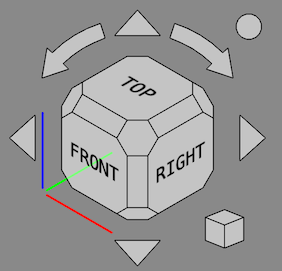
The Navigation Cube consists of a number of parts:
- The main cube
- Six directional arrows
- The reverse view button (top right)
- The mini-cube menu (bottom right)
- X-, Y- and Z-axis indicators
All parts, except the axis indicators, can be clicked.
Usage
Main cube
The main cube has 26 faces: 6 main faces, 12 rectangular edge faces, and 8 corner faces. Clicking any of them reorients the camera so that its direction is perpendicular to the selected face. introduced in 1.2: Double-clicking on a face not only rotates the camera, but also centers the view.
Directional arrows
There are six directional arrows: four triangular arrowheads and two curved arrows. Clicking one of the triangular arrows rotates the 3D View around a line perpendicular to the direction of the arrow. Clicking a curved arrow rotates the 3D View around the view direction.
Reverse view button
Clicking the round button in the top right corner of the Navigation Cube rotates the 3D View 180 degrees around the vertical axis of the view.
Clicking the small cube in the bottom right corner of the Navigation Cube brings up a menu with the following options:
 Orthographic View: switches to an orthographic view.
 Perspective View: switches to a perspective view.
 Isometric: switches to an isometric view.
 Fit All: zooms and pans the camera so that all visible objects fit inside the view.
 Fit Selection: zooms and pans the camera so that all selected objects fit inside the view. introduced in 1.0
 Align to Selection: points the camera in the view in the opposite direction of the normal of a planar face, or the opposite direction of a straight edge. introduced in 1.0
- Movable Navigation Cube: if this checkbox (introduced in 0.21) is checked the entire Navigation Cube can be moved by holding down the left mouse button anywhere on the main cube and dragging. This is intended to temporarily move the cube out of the way. The advanced parameters OffsetX and OffsetY can be used to permanently reposition the cube, see below.
Customization
Preferences
The Navigation Cube is controlled by several preferences: Edit → Preferences → Display → Navigation → Navigation Cube. See Preferences Editor.
Advanced parameters
Some advanced Navigation Cube parameters cannot be changed in the Preferences Editor. These parameters can be set manually in the Parameter Editor.
To manually set colors:
- Start the
 Parameter Editor.
 - In the panel on the left browse to BaseApp → Preferences → NaviCube.
- Right-click the panel on the right and select New unsigned item from the context menu.
- Enter the name of one of these colors:
- BaseColor: the base color of all elements, the default is
3806916544(hex:e2e8efc0). This color can be also set in the Preferences Editor. introduced in 0.21 - EmphaseColor: the color of the texts and lines, the default depends on the BaseColor. It is either black:
255(hex:000000ff), or white:4294967295(hex:ffffffff). introduced in 0.21 - HiliteColor: the color used to highlight the faces and buttons, the default is
2867003391(hex:aae2ffff).
- BaseColor: the base color of all elements, the default is
- The color value must be entered as a 32-bit unsigned integer. Translated to the hexadecimal format this integer has the form
RRGGBBAA. WhereAAstands for the alpha channel (a measure for the transparency), and the other three digit pairs stand for red, green and blue. To convert a hexadecimal value to an unsigned integer you can use the Python Console, enter for exampleint("323232ff", 16). - Optionally set more parameters.
- Press the Close button.
The table below lists the other advanced Navigation Cube parameters that can be set in a similar manner. Use the information from the Type column to create a correct new item in step 3.
| Name | Description | Type | Default |
|---|---|---|---|
| BorderWidth | The width of the edges of the cube and the borders around the buttons in pixels. | Float | 1.1 |
| ChamferSize | The size of the edges and corners as a factor of the cube size. Values should be in the 0.05 - 0.18 range. | Float | 0.12 |
| FontStretch | The font width as a percentage of the default width. Use 0 or 100 for the default font width. | Integer | 0 |
| FontWeight | The font weight. Higher values make the font more bold. The effect may depend on the font. Use 0 for the default font weight. | Integer | 0 |
| FontZoom | The size of the labels:
|
Float | 0.3 |
| OffsetX | The offset of the cube in the X direction relative to its corner position in pixels. | Integer | 0 |
| OffsetY | The offset of the cube in the Y direction relative to its corner position in pixels. | Integer | 0 |
| ShowCS | Toggles the display of the coordinate system (the X-, Y- and Z-axis indicators). | Boolean | true |
| TextBottom | The text on the bottom face of the cube. The default value should be translated. | String | BOTTOM |
| TextFront | The text on the front face of the cube. Idem. | String | FRONT |
| TextLeft | The text on the left face of the cube. Idem. | String | LEFT |
| TextRear | The text on the rear face of the cube. Idem. | String | REAR |
| TextRight | The text on the right face of the cube. Idem. | String | RIGHT |
| TextTop | The text on the top face of the cube. Idem. | String | TOP |
This page is retrieved from https://wiki.freecad.org/Navigation_Cube