


|
|
| Menu location |
|---|
| Tools → Edit Parameters |
| Workbenches |
| All |
| Default shortcut |
| None |
| Introduced in version |
| - |
| See also |
| Preferences Editor |
Description
The Std DlgParameter command opens the Parameter Editor. In the Parameter Editor the parameters that control the behavior of FreeCAD and its workbenches can be inspected and optionally removed, added or changed. The parameters are stored in a file called user.cfg, the location of this file depends on your OS.
Working with the Parameter Editor requires some experience. For the most common parameters the Preferences Editor should be used instead.
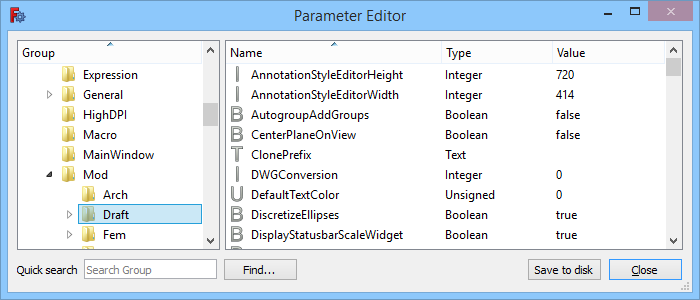
The Parameter Editor dialog box
Usage
- Select the Tools →
 Edit Parameters option from the menu.
 - The Parameter Editor dialog box opens. For more information see Options.
- Optionally press the Save to disk button to immediately update the user.cfg file. This is not required as FreeCAD will automatically update that file when the application closes.
- Press the Close button to close the dialog box and finish the command.
Options
Left panel
The left panel shows a tree with parameter groups and sub-groups.
The following options are available in the panel's context menu:
Expand/Collapse
- If a selected group has one or more sub-groups it can be expanded or collapsed by choosing this option from the context menu. But you can also expand and collapse the tree in the usual manner.
Add Sub-Group
- Select a group.
- Select the Add Sub-Group option from the context menu.
- Enter a name for the new sub-group in the dialog box that opens.
- Press the OK button.
Remove Group
- Select a group.
- Select the Remove Group option from the context menu.
- Press the Yes button in the dialog box that opens to confirm you want to remove the group (including all its sub-groups, and all parameters in the group and its sub-groups).
Rename Group
- Select a group.
- Select the Rename Group option from the context menu.
- Enter a new name.
- A group can also be renamed by double-clicking it.
Export Parameter
- Select a group.
- Select the Export Parameter option from the context menu.
- Enter a filename in the dialog box.
- Press the Save button.
Import Parameter
- Select a group that does not contain any sub-groups or remove them first. Any existing parameters in the group will be lost.
- Select the Import Parameter option from the context menu.
- Select an *.FCParam file in the dialog box.
- Press the Open button.
Right panel
The right panel shows the parameters in the group selected in the left panel. If this group only contains sub-groups the right panel will be empty.
The following options are available in the panel's context menu:
Change Value
- Select a parameter.
- Select the Change Value option from the context menu.
- Enter a new value in the dialog box that opens.
- Press the OK button.
- A parameter's value can also be changed by double-clicking its 'Type' or 'Value' field.
Remove Key
- Select a parameter.
- Select the Remove Key option from the context menu.
Rename Key
- Select a parameter.
- Select the Rename Key option from the context menu.
- Enter a new name.
- A parameter can also be renamed by double-clicking its 'Name' field.
New String Item
- Select the New String Item or New → New String Item option from the context menu.
- Enter a name in the dialog box that opens.
- Press the OK button.
- Enter a value in the next dialog box.
- Press the OK button.
New Float Item
- Select the New Float Item or New → New Float Item option from the context menu.
- The next steps are similar to those for a New String Item
New Integer Item
- Select the New Integer Item or New → New Integer Item option from the context menu.
- The next steps are similar to those for a New String Item
New Unsigned Item
- Select the New Unsigned Item or New → New Unsigned Item option from the context menu.
- The next steps are similar to those for a New String Item
New Boolean Item
- Select the New Boolean Item or New → New Boolean Item option from the context menu.
- The next steps are similar to those for a New String Item
Sorting
By default the groups in each tree level in the left panel are sorted alphabetically, and the parameters in the right panel are sorted alphabetically as well. But the order in each panel can be reversed by clicking the 'Group' or 'Name' header respectively.
Search
Typing a (partial) string in this input box will fully expand the tree in the left panel and highlight all groups with names that match the entered value. If no matches are found the background of the input box will turn red.
Find
- In the left panel select the group where you want to start your search. The search direction is down. The search is not restricted to the group and its sub-groups, but rather the selected group and everything below it in the tree will be searched.
- Press the Find button.
- Enter a string in the Find What input box. The search is case-insensitive.
- Check one or more of the Groups, Names and Values checkboxes. Note that only string values will be searched.
- Optionally (un)check the Match exact string checkbox.
- Press the Find Next button to select the first group with a match. Matching parameters are not individually highlighted. Optionally repeat this until no further matches are found.
- It is possible to start a new search without closing the dialog box. Again selecting the group from which to start searching is then usually required.
- Use the Cancel button to close the dialog box.
Notes
- The Fine-tuning page lists a number of parameters that may be of interest.
Scripting
See also: Autogenerated API documentation and FreeCAD Scripting Basics.
Preferences can be accessed from Python scripts using their corresponding path in the Parameter Editor. For example, the Edit → Preferences → Import-Export → DXF → Import Settings → Join geometry preference appears in Tools → Edit parameters → BaseApp → Preferences → Mod → Draft → dxfCreatePart and has type Boolean. It can therefore be accessed in Python using the following code:
# get:
App.ParamGet("User parameter:BaseApp/Preferences/Mod/Draft").GetBool("dxfCreatePart")
# set:
App.ParamGet("User parameter:BaseApp/Preferences/Mod/Draft").SetBool("dxfCreatePart", True)
This page is retrieved from https://wiki.freecad.org/Std_DlgParameter