


|
|
| Menu location |
|---|
| Tools → Document Utility |
| Workbenches |
| All |
| Default shortcut |
| None |
| Introduced in version |
| - |
| See also |
| None |
Description
With the Std ProjectUtil command you can extract files from a FreeCAD document (*.FCStd), which is in fact a ZIP file, and, after manual edits, create a new document from them.
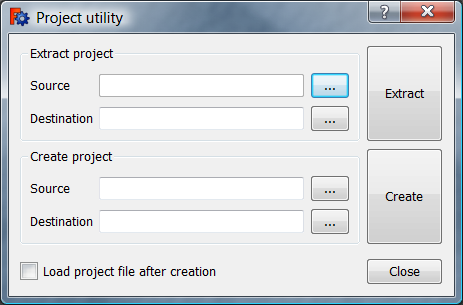
The Document Utility dialog box
Usage
Extract Document
- Select the Tools →
 Document Utility option from the menu.
 - The Document Utility dialog box opens.
- Press the … button to the right of Extract Document → Source.
- Select the *.FCStd file you want to edit.
- Press the … button to the right of Extract Document → Destination.
- Select a folder where the document should be extracted. It is advisable to select an empty folder.
- Press the Extract button.
- Press the Close button to close the dialog box.
Manual edits
It is important to realize that the files inside a FreeCAD document are interlinked. Only editing a single file will typically lead to errors. To make consistent edits across multiple files use a good code editor, such as Notepad++ (for Windows), Notepadqq (for Linux) or VSCodium (for Mac and others).
Create Document
- Select the Tools → Document Utility option from the menu.
- The Document Utility dialog box opens.
- Press the … button to the right of Create Document → Source.
- Select the Document.xml file. The command will be automatically find all linked files.
- Press the … button to the right of Create Document → Destination.
- Select a folder where the new document should be created.
- Press the Create button.
- A new document with a fixed name, project.fcstd, is created in the selected folder. There is no warning if a file with that name already exists.
- Optionally check the Load document file after creation checkbox.
- Press the Close button to close the dialog box.
Notes
- For more information about the FreeCAD document file format see File Format FCStd.
This page is retrieved from https://wiki.freecad.org/Std_ProjectUtil