


Introduction
The FEM Workbench provides a modern finite element analysis (FEA) workflow for FreeCAD. Mainly this means all tools to make an analysis are combined into one graphical user interface (GUI).

Workflow
The steps to carry out a finite element analysis are:
- Preprocessing: setting up the analysis problem.
- Modeling the geometry: creating the geometry with FreeCAD, or importing it from a different application.
- Creating an analysis.
- Adding simulation constraints such as loads and fixed supports to the geometric model.
- Adding materials to the parts of the geometric model.
- Creating a finite element mesh for the geometrical model, or importing it from a different application.
- Solving: running an external solver from within FreeCAD.
- Postprocessing: visualizing the analysis results from within FreeCAD, or exporting the results so they can be postprocessed with another application.
The FEM Workbench can be used on Linux, Windows, and Mac OSX. Since the workbench makes use of external solvers, the amount of manual setup will depend on the operating system that you are using. See FEM Install for instructions on setting up the external tools.
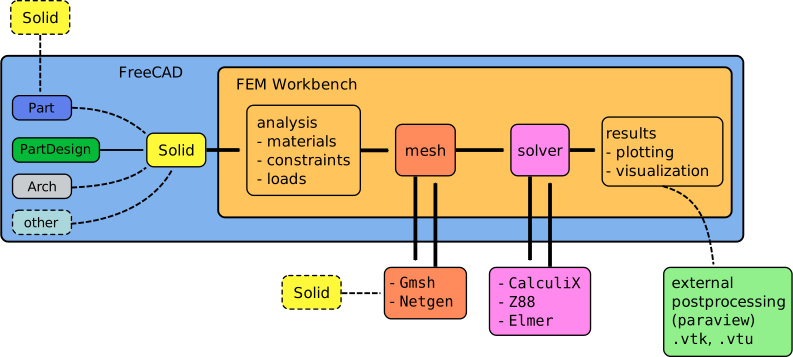
Workflow of the FEM Workbench; the workbench calls two external programs to perform meshing of a solid object, and perform the actual solution of the finite element problem
Menu: Model
 New Analysis: Creates a new container for a mechanical analysis.
Materials
 Solid Material: Lets you select a solid material from the database.
 Fluid Material: Lets you select a fluid material from the database.
 Non-Linear Mechanical Material: Lets you add a nonlinear mechanical material model.
 Reinforced Material (Concrete): Lets you select reinforced materials consisting of a matrix and a reinforcement from the database.
 Material Editor: Lets you open the Material Editor to edit materials.
Element Geometry
 Beam Cross Section: Used to define cross sections for beam elements.
 Beam Rotation: Used to rotate cross sections of beam elements.
 Shell Plate Thickness: Used to define shell element thickness.
 Fluid Section for 1D Flow: Used to create fluid section element for pneumatic and hydraulic networks.
Electromagnetic Boundary Conditions
 Electrostatic Potential Boundary Condition: Used to define electrostatic potential.
 Current Density Boundary Condition: Used to define a current density. introduced in 0.21
 Magnetization Boundary Condition: Used to define a magnetization. introduced in 0.21
 Electric Charge Density: Used to define electric charge density load. introduced in 1.1
Fluid Boundary Conditions
 Initial Flow Velocity Condition: Used to define an initial flow velocity for a body (volume).
 Initial Pressure Condition: Used to define an initial pressure for a body (volume). introduced in 0.21
 Flow Velocity Boundary Condition: Used to define a flow velocity as a boundary condition at an edge (2D) or face (3D).
Geometrical Analysis Features
 Plane Multi-Point Constraint: Used to define a constraint for keeping the nodes on a planar surface on the same plane.
 Section Print Feature: Used to print the predefined facial output variables (forces and moments) to the data file.
 Local Coordinate System: Used to define a local coordinate system for a face.
Mechanical Boundary Conditions and Loads
 Fixed Boundary Condition: Used to define a fixed boundary condition on point/edge/face(s).
 Rigid Body Constraint: Used to apply the CalculiX's rigid body constraint that constrains the motion of the nodes of a selected geometrical entity to the motion of a reference point positioned by the user. introduced in 1.0
 Displacement Boundary Condition: Used to define a displacement boundary condition on point/edge/face(s).
 Contact Constraint: Used to define a contact constraint between two faces.
 Tie Constraint: Used to define a tie constraint ("bonded contact") between two faces, or, introduced in 1.0, cyclic symmetry.
 Spring Boundary Condition: Used to define a spring boundary condition. introduced in 0.20
 Force Load: Used to define a force in [N] applied uniformly to the selected geometric entity in the defined direction.
 Pressure Load: Used to define a pressure load.
 Centrifugal Load: Used to define a centrifugal force body load. introduced in 0.20
 Gravity Load: Used to define a gravity acceleration acting on a model.
Thermal Boundary Conditions and Loads
 Initial Temperature: Used to define the initial temperature of a body.
 Heat Flux Load: Used to define a heat flux load on a face(s).
 Temperature Boundary Condition: Used to define a temperature boundary condition on a point/edge/face(s).
 Body Heat Source: Used to define an internally generated body heat.
Overwrite Constants
 Constant Vacuum Permittivity: Used to overwrite the permittivity of vacuum with a custom value.
Menu: Mesh
 Mesh From Shape by Netgen: Generates a finite element mesh for a model using Netgen.
 Mesh From Shape by Gmsh: Generates a finite element mesh for a model using Gmsh.
 Mesh Boundary Layer: Creates anisotropic meshes for accurate calculations near boundaries.
 Mesh Refinement: Creates a localized area(s) to mesh which highly optimizes analysis time.
 Mesh Group: Groups and labels elements of a mesh (vertex, edge, surface) together, useful for exporting the mesh to external solvers.
 Erase Elements: Hides elements selected by a polygon from the mesh. introduced in 1.0
 FEM Mesh to Mesh: Converts surfaces of 3D elements or whole 2D elements of a selected FEM mesh to surface mesh.
Menu: Solve
 Solver CalculiX: Creates a new solver for this analysis.
 Solver Elmer: Creates the solver controller for the Elmer solver.
 Solver Mystran: Creates the solver controller for the MYSTRAN solver. introduced in 0.20
 Solver Z88: Creates the solver controller for the Z88 solver.
Mechanical Equations
 Elasticity Equation: Equation for the Solver Elmer to perform linear mechanical analyses.
 Deformation Equation: Equation for the Solver Elmer to perform nonlinear mechanical analyses (deformations). introduced in 0.21
Electromagnetic Equations
 Electrostatic Equation: Equation for the Solver Elmer to perform electrostatic analyses.
 Electricforce Equation: Equation for the Solver Elmer to calculate the electric force on surfaces.
 Magnetodynamic Equation: Equation for the Solver Elmer to calculate magnetodynamics. introduced in 0.21
 Magnetodynamic 2D Equation: Equation for the Solver Elmer to calculate magnetodynamics in 2D. introduced in 0.21
 Static Current Equation: Equation for the Solver Elmer to calculate static current conduction. introduced in 1.1
 Flow Equation: Equation for the Solver Elmer to perform flow analyses.
 Flux Equation: Equation for the Solver Elmer to perform flux analyses.
 Heat Equation: Equation for the Solver Elmer to perform heat transfer analyses.
 Solver Job Control: Opens the menu to adjust and start the selected solver.
 Run Solver: Runs the selected solver of the active analysis.
Menu: Results
 Purge Results: Deletes the results of the active analysis.
 Show Result: Used to display the result of an analysis. This dialog is not available for the Solver Elmer as this solver visualizes using the Post pipeline from result object only.
 Apply Changes to Pipeline: Toggles if changes to pipelines and filters are applied immediately.
 Post Pipeline From Result: Used to add a new graphical representation of FEM analysis results (color scale and more display options).
 Pipeline Branch: Used to branch the results pipeline. introduced in 1.1
 Warp Filter: Used to visualize the scaled deformed shape of the model.
 Scalar Clip Filter: Used to clip a field with a specified scalar value.
 Function Cut Filter: Used to display the results on a plane, a sphere, a cylinder, or a box cutting through the model.
 Region Clip Filter: Used to clip a field with a plane, a sphere, a cylinder, or a box cutting through the model.
 Contours Filter: Used to display iso-lines (for analyses in 2D) or iso-contours. introduced in 0.21
 Glyph Filter: Used to create glyph (symbol) plots. introduced in 1.1
 Line Clip Filter: Used to plot the values of a field along a specified line.
 Stress Linearization Plot: Creates a stress linearization plot.
 Data at Point Clip Filter: Used to display value of a selected field at a given point.
 Calculator Filter: Used to create custom fields by evaluating expressions operating on the existing fields. introduced in 1.1
Filter Functions
 Plane: Cuts the result mesh with a plane.
 Sphere: Cuts the result mesh with a sphere.
 Cylinder: Cuts the result mesh with a cylinder. introduced in 0.21
 Box: Cuts the result mesh with a box. introduced in 0.21
Data Visualizations
 Create Lineplot: Creates a lineplot for a selected pipeline/filter. introduced in 1.1
 Create Histogram: Creates a histogram for a selected pipeline/filter. introduced in 1.1
 Create Table: Creates a table for a selected pipeline/filter. introduced in 1.1
Menu: Utilities
 Clipping Plane on Face: Adds a clipping plane for the whole model view.
 Remove All Clipping Planes: Removes all existing clipping planes.
 FEM Examples: Open the GUI to access FEM examples.
Context Menu
 Clear FEM Mesh: Deletes the mesh file from the FreeCAD file. Useful to make a FreeCAD file lighter.
 Clear Mesh Groups: Deletes the mesh groups without removing the mesh itself, to reduce the file size when exporting meshes. introduced in 1.2
 Display Mesh Info: Displays basic statistics of existing mesh - number of nodes and elements of each type.
Obsolete tools
 Fluid boundary condition: Used to define a fluid boundary condition. Did not have a solver. Not available in 1.0 and above.
 Constraint bearing: Used to define a bearing constraint. Did not have a solver. Not available in 1.0 and above.
 Constraint gear: Used to define a gear constraint. Did not have a solver. Not available in 1.0 and above.
 Constraint pulley: Used to define a pulley constraint. Did not have a solver. Not available in 1.0 and above.
 Solver CalculiX (new framework): Same as the original framework Solver CalculiX with extra checks. Tool was unfinished. Not available in 1.0 and above.
 Nodes set: Creates/defines a node set from FEM mesh. Tool was unfinished and couldn't be used. Not available in 1.0 and above.
Preferences
 Preferences: Preferences available in FEM Tools.
Information
The following pages explain different topics of the FEM Workbench.
FEM Install: a detailed description on how to set up the external programs used in the workbench.
FEM Geometry Preparation and Meshing: tips regarding geometry preparation for FEM and meshing.
FEM Mesh: details about meshes in the FEM Workbench.
FEM Solver: further information on the different solvers available in the workbench, and those that could be used in the future.
FEM CalculiX: further information on CalculiX, the default solver used in the workbench for structural analysis.
FEM Concrete: interesting information on the topic of simulating concrete structures.
Tutorials
Tutorial 1: FEM CalculiX Cantilever 3D; basic simply supported beam analysis.
Tutorial 2: FEM Tutorial; simple tension analysis of a structure.
Tutorial 3: FEM Tutorial Python; set up the cantilever example entirely through scripting in Python, including the mesh.
Tutorial 4: FEM Shear of a Composite Block; see the deformation of a block that is comprised of two materials.
Tutorial 5: Transient FEM analysis
Tutorial 6: Post-Processing of FEM Results with Paraview
Tutorial 7: FEM Example Capacitance Two Balls; Elmer's GUI tutorial 6 "Electrostatics Capacitance Two Balls" using FEM Examples.
Coupled thermal mechanical analysis tutorials by openSIM
Video tutorial 1: FEM video for beginner (including YouTube link)
Video tutorial 2: FEM video for beginner (including YouTube link)
Many video tutorials: anisim Open Source Engineering Software (in German)
Extending the FEM Workbench
The FEM Workbench is under constant development. An objective of the project is to find ways to easily interact with various FEM solvers, so that the end user can streamline the process of creating, meshing, simulating, and optimizing an engineering design problem, all within FreeCAD.
The following information is aimed at power users and developers who want to extend the FEM Workbench in different ways. Familiarity with C++ and Python is expected, and also some knowledge of the "document object" system used in FreeCAD is necessary; this information is available in the Power users hub and the Developer hub. Please notice that since FreeCAD is under active development, some articles may be too old, and thus obsolete. The most up to date information is discussed in the FreeCAD forums, in the Development section. For FEM discussions, advice or assistance in extending the workbench, the reader should refer to the FEM subforum.
The following articles explain how the workbench can be extended, for example, by adding new types of boundary conditions (constraints), or equations.
- Extend FEM Module
- Onboarding FEM Devs attempts to orient new devs on how to contribute to the FEM Workbench.
- Add FEM Constraint Tutorial
- Add FEM Equation Tutorial
A developer's guide has been written to help power users in understanding the complex FreeCAD codebase and the interactions between the core elements and the individual workbenches. The book is hosted at github so multiple users can contribute to it and keep it updated.
- Early preview of ebook: Module developer' guide to FreeCAD source forum thread.
- FreeCAD Mod Dev Guide github repository.
Extending the FEM Workbench documentation
- More information regarding extending or missing FEM documentation can be found in the forum: FEM documentation missing on the Wiki
Tato stránka je načtena z https://wiki.freecad.org/FEM_Workbench