


|
|
| Ubicación en el Menú |
|---|
| Arquitectura → Ventana |
| Entornos de trabajo |
| Arquitectura |
| Atajo de teclado por defecto |
| W I |
| Introducido en versión |
| - |
| Ver también |
| Arquitectura Muro, Arquitectura Añadir |
Descripción
Un Arquitectura Ventana es un objeto base para todo tipo de objetos "incrustables", como ventanas y puertas. Está diseñado para ser independiente, o "alojado" dentro de otro componente como un Arquitectura Muro, Arquitectura Estructura, o Arquitectura Techo. Tiene su propia geometría, que puede estar formada por varios componentes sólidos (comúnmente un marco y paneles interiores), y también define un volumen que se sustrae de los objetos anfitriones, para crear una abertura.
Los objetos ventana se basan en objetos 2D cerrados, como Borrador Rectángulos o Croquis, que se utilizan para definir sus componentes internos. Por lo tanto, el objeto 2D base debe contener varios hilos cerrados, que pueden combinarse para formar paneles rellenos (un hilo) o marcos (varios hilos).
La herramienta Ventana presenta varios preajustes'; esto permite al usuario crear tipos comunes de ventanas y puertas con ciertos parámetros editables, sin necesidad de que el usuario cree manualmente los objetos y componentes 2D base.
All information applicable to an Arch Window also applies to an Arch Door, as it is the same underlying object.

Complex window being constructed on top of a Sketch. When entering the window's edit mode you can create different components, set their thickness, and select and assign wires from the sketch to them.
Utilización
There are different ways to create windows, depending on the desired level of detail and functionality.
Usando un preajustado
This is the most straightforward way of creation, where existing presets cover the most general types of windows.
- Opcionalmente, seleccione un objeto Arch. Si no se selecciona ningún objeto, la ventana se insertará en el objeto debajo del mouse al colocar la ventana.
- Presione el botón
 Arch Window, o presione W luego la tecla I
 - Seleccione uno de los predefinidos en la lista
- Completa los parámetros deseados
- Presione el botón Ok
Learn more about presets.
Creando desde cero
When the desired window format is not covered by any of the existing presets, custom windows can be created and optionally included as user presets in addition to the built-in presets.
- Opcionalmente, seleccione una cara en el objeto Arch donde desee que se incluya la ventana
- Cambie al Sketcher Workbench
- Crea un nuevo boceto
- Dibuja uno o más lineas cerradas
- Cerrar el boceto
- Vuelva al Arch Workbench
- Presione el botón Arch Window, o presione W luego la tecla I
- Ingrese al modo Editar haciendo doble clic en la ventana en la vista de árbol, para ajustar los componentes de la ventana
Learn more about custom components.
Creating a window from custom types
- Create a window frame object, a glass panel, and any other window component you need, using Part Workbench or PartDesign tools.
- For example, create a base rectangular sketch for your window, then a profile sketch for the frame, and create a Part Sweep to sweep the profile around the base sketch. Create a Part Offset2D from the base sketch, then a Part Extrude to create the glass panel
- Optionally, create a volume to be subtracted from the wall, for example by extruding the base sketch.
- Make sure all these pieces have a unique, meaningful name (for example, "Frame" or "Glass panel")
- Create an App Part, and place all your subcomponents in it
- If you have created one, make sure the subtraction volume's visibility is turned off
- If you want to make your window parametric, you can add 3 properties to your App Part, by right-clicking its Property View and selecting "Add Property". Add the following properties (all of them are optional, the property group doesn't matter):
- Height as a PropertyLength and link it, for example, to a vertical constraint of your base sketch.
- Width as a PropertyLength and link it, for example, to a horizontal constraint of your base sketch.
- Subvolume as a PropertyLink and link it to the volume to be subtracted that we created above.
- Tag as a PropertyString.
- To create window objects from the newly-created type. select the App Part and press the
 Window button, or any of the alternative ways to invoke the tool.
The DatosHeight, DatosWidth, DatosSubvolume and DatosTag properties of the window will be linked to the corresponding property of the App Part, if existing.
Learn more about custom types.
Strategies for placing windows
TBD - explain:
- Links vs clones - Advanced snapping
Opciones
- Windows comparte las propiedades y comportamientos comunes de todos Arch Components
- Si la casilla Autoincluir en el panel de tareas de creación de ventanas está desmarcada, la ventana no se insertará en ningún objeto Anfitrion al momento de la creación.
- Agregue una ventana seleccionada a Muro seleccionando ambos, luego presione el botón
 Arch Add.
 - Eliminar una ventana seleccionada de un muro seleccionando la ventana, luego presionando el botón
 Arch Remove.
 - Cuando se usan predefinidos, a menudo es conveniente activar el "Near" Draft Snap, para que pueda ajustar su ventana a una cara existente.
- El agujero creado por una ventana en su objeto anfitrión está determinado por dos propiedades: Profundidad del agujero y Hole Wire (introduced in 0.17). El número de Hole Wire se puede seleccionar en la vista 3D desde el panel de tareas de la ventana disponible al hacer doble clic en la ventana en la vista de árbol
- Windows puede hacer uso de Multi-Materiales. La ventana buscará en el Multi-Material adjunto capas de material con el mismo nombre para cada uno de sus componentes de ventana, y lo usará si encuentra alguno. Por ejemplo, un componente llamado "OuterFrame" buscará en el Multi-Material adjunto, para una capa de material llamada "OuterFrame". Si se encuentra dicha capa de material, su material se atribuirá al componente OuterFrame. El valor de espesor de la capa de material no se tiene en cuenta.
Aberturas
See also: Tutorial for open windows
Las puertas y ventanas pueden aparecer parcial o totalmente abiertas en el modelo 3D, o pueden mostrar símbolos de apertura tanto en plano como en elevación. En consecuencia, estos también aparecerán en las vistas 2D extraídas generadas por Draft Shape2DView/es o TechDraw Workbench/es o Drawing Workbench/es. Para obtener esto, al menos uno de los componentes de la ventana debe tener una bisagra y un modo de apertura definido (consulte la sección "Componentes de la construcción" más arriba). Luego, usando las propiedades Apertura, Plan de símbolos o Elevación de símbolos, puede configurar el aspecto de la ventana:

Predefinidos
Los siguientes predefinidos están disponibles:
-
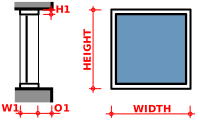 Fixed
Fixed -
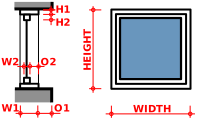 Open 1-pane
 -
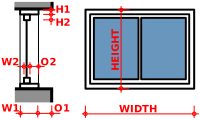 Open 2-pane
 -
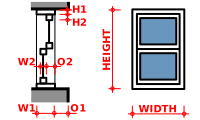 Sash 2-pane
 -
Sliding 2-pane
-
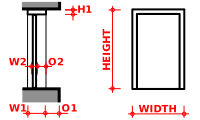 Simple door
 -
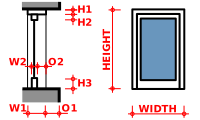 Glass door
 -
Sliding 4-pane
-
Awning
-
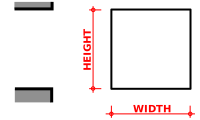 Opening only introduced in 1.0
Additional user presets
In addition to the default presets, the window tool can also use custom presets. A custom preset is a FreeCAD file containing a single window based on a parametric sketch that has two named constrains: Width and Height. Custom presets can be placed in the following locations:
$ROOT_DIR/Arch/Doors/Custom/
$ROOT_DIR/Arch/Windows/Custom/
If you install the Parts Library from the Addon Manager, the window tool will also search this library for additional presets at this pair of locations:
$ROOT_DIR/Mod/parts_library/Architectural Parts/Doors/Custom/
$ROOT_DIR/Mod/parts_library/Architectural Parts/Windows/Custom/
- The $ROOT_DIR is the user directory where FreeCAD configuration files, macros, and external workbenches are stored. It can be found be entering
FreeCAD.getUserAppDataDir()in the Python Console.- On Linux it is usually /home/username/.local/share/FreeCAD/
- On Windows it is usually C:\Users\username\Application Data\FreeCAD\
- On Mac OSX it is usually /Users/username/Library/Preferences/FreeCAD/
- The subdirectory name Custom is just a suggestion, any name can be used. But the files must be placed in one or more subdirectories inside the Doors or Windows directories.
Custom presets will be available in the window tool's presets dropdown menu. Presets in library locations will also be available in the Parts Library dialog.
Componentes constructivos
You can access, create, modify and delete components of a window in edit mode (double-click the window in the Tree View).
Windows can include 4 types of components: frames, solid panels, glass panels and louvres. Panels and louvres are made from one closed wire, which gets extruded, while frames are made from 2 or more closed wire, where each one is extruded, then the smaller ones are subtracted from the biggest one.
The components have the following properties:
- Nombre: un nombre para el componente
- Tipo: el tipo de componente. Puede ser "Marco", "Panel de vidrio", "Panel sólido" o "Louvres"
- Wires: una lista de lineas separadas por comas en la que el componente se basa
- Grosor: el espesor de extrusión del componente
- Z Offset: la distancia entre el componente y su base 2D linea(s)
- Bisagra: Esto le permite seleccionar un borde del objeto base 2D, luego establecer ese borde como una bisagra para este componente y los siguientes en la lista
- Modo de apertura: si definió una bisagra en este componente o en cualquier otro anterior de la lista, establecer el modo de apertura permitirá que la ventana parezca abierta o que muestren símbolos de apertura 2D en planta o alzado.

Custom types
Windows can also take advantage of other tools, specifically PartDesign workflows, to define a type. A type is an object that defines the shape of the window. This is specially well suited to work with Std Parts:

Download the example file shown above
Note that windows created in this manner do not support the Openings features.
Materials
To build a material for type-based windows:
- Create a multi-material.
- Create one entry in the multi-material for each component of your Std Part. For example, one "Frame", one "Glass panel" as we used above. Make sure to use the exact same name.
- Attribute that multi-material to each of the windows derived from the same type.
You can use any other kind of workflow than the one described above, the important points to remember are:
- The type object must be one object, no matter the type (Std Part or PartDesign Body).
- The type object must have a "Subvolume" property (linked to the window's Subvolume property) for openings in host objects to work.
- The type object must have a "Group" property with different children with same names as multi-material items for multi-materials to work.
Propiedades
An Arch Window object shares the common properties and behaviors of all Arch Components.
Data
Window
- DATOS Height: El alto de esta ventana
- DATOS Width: El ancho de esta ventana
- DATOS Hole Depth: La profundidad del agujero creado por esta ventana en su objeto anfitrión
- DATOS Hole Wire: el número de linea del objeto base que se usa para crear un agujero en el objeto anfitrión de esta ventana. Este valor puede establecerse gráficamente al hacer doble clic en la ventana en la vista de árbol. Establecer un valor de 0 hará que la ventana seleccione automáticamente su linea más grande para el agujero.
- DATOS Window Parts: una lista de cadenas (5 cadenas por componente, configurando las opciones de componentes anteriores)
- DATOS Louvre Width: si alguno de los componentes está configurado en "Louvres", esta propiedad define el tamaño de los elementos del louvre
- DATOS Louvre Spacing: si alguno de los componentes está configurado en "Louvres", esta propiedad define el espacio entre los elementos del Louvre
- DATOS Opening: todos los componentes que tienen su modo de apertura establecido, y siempre que se haya definido una bisagra en ellos o en un componente anterior de la lista, aparecerán abiertos en un porcentaje definido por este valor
- DATOS Symbol Plan: muestra el símbolo de apertura 2D en el plan
- DATOS Elevación de símbolo: muestra el símbolo de apertura 2D en alzado
Scripting
Programación
La herramienta Ventana puede usarse en macros y desde la consola de Python utilizando la siguiente función:
Window = makeWindow(baseobj=None, width=None, height=None, parts=None, name="Window")
- crea una ventana basada en el objeto dado
Ejemplo:
import FreeCAD as App
import Draft
import Arch

rect = Draft.makeRectangle(length=900, height=3000)
# Optional: rotate it to be on the XZ plane, so that the window is upright
rect.Placement.Rotation = App.Rotation(App.Vector(1, 0, 0), 90)
App.ActiveDocument.recompute()
Window = Arch.makeWindow(rect)
App.ActiveDocument.recompute()
You can also create a Window from a preset.
Window = makeWindowPreset(windowtype, width, height, h1, h2, h3, w1, w2, o1, o2, placement=None)
Ejemplo:
import FreeCAD as App
import Arch

base = App.Vector(2000, 0, 0)
axis = App.Vector(1, 0, 0)
place= App.Placement(base, App.Rotation(axis, 90))

door = Arch.makeWindowPreset("Simple door",
                             width=900, height=2000,
                             h1=100, h2=100, h3=100, w1=200, w2=100, o1=0, o2=100,
                             placement=place)
Esta página ha sido recuperada de https://wiki.freecad.org/Arch_Window