


Popis
Okno je základní objekt pro všechny druhy "vestavěných" objektů, jako jsou okna, dveře, atd... Je konstruované tak aby bylo buď nezávislé nebo "hostováno" uvnitř jiné komponenty jako je zeď. Má svoji vlastní konfiguraci, která může být vytvořena z několika komponent (např. rám okna) a také definuje objem, který bude ubrán z hostitelského objektu při vytvoření otvoru.
Okna jsou založena na uzavřených 2D objektech jako jsou Kreslení obdélníků nebo Náčrty, které jsou využity k definování jejich vnitřních komponent. Základní 2D objekt proto může obsahovat několik uzavřených lomených čar, které mohou být kombinovány tak aby utvořily vyplněné křídlo (jedna lomená čára) nebo rámy (několik lomených čar). Jestliže byl 2D objekt nakreslen na podpůrném objektu a je-li tento podpůrný objekt zeď, je okno automaticky včleněno do zdi.
The Window tool features several presets. These allow the user to create common types of windows and doors with certain editable parameters, without the need to create the base 2D objects and components manually.
All information applicable to an Arch Window also applies to an Arch Door, as it is the same underlying object.

Complex window being constructed on top of a Sketch. When entering the window's edit mode you can create different components, set their thickness, and select and assign wires from the sketch to them.
Použití
There are different ways to create windows, depending on the desired level of detail and functionality.
Použití předvoleb
This is the most straightforward way of creation, where existing presets cover the most general types of windows.
- There are several ways to invoke the tool:
- Press the
 Window button.
 - Select the 3D/BIM → Window option from the menu.
- Use the keyboard shortcut: W then I.
- Press the
- Select one of the presets in the list.
- Fill out the desired parameters.
- In the 3D View, move the window to the location where you wish to place it. If you move the pointer over an Arch Wall, the outline of the window should align itself with the face of that object.
- Click on the 3D View with the mouse, or press the Enter key three times to confirm the X-, Y-, Z-coordinates of the placement.
Learn more about presets.
Creating a window from custom components
When the desired window format is not covered by any of the existing presets, custom windows can be created and optionally included as user presets in addition to the built-in presets.
- Optionally, select a face on the Arch object where you want the window to be included, and then set the working plane to it.
- Create a new sketch with the
 New Sketch command on the current working plane.
 - For proper placement, the bottom left hand corner of the window should be at the sketch origin.
- Draw one or more closed wires (loops). Pay close attention to the creation order of these loops, the numbering of the "wires" in the task panel ("Window elements") depends on this.
- Close the sketch.
- Select the sketch and press the Window button, or any of the alternative ways to invoke the tool.
- To adjust the window components and various properties, enter the window task panel by double-clicking on the created object in the Tree View.
- Note that since components following a hinged component will also hinge, all fixed components, such as outer frames and fixed glass panels, must be defined before any hinged components. And a glass panel in a hinged frame must be defined after that frame, and before any other hinged components.
Learn more about custom components.
Creating a window from custom types
- Create a window frame object, a glass panel, and any other window component you need, using Part Workbench or PartDesign tools.
- For example, create a base rectangular sketch for your window, then a profile sketch for the frame, and create a Part Sweep to sweep the profile around the base sketch. Create a Part Offset2D from the base sketch, then a Part Extrude to create the glass panel
- Optionally, create a volume to be subtracted from the wall, for example by extruding the base sketch.
- Make sure all these pieces have a unique, meaningful name (for example, "Frame" or "Glass panel")
- Create an App Part, and place all your subcomponents in it
- If you have created one, make sure the subtraction volume's visibility is turned off
- If you want to make your window parametric, you can add 3 properties to your App Part, by right-clicking its Property View and selecting "Add Property". Add the following properties (all of them are optional, the property group doesn't matter):
- Height as a PropertyLength and link it, for example, to a vertical constraint of your base sketch.
- Width as a PropertyLength and link it, for example, to a horizontal constraint of your base sketch.
- Subvolume as a PropertyLink and link it to the volume to be subtracted that we created above.
- Tag as a PropertyString.
- To create window objects from the newly-created type. select the App Part and press the Window button, or any of the alternative ways to invoke the tool.
The ÚdajeHeight, ÚdajeWidth, ÚdajeSubvolume and ÚdajeTag properties of the window will be linked to the corresponding property of the App Part, if existing.
Learn more about custom types.
Strategies for placing windows
TBD - explain:
- Links vs clones - Advanced snapping
Volby
- Můžete teké vytvořit uzavřený 2D profil (např. pomocí Kreslicí plochy nebo Náčrtové plochy), potom s tímto vybraným 2D profilem stisknete tlačítko
 Okno.
Okno. - Přidejte vybrané okno do zdi vybráním obou (zdi i okna), potom stisknutím tlačítka
 Přidat.
 - Odebrání vybraného okna ze zdi vybráním okna a potom stisknutím tlačítka
 Odebrat.
 - Při využití předvoleb je často výhodné zapnout "Blízký" Kreslení Přichytit, takže můžete přichytit okno na existující plochu.
Openings
See also: Tutorial for open windows
Doors and windows can appear partially or fully opened in the 3D model, or can display opening symbols both in plan and/or elevation. Consequently, these will also appear in extracted 2D views generated by Draft Shape2DView or the TechDraw Workbench. To obtain this, at least one of the window components must have a hinge and an opening mode defined (see Custom components). Then, using the ÚdajeOpening, ÚdajeSymbol Plan or ÚdajeSymbol Elevation properties, you can configure the appearance of the window:

A door showing the symbol plan, symbol elevation and opening properties at work
Presets
The following presets are available:
-
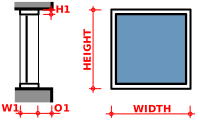 Fixed
Fixed -
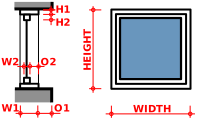 Open 1-pane
 -
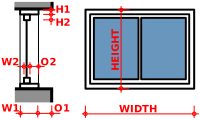 Open 2-pane
 -
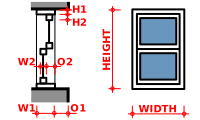 Sash 2-pane
 -
Sliding 2-pane
-
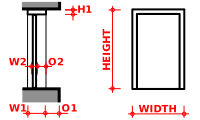 Simple door
 -
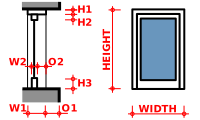 Glass door
 -
Sliding 4-pane
-
Awning
-
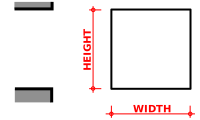 Opening only introduced in 1.0
Additional user presets
In addition to the default presets, the window tool can also use custom presets. A custom preset is a FreeCAD file containing a single window based on a parametric sketch that has two named constrains: Width and Height. Custom presets can be placed in the following locations:
$ROOT_DIR/Arch/Doors/Custom/
$ROOT_DIR/Arch/Windows/Custom/
If you install the Parts Library from the Addon Manager, the window tool will also search this library for additional presets at this pair of locations:
$ROOT_DIR/Mod/parts_library/Architectural Parts/Doors/Custom/
$ROOT_DIR/Mod/parts_library/Architectural Parts/Windows/Custom/
- The $ROOT_DIR is the user directory where FreeCAD configuration files, macros, and external workbenches are stored. It can be found be entering
FreeCAD.getUserAppDataDir()in the Python Console.- On Linux it is usually /home/username/.local/share/FreeCAD/
- On Windows it is usually C:\Users\username\Application Data\FreeCAD\
- On Mac OSX it is usually /Users/username/Library/Preferences/FreeCAD/
- The subdirectory name Custom is just a suggestion, any name can be used. But the files must be placed in one or more subdirectories inside the Doors or Windows directories.
Custom presets will be available in the window tool's presets dropdown menu. Presets in library locations will also be available in the Parts Library dialog.
Konstrukce komponent
You can access, create, modify and delete components of a window in edit mode (double-click the window in the Tree View).
Windows can include 4 types of components: frames, solid panels, glass panels and louvres. Panels and louvres are made from one closed wire, which gets extruded, while frames are made from 2 or more closed wire, where each one is extruded, then the smaller ones are subtracted from the biggest one.
The components have the following properties:
- Jméno: Jméno komponenty
- Typ: Typ komponenty. Může být "Frame" (Rám), "Glass panel" (Skleněný panel) nebo "Solid panel"(Pevný panel)
- Dráty: Čárkami oddělený seznam drátů, na kterých je komponenta založena
- Tloušťka: Tloušťka vysunutí komponenty
- Odsazení: Vzdálenost mezi komponentou a její základovou 2D lomenou čárou(čárami)

Custom types
Windows can also take advantage of other tools, specifically PartDesign workflows, to define a type. A type is an object that defines the shape of the window. This is specially well suited to work with Std Parts:

Download the example file shown above
Note that windows created in this manner do not support the Openings features.
Materials
To build a material for type-based windows:
- Create a multi-material.
- Create one entry in the multi-material for each component of your Std Part. For example, one "Frame", one "Glass panel" as we used above. Make sure to use the exact same name.
- Attribute that multi-material to each of the windows derived from the same type.
You can use any other kind of workflow than the one described above, the important points to remember are:
- The type object must be one object, no matter the type (Std Part or PartDesign Body).
- The type object must have a "Subvolume" property (linked to the window's Subvolume property) for openings in host objects to work.
- The type object must have a "Group" property with different children with same names as multi-material items for multi-materials to work.
Vlastnosti
An Arch Window object shares the common properties and behaviors of all Arch Components.
Data
Window
- ÚdajeČásti okna: Seznam textových řetězců (5 řetězců na každou komponentu, nastavuje vlastnosti komponent jak jsou uvedeny výše)
Scripting
Skriptování
Nástroj Okno může být využit v makrech a z konzoly Pythonu použitím následující funkce:
Window = makeWindow(baseobj=None, width=None, height=None, parts=None, name="Window")
- vytvoří okno založené na zadaném objektu
Příklad:
import FreeCAD as App
import Draft
import Arch

rect = Draft.makeRectangle(length=900, height=3000)
# Optional: rotate it to be on the XZ plane, so that the window is upright
rect.Placement.Rotation = App.Rotation(App.Vector(1, 0, 0), 90)
App.ActiveDocument.recompute()
Window = Arch.makeWindow(rect)
App.ActiveDocument.recompute()
You can also create a Window from a preset.
Window = makeWindowPreset(windowtype, width, height, h1, h2, h3, w1, w2, o1, o2, placement=None)
Example:
import FreeCAD as App
import Arch

base = App.Vector(2000, 0, 0)
axis = App.Vector(1, 0, 0)
place= App.Placement(base, App.Rotation(axis, 90))

door = Arch.makeWindowPreset("Simple door",
                             width=900, height=2000,
                             h1=100, h2=100, h3=100, w1=200, w2=100, o1=0, o2=100,
                             placement=place)
Tato stránka je načtena z https://wiki.freecad.org/Arch_Window