


|
|
| Menu location |
|---|
| None |
| Workbenches |
| All |
| Default shortcut |
| None |
| Introduced in version |
| 0.17 |
| See also |
| Std Group, PartDesign Body |
Description
Std Part (internally called App Part) is a general purpose container that keeps together a group of objects so that they can be moved together as a unit in the 3D View.
The Std Part object was developed to be the basic building block to create mechanical assemblies. In particular, it is meant to arrange objects that have a Part TopoShape, like Part Primitives, PartDesign Bodies, and other Part Features. The Std Part provides an Origin object with local X-, Y-, and Z-axis, and standard planes, that can be used as reference to position the contained objects. In addition, Std Parts may be nested inside other Std Parts to create a big assembly from smaller sub-assemblies.
Although it is primarily intended for solid bodies, the Std Part can be used to manage any object that has a Placement property, so it can also contain Mesh Features, sketches, and other objects derived from the App GeoFeature class.
Do not confuse the  PartDesign Body with the
  Std Part. The first is a specific object used in the
  PartDesign Workbench, intended to model an object by means of PartDesign Features. On the other hand, the Std Part is not used for modelling, just to arrange objects in space, with the intention to create assemblies.
The Std Part tool is not defined by a particular workbench, but by the base system, thus it is found in the Structure toolbar that is available in all workbenches. To group objects arbitrarily without considering their position, use Std Group. That object does not affect the placements of the elements it contains, it is just a folder to organize the Tree View.
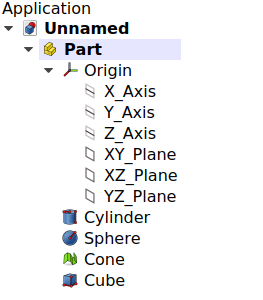
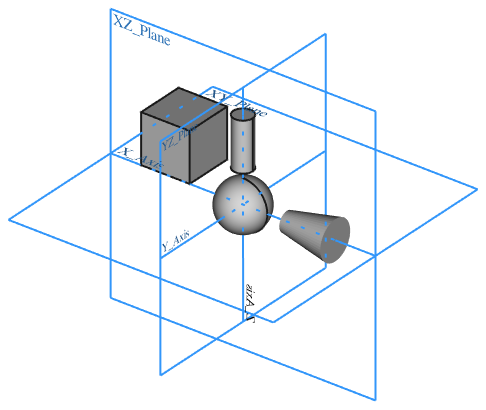
Left: elements inside a Std Part in the Tree View. Right: objects positioned in space, referred to the Origin of the Std Part.
Usage
- Press the New Part button.
- An empty Part is created and automatically becomes active.
- To add objects to the Part, select them in Tree View, and drag and drop them onto the Part.
- To remove objects from the Part, drag them out of the Part, and onto the document label at the top of the Tree View.
- Objects can also be added and removed by editing the ÚdajeGroup property of the Part.
Notes
- An object can only belong to a single Part.
- 3D operations like Part Boolean cannot be applied to Parts. For example, you cannot select two Parts, and perform a Part Fuse or Part Cut.
Properties
The Std Part, internally called App Part (App::Part class), is derived from the App GeoFeature (App::GeoFeature class) and inherits almost all its properties. It also has several additional properties. Notably properties that help it manage information in the context of an assembly, for example, ÚdajeType, ÚdajeId, ÚdajeLicense, ÚdajeLicenseURL and ÚdajeGroup.
These are the properties available in the Property View. Hidden properties can be shown by using the Show hidden command in the context menu of the Property View.
See Part Feature for an explanation of some of the properties listed below.
Data
Base
- ÚdajeType (
String): a description for this object. By default, it is an empty string"". - ÚdajeMaterial (
Link): the material for this object. - Údaje (Hidden)Meta (
Map): map with additional meta information. By default, it is empty{}. - ÚdajeId (
String): an identification or part number for this object. By default, it is an empty string"". - Údaje (Hidden)Uid (
UUID): the universally unique identifier (UUID) (128-bit number) of the object. This is assigned at creation time. - ÚdajeLicense (
String): a field to specify the license for this object. By default, it is an empty string"". - ÚdajeLicense URL (
String): a field to specify the web address to the license or contract for this object. By default, it is an empty string"". - ÚdajeColor (
Color): a tuple of four floating point RGBA values to define the color of the object. - ÚdajePlacement (
Placement) - Údaje (Hidden)_ Element Map Version (
String) - ÚdajeLabel (
String) - Údaje (Hidden)Label2 (
String) - Údaje (Hidden)Expression Engine (
ExpressionEngine) - Údaje (Hidden)Visibility (
Bool) - Údaje (Hidden)Origin (
Link): the App Origin object that is the positional reference for all elements listed in ÚdajeGroup. - ÚdajeGroup (
LinkList): a list of referenced objects. By default, it is empty[]. - Údaje (Hidden)_ Group Touched (
Bool): whether the group is touched or not.
Part
- Údaje (Hidden)_ Part_ Shape Cache (
ShapeCache): Shape cache. Not available if ÚdajeGroup is empty.
View
Base
- Pohled (Hidden)Transform Origin (
Placement)
Display Options
- PohledDisplay Mode (
Enumeration):Group. - PohledShow In Tree (
Bool) - PohledVisibility (
Bool)
Selection
- PohledOn Top When Selected (
Enumeration) - PohledSelection Style (
Enumeration)
Detailed explanation
Active status
An open document can contain multiple Parts. But only one Part can be active. The active Part is displayed in the Tree View with the background color specified by the Active container object value in the Preferences Editor. It will also be shown with bold text.
To activate or de-activate a Part:
- Double click on it on the Tree View, or
- Open the context menu (right click) and select Active Object.
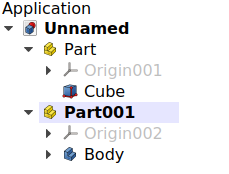
Document with two Std Parts, of which the second one is active.
Origin
The Origin consists of the three standard axes (X, Y, Z) and three standard planes (XY, XZ and YZ). Sketches and other objects can be attached to these elements when creating them.
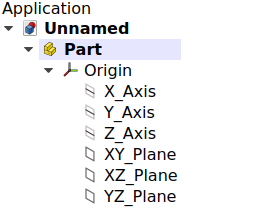
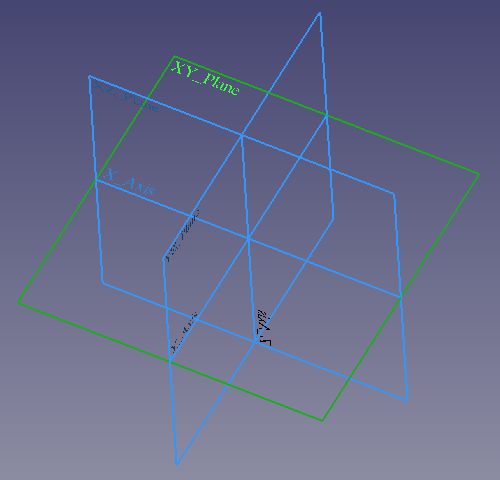
Left: Part Origin in the Tree View. Right: representation of the Origin elements in the 3D View.
Note: the Origin is an App Origin object (App::Origin class), while the axes and planes are objects of type App::Line and App::Plane respectively. Each of these elements can be hidden and unhidden individually with the Space bar; this is useful to choose the correct reference when creating other objects.
Note 2: all elements inside the Part are referenced to the Part's Origin which means that the Part can be moved and rotated in reference to the global coordinate system without affecting the placement of the elements inside.
Visibility management
The Part's visibility supersedes the visibility of any object it contains. If the Part is hidden, the objects it contains will be hidden as well, even if their individual PohledVisibility property is set to true. If the Part is visible, then each object's PohledVisibility determines whether the object is shown or not.
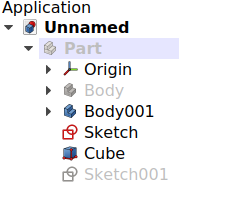
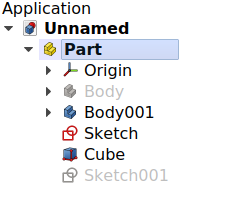
The visibility of the Std Part determines whether the objects grouped under it are shown in the 3D View or not. Left: the Part is hidden, so none of the objects will be shown in the 3D View. Right: the Part is visible, so each object controls its own visibility.
Scripting
See also: FreeCAD Scripting Basics and scripted objects.
See Part Feature for the general information on adding objects to the document.
A Std Part (App Part) is created with the addObject() method of the document. Once a Part exists, other objects can be added to it with the addObject() or addObjects() methods.
import FreeCAD as App

doc = App.newDocument()
part = App.ActiveDocument.addObject("App::Part", "Part")

obj1 = App.ActiveDocument.addObject("PartDesign::Body", "Body")
obj2 = App.ActiveDocument.addObject("Part::Box", "Box")

part.addObjects([obj1, obj2])
App.ActiveDocument.recompute()
You cannot create a scripted App::Part. However, you can add App::Part behavior to a scripted Part::FeaturePython object by using the following code:
class MyGroup(object):
    def __init__(self, obj=None):
        self.Object = obj
        if obj:
            self.attach(obj)

    def dumps(self):
        return

    def loads(self, _state):
        return

    def attach(self, obj):
        obj.addExtension("App::OriginGroupExtensionPython")
        obj.Origin = FreeCAD.ActiveDocument.addObject("App::Origin", "Origin")

    def onDocumentRestored(self, obj):
        self.Object = obj

class ViewProviderMyGroup(object):
    def __init__(self, vobj=None):
        if vobj:
            vobj.Proxy = self
            self.attach(vobj)
        else:
            self.ViewObject = None

    def attach(self, vobj):
        vobj.addExtension("Gui::ViewProviderOriginGroupExtensionPython")
        self.ViewObject = vobj

    def dumps(self):
        return None

    def loads(self, _state):
        return None

App.ActiveDocument.addObject("Part::FeaturePython",
                             "Group",
                             MyGroup(),
                             ViewProviderMyGroup(),
                             True)
Tato stránka je načtena z https://wiki.freecad.org/Std_Part