This documentation is not finished. Please help and contribute documentation.
GuiCommand model explains how commands should be documented. Browse Category:UnfinishedDocu to see more incomplete pages like this one. See Category:Command Reference for all commands.
See WikiPages to learn about editing the wiki pages, and go to Help FreeCAD to learn about other ways in which you can contribute.


|
|
| Menu location |
|---|
| Part Design → Dress-Up Features → Thickness |
| Workbenches |
| PartDesign |
| Default shortcut |
| None |
| Introduced in version |
| 0.17 |
| See also |
| Part Thickness |
Description
The  PartDesign Thickness tool transforms a solid body into a hollow object with at least one open face, giving to each of its remaining faces a uniform thickness. It adds a Thickness object to the document with its corresponding representation in the Tree View.
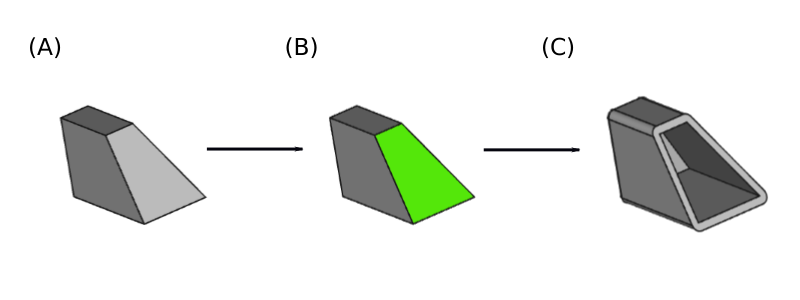
Base solid (A) → Solid with selected face to be opened (B) → Resulting hollow object (C)
Usage
Add a thickness
- Optionally activate the Body to apply the Thickness to.
- Select one or more faces of the Body.
- There are several ways to invoke the tool:
- Press the Thickness button.
- Select the Part Design → Dress-Up Features → Thickness option from the menu.
- Press the
- If there is no active Body, and there are two or more Bodies in the document, the Active Body Required dialog will open and prompt you to activate one. If there is a single Body it will be activated automatically.
- The Thickness Parameters task panel opens. See Options for more information.
- Press the OK button to finish.
- Remember:
- Since there must be at least one face for the feature, the last remaining face in the list cannot be removed.
Edit a thickness
- Do one of the following:
- The Thickness Parameters task panel opens. See Options for more information.
- Press the OK button to finish.
Options
- Add face: Add faces to the selection by pressing the Add face button and selecting more faces.
- Remove face: Choose a way to remove faces from the selection:
- Select one or more faces in the list and press the Del key or right-click the list and select Remove from the context menu.
- Press the Remove face button. All previously selected faces are highlighted in purple. Select each face to be removed.
- Thickness: Set the wall thickness either by editing the value or by clicking the up/down arrows.
- Mode:
- Skin: Select this option if you want to get an item like a vase, headless but with the bottom. Only this option can be selected.
- Pipe: Not implemented. See this forum topic.
- Recto Verso: Not implemented. See this forum topic.
- Join Type:
- Arc: When non-tangential faces are offset, new faces that do not intersect are joined by a fillet with a radius equal to the defined thickness.
- Intersection: When non-tangential faces are offset, new faces that do not intersect are extended to meet at their virtual intersection.
- Intersection: When checked, self-intersections in certain models are avoided. This option is not recommended as it relies on an incomplete OpenCASCADE method.
- Make thickness inwards: When checked, faces are offset inward.
Notes
- If thickness goes inwards, the value must be smaller than the smallest height of the Body.
- The tool may fail with complex shapes. Additive Pipe or Additive Loft may work better to create complex shapes.
- Known errors:
- BRep_API: command not done.
- BRep_Tool: no parameter on edge.
- Silently fails.
Properties
See also: Property View.
A PartDesign Thickness object is derived from a Part Feature object and inherits all its properties. It also has the following additional properties:
Data
Base
- DataBase (
LinkSub): Sub-link to the parent feature's list of selected edges and faces. - DataSupport Transform (
Bool): Include the base additive/subtractive shape when used in pattern features. If disabled, only the dressed part of the shape is used for patterning. Default:false. - Data (hidden)Add Sub Shape (
PartShape) - Data (hidden)Base Feature (
Link): Link to the parent feature. - Data (hidden)_ Body (
LinkHidden): Link to the parent body.
Part Design
- DataRefine (
Bool): Refine shape (clean up redundant edges) after adding/subtracting. The default value is determined by the Automatically refine model after sketch-based operation preference. See PartDesign Preferences.
Thickness
- DataValue (
Length): Thickness value. Default:1 mm. - DataMode (
Enumeration): Mode.Skin(default),PipeorRecto verso. OnlySkinis implemented. - DataJoin (
Enumeration): Join type.Arc(default) orIntersection. - DataReversed (
Bool): Apply the thickness towards the solids interior. Default:false. - DataIntersection (
Bool): Enable intersection-handling. Default:false.
This page is retrieved from https://wiki.freecad.org/PartDesign_Thickness