


|
|
| Menu location |
|---|
| Part Design → Transformation Features → Multi-Transform |
| Workbenches |
| PartDesign |
| Default shortcut |
| None |
| Introduced in version |
| - |
| See also |
| PartDesign Mirrored, PartDesign LinearPattern, PartDesign PolarPattern, PartDesign Scaled |
Description
The  PartDesign MultiTransform tool creates a pattern of one or more features. The pattern can include multiple transformations where each subsequent transformation is applied to the result of the previous transformation.
The available transformations are:  Mirror,
  Linear Pattern,
  Polar Pattern and
  Scale. The first three are also available as separate tools.
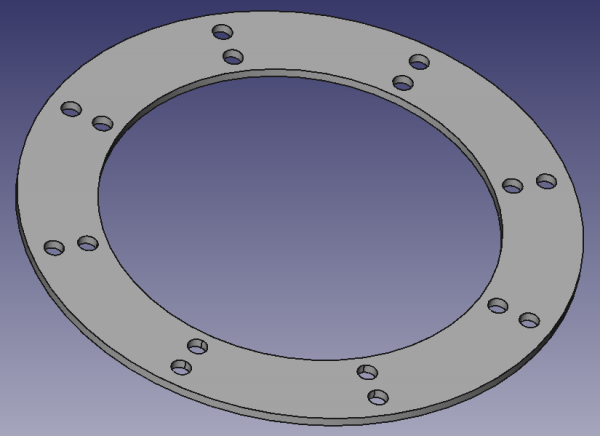
A pattern of holes created from a single Hole feature by applying a Linear Pattern with 2 occurrences, followed by a Polar Pattern with 8 occurrences.
Usage
Create
- Optionally activate the correct Body.
- Optionally select one or more features in the Tree View or the 3D View.
- There are several ways to invoke the tool:
- Press the Multi-Transform button.
- Select the Part Design → Transformation Features → Multi-Transform option from the menu.
- Press the
- If there is no active Body, and there are two or more Bodies in the document, the Active Body Required dialog will open and prompt you to activate one. If there is a single Body it will be activated automatically.
- The Multi-Transform Parameters task panel opens. See Options for more information.
- Press the OK button at the top to finish.
Edit
- Do one of the following:
- The Multi-Transform Parameters task panel opens. See Options for more information.
- Press the OK button at the top to finish.
Combine existing transformations
It is possible to create a MultiTransform object from existing Mirror, LinearPattern and Polar Pattern transformations.
- Check the DataOriginals property of the existing transformations to make sure they have been applied to the same features.
- Select those features in the Tree View.
- There are several ways to invoke the tool:
- Press the Multi-Transform button.
- Select the Part Design → Transformation Features → Multi-Transform option from the menu.
- Press the
- The MultiTransform parameters task panel opens.
- Press the OK button at the top.
- Edit the DataTranformations property of the created MultiTransform object:
- Click in the field.
- Press the … button that appears.
- The Link dialog opens.
- Hold down the Ctrl key and select the existing transformations.
- Press the OK button.
- Optionally edit the MultiTransform object, see above.
Options
- Choose the mode:
- Transform body: Transforms the whole base feature's shape (default). introduced in 1.0
- Transform tool shapes: Transforms the individual tool shapes of selected features.
- To add features:
- To remove features:
- If there are several features in the pattern, their order can be important. See PartDesign PolarPattern.
- To add transformations:
- If there are existing transformations: select the transformation after which the new transformation should be added.
- Right-click the Transformations list.
- Select one the following options from the context menu:
- Add Mirror Transformation. See PartDesign Mirrored.
- Add Linear Pattern. See PartDesign LinearPattern.
- Add Polar Pattern See PartDesign PolarPattern.
- Add Scaled Transformation. See PartDesign Scaled.
- The selected transformation is added to the list and the settings for the transformation are displayed below the list.
- Adjust the settings to suit.
- Press the OK bar at the bottom.
- Repeat to add more transformations.
- To edit a transformation:
- Right-click the transformation in the Transformations list.
- Select Edit from the context menu.
- Adjust the settings to suit.
- Press the OK bar at the bottom.
- To change the order of the transformations:
- Right-click a transformation in the Transformations list.
- Select Move Up or Move Down from the context menu.
- If the Recompute on change checkbox is checked the view will update in real time.
Limitations
Example
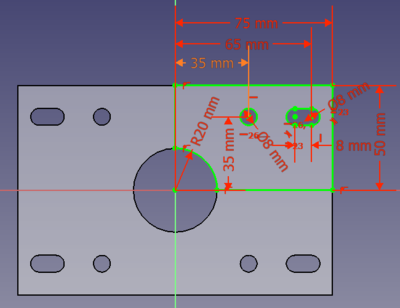
You can use this tool to create a fully parametric part that is symmetrical about two axes from a sketch.
This could be a 150x100x10mm large mounting plate for a motor with symmetric holes.
- Create a
 Body and add a
  sketch on one of its base planes.
 - In the sketch create geometry for one quadrant of the part (i.e. the upper right quadrant).
- Note that the constraints must also only cover a quarter of the part, e.g. instead of the full dimension of
150mmenter150/2mmor75mm. - Make sure the sketch is closed by adding lines along the vertical and horizontal axes.
- Note that the constraints must also only cover a quarter of the part, e.g. instead of the full dimension of
- Extrude the part with
 Pad.
Pad. - Select Multi-Transform.
- The task dialog opens.
- The last feature of the Body is already selected. Since we want to mirror that feature we can ignore the Add Feature and Remove Feature buttons.
- Right-click in the Transformations field and select Add Mirror Transformation from the context menu.
- For the Plane select Vertical sketch axis.
- If the Recompute on change checkbox is checked, you should now see the part mirrored about one axis.
- Again select Add Mirror Transformation from the context menu of the Transformations field.
- Now for the Plane select Horizontal sketch axis.
- Press the OK button to finish.
- To remove the edges along the axes of symmetry in the final result, set the DataRefine property of the new feature to
truein the Property View.
To verify that the part is fully parametric open the initial sketch with the quarter part and change one dimension, say a hole diameter. After closing the sketch the three other holes will have changed accordingly. This works with all other dimensions as well. A sketch modelling the full part with a single extrusion and no mirroring would be a lot more complex and all later changes would be more complicated.
This page is retrieved from https://wiki.freecad.org/PartDesign_MultiTransform