


|
|
| Menyplacering |
|---|
| Draft -> Trim/Extend |
| Arbetsbänkar |
| Draft, Arch |
| Standard genväg |
| T R |
| Introducerad i version |
| - |
| Se även |
| Part Extrude |
Beskrivning
Detta verktyg trimmar/klipper och förlänger linjer och polylines.
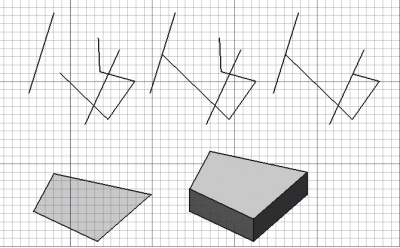
Top: a Draft Wire extended and then trimmed.
Bottom: a face extruded into a solid body.
Trim or extend
Usage
- Optionally select one object. The object must be a Draft Line, a Draft Wire, a Draft Arc or a Draft Circle (which can only be trimmed). If the selected object is closed it must have its DataMake Face property set to
false. - There are several ways to invoke the command:
- If you have not yet selected an object: select an object in the 3D View.
- The Trimex task panel opens. See Options for more information.
- Move the pointer in the 3D View so that the preview matches the desired result. If required use the modifier keys as explained in the Options.
- Do one of the following:
- Pick a point in the 3D View.
- Enter a Distance or an Angle. The distance is a delta distance. This option does not work if modifier keys are used.
- Move the pointer over an edge belonging to another object, and click when this edge is highlighted, to trim or extend the selected object using an intersection with the highlighted edge as the new endpoint. When trimming, the projection of the point where the cutting edge is selected onto the object to be trimmed, determines the default result. Note that snaps can have an undesirable impact here. In some cases it can be useful to turn them off temporarily.
Options
The single character keyboard shortcuts available in the task panel can be changed. See Draft Preferences. The shortcuts mentioned here are the default shortcuts.
- Hold down Alt to invert the default result of the command.
- Hold down Shift to restrict the operation to the current segment of a Draft Wire.
- Press S to switch Draft snapping on or off.
Here is an example to explain the modifier keys. The left edge or the bottom edge of the U-shaped wire was extended. All Draft Snaps were turned off.
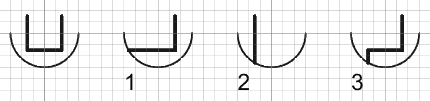
- trimning eller förlängning beslutas automatiskt beroende på muspositionen
- om du flyttar musmarkören över ett annat objekt, så kommer trim/förläng operationen att snäppa till det objektet eller segmentet
- Nedtryckning av SKIFT kommer att begränsa dig till det segment som för närvarande trimmas eller förlängs
- Nedtryckning av ALT kommer att invertera trimningens ordning
- fasning och avrundning stöds inte ännu men är planerat
Extrude
Usage
See also: Draft Snap and Draft Constrain.
- It can be helpful to first change the Draft working plane so that it is not coplanar with the face you want to extrude.
- Optionally select a single face or an object with a single face.
- There are several ways to invoke the command:
- Press the
 Draft Trimex button.
 - Select the Modification → Trimex option from the menu.
- Use the keyboard shortcut: T then R.
- Press the
- If you have not yet selected an object or a face: select an object with a single face in the 3D View.
- The Trimex task panel opens. See Options for more information.
- To define the extrusion direction and distance do one of the following:
Options
The modifier key mentioned here can be changed. See Draft Preferences.
- Hold Shift to extrude in a direction that is not parallel to the normal of the face.
Scripting
Skript
There is no Python method to trim objects. To extrude objects use the extrude method of the Draft module.
extrusion = extrude(obj, vector, solid=False)
objis the object to be extruded.vectoris the extrusion direction and distance.- If
solidisTruea solid is created instead of a shell. extrusionis returned with the created object.
Example:
import FreeCAD as App
import Draft

doc = App.newDocument()

rectangle = Draft.make_rectangle(1500, 500)
doc.recompute()

vector = App.Vector(0, 0, 300)
solid = Draft.extrude(rectangle, vector, solid=True)
doc.recompute()
Denna sida hämtas från https://wiki.freecad.org/Draft_Trimex