


Description
Snäppa innebär att din nästa 3d punkt "klistras" på en existerande punkt.

Snap tools
These tools are available in the Draft Snap toolbar and in the Draft Snap Widget.
Note that circular edges do not have to be full circles.
 Snap Lock: enables or disables snapping globally.
 Snap Endpoint: snaps to the endpoints of edges.
 Snap Midpoint: snaps to the midpoint of edges.
 Snap Center: snaps to the center point of faces and circular edges, and to the DataPlacement point of Draft WorkingPlaneProxies and Arch BuildingParts.
 Snap Angle: snaps to the special cardinal points on circular edges, at multiples of 30° and 45°.
 Snap Intersection: snaps to the intersection of two edges, and (introduced in 1.1) the intersection of a face and an edge.
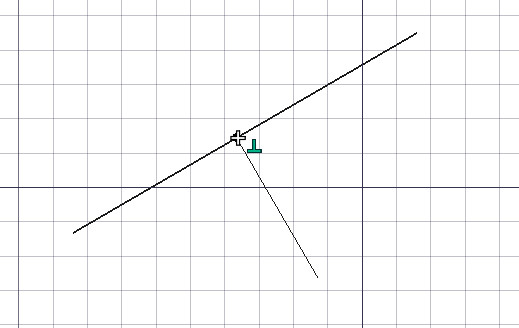
 Snap Perpendicular: snaps to the perpendicular points on faces (introduced in 0.21) and edges.
 Snap Extension: snaps to an imaginary line that extends beyond the endpoints of straight edges.
 Snap Parallel: snaps to an imaginary line parallel to straight edges.
 Snap Special: snaps to special points defined by the object.
 Snap Near: snaps to the nearest point on faces and edges.
 Snap Ortho: snaps to imaginary lines that cross the previous point at multiples of 45°.
 Snap Grid: snaps to the intersections of grid lines.
 Snap Working Plane: projects snap points onto the current working plane.
 Snap Dimensions: shows temporary X and Y dimensions.
 Toggle Grid: changes the visibility of the grid.
Advanced snapping
- Additional snap points can be obtained by combining two snap options. For example combining Draft Snap Ortho and Draft Snap Extension will give you a snap point at the intersection of their imaginary lines.
- Snapping can be combined with constraining.
- Press D anytime during snapping to recenter the working plane onto the currently highlighted snap point. The working plane will jump back to its original position after the command has finished. introduced in 1.1
- Press Q to insert a "hold point" at the current location of the cursor. You can snap to the orthogonal axes of hold points, and to the intersections of these axes. If the Draft Snap Midpoint option is active, you can also snap to the midpoint between two hold points.
- Press ` one or more times to snap to an object that is obscured by other geometry. This is called "snap cycling". Note that you must move the cursor by a small amount in the 3D View after pressing the key.

Snap cycling 1: The red rectangle was created first therefore it has snap priority. Without snap cycling you cannot snap to the green rectangle where it is overlapped by the red rectangle.

Snap cycling 2: After using the snap cycle key once the green rectangle receives snap priority. Snapping to the midpoint of the overlapped green edge is now possible.
Notes
- Multiple snap options can be active at the same time, but it is advisable to only activate the snap options you really need. Activating too many can slow things down.
- 1.0 and below: It is not a good idea to have Draft Snap Near permanently active as it takes precedence over many other snap options.
- introduced in 1.1: Is is possible to have Draft Snap Near permanently active, but it does mean you have to move the mouse more, and point the mouse more accurately, for other on-object snaps.
Preferences
See also: Preferences Editor and Draft Preferences.
Aktivt läge
För att växla till aktivt läge, håll ned CTRL medan du ritar. I aktivt läge, så visas antingen en stängd cirkel eller en öppen eller stängd kvadrat, beroende på snäpptyp. I alla verktyg som stöder snäppning, är följande snäpp platser tillgängliga:
- Linjernas ändpunkt
- Linjernas mittpunkt
- Cirklarnas och cirkelbågarnas centrum
- Cirklarnas och cirkelbågarnas kvadrantpunkter
- Cirkelbågarnas ändpunkter
- Vid begränsning (SKIFT), vertikalt eller horisontellt uppriktade punkter på linjer
- Skärningspunkter mellan segment
I verktyg som stöder både snäppning och begränsning, så kan kombinationen av båda (SKIFT+CTRL) utöka snäppningsmöjligheterna.
Denna sida hämtas från https://wiki.freecad.org/Draft_Snap