Эта документация не закончена. Пожалуйста, помогите и внесите свой вклад в разработку документации.
Пример документирования команды Gui объясняет, как должны быть задокументированы команды. Просмотрите Category:UnfinishedDocu/ru, чтобы увидеть больше незавершённых страниц, подобных этой. Смотрите Category:Command Reference/ru для всех команд.
Смотрите Wiki Страницы, чтобы узнать о редактировании вики-страниц, и зайдите на страницу Помоги FreeCAD, чтобы узнать о других способах, которыми вы можете внести свой вклад.


|
|
| Menu location |
|---|
| CAM → Sanity Check |
| Workbenches |
| CAM |
| Default shortcut |
| P S |
| Introduced in version |
| 0.19 |
| See also |
| None |
Описание
Many CAM users are hobbyists and DIYers. As such, they use their CNC machines to run G-code that they configured and generated themselves. That isn't the case for most professional and commercial users. In professional shops, different people are responsible for creating the G-code and for running it on the machine.
Hobbyists usually run the G-code shortly after post-processing it and probably only once or twice. In a professional shop, proven G-code may be run many times over a long period.
One issue in that workflow is that many assumptions made by the programmer are not communicated by the G-code itself. For example, the G-code may call for a tool T3, but the file does not necessarily explain what tool that is, how the stock is oriented, or what setup is expected. Similar assumptions can apply to machine setup, tooling, material, part orientation, coolant, and work-holding.
Even if the G-code itself is correct, differences between the programmed setup and the actual machine setup can still lead to mistakes. Commercial shops often solve this by preparing a setup report or setup book for the machine operator.
The  CAM Sanity command is used to generate this kind of setup-oriented information. The output is a standalone HTML report with embedded images that can be opened in a web browser.
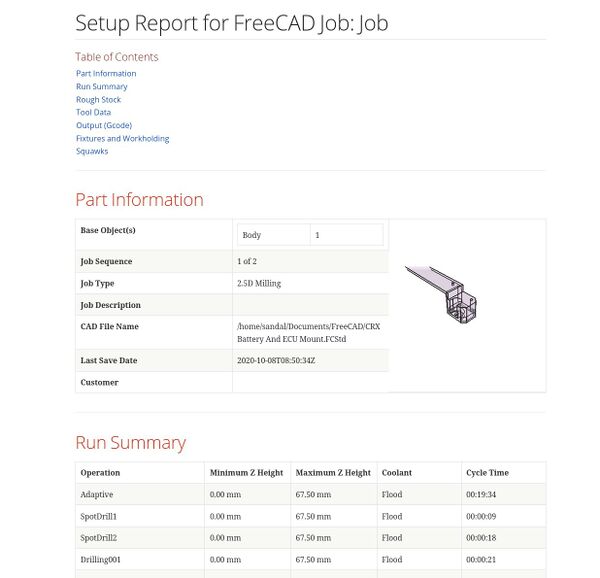
Above: Example of a CAM Sanity generated report
About the Report
As much as possible, the content is FreeCAD-agnostic. The machine operator may never use FreeCAD, so FreeCAD- and CAM-specific terminology should be kept to a minimum. The report has distinct sections so that setup information is easier to review.
Part Information
This section gives an overview of what is being made. Ideally the image should show the base object or objects used by the Job. If there are multiple base objects, the image should show how they relate to each other in the Job setup.
Run Summary
This section gives a quick overview of the Job, including important height information and estimated run-time values.
Rough Stock
This section shows the Stock object from the Job, including its size and placement relative to the model.
Tool Data
This section contains a subsection for each tool number used in the Job. It summarizes the tool and tool-controller information used by the selected operations. Depending on the available tool information, this can include the tool description, diameter, feed information, spindle speed, and the operations that use the tool.
Output
This section gives details about the configured output file and post-processing context. It can also show whether the Job contains optional or mandatory stops, so the operator knows whether the machine run requires attention during execution.
Coolant
This section indicates the coolant requirements defined by the operations in the Job.
Fixtures and Work-holding
This section shows the part in the context of the stock envelope and helps communicate the expected setup orientation and reference position.
Squawks
This section lists warnings and errors detected by CAM Sanity. These items may or may not be actual problems, but they should be reviewed before post-processing or running the Job. Examples can include duplicate tool numbers, inconsistent tool information, missing feed or spindle settings, and unused tool controllers.
Usage
- Select a
 CAM Job in the Tree View.
 - There are several ways to invoke the command:
- Press the Sanity Check button.
- Select the CAM → Sanity Check option from the menu.
- Use the keyboard shortcut: P then S.
- Press the
- If necessary, set the ДанныеOutputFile property of the Job before running the command.
- FreeCAD generates a standalone HTML report for the selected Job.
- The report is written to the same location as the configured Job output file.
- The generated report is opened in the system's default web browser.
Notes
- The report is generated directly as HTML by FreeCAD. A separate AsciiDoc or Asciidoctor installation is not required.
- The generated HTML file is intended to be easy to review, archive, or share together with the Job output.
- Report images can be embedded directly in the generated HTML file.
- Where applicable, report values are formatted for display using the current unit formatting.
- Tool diameter and feed values are formatted for display, and spindle speed is shown with an
rpmsuffix. - The report is a review aid. It does not replace visual toolpath inspection, simulation, or machine-specific setup documentation.
Эта страница получена от https://wiki.freecad.org/CAM_Sanity