FreeCAD Logo FreeCAD 1.0
  • Английский Африкаанс Арабский Белорусский Каталанский Чешский Немецкий Греческий Испанский Испанский Баскский Финский Филиппинский Французский Галисийский Хорватский Венгерский Индонезийский Итальянский Японский Кабильский Корейский Литовский Нидерландский Норвежская букмол Польский Португальский Португальский Румынский Русский Словацкий Словенский Сербский Шведский Турецкий Украинский Валенсианский Вьетнамский Китайский Китайский
  • Возможности
  • Скачать
  • Блог
  • Документация
    Индекс документации Приступая к работе Пользовательская документация Руководство по FreeCAD Документация верстаков Документация по кодированию на Python Документация по коду C++ Уроки Часто задаваемые вопросы Политика конфиденциальности О программе FreeCAD
  • Внести вклад
    Как помочь Sponsor Сообщить об ошибке Сделать запрос Задачи и финансирование Руководство по участию в разработке Руководство для разработчиков Переводы
  • Сообщество
    Кодекс поведения Форум The FPA GitHub GitLab Codeberg Mastodon Matrix IRC IRC via Webchat Gitter Discord Reddit Twitter Facebook LinkedIn Календарь
  • ♥ Donate

Donate

$
Информация о SEPA
Пожалуйста, настройте банковский перевод SEPA:
Beneficiary: The FreeCAD project association
IBAN: BE04 0019 2896 4531
BIC/SWIFT: GEBABEBBXXX
Банковское агентство: BNP Paribas Fortis
Адрес: Rue de la Station 64, 1360 Perwez, Belgium

While Stripe doesn't support monthly donations, you can still become a sponsor! Simply make a one-time donation equivalent to 12 months of support, and you'll gain access to the corresponding sponsoring tier. It's an easy and flexible way to contribute.

If you are not sure or not able to commit to a regular donation, but still want to help the project, you can do a one-time donation, of any amount.

Choose freely the amount you wish to donate one time only.

You can support FreeCAD by sponsoring it as an individual or organization through various platforms. Sponsorship provides a steady income for developers, allowing the FPA to plan ahead and enabling greater investment in FreeCAD. To encourage sponsorship, we offer different tiers, and unless you choose to remain anonymous, your name or company logo will be featured on our website accordingly.

from 1 USD / 1 EUR per month. You will not have your name displayed here, but you will have helped the project a lot anyway. Together, normal sponsors maintain the project on its feet as much as the bigger sponsors.

from 25 USD / 25 EUR per month. Your name or company name is displayed on this page.

from 100 USD / 100 EUR per month. Your name or company name is displayed on this page, with a link to your website, and a one-line description text.

from 200 USD / 200 EUR per month. Your name or company name and logo displayed on this page, with a link to your website and a custom description text. Companies that have helped FreeCAD early on also appear under Gold sponsors.

Instead of donating each month, you might find it more comfortable to make a one-time donation that, when divided by twelve, would give you right to enter a sponsoring tier. Don't hesitate to do so!

Choose freely the amount you wish to donate each month.

Please inform your forum name or twitter handle as a notein your transfer, or reach to us, so we can give you proper credits!

Post
CAM

CAM Job

Menu location
CAM → New Job
Workbenches
CAM
Default shortcut
P J
Introduced in version
-
See also
CAM Post, CAM Postprocessor Customization

Description

The CAM Job command creates a new Job object in the active document. The Job object contains the following information:

  1. A list of Tool-Controller definitions, specifying the geometry, Feeds, and Speeds for the Path Operations Tools.
  2. A Workflow sequential list of Path Operations.
  3. A Base Body—a clone used for offset.
  4. A Stock, representing the raw material that will be milled to CAM Workbench.
  5. A SetupSheet, containing inputs used by the Path Operations, including static values and formulas.
  6. Configuration parameters specifying the output G-Code job's destination path, file name, and extension, and the postprocessor (used to generate the appropriate dialect for the target CNC Controller, and customize Units, Tool Changes, Parking, etc.).

Usage

  1. There are several ways to invoke the command:
    • Press the New Job button.
    • Select the CAM → New Job option from the menu.
    • Use the keyboard shortcut: P then J.

The Job GUI dialog box has five horizontally aligned tabs: General, Output, Setup, Tools, and Workplan. The user can at any time utilize the OK or Cancel options within the dialog.

General
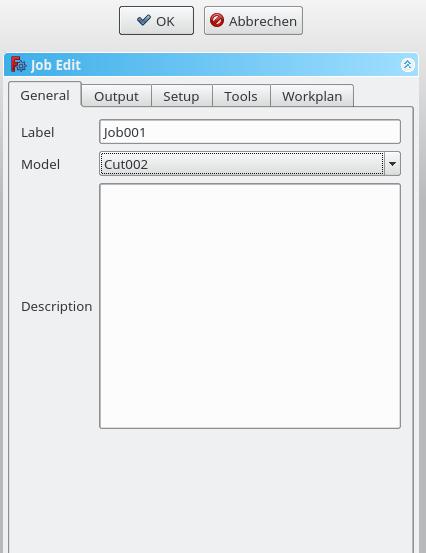
  • Label: The label of the Job as displayed in the Tree View.
  • Model: The Base Object which defines by its shape the paths of the job. If it is a Part Design object, it is usually the Body you select here. If you have an element selected in the tree before you click the "Add Job" icon that element is already entered here. You can change it by selecting a different element from the dropdown menu.
  • Description: You can add some notes to the job here. Notes are only for your information and have no effect on the path.

Output

  • Output File: Set the name, extension, and the file path of the G-Code output. You can use the following placeholders:
    • %D directory of the active document
    • %d name of the active document (without extension)
    • %M user macro directory
    • %j name of the job
  • Processor: Select the postprocessor for your machine.
  • Arguments: Add arguments for the postprocessor as needed.
  • Machine: Optionally select a machine configuration. When a machine is selected, it defines the postprocessor and related output settings for the job.

Setup
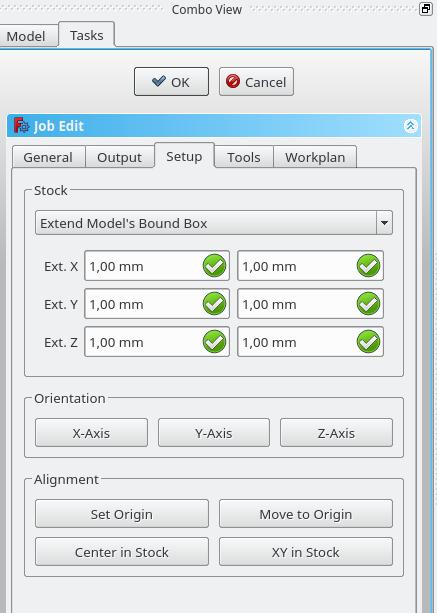
  • Stock: set the size and shape of the raw material.
  • Orientation: Selected Edge or Face is used to orient Base or Stock accordingly.
  • Alignment: select a Vertex to set origin or move Base or Stock

Tools
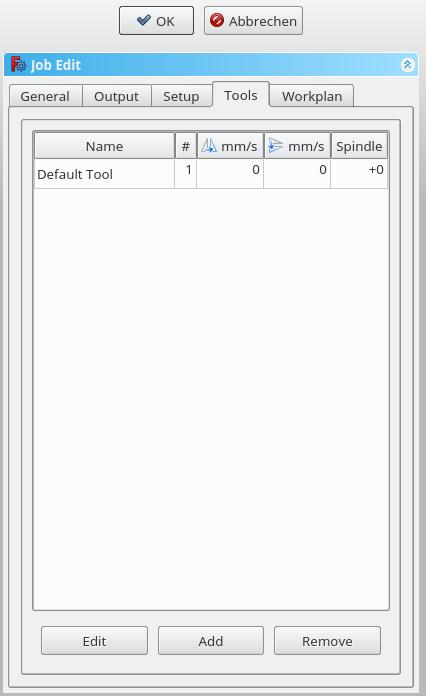
Add the tool(s) from your Tooltable that you need for the operations at this job.

After adding a tool, you can set/change the feedrate and spindle speed if you need a different feedrate in this job. A change here doesn't change the parameters stored in the tooltable.

You can delete the default tool if you have your own tool added.

Workplan
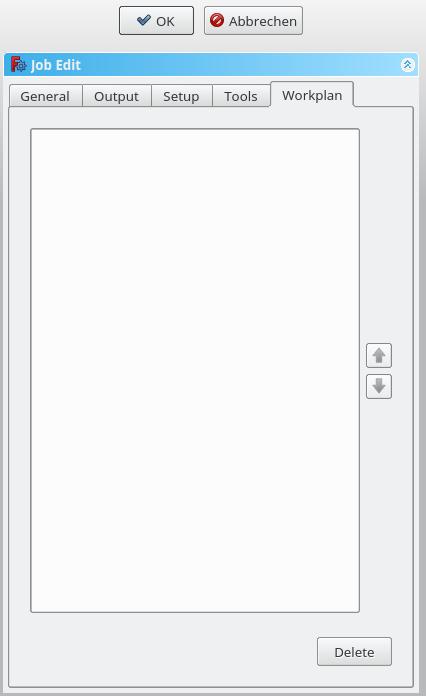
If you have a job that contains more than one path operation, you can determine in which order the operations should be done. To reorder, select an operation and push the up or down button.


Post
CAM

Эта страница получена от https://wiki.freecad.org/CAM_Job

Свяжитесь с нами!
Forum GitHub Mastodon Matrix IRC Gitter.im Discord Reddit Twitter Facebook LinkedIn

©Команда FreeCAD. Авторы изображений (сверху вниз): ppemawm, r-frank, epileftric, regis, regis, rider_mortagnais, bejant.

Этот проект поддерживается: , KiCad Services Corp. и другие спонсоры

GitHubУлучшить эту страницу на GitHub