


|
|
| Menu location |
|---|
| Macros → Execute macro |
| Workbenches |
| All |
| Default shortcut |
| CTRL+F6 |
| Introduced in version |
| - |
| See also |
| Execute Direct |

Descriere
Această funcție execută macroul selectat sau activ în editor. Este accesibil pe calea Macro → Execute macro, sau via butonul  Execute macro în bara de instrumente macro
  .
.
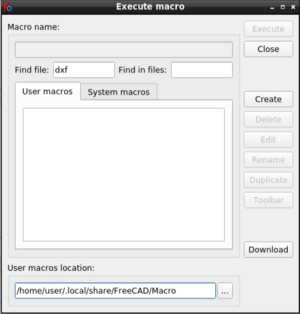
The Execute Macro dialog box
Utilizare
Când tastați în  Macros..., butonul Execute macro își schimbă cularea în verde
  . Click pe acest buton pentru a rula macrocomanda.
Options
Find file / Find in files
- These two input boxes can be used to filter macros from the file list on the User macros tab or the System macros tab. You may use regular expressions or simply enter text. All matches are case-insensitive.
- Find file filters the list by filename. Only filenames that match the entered text will appear in the list. Find in files filters the list by file content. Only files whose text content matches the entered text will appear in the list.
- Remove all text from a filter's input box to disable it. If both input boxes contain text, both filters are applied. Filtering may result in an empty list.
User macros
- The User macros tab lists the macros available in the User macros location.
- Click a macro in the list to select it.
- The name of the selected macro will appear in the Macro Name box.
System macros
- To make use of the System macros tab you must create a folder named Macro as a sibling folder of the bin folder where FreeCAD is installed and put some macros there.
- To find the bin folder enter this in the Python Console:
App.getHomePath()
- Click a macro in the list to select it.
- The name of the selected macro will appear in the Macro Name box.
User Macros Location
- Press the … button to change the user macros location.
- Browse to a different folder and select it.
Execute
- To execute a macro do one of the following:
- Select the macro in the list and press the Execute button.
- Double-click the macro in the list.
- The dialog box closes.
- The macro is executed.
Close
- Press Esc or the Close button to close the dialog box.
Create
- Press the Create button to create a new macro file.
- Enter a name in the dialog box that pops up. You do not have to include the .FCMacro extension.
- Press Enter or the OK button.
- Both dialog boxes close.
- The new file is opened in the Macro Editor.
Delete
- Select the macro you want to delete in the list.
- Press the Delete button.
- Press the Yes button in the confirmation dialog box that pops up.
Edit
- Select the macro you want to edit in the list.
- Press the Edit button.
- The dialog box closes.
- The selected file is opened in the Macro Editor.
Rename
- Select the macro you want to rename in the list.
- Press the Rename button.
- Enter a new name in the dialog box that pops up. You do not have to include the .FCMacro extension.
- Press Enter or the OK button.
Duplicate
- Select the macro you want to duplicate in the list.
- Press the Duplicate button.
- Enter a new name in the dialog box that pops up. You do not have to include the .FCMacro extension.
- Press Enter or the OK button.
Toolbar
- Select the macro you want to add to a custom toolbar in the list.
- Press the Toolbar button.
- Two 'walkthrough' dialogs will guide you through the required steps. See Interface Customization for more information.
Download
- Press the Download button to start the Addon Manager.
Notes
- To learn more about macros see the Macros page.
Preferences
See also: Preferences Editor.
- The user macros location can also be changed in the preferences: Edit → Preferences → Python → Macro → Macro Path.
Această pagină este preluată de la https://wiki.freecad.org/Std_DlgMacroExecute