FreeCAD Logo FreeCAD 1.0
  • Angličtina Afrikánština Arabština Běloruština Katalánština Čeština Němčina Řečtina Španělština Španělština Baskičtina Finština Filipínština Francouzština Galicijština Chorvatština Maďarština Indonéština Italština Japonština Kabylština Korejština Litevština Holandština Norština Bokmål Polština Portugalština Portugalština Rumunština Ruština Slovenština Slovinština Srbština Švédština Turečtina Ukrajinština Valencijština Vietnamština Čínština Čínština
  • Funkce
  • Stáhnout
  • Blog
  • Dokumentace
    Hlavní strana dokumentace Začínáme Uživatelská dokumentace Příručka FreeCAD Dokumentace pracovních prostředí Dokumentace o skriptování v Pythonu Dokumentace o programování v C++ Tutoriály Často kladené otázky Zásady ochrany soukromí O FreeCADu
  • Zapojte se
    Jak pomoci Sponsor Nahlásit chybu Vytvořit žádost o změnu Pracovní místa a financování Pokyny pro příspěvky Příručka pro vývojáře Překlady
  • Komunita
    Etický kodex Fórum The FPA GitHub GitLab Codeberg Mastodon Matrix IRC IRC via Webchat Gitter Discord Reddit Twitter Facebook LinkedIn Kalendář
  • ♥ Donate

Donate

$
SEPA informace
Nastavte prosím Váš SEPA bankovní převod na:
Beneficiary: The FreeCAD project association
IBAN: BE04 0019 2896 4531
BIC/SWIFT: GEBABEBBXXX
Bankovní agentura: BNP Paribas Fortis
Adresa: Rue de la Station 64, 1360 Perwez, Belgium

While Stripe doesn't support monthly donations, you can still become a sponsor! Simply make a one-time donation equivalent to 12 months of support, and you'll gain access to the corresponding sponsoring tier. It's an easy and flexible way to contribute.

If you are not sure or not able to commit to a regular donation, but still want to help the project, you can do a one-time donation, of any amount.

Choose freely the amount you wish to donate one time only.

You can support FreeCAD by sponsoring it as an individual or organization through various platforms. Sponsorship provides a steady income for developers, allowing the FPA to plan ahead and enabling greater investment in FreeCAD. To encourage sponsorship, we offer different tiers, and unless you choose to remain anonymous, your name or company logo will be featured on our website accordingly.

from 1 USD / 1 EUR per month. You will not have your name displayed here, but you will have helped the project a lot anyway. Together, normal sponsors maintain the project on its feet as much as the bigger sponsors.

from 25 USD / 25 EUR per month. Your name or company name is displayed on this page.

from 100 USD / 100 EUR per month. Your name or company name is displayed on this page, with a link to your website, and a one-line description text.

from 200 USD / 200 EUR per month. Your name or company name and logo displayed on this page, with a link to your website and a custom description text. Companies that have helped FreeCAD early on also appear under Gold sponsors.

Instead of donating each month, you might find it more comfortable to make a one-time donation that, when divided by twelve, would give you right to enter a sponsoring tier. Don't hesitate to do so!

Choose freely the amount you wish to donate each month.

Please inform your forum name or twitter handle as a notein your transfer, or reach to us, so we can give you proper credits!

DlgMacroRecord
DlgMacroExecuteDirect
Std Macro Menu

Std DlgMacroExecute

Menu location
Macro → Macros
Workbenches
All
Default shortcut
None
Introduced in version
-
See also
Std DlgMacroExecuteDirect

Description

The Std DlgMacroExecute command opens the Execute Macro dialog box. From this dialog box macros can be executed, edited and managed.
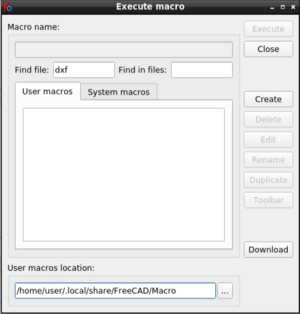
The Execute Macro dialog box

Usage

  1. There are several ways to invoke the command:
    • Press the Macros button.
    • Select the Macro → Macros option from the menu.
  2. The Execute Macro dialog box opens. See Options.

Options

Find file / Find in files

introduced in 1.0
These two input boxes can be used to filter macros from the file list on the User macros tab or the System macros tab. You may use regular expressions or simply enter text. All matches are case-insensitive.
Find file filters the list by filename. Only filenames that match the entered text will appear in the list. Find in files filters the list by file content. Only files whose text content matches the entered text will appear in the list.
Remove all text from a filter's input box to disable it. If both input boxes contain text, both filters are applied. Filtering may result in an empty list.

User macros

The User macros tab lists the macros available in the User macros location.
  1. Click a macro in the list to select it.
  2. The name of the selected macro will appear in the Macro Name box.

System macros

To make use of the System macros tab you must create a folder named Macro as a sibling folder of the bin folder where FreeCAD is installed and put some macros there.
To find the bin folder enter this in the Python Console:
App.getHomePath()
  1. Click a macro in the list to select it.
  2. The name of the selected macro will appear in the Macro Name box.

User Macros Location

  1. Press the … button to change the user macros location.
  2. Browse to a different folder and select it.

Execute

  1. To execute a macro do one of the following:
    • Select the macro in the list and press the Execute button.
    • Double-click the macro in the list.
  2. The dialog box closes.
  3. The macro is executed.

Close

  1. Press Esc or the Close button to close the dialog box.

Create

  1. Press the Create button to create a new macro file.
  2. Enter a name in the dialog box that pops up. You do not have to include the .FCMacro extension.
  3. Press Enter or the OK button.
  4. Both dialog boxes close.
  5. The new file is opened in the Macro Editor.

Delete

  1. Select the macro you want to delete in the list.
  2. Press the Delete button.
  3. Press the Yes button in the confirmation dialog box that pops up.

Edit

  1. Select the macro you want to edit in the list.
  2. Press the Edit button.
  3. The dialog box closes.
  4. The selected file is opened in the Macro Editor.

Rename

  1. Select the macro you want to rename in the list.
  2. Press the Rename button.
  3. Enter a new name in the dialog box that pops up. You do not have to include the .FCMacro extension.
  4. Press Enter or the OK button.

Duplicate

  1. Select the macro you want to duplicate in the list.
  2. Press the Duplicate button.
  3. Enter a new name in the dialog box that pops up. You do not have to include the .FCMacro extension.
  4. Press Enter or the OK button.

Toolbar

  1. Select the macro you want to add to a custom toolbar in the list.
  2. Press the Toolbar button.
  3. Two 'walkthrough' dialogs will guide you through the required steps. See Interface Customization for more information.

Download

  1. Press the Download button to start the Addon Manager.

Notes

  • To learn more about macros see the Macros page.

Preferences

See also: Preferences Editor.

  • The user macros location can also be changed in the preferences: Edit → Preferences → Python → Macro → Macro Path.


DlgMacroRecord
DlgMacroExecuteDirect
Std Macro Menu

Tato stránka je načtena z https://wiki.freecad.org/Std_DlgMacroExecute

Buďte v kontaktu!
Forum GitHub Mastodon Matrix IRC Gitter.im Discord Reddit Twitter Facebook LinkedIn

© Tým FreeCAD. Autorství obrázků úvodní stránky (od zhora dolů): ppemawm, r-frank, epileftric, regis, rider_mortagnais, bejant.

Tento projekt podporují: , KiCad Services Corp. a ostatní sponzoři

GitHubVylepšete tuto stránku na GitHubu