


|
|
| Menu location |
|---|
| Tools → Dependency Graph |
| Workbenches |
| All |
| Default shortcut |
| None |
| Introduced in version |
| - |
| See also |
| Std ExportDependencyGraph |
Description
The Std DependencyGraph command displays the dependencies between objects in the active document in a graph. As opposed to the Tree View, objects are listed in reverse chronological order, with the first created object at the bottom.
It can be useful in analyzing a FreeCAD document and locating forks in a tree. The dependency graph layout will depend on which workbench was used to create the objects in the document. For example a model made exclusively in the PartDesign workbench can display a linear dependency graph with a single vertical branch. A model made with Part operations will have many branches, but for a single part they will join up at the top after Boolean operations. If they don't, it means that they are separate objects.
The dependency graph is purely a visualization tool, therefore it cannot be edited. It automatically updates if changes are made to the model.
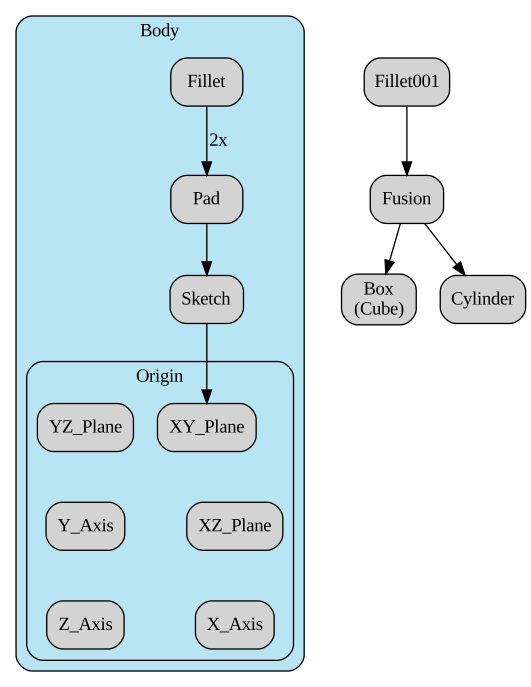
Example of a dependency graph with a PartDesign body on the left and an object created with Part operations on the right
Installation
To use the command a third-party software named Graphviz needs to be installed. If you do not have it pre-installed or it is installed in an unconventional location, FreeCAD will display the following dialog:
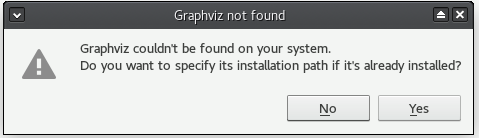
The path can set in the Parameter Editor under BaseApp → Preferences → Paths. If required create a New String Item named Graphviz first.
Windows
Download the graphviz-xx.yy installer from the Graphviz Download page and launch it to install it. Some older versions seem to have issues displaying the graph; version 2.38 and newer are known to be reliable. You can find all graphviz releases on Gitlab.
You may need to tell FreeCAD to look in the correct directory as explained before. On Windows the installation directory normally is C:\Program Files\Graphviz\bin.
macOS
You can install Graphviz using Homebrew if you have macOS Big Sur (11) (or higher). While installing Homebrew, don't get nervous, if macOS asks you to install updates, e.g. for the Xcode commandline tools. These updates are performed later by the installation process.
brew install graphviz
This installs the Graphviz binaries under /usr/local/bin for macOS on Intel, or /opt/homebrew for macOS on Apple Silicon/ARM. FreeCAD should automatically find these locations. If the Graphviz program is not found you will be asked to specify a path. Unfortunately we can't navigate directly to the program in the file dialog that comes up from Tools → Dependency Graph. There are two options: You can use the key combination Cmd+Shift+. to show hidden items. Or you can use the key combination Cmd+Shift+G to get an input field for the path. Enter one of these paths in the Terminal:
/usr/local/bin
or:
/opt/homebrew/bin
and confirm the input field and the file selection dialog.
In case the Graphviz binaries are installed in a non-standard location try to find the program with the command:
type dot
It will output something like:
dot is /usr/local/bin/dot
And you can tell FreeCAD to look in that directory.
If you don't have macOS Big Sur (11) (or higher) Homebrew might not work, but you can use MacPorts instead. Just download the appropriate version for your OS. Once the installation is complete, enter this command in the Terminal:
sudo port install graphviz
Enter your password and wait while the dependencies are downloaded and installed (it can take some time).
The Graphviz binaries may be under /usr/local/bin or /opt/local/bin/dot. FreeCAD may automatically find the Graphviz program with the file dialog that comes up from Tools → Dependency Graph, if not enter this command:
type dot
It will output something like:
dot is /opt/local/bin/dot
And you can tell FreeCAD to look in that directory as explained before.
It is also possible to make the opt directory visible with this command:
defaults write com.apple.finder AppleShowAllFiles YES;
then:
killall Finder /System/Library/CoreServices/Finder.app;
Therefore you can tell FreeCAD to follow this path. It has been successfully tested on macOS 10.13 (High Sierra).
Linux
On most Linux distributions (Debian/Ubuntu, Fedora, OpenSUSE), you just need to install the Graphviz package from the repositories. However, similar to the macOS, in cases where the Graphviz binaries are installed in a non-standard location, try to find the program with the command:
type dot
It may output something like
dot is /usr/local/bin/dot
And therefore you can point FreeCAD to look in that directory.
Usage
- Select the Tools →
 Dependency Graph option from the menu.
 - A new tab titled Dependency Graph opens in the Main View Area.
- Use the mouse scroll wheel to zoom in or out.
- Use the sliders at the bottom and at the right of the screen to pan the view. Alternatively hold down the left mouse button and move the mouse.
Save
You can save a dependency graph:
- Make sure the Dependency Graph tab is in the foreground.
- Select the File → Save or File → Save As option from the menu.
- Enter a filename and select the file type (*.gv, *.png, *.bmp, *.gif, *.jpg, *.svg or *.pdf).
- Press the Save button.
General principles
- The graph shows objects in reverse chronological order.
- The direction of arrows showing dependencies should always point down. An arrow pointing up indicates a cyclic dependency, an issue that needs to be resolved.
- A sketch that contains links to external geometry will have a number with an 'x' suffix besides the arrow linking it to its parent, showing the number of external geometries linked in the sketch.
- Objects can have dependencies to multiple parents. For example, for a model built in PartDesign, a Pocket may be linked to its Sketch and to the Pad feature that came before it.
- Disallowed dependencies (for example, between a Draft/Part operation and an element inside a PartDesign Body) will show with a red arrow. This type of link usually shows a 'Links go out of allowed scope' error in the Report View.
- A Part container and PartDesign Body enclose their content inside a frame with a randomly colored background. Their Origin also encloses its content (standard planes and axes) in a frame.
- A Group is displayed as a single element linked to its content.
This page is retrieved from https://wiki.freecad.org/Std_DependencyGraph