


|
|
| Menu location |
|---|
| Sketch → Constraints → Tangent/Collinear Constraint |
| Workbenches |
| Sketcher |
| Default shortcut |
| T |
| Introduced in version |
| - |
| See also |
| None |
Description
The  Sketcher ConstrainTangent tool constrains two edges, or an edge and an axis, to be tangent. Lines are treated as infinite, and open curves are virtually extended as well. The constraint can also connect two edges, forcing them to be tangent at the joint. If two lines are selected, or a line and the endpoint of another line, the lines are made collinear.
Usage
See also: Drawing aids.
Continue mode
- Make sure there is no selection.
- There are several ways to invoke the tool:
- Press the Tangent/Collinear Constraint button.
- Select the Sketch → Constraints → Tangent/Collinear Constraint option from the menu.
- introduced in 1.0: Right-click in the 3D View and select the Constrain → Tangent/Collinear Constraint option from the context menu.
- Use the keyboard shortcut: T.
- Press the
- The cursor changes to a cross with the tool icon.
- Do one of the following:
- Select two edges. The edges can be any edge except a B-spline.
- Select a point and two edges (in that order).
- Select an edge, a point and another edge (idem).
- A tangent constraint is added. If a point and two edges have been selected, up to two point-on-object constraints can also be added. See Examples.
- Optionally keep creating constraints.
- To finish, right-click or press Esc, or start another geometry or constraint creation tool.
Run-once mode
- Do one of the following:
- Select two edges (see above).
- Select two endpoints belonging to different edges.
- Select an edge and the endpoint of another edge (in any order).
- Select a point and two edges (idem).
- Invoke the tool as described above, or with one of the following additional options:
- introduced in 1.0: Right-click in the 3D View and select the Tangent/Collinear Constraint option from the context menu.
- Right-click in the Elements section of the Sketcher Dialog and select the Tangent/Collinear Constraint option from the context menu.
- introduced in 1.0: Right-click in the 3D View and select the
- A tangent constraint is added. If a point and two edges have been selected, up to two point-on-object constraints can also be added. See Examples.
Examples
Between two edges
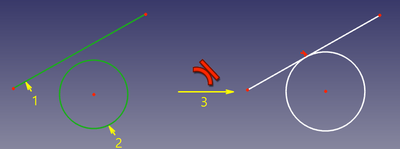
The two edges are made tangent. If one of the edges is a conic, a point object that has a point-on-object constraint with both (extended) edges is added.
It is not recommended to reconstruct the point of tangency by manually creating a point and constraining it to lie on both curves. It will work, but the convergence will be seriously slower, jumpier, and will require about twice as many iterations to converge than normal. If the point of tangency is needed, select two edges and an existing point instead.
Between two endpoints
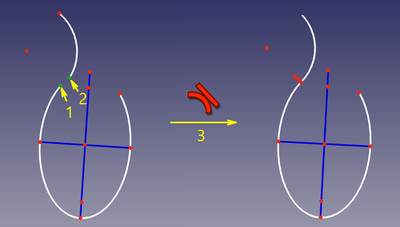
The endpoints are made coincident, and the angle between the edges at that point is set to 180° (smooth joint) or 0° (sharp joint), depending on the placement of the edges before the constraint is applied.
Between edge and endpoint
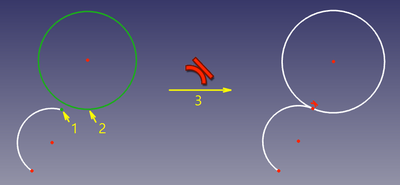
The endpoint of one edge is constrained to lie on the other edge, and the edges are made tangent at that point.
Between two edges at point
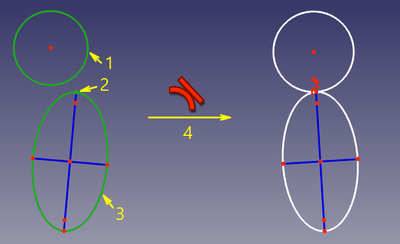
The two edges are made tangent at a given point. The point can be any point, e.g. the center of a circle, the endpoint of an edge, or the origin, it can belong to one of the edges, and it can also be a point object. If required point-on-object constraint(s) are added to ensure the point lies on both (extended) edges. These additional constraints are called helper constraints.
Compared to direct tangency, this constraint is slower, because there are more degrees of freedom involved, but if the point of tangency is needed, it is recommended because it offers better convergence.
Between two lines
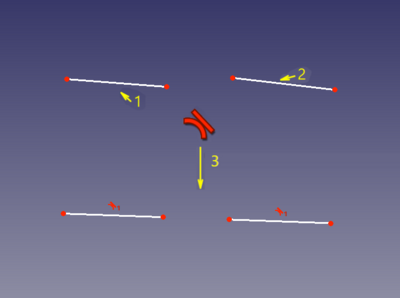
The two lines are made collinear.
Scripting
Tangent Constraint can be created from macros and from the Python console by using the following:
# direct tangency
Sketch.addConstraint(Sketcher.Constraint('Tangent',icurve1,icurve2))

# point-to-point tangency
Sketch.addConstraint(Sketcher.Constraint('Tangent',icurve1,pointpos1,icurve2,pointpos2))

# point-to-curve tangency
Sketch.addConstraint(Sketcher.Constraint('Tangent',icurve1,pointpos1,icurve2))

# tangent-via-point (plain constraint, helpers are not added automatically)
Sketch.addConstraint(Sketcher.Constraint('TangentViaPoint',icurve1,icurve2,geoidpoint,pointpos))
where:
Sketchis a sketch objecticurve1,icurve2are two integers identifying the curves to be made tangent. The integers are indices in the sketch (the values, returned bySketch.addGeometry).pointpos1,pointpos2should be1for start point and2for end point.geoidpointandpointposinTangentViaPointare the indices specifying the point of tangency.
The Sketcher scripting page explains the values which can be used for incurve1, incurve2, pointpos1, pointpos2, geoidpoint and pointpos and contains further examples on how to create constraints from Python scripts.
このページは以下から取得されています https://wiki.freecad.org/Sketcher_ConstrainTangent