


Introduction
マクロはFreeCADに複雑なアクションを作成するための便利な方法です。簡単にあなたが行う操作を記録したものを名前をつけて保存し、いつでも好きなときに再生することができます。マクロはpythonコマンドで記述されているので、それらを編集して非常に複雑なスクリプトを作成することができます。
While Python scripts normally have the .py extension, FreeCAD macros should have the .FCMacro extension. A collection of macros written by experienced users is found in the macros recipes page.
See the Power users hub to learn more about the Python programming language, and about writing macros. In particular, you should start with these pages:
操作方法
コンソール出力(メニュー Edit -> Preferences -> General -> Macros -> Show scripts commands in python console)を有効にした場合は、FreeCADでは、ボタンを押すのなどのあなたが行うすべてのアクションがpythonコマンドを出力していることがわかります。 このコマンドはマクロに記録することができるものです。マクロを作成するための主なツールはマクロのツールバーです。 それには、4つのボタンがあります:「記録」、「記録終了」、「編集」、「マクロの実行」です。
Enable the console output in the menu Edit → Preferences → Python → Macro → Show scripts commands in python console. You will see that in FreeCAD, every action you do, such as pressing a button, outputs a Python command. Those commands are what can be recorded in a macro. The main tool for making macros is the macros toolbar: . On it you have 4 buttons: Record, stop recording, edit and play the current macro.
それを使用することは非常に簡単です:「記録」ボタンを押すと、マクロに名前を付けるように求められます。その後、いくつかのアクションを実行します。作業が完了したら、「記録終了」ボタンをクリックして、あなたの行ったアクションが保存されます。ここで「編集」ボタンを押すとマクロダイアログを開くことができます。

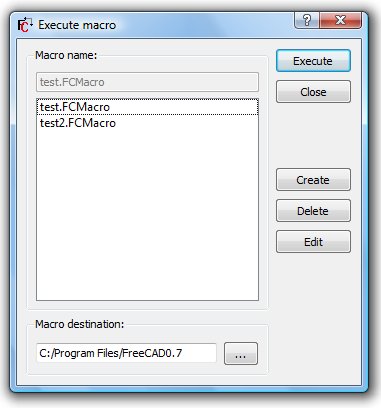
マクロダイアログには、あなたのマクロを管理、編集、削除、新規作成ができます。マクロを編集する場合、コードに変更を加えることができるエディタウィンドウが開きます。 新しいマクロはAddon ManagerにリンクするAddons ...ボタンを使ってインストールできます。
例
「記録」ボタンを押して名前をつけてみましょう。"cylinder 10×10"にします。その後、パートワークベンチで、半径= 10、高さ= 10でシリンダを作成します。そして、「記録停止」ボタンを押してください。マクロ編集のダイアログでは、記録されているPythonのコードを見ることができ、必要に応じて変更を加えることができます。マクロを実行する簡単な方法は、マクロをエディタで開きツールバー上の「実行」ボタンを押します。 マクロは常にディスクに保存され、あなたが行ったすべての変更、または新しく作成したマクロはFreeCADを次回起動時も利用できるようになっています。
Press the record button, give a name, let's say "cylinder 10x10", then, in the Part Workbench, create a cylinder with radius = 10 and height = 10. Then, press the "stop recording" button. In the edit macros dialog, you can see the python code that has been recorded, and, if you want, make alterations to it. To execute your macro, simply press the execute button on the toolbar while your macro is in the editor. You macro is always saved to disk, so any change you make, or any new macro you create, will always be available next time you start FreeCAD.
カスタマイズ
もちろん、マクロを使用するたびに、エディタでマクロを開くのは実用的ではありません。 FreeCADは、マクロにキーボードショートカットを割り当てる、メニューのエントリに追加するなど、マクロを使用するためのはるかに優れた方法を提供します。マクロが作成されると、Tools -> Customize メニューから設定を行うことができます
Of course it is not practical to load a macro in the editor in order to use it. FreeCAD provides much better ways to use your macro, such as assigning a keyboard shortcut to it or putting an entry in the menu. Once your macro is created, all this can be done via the Tools → Customize menu.

Customize Toolbars この方法であなたのマクロをFreeCADの標準ツールのように使うことができます。これは、FreeCADのpythonスクリプトの力のおかげで、インターフェイスに独自のツールを簡単に追加することができます。Pythonスクリプティングについて詳細をお知りになりたい場合はScriptingページを参照してください。
See Customize Toolbars for a more detailed description.
記録せずにマクロを作成する
How to install macros また、直接GUI操作を記録せずに、マクロにpythonコードをコピー/ペーストすることができます。新しいマクロを作成・編集して、コードを貼り付けます。あなたのマクロはFreeCADの文書を保存するのと同じ方法で保存することができます。FreeCADを次回起動する時には、マクロは「Macro」メニューの"Installed Macros"項目の下に表示されます。
You can also directly copy/paste python code into a macro, without recording GUI action. Simply create a new macro, edit it, and paste your code. You can then save your macro the same way as you save a FreeCAD document. Next time you start FreeCAD, the macro will appear under the "Installed Macros" item of the Macro menu.
See How to install macros for a more detailed description.
マクロリポジトリ
Macros recipesページには、あなたのFreeCADに追加できるいくつかの便利なマクロが紹介されています。
There are two main places for macros. The first one is the official peer-reviewed macro repository on GitHub. The second one is the Macros recipes page from which you can pick some useful macros to add to your FreeCAD installation. Macros from both repositories can be installed via the Addon Manager directly from FreeCAD.
Tutorials
You can manually install extensions, however, it is much simpler to just use the Addon Manager.
このページは以下から取得されています https://wiki.freecad.org/Macros