 Tutorial Tutorial
|
| Topic |
|---|
| Sketcher |
| Level |
| Beginner |
| Time to complete |
| 15 minutes |
| Authors |
| Drei |
| FreeCAD version |
| 0.16 or above |
| Example files |
| See also |
| None |
Introduction
Introducere
Acest tutorial are rolul de a introduce cititorul în fluxul de lucru de bază al aplicației PartDesign Workbench. Cititorul va vedea cum se creează obiecte 3D bazate pe schițe, operații substractive și replicarea unor caracteristici specifice într-un model.
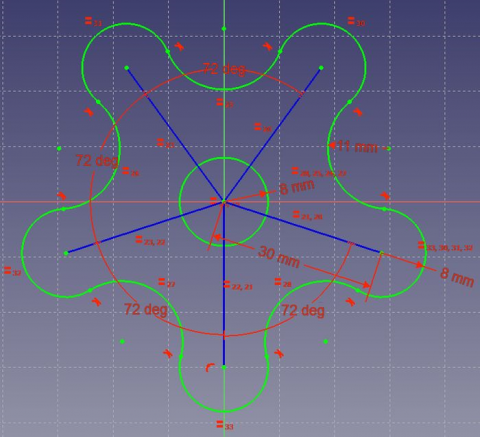
Requirements
Cerințe
- FreeCAD version 0.17 or above
- The reader has finished the Basic Sketcher Tutorial
Procedure
Creating 3D geometry
Procedură
Crearea de forma geometrice 3D
Scopul Atelierului PartDesign Workbench este de a permite utilizatorului să creeze geometrie în spațiul 3D. Ca atare, este echipat cu instrumente pentru a face uz de schițe și a le converti în obiecte 3D.
Pentru a realiza acest lucru, există două instrumente: Pad and
  Revolution. Alongside their subtractive counterparts (
 Pocket and
  Groove) they make up most of the common actions used by this workbench.
- Switch to the PartDesign Workbench
- With the sketch selected in the tree view, press
 PartDesign Body, choose the default XY-plane, and press OK. The sketch should appear now inside the Body.
 - Select
 Pad
Pad - Set the distance to 5 mm
- Select Ok
Another way to create 3D geometry is with the Revolution tool.
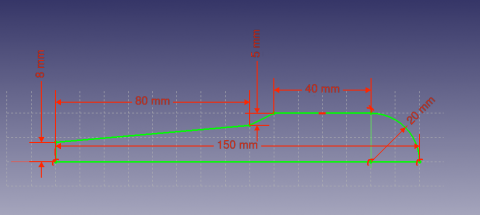
- Create a sketch based on the image above
- Select Revolution
- Set the "Axis" to the "Horizontal Sketch Axis"
- Set the angle to 360°
Subtracting Features
Caracteristici Subtractve
Vom începe prin a crea o schiță cu forma pe care dorim să o extragem.
- Select the top flat face of the "Revolution"
- Select
 New sketch
 - Select
 External Geometry
 - Approach the edge of the pad. An arc should be highlighted
- Select the arc. An arc of a different color should appear in the sketch
- Create a hexagon centered on the same point as the arc and set the radius of the reference circle to 5 mm
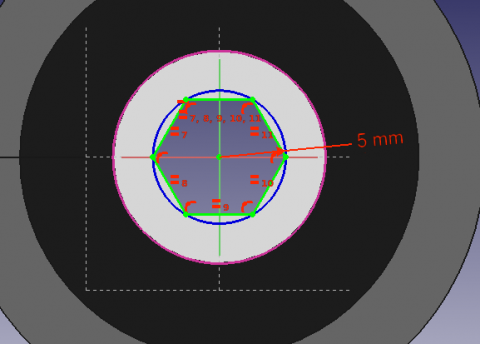
Apoi, vom continua să aplicăm funcționalitateaPocket.
- Select the sketch
- Select Pocket
- Set the distance to Through all
Pattern Features
Funcționalități ale Modeluluis
Re apelați profilul extrudat care a fost creat la începutul tutorialului.
- Select the top face of the object
- Create a new Sketch
- Create reference geometry linked to the top arm of the figure
- Create a circle constrained to the center of the reference arc
- Set its radius to 3 mm
- Pocket the sketch through all the workpiece
Instead of creating a circle for each hole in the sketch, we will introduce the concept of Pattern Features. These tools operate by replicating a feature in the workpiece that has already been created and that we wish to reproduce in a linear or circular arrangement. We will use a combination of Linear and Polar pattern features simulatneously to obtain the final workpiece.
- Select the Pockt feature that we just created in the Tree View
- Select
 MultiTransform
In the Combo View we are now asked to introduce the Transformations that we desire. Notice that in the MultiTransform parameters menu we see that FreeCAD has identified the Pocket as the Original feature and a second box requests us to Right click it to introduce the pattern features.
- Right click the box
- Select Add Linear Pattern
- Set the Direction to Vertical Sketch Axis
- Set length to 10 mm
- Leave occurrences at 2
- Click OK
- Right click the box again to add a Polar Pattern. Notice that the 3D view has now added the linear pattern.
- Set occurrences to 5
- Click OK twice
După finalizarea acestei sarcini, trebuie să aveți următorul rezultat.
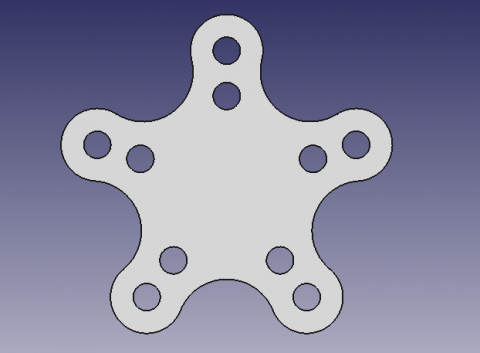
If not, re-edit the MultiTransform operation by double clicking on it in the Tree View. Check both pattern features to detect necessary modifications, such as the Axis and if the Direction needs to be reversed.
Suntem terminați acum cu fluxul de lucru de bază pentru PartDesign Workbench.
Această pagină este preluată de la https://wiki.freecad.org/PartDesign_tutorial