Эта документация не закончена. Пожалуйста, помогите и внесите свой вклад в разработку документации.
Пример документирования команды Gui объясняет, как должны быть задокументированы команды. Просмотрите Category:UnfinishedDocu/ru, чтобы увидеть больше незавершённых страниц, подобных этой. Смотрите Category:Command Reference/ru для всех команд.
Смотрите Wiki Страницы, чтобы узнать о редактировании вики-страниц, и зайдите на страницу Помоги FreeCAD, чтобы узнать о других способах, которыми вы можете внести свой вклад.


|
|
| Расположение в меню |
|---|
| Part Design → Create a substractive feature → Вырез |
| Верстаки |
| PartDesign |
| Быстрые клавиши |
| Нет |
| Представлено в версии |
| - |
| См. также |
| Выдавливание |
Description
The Pocket tool cuts solids by extruding a sketch or a face of a solid along a straight path.
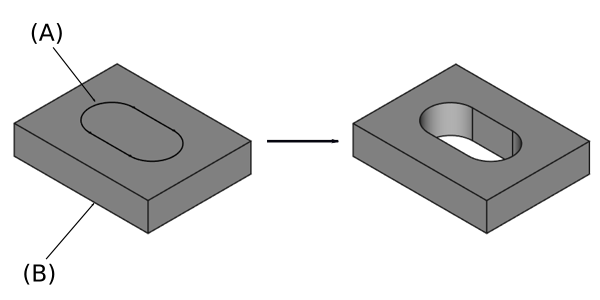
Sketch profile (A) was mapped to the top face of base solid (B); result after pocketing through on the right.
Usage
- Select a single sketch or one or more faces from the Body.
- There are several ways to invoke the tool:
- Press the
 Pocket button.
 - Select the Part Design → Subtractive Features → Pocket option from the menu.
- Press the
- Set the Pocket parameters, see Options below.
- Press the OK button.
Options
When creating a pocket, or after double-clicking an existing pocket in the Tree View, the Pocket parameters task panel is shown. It offers the following settings:

Type
Type offers five different ways of specifying the length of the pocket:
Dimension
Enter a numeric value for the Length of the pocket. With the option Symmetric to plane the pocket will extend half the given length to either side of the sketch or face.
Through all
The pocket will extend up to the last face of the support it encounters in its direction. With the option Symmetric to plane the pocket will cut through all material in both directions. Note that for technical reasons, Through All is actually a 10 meter deep pocket. If you need deeper pockets, use the type Dimension.
To first
The pocket will extend up to the first face of the support it encounters in its direction.
Up to face
The pocket will extend up to a face. Press the Select face button and select a face or a datum plane from the Body.
Two dimensions
This allows to enter a second length in which the pocket should extend in the opposite direction. The directions can be switched by checking the Reversed option.
Up to shape
introduced in 1.0: The pocket will extend up to the selected shape. Optionally press the Select shape button and select a shape. Leave the Select all faces checkbox enabled or disable it, press the Select button and select the faces up to which the pocket should be created.
Offset to face
Offset from face at which the pocket will end. This option is only available if Type is Through all, To first or Up to face.
Length
Defines the length of the pocket. This option is only available if Type is Dimension or Two dimensions. The length is measured along the direction vector, or along the normal of the sketch or face. Negative values are not possible. Use the Reversed option instead.
2nd length
Defines the length of the pocket in the opposite direction. This option is only available if Type is Two dimensions.
Symmetric to plane
Check this option to extrude half the given length to either side of the sketch or face, if Type is Dimension, or Through all if that is the Type.
Reversed
Reverses the direction of the pocket.
Direction
Direction/edge
You can select the direction of the extrusion:
- Sketch normal or Face normal: The sketch or face is extruded in the opposite direction of its normal. If you have selected several sketches or faces to be extruded, the normal of the first one will be used.
- Select reference…: The sketch or face is extruded in the opposite direction of a straight edge or a datum line selected from the Body.
- Custom direction: The sketch or face is extruded in the direction of the specified vector.
Show direction
If checked, the pocket direction will be shown. In case the pocket uses a Custom direction, it can be changed.
Length along sketch normal
If checked, the pocket length is measured along the sketch or face normal, otherwise along the custom direction.
Taper angle
Tapers the pocket in the extrusion direction by the given angle. A positive angle means the outer pocket border gets wider. Note that inner structures receive the opposite taper angle. This is done to facilitate the design of molds and molded parts. This option is only available if Type is Dimension or Two dimensions.
2nd taper angle
Tapers the pocket in the opposite extrusion direction by the given angle. See Taper angle. This option is only available if Type is Two dimensions.
Properties
Data
Part Design
- ДанныеRefine (
Bool): True or false. Cleans up residual edges left after the operation. This property is initially set according to the user's settings (found in Preferences → Part Design → General → Model settings).
- ДанныеType (
Enumeration): Defines how the pocket will be extruded, see Options. - ДанныеLength (
Length): Defines the length of the pocket, see Options. - ДанныеLength2 (
Length): Second pocket length in case the ДанныеType is TwoLengths, see Options. - ДанныеUse Custom Vector (
Bool): If checked, the pocket direction will not be the normal vector of the sketch but the given vector, see Options. - ДанныеDirection (
Vector): Vector of the pocket direction if ДанныеUse Custom Vector is used. - ДанныеReference Axis (
LinkSub) - ДанныеAlong Sketch Normal (
Bool): If true, the pocket length is measured along the sketch normal. Otherwise and if ДанныеUse Custom Vector is used, it is measured along the custom direction. - ДанныеUp To Face (
LinkSub): A face the pocket will extrude up to, see Options. - ДанныеOffset (
Length) - ДанныеTaper Angle (
Angle) - ДанныеTaper Angle2 (
Angle)
Sketch Based
- ДанныеProfile (
LinkSub) - ДанныеMidplane (
Bool) - ДанныеReversed (
Bool) - ДанныеAllow Multi Face (
Bool)
Limitations
- Use the type Dimension or Through All wherever possible because the other types sometimes give trouble when they are being patterned.
- Other than that, the pocket feature has the same limitations as the Pad feature.
Эта страница получена от https://wiki.freecad.org/PartDesign_Pocket