


Общ преглед
Навигацията с мишката във FreeCAD се състои от командите, използвани за визуално навигиране в 3D пространството и взаимодействие с показаните обекти. FreeCAD поддържа множество стилове на навигация на мишката. Стилът на навигация по подразбиране се нарича CAD Navigation и е много прост и практичен, но FreeCAD също така предоставя няколко алтернативни стила на навигация, от които да избирате. Избраният стил се използва за всички работни маси.
За повече информация относно селектирането на обекти вижте Selection methods.
За повече информация относно манипулирането на обекти вижте Std TransformManip.
Избиране на стил за навигация
- Направете едно от следните неща:
- Press the
 button in the Status bar.
 - Right-click an empty area in the 3D view, and select Navigation styles from the context menu.
- Use the Preferences Editor. In the menu select Edit → Preferences and then Display → Navigation → 3D Navigation.
- Press the
- Select a style from the list.
- Optionally change the Orbit style: press the button in the Status bar and then choose Settings → Orbit style. See Preferences Editor.
- Optionally change the Rotation mode. See Preferences Editor.
- If the CAD navigation style is selected: optionally change the Enable animation setting. See Preferences Editor.
With all navigation styles, unless selecting objects from a sketch in edit mode, you must hold Ctrl to select multiple objects.
The following keyboard options are available for all styles:
- Ctrl +
 and Ctrl +
  or PgUp and PgDn to zoom in and out, respectively.
 - The arrow keys,


 , to pan the view left/right and up/down.
 - Shift + and Shift + to rotate the view by 90 degrees.
Стил навигация Blender
The Blender navigation style was modeled after Blender.
Този стил навигация е подобен на навигацията в програмата Blender. Не може да се движви обект в четерите посоки(pan) само с мишката. За да движите обект в четирите посоки трябва да задържите бутонът SHIFT.
| Избиране | Движение | Промяна на мащаб | Ротация на изглед |
|---|---|---|---|

|

|

|

|
|
shift+
|
|
|
| Натиснете левия бутон на мишката върху обект за да го изберете. | Заръжте shift и натиснете средния бутон на мишката за да придвижите обекта наоколо. | Използвайте колелото на мишката за промяна на мащаба. | Задръжте средния бутон на мишката и движете мишката. |
|Shift=Shift
|Select_text=Press the left mouse button over an object you want to select.
|Zoom_text=Use the mouse wheel to zoom in and out.
Clicking the middle mouse button re-centers the view on the location of the pointer.
|Rotate_view_text=Hold the middle mouse button, then move the pointer.
|Pan_text=Hold Shift and the middle mouse button, then move the pointer.
Alternatively, hold both left and right mouse buttons, and then move the pointer. }}
Стил CAD Навигация (по-подразбиране)
Това е стилът на навигация по-подразбиране който позволява лесен контрол на изгелда без да изисква използването на клавиатурата, с изключението на бутона SHIFT за избиране на няколко обекта едновременно.
| Избери | Премести екрана наляво/дясно/горе/долу | Промени мащаба (zoom) | Завърти гледната точка | Завърти гледната точка
Алтернативен начин |
|---|---|---|---|---|
|
|
|
|
|
|
|
|
|
|
|
|
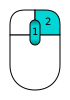
| Натиснете левия бутон на мишката върху обектът който искате да изберете. Задръжте Ctrl докато избирте за да изберете няколко обекта. | Натиснете и задръжте средния бутон на мишката (или колелото на мишката) и я движете за да придвижите и екрана | Използвайте колелото на мишката за уголемете или намалите мащаба. Натиснете средния бутон за да центрирате погледа върху курсора на мишката. | Натиснете първо средния бутон на мишката и го задръжте. След това натиснете левия бутон и го задръжте и движете мишката в желаната посока за ротация. Позицията на курсора когато натискате средния бутон определя къде е центъра на ротацията. Ротацията работи като въртене на топка около нейния център. Ако пуснете бутоните на мишката преди да спрете движението на мишката, обекта продължава да се върти след това (ако тази опция е активирана). Ако кликнете 2 пъти средния бутон на мишката докато обекта се върти се променя центъра на ротация. | Натиснете първо средния бутон на мишката и го задръжте. След това натиснете левия бутон и го задръжте и движете мишката в желаната посока за ротация. Този е почти идентичен на предишния начин за завъртане чрез дредниа бутон на мишката + левия бутон, с изключение на това че средния бутон може да бъде пуснат след като десния бутон е натиснат. Този начин може да е по-удобен на потребители които използват мишката с дясната си ръка. |

|

|
|
||
| Натиснете и задръжте бутона Ctrl и кликнете с десния бутон на мишката за да влезете в режим движение на екрана (Pan) (версия 0.14) | Следкато влезете в режим движение на екрана (Pan), кликнете с левия бутон на мишката за да влезете в режим промяна на мащаба (Zoom). За да се върнете обрано в режим движение на екрана кликнете с десния бутон на мишката (версия 0.14) | Следкато влезете в режим движение на екрана (Pan), натиснете и моменто задръжте левия бутон на мишката за да влезете в режим промяна на мащаба (Zoom). За да се върнете обрано в режим движение на екрана кликнете с десния бутон на мишката (версия 0.14) |
| Select | Zoom | Rotate view First method |
Rotate view Alternate method |
Pan
|
|---|---|---|---|---|
|
|
|
|
|
|
|
|
|
|
|
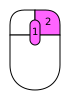
| Press the left mouse button over an object you want to select.
|
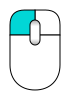
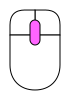
Use the mouse wheel to zoom in and out.
Clicking the middle mouse button re-centers the view on the location of the pointer. |
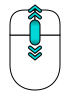
Hold the middle mouse button, then press and hold the left mouse button, then move the pointer.
If the buttons are released before you stop the mouse motion, the view continues spinning, if this is enabled. |
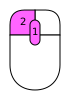
Hold the middle mouse button, then press and hold the right mouse button, then move the pointer.
With this method the middle mouse button may be released after the right mouse button is held pressed. Users who use the mouse with their right hand may find this method easier than the first method. |
Hold the middle mouse button, then move the pointer.
|
| Ctrl+Shift
+ 
|
Shift
+
|
Ctrl+
| ||
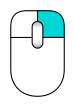
| Zoom mode: hold the Ctrl and Shift keys, press the right mouse button once, then move the pointer.
|
Rotate mode: hold the Shift key, press the right mouse button once, then move the pointer.
|
Pan mode: hold the Ctrl key, press the right mouse button once, then move the pointer. |
Навигация с жестове (v0.16)
This style was tailored for use with a touchscreen and pen. Nevertheless, it can also be used with a mouse, and is recommended for use when using a Mac with a trackpad.
Този стил на навигация е основно предназначен за работа с тъчскрийн или с електронна писалка/таблет. Може да се използва и само с мишка.
| Избиране | Преместване | Промяна на мащаба | Завъртане на изгледа | Промяна на наклона на изгледа |
|---|---|---|---|---|
|
|
|
|
|
|
|
|
|
|
|
|
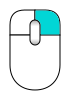
| Натиснете левия бутон на мишката върху обект за да го изберете. Ако задръжте Ctrl може да изберете няколко обекта. | Задръжте десния бутон на мишката и придвижете курсора за да преместите изгледа. | Използвайте колелото на мишката за уголемяване/намаляване на мащаба. Промяната е центрирана върху курсора на мишката. | Задръжте левия бутон на мишката и преместете курсора за да завъртите изгледа.
В режим Sketcher (и някой други edit режими) тази команда не работи. Трябва да задържите Alt докато натискате бутона на мишката за да влезете в режим на ротация. Ротацията винаги е центрирана около фокусната точка на камерата. За да промените фокусната точка на камерата натиснете със средния бутон на мишката върху новата фокусна точка, и изгледа ще се центрира автоматично върху нея. Също може да сложите курсора на мишката върху новата фокусна точка и да натиснете клавишът H. |
Задръжте левия и десния бутон на мишката и я придвижете наляво или надясно за да промените наклона на изгледа (тоест да промените хоризонта). |

|
или
|

|

|

|
| Чукнете с пръст върху обект за да го изберете. | Задръжте 2 пръста и ги придвижете за да преместите изгледа. Също може да почукате и задържите с един пръст, след което да го преместите без да вдигате (това симулира преместване с десния бутон на мишката) | За промяна на мащаба задръжте с два пръста и променете разстоянието между тях | Задръжте и преместете един пръст за ротация. Трябва съшо да задръжите бутонът Alt ако сте в режим Sketcher или други edit режими. | Завъртете с два пръста за да промените наклона |

Бележки за навигацията с жестове:
- в Windows, може да извършвате само по един жест с два пръста наведнъж. Например ако започнете да местите обект с 2 пръста, то жеста само ще го премести. Ако и променяте разстоянието между двата пръста докато ги местите, това няма да промени мащаба.
|Select_text=Press the left mouse button over an object you want to select.
|Zoom_text=Use the mouse wheel to zoom in and out.
Clicking the middle mouse button re-centers the view on the location of the pointer. Alternatively, aim the pointer and press H on the keyboard.
|Rotate_view_text=Hold the left mouse button, then move the pointer. In Sketcher and other edit modes, this behavior is disabled. Hold Alt when pressing the mouse button to enter rotation mode.
|Pan_text=Hold the right mouse button, then move the pointer.
|Tilt_view_text=Hold both left and right mouse buttons, then move the pointer sideways.
|Select_gesture_text=Tap to select.
|Zoom_gesture_text=Drag two fingers (pinch) closer or farther apart.
|Rotate_view_gesture_text=Drag with one finger to rotate.
Hold Alt when in the Sketcher.
|Pan_gesture_text=Drag with two fingers.
Alternatively, tap and hold, then drag. This simulates the pan with the right mouse button.
|Tilt_view_gesture_text=Rotate the imaginary line formed by two touch points.
This method is disabled by default. To enable, go to Edit → Preferences → Display → Navigation, and uncheck the "Disable touchscreen tilt gesture" checkbox. }}
Навигация с жестове стил Maya
In Maya-Gesture Navigation, panning, zooming, and rotating the view require the Alt key together with a mouse button; therefore, a three-button mouse is required. It's also possible to use gestures as this style was developed over the Gesture navigation style.
При навигация в стил Maya+жестове всички промени на изгледа се извършват като се задържи клавишът ALT и бутон на мишката. Поради това е нужна мишка с 3 бутона за използването на този стил. Ако нямате такава, е възможно и да се използват жестовете описани по-горе.
| Избиране | Преместване | Промяна на мащаба | Завъртане на изгледа |
|---|---|---|---|
|
|
|
|
|
|
|
alt+
|
alt+ or
|
alt+
|
| Натиснете левия бутон на мишката върху обект за да го изберете. | Задръжте alt, задръжте средния бутон на мишката и придвижете курсора за да преместите изгледа | Задръжте alt, задръжте десния бутон на мишката и придвижете курсора за да промените мащаба. Същия ефект може да се постигне с колелото на мишката. | Задръжте alt, задръжте левия бутон на мишката и придвижете курсора за да завъртите обекта |
|Alt=Alt
|Select_text=Press the left mouse button over an object you want to select.
|Zoom_text=Use the mouse wheel to zoom in and out.
Alternatively, hold Alt and the right mouse button, then move the pointer.
Clicking the middle mouse button re-centers the view on the location of the pointer. Alternatively, aim the pointer and press H on the keyboard.
|Rotate_view_text=Hold Alt and the left mouse button, then move the pointer.
|Pan_text=Hold Alt and the middle mouse button, then move the pointer.
|Tilt_view_text=Hold Alt and both left and right mouse buttons, and then move the pointer sideways. }}
The OpenCascade navigation style was modeled after OpenCascade.
| Select | Zoom | Rotate view | Pan
| |||
|---|---|---|---|---|---|---|
|
|
|
|
| |||
|
|
|
Ctrl
+ 
|
|
Ctrl
+ 
|
|
Ctrl
+
|
| Press the left mouse button over an object you want to select.
|
Use the mouse wheel to zoom in and out.
Alternatively, hold Ctrl and the left mouse button, then move the pointer. |
Hold the middle mouse button, then press and hold the right mouse button, then move the pointer.
Alternatively, hold Ctrl and the right mouse button, then move the pointer. |
Hold the middle mouse button, then move the pointer. It is possible to hold Ctrl. | |||
Стил на навгиация Inventor
Този стил на навигация е наподобява програмата Open Inventor (която не бива да се бърка с Autodesk Inventor). В този стил не можете да избирате обекти само с мишката. За да избирате обекти трябва да задържите натиснат бутонът CTRL.
| Избиране | Придвижване | Промяна на мащаба | Завъртане на изгледа |
|---|---|---|---|
|
|
|
|
|
| ctrl +
|
|
or
|
|
| Задръжте бутонът ctrl и нтиснете левия бутон на мишката върху даден обект за да го изберете. | Натиснете левия бутон на мишката и преместете мишката за да движите обекта. | Използвайте колелото на мишката за да уголемите или намалите мащаба. Ако нямате колело задръжте средния бутон на мишката натиснат и натиснете левия или десния бутон на мишката за да промените мащаба. | Задръжте левия бутон на мишката и я придвижете за да завъртите изгледа. |
This style is not based on Autodesk Inventor.
| Select | Zoom | Rotate view | Pan
| |
|---|---|---|---|---|
|
|
|
|
| |
| Shift
+
|
|
|
|
|
| Hold Shift, then press the left mouse button over an object you want to select.
Hold Ctrl instead to select multiple objects. With the modifier keys set to their default Draft Workbench values, you must hold down Ctrl to pick points for Draft commands. |
Use the mouse wheel to zoom in and out.
Alternatively, hold the middle mouse button, then press and hold the left mouse button, then move the pointer. Clicking the middle mouse button re-centers the view on the location of the pointer. |
Hold the left mouse button, then move the pointer.
|
Hold the middle mouse button, then move the pointer. | |
The OpenSCAD navigation style was modeled after OpenSCAD.
| Select | Zoom | Rotate view | Pan
| |||
|---|---|---|---|---|---|---|
|
|
|
|
| |||
|
|
|
|
Shift
+
|
|
|
|
| Press the left mouse button over an object you want to select.
0.21 and below Hold Ctrl and Shift when pressing the mouse button to drag an object in a sketch in edit mode. |
Use the mouse wheel to zoom in and out.
Alternatively, hold the middle mouse button, then move the pointer. Or hold Shift and the right mouse button, then move the pointer. |
Hold the left mouse button, then move the pointer.
Alternatively, and when a sketch is in edit mode, hold the middle mouse button, then press and hold the right mouse button, then move the pointer. |
Hold the right mouse button, then move the pointer. | |||
The Revit navigation style was modeled after Revit.
| Select | Zoom | Rotate view | Pan
| ||
|---|---|---|---|---|---|
|
|
|
|
| ||
|
|
|
Shift
+
|
|
|
|
| Press the left mouse button over an object you want to select.
|
Use the mouse wheel to zoom in and out.
Clicking the middle mouse button re-centers the view on the location of the pointer. |
Hold Shift and the middle mouse button, then move the pointer.
Alternatively, hold the middle mouse button, then press and hold the right mouse button, then move the pointer. |
Hold the middle mouse button, then move the pointer.
Alternatively, hold both left and right mouse buttons, then move the pointer. | ||
The Siemens NX navigation style was modeled after Siemens NX.
| Select | Zoom | Rotate view | Pan
| ||
|---|---|---|---|---|---|
|
|
|
|
| ||
|
|
|
|
|
Shift
+
|
|
| Press the left mouse button over an object you want to select.
|
Use the mouse wheel to zoom in and out.
Alternatively, hold the middle mouse button, then press and hold the left mouse button, then move the pointer. Clicking the middle mouse button re-centers the view on the location of the pointer. |
Hold the middle mouse button, then move the pointer.
|
Hold Shift and the middle mouse button, then move the pointer.
Alternatively, hold the middle mouse button, then press and hold the right mouse button, then move the pointer. | ||
The SolidWorks navigation style was modeled after SolidWorks.
| Select | Zoom | Rotate view | Pan
| |
|---|---|---|---|---|
|
|
|
|
| |
|
|
|
Shift
+
|
|
Ctrl+
|
| Press the left mouse button over an object you want to select.
|
Use the mouse wheel to zoom in and out.
Alternatively, hold Shift and the middle mouse button, then move the pointer. Clicking the middle mouse button re-centers the view on the location of the pointer. |
Hold the middle mouse button, then move the pointer.
|
Hold Ctrl and the middle mouse button, then move the pointer. | |
The TinkerCAD navigation style was modeled after TinkerCAD.
| Select | Zoom | Rotate view | Pan
|
|---|---|---|---|
|
|
|
|
|
|
|
|
|
|
| Press the left mouse button over an object you want to select.
|
Use the mouse wheel to zoom in and out.
|
Press the right mouse button, then move the pointer.
|
Hold the middle mouse button, then move the pointer. |
Навигация с тъчпад
With the Touchpad navigation style, panning, zooming, and rotating the view require a modifier key together with the touchpad. This style can also be used with a mouse.
В случай че разполагате само с тъчпад (например на лаптоп) може да използвате този стил. При навигацията с тъчпад за всяка операция (движение, ротация, промяна на мащаб) се използва и клавиатурата.
| Избиране | Движение | Промяна на мащаба | Ротация на изгледа |
|---|---|---|---|
|
|
|
|
|

|
shift+
|
PgUp / PgDn | alt+
|
| Натиснете левия бутон на мишката върху обекта които искате да изберете. | Задръжте shift и с пръст върху тъчпада преместете обекта. | Използвайте клавипите PgUp и PgDn за уголемяване и намаляване на мащаба. | Задръжте Alt и преместете курсора на мишката |
| or | or | ||
| shift+ctrl+
|
shift+ctrl+
| ||
| Задръжте клавишите shift и ctrl, натиснете левия бутон на тъчпада и преместете курсора | Задръжте клавишите shift и ctrl и преместете курсора |
|Ctrl=Ctrl |Shift=Shift |Alt=Alt
|Select_text=Press the left mouse button over an object you want to select.
|Zoom_text=Hold Ctrl and Shift, then move the pointer.
|Rotate_view_text=Hold Alt, then move the pointer.
Alternatively, hold Shift and the left button, then move the pointer.
|Pan_text=Hold Shift, then move the pointer. }}
Поддържан хардуер
FreeCAD също поддържа някои 3D input devices.
On MacBooks with a trackpad the Gesture navigation works very well, but the gestures have a special meaning:
- Zoom: drag with two fingers.
- Rotate: drag with three fingers.
- Pan: Ctrl + three fingers.
This page is retrieved from https://wiki.freecad.org/Mouse_navigation