


Overview
The FreeCAD mouse navigation consists of the commands used to visually navigate 3D space and interact with the displayed objects. FreeCAD supports multiple mouse navigation styles. The default navigation style is referred to as CAD Navigation, and is very simple and practical, but FreeCAD also provides several alternative navigation styles to choose from. The selected style is used for all workbenches.
For more information about selecting objects see Selection methods.
For more information about manipulating objects see Std TransformManip.
- Do one of the following:
- Press the
 button in the Status bar.
 - Right-click an empty area in the 3D view, and select Navigation styles from the context menu.
- Use the Preferences Editor. In the menu select Edit → Preferences and then Display → Navigation → 3D Navigation.
- Press the
- Select a style from the list.
- Optionally change the Orbit style: press the button in the Status bar and then choose Settings → Orbit style. See Preferences Editor.
- Optionally change the Rotation mode. See Preferences Editor.
- If the CAD navigation style is selected: optionally change the Enable animation setting. See Preferences Editor.
With all navigation styles, unless selecting objects from a sketch in edit mode, you must hold Ctrl to select multiple objects.
The following keyboard options are available for all styles:
- Ctrl +
 and Ctrl +
  or PgUp and PgDn to zoom in and out, respectively.
 - The arrow keys,


 , to pan the view left/right and up/down.
 - Shift + and Shift + to rotate the view by 90 degrees.
The Blender navigation style was modeled after Blender.
| Select | Zoom | Rotate view | Pan | |
|---|---|---|---|---|

|

|

|

| |
|
|
|
Shift+
|
|
| Press the left mouse button over an object you want to select. | Use the mouse wheel to zoom in and out.
Clicking the middle mouse button re-centers the view on the location of the pointer. |
Hold the middle mouse button, then move the pointer. | Hold Shift and the middle mouse button, then move the pointer.
Alternatively, hold both left and right mouse buttons, and then move the pointer. | |
This is the default navigation style. It allows the user a simple control of the view, and does not require the use of keyboard keys except to make multi-selections.
| Select | Zoom | Rotate view First method |
Rotate view Alternate method |
Pan |
|---|---|---|---|---|
|
|
|
|
|
|
|
|
|
|
|
|
| Press the left mouse button over an object you want to select. | Use the mouse wheel to zoom in and out.
Clicking the middle mouse button re-centers the view on the location of the pointer. |
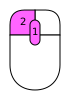
Hold the middle mouse button, then press and hold the left mouse button, then move the pointer.
If the buttons are released before you stop the mouse motion, the view continues spinning, if this is enabled. |
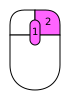
Hold the middle mouse button, then press and hold the right mouse button, then move the pointer.
With this method the middle mouse button may be released after the right mouse button is held pressed. Users who use the mouse with their right hand may find this method easier than the first method. |
Hold the middle mouse button, then move the pointer. |
Ctrl+Shift+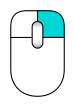
|
Shift+
|
Ctrl+
| ||
| Zoom mode: hold the Ctrl and Shift keys, press the right mouse button once, then move the pointer. | Rotate mode: hold the Shift key, press the right mouse button once, then move the pointer. | Pan mode: hold the Ctrl key, press the right mouse button once, then move the pointer. |
This style was tailored for use with a touchscreen and pen. Nevertheless, it can also be used with a mouse, and is recommended for use when using a Mac with a trackpad.
| Select | Zoom | Rotate view | Pan | Tilt view | |
|---|---|---|---|---|---|
|
|
|
|
|
| |
|
|
|
|
|
| |
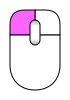
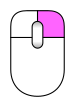
| Press the left mouse button over an object you want to select. | Use the mouse wheel to zoom in and out.
Clicking the middle mouse button re-centers the view on the location of the pointer. Alternatively, aim the pointer and press H on the keyboard. |
Hold the left mouse button, then move the pointer.
In Sketcher and other edit modes, this behavior is disabled. Hold Alt when pressing the mouse button to enter rotation mode. |
Hold the right mouse button, then move the pointer. | Hold both left and right mouse buttons, then move the pointer sideways. | |

|

|

|

|
|

|
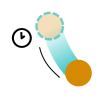
| Tap to select. | Drag two fingers (pinch) closer or farther apart. | Drag with one finger to rotate.
Hold Alt when in the Sketcher. |
Drag with two fingers.
Alternatively, tap and hold, then drag. This simulates the pan with the right mouse button. |
Rotate the imaginary line formed by two touch points.
This method is disabled by default. To enable, go to Edit → Preferences → Display → Navigation, and uncheck the "Disable touchscreen tilt gesture" checkbox. | |
In Maya-Gesture Navigation, panning, zooming, and rotating the view require the Alt key together with a mouse button; therefore, a three-button mouse is required. It's also possible to use gestures as this style was developed over the Gesture navigation style.
| Select | Zoom | Rotate view | Pan | Tilt view | |
|---|---|---|---|---|---|
|
|
|
|
|
| |
|
|
|
Alt+
|
Alt+
|
Alt+
|
Alt+
|
| Press the left mouse button over an object you want to select. | Use the mouse wheel to zoom in and out.
Alternatively, hold Alt and the right mouse button, then move the pointer. Clicking the middle mouse button re-centers the view on the location of the pointer. Alternatively, aim the pointer and press H on the keyboard. |
Hold Alt and the left mouse button, then move the pointer. | Hold Alt and the middle mouse button, then move the pointer. | Hold Alt and both left and right mouse buttons, and then move the pointer sideways. | |
The OpenCascade navigation style was modeled after OpenCascade.
| Select | Zoom | Rotate view | Pan | |||
|---|---|---|---|---|---|---|
|
|
|
|
| |||
|
|
|
Ctrl+
|
|
Ctrl+
|
|
Ctrl+
|
| Press the left mouse button over an object you want to select. | Use the mouse wheel to zoom in and out.
Alternatively, hold Ctrl and the left mouse button, then move the pointer. |
Hold the middle mouse button, then press and hold the right mouse button, then move the pointer.
Alternatively, hold Ctrl and the right mouse button, then move the pointer. |
Hold the middle mouse button, then move the pointer. It is possible to hold Ctrl. | |||
OpenInventor navigation (formerly Inventor) was modeled after Open Inventor. In order to select objects, you must hold the Shift or Ctrl key.
This style is not based on Autodesk Inventor.
| Select | Zoom | Rotate view | Pan | |
|---|---|---|---|---|
|
|
|
|
| |
| Shift+
|
|
|
|
|
| Hold Shift, then press the left mouse button over an object you want to select.
Hold Ctrl instead to select multiple objects. With the modifier keys set to their default Draft Workbench values, you must hold down Ctrl to pick points for Draft commands. |
Use the mouse wheel to zoom in and out.
Alternatively, hold the middle mouse button, then press and hold the left mouse button, then move the pointer. Clicking the middle mouse button re-centers the view on the location of the pointer. |
Hold the left mouse button, then move the pointer. | Hold the middle mouse button, then move the pointer. | |
The OpenSCAD navigation style was modeled after OpenSCAD.
| Select | Zoom | Rotate view | Pan | |||
|---|---|---|---|---|---|---|
|
|
|
|
| |||
|
|
|
|
Shift+
|
|
|
|
| Press the left mouse button over an object you want to select.
0.21 and below Hold Ctrl and Shift when pressing the mouse button to drag an object in a sketch in edit mode. |
Use the mouse wheel to zoom in and out.
Alternatively, hold the middle mouse button, then move the pointer. Or hold Shift and the right mouse button, then move the pointer. |
Hold the left mouse button, then move the pointer.
Alternatively, and when a sketch is in edit mode, hold the middle mouse button, then press and hold the right mouse button, then move the pointer. |
Hold the right mouse button, then move the pointer. | |||
The Revit navigation style was modeled after Revit.
| Select | Zoom | Rotate view | Pan | ||
|---|---|---|---|---|---|
|
|
|
|
| ||
|
|
|
Shift+
|
|
|
|
| Press the left mouse button over an object you want to select. | Use the mouse wheel to zoom in and out.
Clicking the middle mouse button re-centers the view on the location of the pointer. |
Hold Shift and the middle mouse button, then move the pointer.
Alternatively, hold the middle mouse button, then press and hold the right mouse button, then move the pointer. |
Hold the middle mouse button, then move the pointer.
Alternatively, hold both left and right mouse buttons, then move the pointer. | ||
The Siemens NX navigation style was modeled after Siemens NX.
| Select | Zoom | Rotate view | Pan | ||
|---|---|---|---|---|---|
|
|
|
|
| ||
|
|
|
|
|
Shift+
|
|
| Press the left mouse button over an object you want to select. | Use the mouse wheel to zoom in and out.
Alternatively, hold the middle mouse button, then press and hold the left mouse button, then move the pointer. Clicking the middle mouse button re-centers the view on the location of the pointer. |
Hold the middle mouse button, then move the pointer. | Hold Shift and the middle mouse button, then move the pointer.
Alternatively, hold the middle mouse button, then press and hold the right mouse button, then move the pointer. | ||
The SolidWorks navigation style was modeled after SolidWorks.
| Select | Zoom | Rotate view | Pan | |
|---|---|---|---|---|
|
|
|
|
| |
|
|
|
Shift+
|
|
Ctrl+
|
| Press the left mouse button over an object you want to select. | Use the mouse wheel to zoom in and out.
Alternatively, hold Shift and the middle mouse button, then move the pointer. Clicking the middle mouse button re-centers the view on the location of the pointer. |
Hold the middle mouse button, then move the pointer. | Hold Ctrl and the middle mouse button, then move the pointer. | |
The TinkerCAD navigation style was modeled after TinkerCAD.
| Select | Zoom | Rotate view | Pan |
|---|---|---|---|
|
|
|
|
|
|
|
|
|
|
| Press the left mouse button over an object you want to select. | Use the mouse wheel to zoom in and out. | Press the right mouse button, then move the pointer. | Hold the middle mouse button, then move the pointer. |
With the Touchpad navigation style, panning, zooming, and rotating the view require a modifier key together with the touchpad. This style can also be used with a mouse.
| Select | Zoom | Rotate view | Pan | |
|---|---|---|---|---|
|
|
|
|
| |

|
Ctrl+Shift+
|
Alt+
|
Shift+
|
Shift+
|
| Press the left mouse button over an object you want to select. | Hold Ctrl and Shift, then move the pointer. | Hold Alt, then move the pointer.
Alternatively, hold Shift and the left button, then move the pointer. |
Hold Shift, then move the pointer. | |
Hardware support
FreeCAD also supports some 3D input devices.
On MacBooks with a trackpad the Gesture navigation works very well, but the gestures have a special meaning:
- Zoom: drag with two fingers.
- Rotate: drag with three fingers.
- Pan: Ctrl + three fingers.
This page is retrieved from https://wiki.freecad.org/Mouse_navigation