


Overview
Modelul mouse-ului in FreeCAD este constituit din comenzi folosite la navigarea spațiului 3D și interacțiunea cu obiectele afișate. In versiunea actuală există trei moduri diferite de navigare. Modul implicit este numit "Navigare CAD" și este foarte simplu și practic, dar FreeCAD are două stiluri alternative modelate dupa navigarea în Inventor si Blender.
For more information about selecting objects see Selection methods.
For more information about manipulating objects see Std TransformManip.
- In dialogul pentru preferinte, secțiunea Afișare, tab-ul Vizualizare 3D;
- Click-dreapta în spațiul liber în zona de vizualizare 3D, selectând Stil de navigare în meniul contextual.
With all navigation styles, unless selecting objects from a sketch in edit mode, you must hold Ctrl to select multiple objects.
The following keyboard options are available for all styles:
- Ctrl +
 and Ctrl +
  or PgUp and PgDn to zoom in and out, respectively.
 - The arrow keys,


 , to pan the view left/right and up/down.
 - Shift + and Shift + to rotate the view by 90 degrees.
The Blender navigation style was modeled after Blender.
Blender Navigation a fost modelat după Blender. Anterior nu a existat o panoramare cu mouse-ul și a fost necesară utilizarea tastei SHIFT pentru a panorama vederea. Acest lucru s-a schimbat în 2016, cu o adăugare de caracteristici. Pentru a panorama vizualizarea, puteți apăsa acum butoanele mouse-ului stânga și dreapta și trageți în vizualizare.
| Select | Zoom | Rotate view | Pan | |
|---|---|---|---|---|

|

|

|

| |
|
|
|
Shift+
|
|
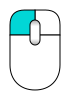
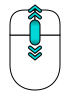
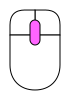
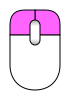
| Press the left mouse button over an object you want to select. | Use the mouse wheel to zoom in and out. | Hold the middle mouse button, then move the pointer. | Hold Shift and the middle mouse button, then move the pointer.
Alternatively, hold both left and right mouse buttons, and then move the pointer. | |
|Shift=Shift
|Select_text=Press the left mouse button over an object you want to select.
|Zoom_text=Use the mouse wheel to zoom in and out.
Clicking the middle mouse button re-centers the view on the location of the pointer.
|Rotate_view_text=Hold the middle mouse button, then move the pointer.
|Pan_text=Hold Shift and the middle mouse button, then move the pointer.
Alternatively, hold both left and right mouse buttons, and then move the pointer. }}
Acesta este modul de navigare implicit și permite utilizatorului un control simplu al vizualizării; nu este nevoie de folosirea tastaturii decât pentru selecție multiplă.
| Selectare | Translatie | Zoom | Rotire |
|---|---|---|---|
|
|
|
|
|
|
|
|
|
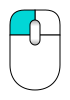
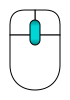
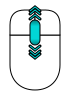
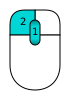
| Apasati butonul stanga al mouse-ului deasupra obiectului de selectat. Apasarea tastei CTRL permite selectarea mai multor obiecte. | Apasati butonul din mijloc si miscati mouse-ul pentru a translata vizualizarea. | Folositi rotita mouse-ului pentru a mari sau micsora. | Apasati mai intai butonul din mijloc al mouse-ului, tineti-l apasat si apasati butonul stanga al mouse-ului si mutati-l in directia dorita. Functioneaza ca o bila ce se roteste in jurul centrului. Daca eliberati butoanele inainte de a inceta miscarea vizualizarea va continua sa se roteascain jurul centrului, daca aceasta caracteristica e activata. Dublu-click folosind butonul mijlociu pe oricare parte a unui obiect seteaza noul centru de rotatie si panorameaza pe acest punct. |
| Select | Zoom | Rotate view First method |
Rotate view Alternate method |
Pan |
|---|---|---|---|---|
|
|
|
|
|
|
|
|
|
|
|
|
| Press the left mouse button over an object you want to select.
Holding down Ctrl allows the selection of multiple objects. |
Use the mouse wheel to zoom in and out.
Clicking the middle mouse button re-centers the view on the location of the cursor. |
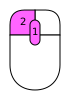
Hold the middle mouse button, then press and hold the left mouse button, then move the pointer.
The cursor location when the middle mouse button is pressed determines the center of rotation. Rotation works like spinning a ball which rotates around its center. If the buttons are released before you stop the mouse motion, the view continues spinning, if this is enabled. A double click with the middle mouse button sets a new center of rotation. |
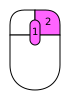
Hold the middle mouse button, then press and hold the right mouse button, then move the pointer.
With this method the middle mouse button may be released after the right mouse button is held pressed. Users who use the mouse with their right hand may find this method easier than the first method. |
Hold the middle mouse button, then move the pointer. |
Ctrl+Shift+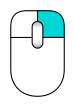
|
Shift+
|
Ctrl+
| ||
| Zoom mode: hold the Ctrl and Shift keys, press the right mouse button once, then move the pointer. introduced in 0.17 | Rotate mode: hold the Shift key, press the right mouse button once, then move the pointer. introduced in 0.17 | Pan mode: hold the Ctrl key, press the right mouse button once, then move the pointer. introduced in 0.17 |
| Select | Zoom | Rotate view First method |
Rotate view Alternate method |
Pan
|
|---|---|---|---|---|
|
|
|
|
|
|
|
|
|
|
|
|
| Press the left mouse button over an object you want to select.
|
Use the mouse wheel to zoom in and out.
Clicking the middle mouse button re-centers the view on the location of the pointer. |
Hold the middle mouse button, then press and hold the left mouse button, then move the pointer.
If the buttons are released before you stop the mouse motion, the view continues spinning, if this is enabled. |
Hold the middle mouse button, then press and hold the right mouse button, then move the pointer.
With this method the middle mouse button may be released after the right mouse button is held pressed. Users who use the mouse with their right hand may find this method easier than the first method. |
Hold the middle mouse button, then move the pointer.
|
| Ctrl+Shift
+
|
Shift
+
|
Ctrl+
| ||
| Zoom mode: hold the Ctrl and Shift keys, press the right mouse button once, then move the pointer.
|
Rotate mode: hold the Shift key, press the right mouse button once, then move the pointer.
|
Pan mode: hold the Ctrl key, press the right mouse button once, then move the pointer. |
This style was tailored for use with a touchscreen and pen. Nevertheless, it can also be used with a mouse, and is recommended for use when using a Mac with a trackpad.
Acest stil de navigare a fost adaptat pentru utilizarea cu touchscreen și stiloul, dar este foarte ușor de utilizat cu mouse-ul.
| Select | Zoom | Rotate view | Pan | Tilt view | |
|---|---|---|---|---|---|
|
|
|
|
|
| |
|
|
|
|
|
| |
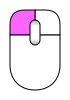
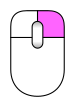
| Press the left mouse button over an object you want to select. | Use the mouse wheel to zoom in and out. | Hold the left mouse button, then move the pointer.
In Sketcher and other edit modes, this behavior is disabled. Hold Alt when pressing the mouse button to enter rotation mode. To set the camera's focus point for rotation, click a point with the middle mouse button. Alternatively, aim the cursor at a point and press H on the keyboard. |
Hold the right mouse button, then move the pointer. | Hold both left and right mouse buttons, and then move the pointer sideways. | |

|

|

|

|
|

|
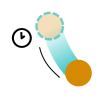
| Tap to select. | Drag two fingers (pinch) closer or farther apart. | Drag with one finger to rotate.
Hold Alt when in the Sketcher. |
Drag with two fingers.
Alternatively, tap and hold, then drag. This simulates the pan with the right mouse button. |
Rotate the imaginary line formed by two touch points.
On v0.18 this method is disabled by default. To enable, go to Edit → Preferences → Display, and untick "Disable touchscreen tilt gesture" checkbox. | |
|Select_text=Press the left mouse button over an object you want to select.
|Zoom_text=Use the mouse wheel to zoom in and out.
Clicking the middle mouse button re-centers the view on the location of the pointer. Alternatively, aim the pointer and press H on the keyboard.
|Rotate_view_text=Hold the left mouse button, then move the pointer. In Sketcher and other edit modes, this behavior is disabled. Hold Alt when pressing the mouse button to enter rotation mode.
|Pan_text=Hold the right mouse button, then move the pointer.
|Tilt_view_text=Hold both left and right mouse buttons, then move the pointer sideways.
|Select_gesture_text=Tap to select.
|Zoom_gesture_text=Drag two fingers (pinch) closer or farther apart.
|Rotate_view_gesture_text=Drag with one finger to rotate.
Hold Alt when in the Sketcher.
|Pan_gesture_text=Drag with two fingers.
Alternatively, tap and hold, then drag. This simulates the pan with the right mouse button.
|Tilt_view_gesture_text=Rotate the imaginary line formed by two touch points.
This method is disabled by default. To enable, go to Edit → Preferences → Display → Navigation, and uncheck the "Disable touchscreen tilt gesture" checkbox. }}
In Maya-Gesture Navigation, panning, zooming, and rotating the view require the Alt key together with a mouse button; therefore, a three-button mouse is required. It's also possible to use gestures as this style was developed over the Gesture navigation style.
În navigația Maya-Gesture, toate mișcările de vizualizare sunt activate prin apăsarea butonului ALT și a butonului mouse-ului, astfel încât să fie necesar un mouse cu 3 butoane pentru a utiliza corect acest mod de navigare. Alternativ, este posibil să utilizați gesturi, deoarece acest mod a fost dezvoltat în modul normal de navigare prin gesturi.
| Select | Zoom | Rotate view | Pan | {{{Tilt_view_name}}} | |
|---|---|---|---|---|---|
|
|
|
|
|
| |
|
|
|
Alt+
|
Alt+
|
Alt+
|
Alt+
|
| Press the left mouse button over an object you want to select. | Hold Alt and the right mouse button, then move the pointer.
Alternatively, use the mouse wheel to zoom in and out. |
Hold Alt and the left mouse button, then move the pointer. | Hold Alt and the middle mouse button, then move the pointer. | {{{Tilt_view_text}}} | |
|Alt=Alt
|Select_text=Press the left mouse button over an object you want to select.
|Zoom_text=Use the mouse wheel to zoom in and out.
Alternatively, hold Alt and the right mouse button, then move the pointer.
Clicking the middle mouse button re-centers the view on the location of the pointer. Alternatively, aim the pointer and press H on the keyboard.
|Rotate_view_text=Hold Alt and the left mouse button, then move the pointer.
|Pan_text=Hold Alt and the middle mouse button, then move the pointer.
|Tilt_view_text=Hold Alt and both left and right mouse buttons, and then move the pointer sideways. }}
The OpenCascade navigation style was modeled after OpenCascade.
| Select | Zoom | Rotate view | Pan
| |||
|---|---|---|---|---|---|---|
|
|
|
|
| |||
|
|
|
Ctrl
+
|
|
Ctrl
+
|
|
Ctrl
+
|
| Press the left mouse button over an object you want to select.
|
Use the mouse wheel to zoom in and out.
Alternatively, hold Ctrl and the left mouse button, then move the pointer. |
Hold the middle mouse button, then press and hold the right mouse button, then move the pointer.
Alternatively, hold Ctrl and the right mouse button, then move the pointer. |
Hold the middle mouse button, then move the pointer. It is possible to hold Ctrl. | |||
In acest tip de navigare modelată după Open Inventor (a nu se confunda cu Autodesk Inventor) nu exista selectie cu mouse-ul. Pentru selectare trebuie apasată tasta CTRL.
| Selectare | Translatie | Zoom | Rotire |
|---|---|---|---|
|
|
|
|
|
| ctrl +
|
|
sau
|
|
| Tineti CTRL apasat si apasati butonul stanga al mouse-ului deasupra unui obiect ce doriti sa fie selectat. | Faceti click cu butonul stanga al mouse-ului si miscati obiectul. | Folositi rotita mouse-ului pentru marire si micsorare sau apasati si tinei butonul din mijloc si apasati butonul din stnga. | Faceti click si trageti folosind butonul stanga al mouse-ului pentru a roti |
| Select | Zoom | Rotate view | Pan | |
|---|---|---|---|---|
|
|
|
|
| |
| {{{Shift}}}+
|
|
|
|
|
| Hold Ctrl, then press the left mouse button over an object you want to select. | Use the mouse wheel to zoom in and out.
Alternatively, hold the middle mouse button, then press and hold the left mouse button, then move the pointer. |
Hold the left mouse button, then move the pointer. | Hold the middle mouse button, then move the pointer. | |
This style is not based on Autodesk Inventor.
| Select | Zoom | Rotate view | Pan
| |
|---|---|---|---|---|
|
|
|
|
| |
| Shift
+
|
|
|
|
|
| Hold Shift, then press the left mouse button over an object you want to select.
Hold Ctrl instead to select multiple objects. With the modifier keys set to their default Draft Workbench values, you must hold down Ctrl to pick points for Draft commands. |
Use the mouse wheel to zoom in and out.
Alternatively, hold the middle mouse button, then press and hold the left mouse button, then move the pointer. Clicking the middle mouse button re-centers the view on the location of the pointer. |
Hold the left mouse button, then move the pointer.
|
Hold the middle mouse button, then move the pointer. | |
The OpenSCAD navigation style was modeled after OpenSCAD.
| Select | Zoom | Rotate view | Pan
| |||
|---|---|---|---|---|---|---|
|
|
|
|
| |||
|
|
|
|
Shift
+
|
|
|
|
| Press the left mouse button over an object you want to select.
0.21 and below Hold Ctrl and Shift when pressing the mouse button to drag an object in a sketch in edit mode. |
Use the mouse wheel to zoom in and out.
Alternatively, hold the middle mouse button, then move the pointer. Or hold Shift and the right mouse button, then move the pointer. |
Hold the left mouse button, then move the pointer.
Alternatively, and when a sketch is in edit mode, hold the middle mouse button, then press and hold the right mouse button, then move the pointer. |
Hold the right mouse button, then move the pointer. | |||
The Revit navigation style was modeled after Revit.
| Select | Zoom | Rotate view | Pan
| ||
|---|---|---|---|---|---|
|
|
|
|
| ||
|
|
|
Shift
+
|
|
|
|
| Press the left mouse button over an object you want to select.
|
Use the mouse wheel to zoom in and out.
Clicking the middle mouse button re-centers the view on the location of the pointer. |
Hold Shift and the middle mouse button, then move the pointer.
Alternatively, hold the middle mouse button, then press and hold the right mouse button, then move the pointer. |
Hold the middle mouse button, then move the pointer.
Alternatively, hold both left and right mouse buttons, then move the pointer. | ||
The Siemens NX navigation style was modeled after Siemens NX.
| Select | Zoom | Rotate view | Pan
| ||
|---|---|---|---|---|---|
|
|
|
|
| ||
|
|
|
|
|
Shift
+
|
|
| Press the left mouse button over an object you want to select.
|
Use the mouse wheel to zoom in and out.
Alternatively, hold the middle mouse button, then press and hold the left mouse button, then move the pointer. Clicking the middle mouse button re-centers the view on the location of the pointer. |
Hold the middle mouse button, then move the pointer.
|
Hold Shift and the middle mouse button, then move the pointer.
Alternatively, hold the middle mouse button, then press and hold the right mouse button, then move the pointer. | ||
The SolidWorks navigation style was modeled after SolidWorks.
| Select | Zoom | Rotate view | Pan
| |
|---|---|---|---|---|
|
|
|
|
| |
|
|
|
Shift
+
|
|
Ctrl+
|
| Press the left mouse button over an object you want to select.
|
Use the mouse wheel to zoom in and out.
Alternatively, hold Shift and the middle mouse button, then move the pointer. Clicking the middle mouse button re-centers the view on the location of the pointer. |
Hold the middle mouse button, then move the pointer.
|
Hold Ctrl and the middle mouse button, then move the pointer. | |
The TinkerCAD navigation style was modeled after TinkerCAD.
| Select | Zoom | Rotate view | Pan
|
|---|---|---|---|
|
|
|
|
|
|
|
|
|
|
| Press the left mouse button over an object you want to select.
|
Use the mouse wheel to zoom in and out.
|
Press the right mouse button, then move the pointer.
|
Hold the middle mouse button, then move the pointer. |
With the Touchpad navigation style, panning, zooming, and rotating the view require a modifier key together with the touchpad. This style can also be used with a mouse.
În Navigatorul cu touchpad, nici panningul, nici zoom-ul, nici rotirea vizualizării nu sunt operații numai pentru mouse (sau doar touchpad).
| Select | Zoom | Rotate view | Pan | |
|---|---|---|---|---|
|
|
|
|
| |

|
Ctrl+Shift+
|
Alt+
|
Shift+
|
Shift+
|
| Press the left mouse button over an object you want to select. | Use PageUp and PageDown to zoom in and out. | Hold Alt, then move the pointer. | Hold Shift, then move the pointer. | |
|Ctrl=Ctrl |Shift=Shift |Alt=Alt
|Select_text=Press the left mouse button over an object you want to select.
|Zoom_text=Hold Ctrl and Shift, then move the pointer.
|Rotate_view_text=Hold Alt, then move the pointer.
Alternatively, hold Shift and the left button, then move the pointer.
|Pan_text=Hold Shift, then move the pointer. }}
Suport Hardware
FreeCAD suportă și un număr de dispozitive 3D.
Probleme la Mac OS X
Recent am primit rapoarte pe forum de la utilizatorii de Mac la care acele combinații de taste și butoane de mouse nu funcționează conform așteptărilor. Din păcate, niciunul dintre dezvoltatori nu deține un Mac, nici ceilalți contributori obișnuiți. Avem nevoie de ajutorul tău pentru a determina ce butoane și combinații de taste ale mouse-ului funcționează astfel încât să putem actualiza acest
Această pagină este preluată de la https://wiki.freecad.org/Mouse_navigation