|
|
| Description |
|---|
| This macro convert the object line, wire in line Dash, DashDot or DashDotDot with the dimensions given. Macro version: 00.07b Last modified: 2020-11-09 FreeCAD version: All Download: ToolBar Icon Author: mario52 |
| Author |
| mario52 |
| Download |
| ToolBar Icon |
| Links |
| Macros recipes How to install macros How to customize toolbars |
| Macro Version |
| 00.07b |
| Date last modified |
| 2020-11-09 |
| FreeCAD Version(s) |
| All |
| Default shortcut |
| None |
| See also |
| None |

Description
This macro convert the object line, wire in line Dash, DashDot, DashDotDot, ZigZag, Hand with the dimensions given.
Temporary code for external macro link. Do not use this code. This code is used exclusively by Addon Manager. Link for optional manual installation: Macro
# This code is copied instead of the original macro code
# to guide the user to the online download page.
# Use it if the code of the macro is larger than 64 KB and cannot be included in the wiki
# or if the RAW code URL is somewhere else in the wiki.

from PySide import QtGui, QtCore

diag = QtGui.QMessageBox(QtGui.QMessageBox.Information,
    "Information",
    "This macro must be downloaded from this link\n"
    "\n"
    "https://gist.githubusercontent.com/mario52a/3d719574089a5f9044ec/raw/812769b6b296a1da2e9c8cd8153ad7266fe80f8d/Macro_FCConvertLines.FCMacro" + "\n"
    "\n"
    "Quit this window to access the download page")

diag.setWindowFlags(QtCore.Qt.WindowStaysOnTopHint)
diag.setWindowModality(QtCore.Qt.ApplicationModal)
diag.exec_()

import webbrowser
webbrowser.open("https://gist.githubusercontent.com/mario52a/3d719574089a5f9044ec/raw/812769b6b296a1da2e9c8cd8153ad7266fe80f8d/Macro_FCConvertLines.FCMacro")
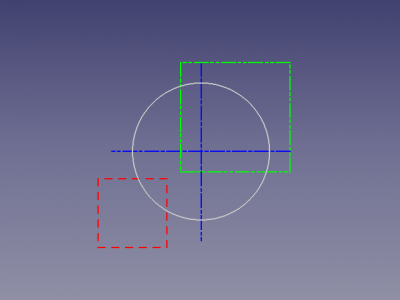
ConvertLines Dash, Dash dot, Dash dot dot
Usage
Copy the macro in your macros folder and launch FCConvertLines Gui
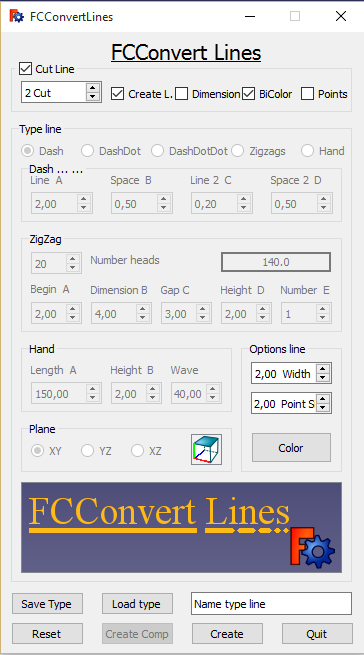
First section :
Cut line (Checked by default)
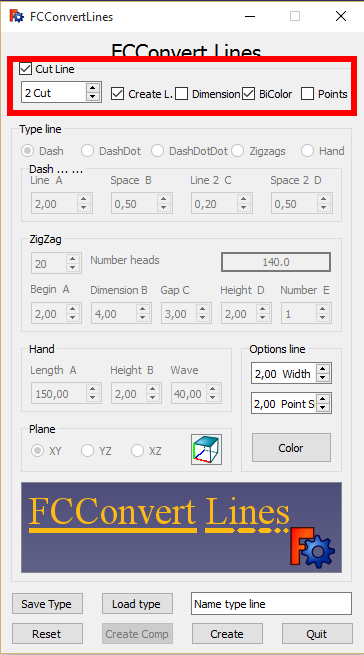
- Select one or more lines in the 3D View
- SpinBox : for enter number Cuts or cut to length ... (Default number cut suffix displayed "x Cut")
- Create L. : if this checkbox is checked the line is created
- Dimension : if this checkbox is checked the number tipped is on length the definition change by tree decimal and the suffix displayed is "x.000 Dim"
- Bicolor : if this checkbox is checked the lines created are colored alternately Red White if is not checked the color is the color defined with the button Color
- Points : if this checkbox is checked one point is created and the color is the color defined Bicolor or * The options Options lines are available
Color
Second section :
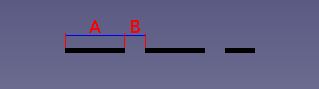
Type line : Dash
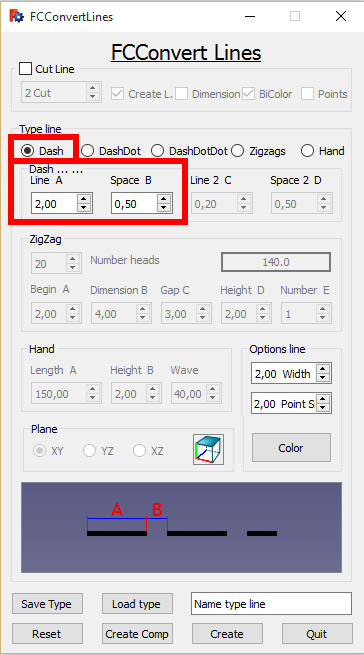
- The screen at the bottom of the macro changes a line into Dash
- Select one or more lines in the 3D View
- Line A : dimension of the dash (see A in the screen)
- Space B : dimension of the space (see B in the screen)
- The lines have created the configuration specifications set in options lines
Third section :
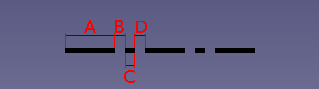
Type line : DashDot
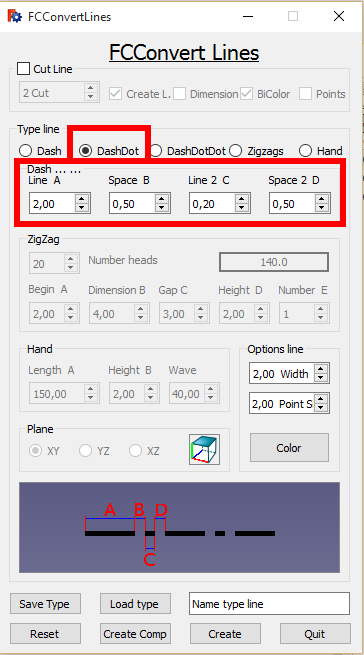
- The screen at the bottom of the macro changes a line into DashDot
- Select one or more lines in the 3D View
- Line A : dimension of the dash (see A in the screen)
- Space B : dimension of the space (see B in the screen) (May be different D)
- Line 2 C : dimension of the dash (see C in the screen)
- Space 2 D : dimension of the space (see D in the screen) (May be different B)
Fourth section :
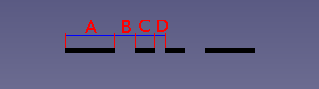
Type line : DashDotDot
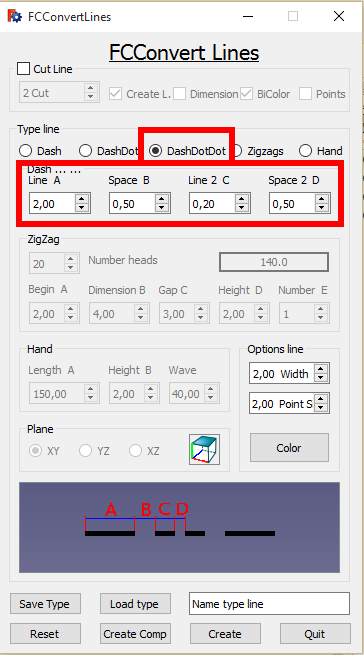
- The screen at the bottom of the macro changes a line into DashDotDot
- Select one or more lines in the 3D View
- Line A : dimension of the dash (see A in the screen)
- Space B : dimension of the space (see B in the screen)
- Line 2 C : dimension of the dash (see C in the screen)
- Space 2 D : dimension of the space (see D in the screen)
Fifth section :
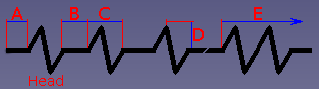
Type line : ZigZag
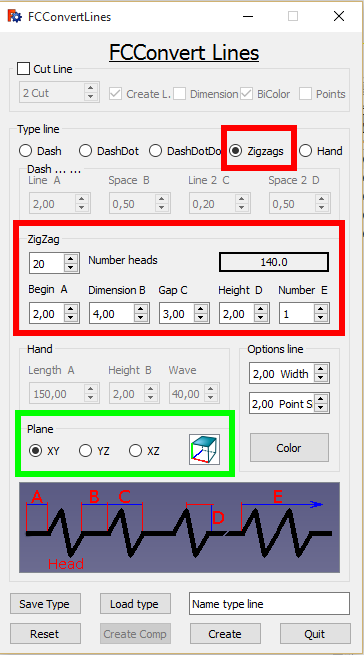
- The screen at the bottom of the macro changes a line into ZigZag
- This line are created
- Number heads : number of heads for the total line
- _____140.0_____ : The length total of the line are calculate in real time and displayed in this window
- Begin A : dimension of begin line until first head, this section line hare same in the end line (see A in the screen)
- Dimension B : dimension between the end and begin head (see B in the screen)
- Gap C : dimension of the head (see C in the screen)
- Height D : height dimension of the the head (see D in the screen)
- Number E : number of heads contiguous (see E in the screen)
- The options Plane and Options lines are available
Sixth section :
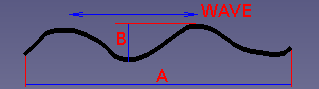
Type line : Hand
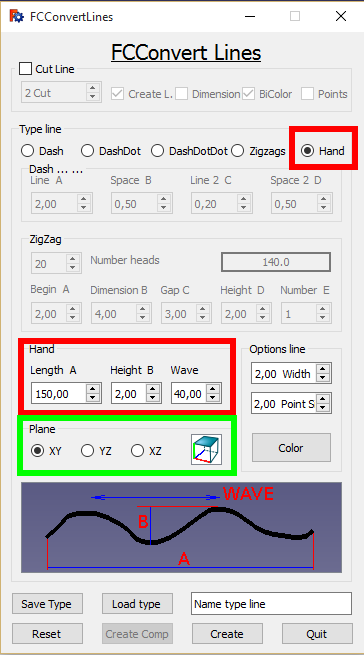
- These lines are created
- Length A : The length total of the line (see A in the screen)
- Height B : Height of the line (see B in the screen)
- Wave : compression or uncompress of the wave (see Wave in the screen)
- The options Plane and Options lines are available
Seventh section :
Options line :
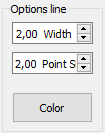
This options are available for all menu
- __2,00 Width__ : dimension of the width of the line(s)
- __2,00 Point S__ : dimension of the points of the line(s)
- Color : color of the line(s) this button are colored with the color selected (if the checkbox "Bicolor" in the menu "Cut line" is checked this option are not used for this menu)
Eighth section :
Option Plane
This option are available only for "ZigZag" and "Hand"
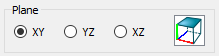
- XY : Plane XY
- YZ : Plane YZ
- XZ : Plane XZ
Ninth section :
Button

- Save type : the line configured is saved in one file (one file for one type line). While saving a file header is predetermined depending on the chosen menu (example : Dash is saved, in the save window is displayed "Dash_.FCConvertL" you can modify to "Dash_my_config_10.FCConvertL" or the name you want... this method allow sharpens clear)
- Load type : load one file configured
- Name type line________________ : name of the type configured this name is saved in the file
- Reset : reset the data's in the original configuration
- Create Comp : this button create on compound with the lines created (ten lines selected = one compound)
- Create : create the lines separately (ten lines selected = ten lines created)
- Quit : quit the macro
The files to copy in your directory with the macro (10 files images)
The icon for the toolBar

Title
Line Dash :
Line DashDot :
Line DashDotDot :
Line Zigzag :
Line Hand :
View :


Script
Copy the macro Macro_FCConvertLines.FCMacro in your macros folder.
The script on Gist Macro_FCConvertLines.FCMacro
ToolBar icon
Macro_FCConvertLines.FCMacro
Examples
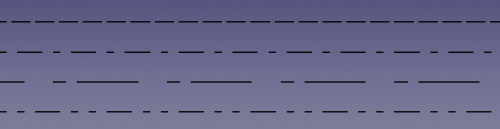
Example dot, dash dot, dash dot, dash dot dot
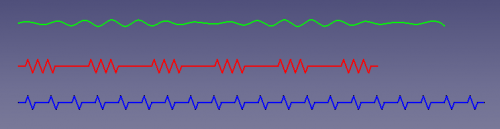
Example hand, zigzag
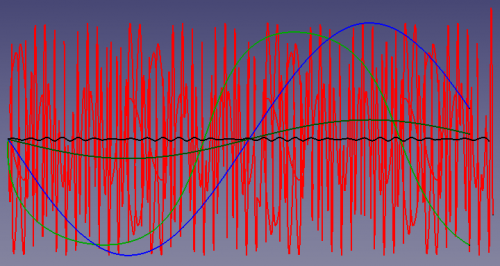
Example hand

All lines created with the configuration specifications set in this option lines
Example hand can make beautiful sine wave or totally anarchic
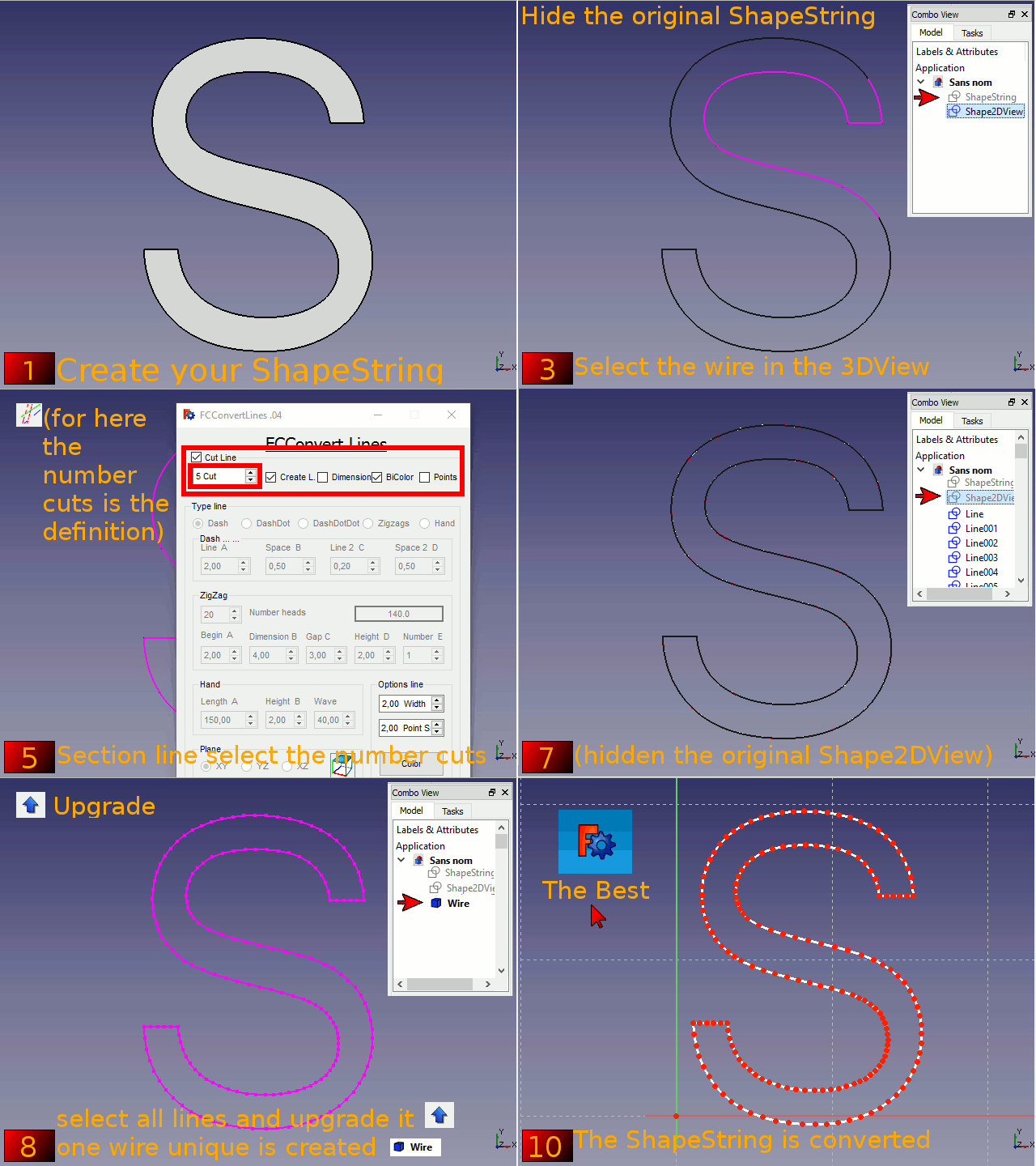
Example convert ShapeString to sketch (the curves hare not authorized for convert Shape to Sketch)
Version
ver 00.07b 09/11/2020 correct bug # (ajoute recompute() pour corriger)# Cannot compute Inventor representation for the shape of Shape. And Line by Label
ver 00.07 13/05/2017 correct bug after create "Alternate ...." the dimension of lines stay with the dimension alternative and not restitution the desired dimensions
ver 00.06 20/02/2017 correction of precision cut (replace "numberOfPoints = longueur" to "numberOfPoints = (longueur + 1)")
ver 00.05 11/01/2017 replace the search method macro path
ver 00.04 05/09/2016 setPointSize(8.0)
ver 00.02 18/02/2016
ver 00.01 19/01/2016
ver 00.00 19/01/2016
This page is retrieved from https://wiki.freecad.org/Macro_FC_Convert_Lines