Introduction
The FreeCAD interface is based on Qt, a well known graphical user interface (GUI) toolkit, particularly used in Linux, but also available in Windows and MacOS.
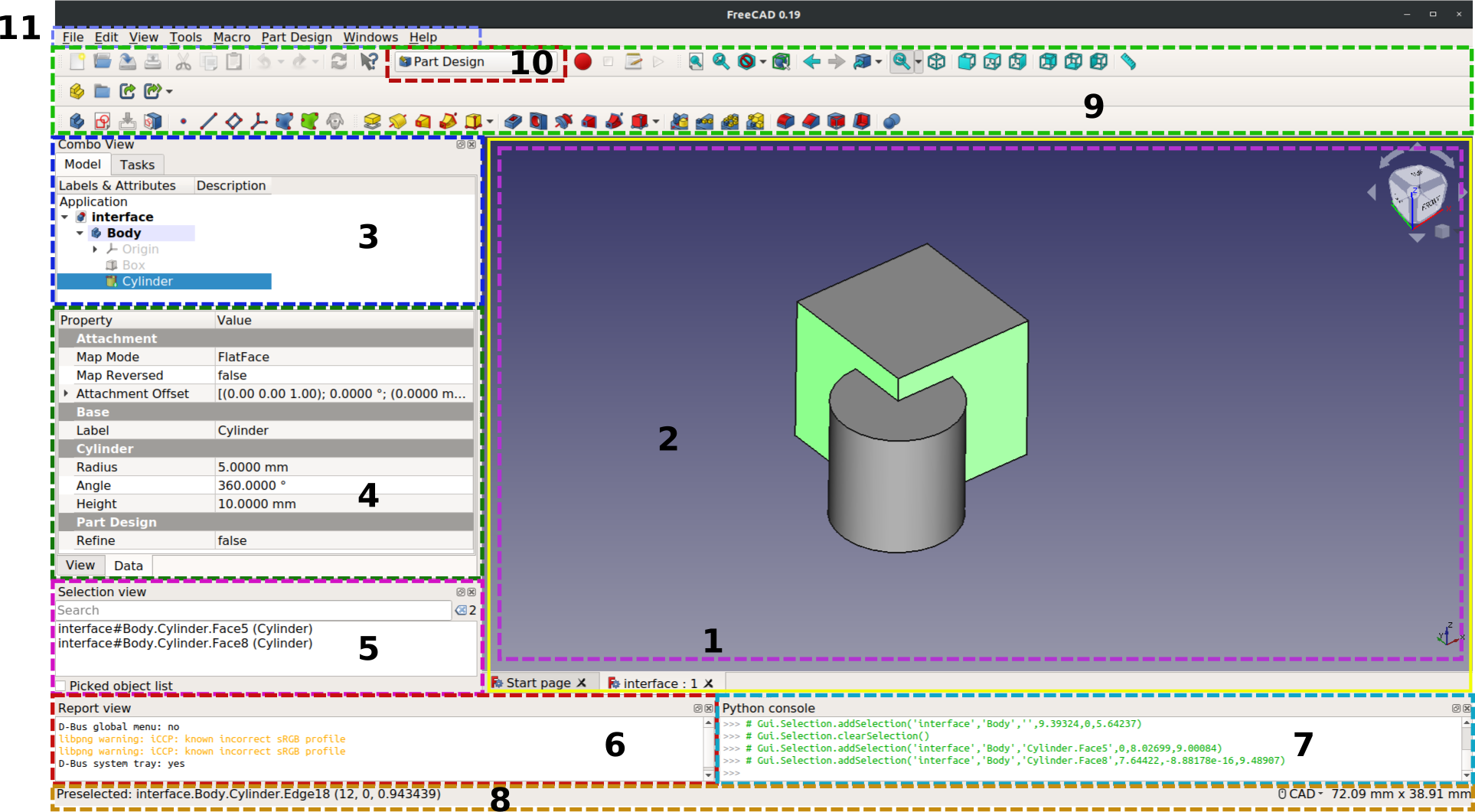
Standard interface in v0.19.
The main window of the application can be roughly divided into 11 sections:
- The main view area, which can contain different tabbed windows
- The 3D view, normally embedded in the main view area
- The upper part of the combo view, which includes the tree view and task panel
- The lower part of the combo view, which includes the property editor
- The selection view
- The report view
- The Python console
- The status bar
- The toolbar area, see the following information on the toolbars
- The Workbench selector, which itself is a toolbar
- The standard menu
Components of the interface
Like many pieces of software, FreeCAD includes a standard menu bar, and then a series of toolbars and panels where the user tools are found.
Menus
The standard menus are: File, Edit, View, Tools, Macro, Windows, Help.
Toolbars
The standard toolbars that appear in the interface are:
- File toolbar: tools to work with files, open documents, copy, paste, undo and redo actions.
- Workbench toolbar: it contains a single widget to select the active workbench.
- Macro toolbar: tools to record, edit, and execute macros.
- View toolbar: tools to control how objects appear in the 3D view.
- Structure toolbar: tools to organize objects in the document, and create links to additional documents.
These can be turned on and off by right clicking on an empty space on one of the toolbars and choosing the desired element, or from the menu, View → Toolbars.
Panels
The main panels that allow working with objects are:
- 3D view: the area where 2D and 3D geometry is drawn.
- Combo view: the panel that contains the tree view, the task panel, and the property editor.
- Tree view: the element that shows all objects in the document and their parametric history.
- Task panel: the panel that shows different actions and options depending on the drawing tool selected.
- Property editor: the place where object properties are modified.
- Selection view: the panel that shows elements that are currently selected.
- Report view: the text box that shows different messages from the application and its tools.
- Python console: the editor that allows running Python code interactively to see results in the 3D view.
- Status bar: the bar that shows certain messages from the application, and that has the mouse navigation selector.
- DAG view: an alternative to the tree view, which shows the relationships between different objects through a graph.
With the exception of the 3D view, all can be turned on and off by right clicking on an empty space on one of the top toolbars and choosing the desired element, or from the menu, View → Panels.
To activate and deactivate the status bar use the menu, View → Status bar.
Other
Other useful interfaces and windows include:
- Scene inspector: a panel that shows the Coin3D nodes that make up the scenegraph. For power users and developers, it may be useful to troubleshoot operations that manipulate the scene directly, and the objects created in the 3D view.
- Dependency graph: a window showing the dependency graph of all the objects in the document, created with the auxiliary program Graphviz. It is helpful to recognize problems in the creation of objects, such as circular dependencies, which may not be entirely evident from the tree view or the DAG view.
Customization
Toolbars can have more or fewer buttons, and custom toolbars can be created with a mix of different tools, and to store developed macros.
These options are in the menu, Tools → Customize. See interface customization.
Dock panel overlay

The dock panel overlay system is a feature to maximize the space available for the 3D view. It transforms standard docked panels, like the Combo View, into floating, transparent widgets that sit on top of the 3D view. This allows the 3D view to expand and use the space the panels previously occupied. The overlay panels become fully opaque and interactive when the mouse hovers over them, and transparent again when the mouse moves away, even enabling clicking through them to interact with the model.
The main switch for this feature is the Toggle overlay for all command. Additional commands are available for more granular control.
Overlay Modes
Each panel in the overlay system can be set to a different mode, allowing for a customized workflow. These settings are available by clicking the overlay mode button ( ) in the title bar of an overlay panel.
- None: This is the default mode. The panel remains visible but transparent when not in use, and becomes opaque on mouse-over. It provides a good balance between access to tools and 3D view space.
- Auto hide: This mode completely hides the panel by sliding it off-screen. The panel will only reappear when you move your mouse to the edge of the window where it is hiding. This mode provides the maximum screen space and is suitable for panels that are used infrequently.
- Show on edit: A context-aware mode that automatically shows the panel when an object's edit mode is entered (e.g., editing a sketch). When the edit is finished, the panel automatically hides again. This mode well suited for the Task panel, for instance.
- Hide on edit: The opposite of "Show on edit". This mode automatically hides the panel when an object's edit mode is entered. This is useful for clearing away secondary panels (like the Report view) to reduce clutter while focusing on a specific task.
- Auto task: A smart version of "Show on edit", designed for the Task panel. It shows the panel only when a command opens an active task, and hides it the moment the task is completed, providing a more automated workflow.
Commands
The following commands control the dock panel overlay feature:
- Toggle overlay for all: The master switch for the overlay feature. Toggles overlay mode on or off for all panels.
- Toggle transparent for all: Toggles the special "transparent active" mode, where panels remain transparent even when you mouse over them.
- Toggle overlay: Toggles overlay mode for the single panel currently under the mouse cursor.
- Toggle transparent mode: Toggles the "transparent active" mode for the single panel currently under the mouse cursor.
- Toggle left, Toggle right, Toggle top, Toggle bottom: Show or hide the entire group of overlay panels on a specific side of the screen.
This page is retrieved from https://wiki.freecad.org/Interface