


Beskrivning
The  Draft BezCurve command creates a Bézier curve from several points.
The command creates a single Bézier curve with a DataDegree that is number_of_points - 1. It can be transformed into a piecewise Bézier curve by reducing this property.
The Draft BezCurve and the Draft CubicBezCurve commands use control points to define the position and curvature of the spline. The Draft BSpline command, on the other hand, specifies the exact points through which the curve will pass.
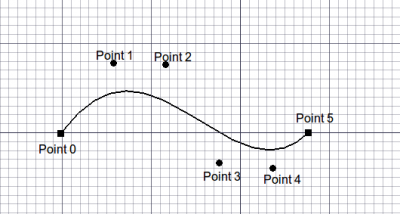
Bézier curve defined by multiple points
Usage
See also: Draft Tray, Draft Snap and Draft Constrain.
- There are several ways to invoke the command:
- Press the Bézier Curve button.
- Draft: Select the Drafting → Bézier Tools → Bézier Curve option from the menu.
- BIM: Select the 2D Drafting → Bézier Curve option from the menu.
- Use the keyboard shortcut: B then Z.
- Press the
- The Bézier Curve task panel opens. See Options for more information.
- Pick the first point in the 3D View, or type coordinates and press the
 Enter Point button.
 - Pick additional points in the 3D View, or type coordinates and press the Enter Point button.
- Press Esc or the Close button to finish the command.
Options
The single character keyboard shortcuts available in the task panel can be changed. See Draft Preferences. The shortcuts mentioned here are the default shortcuts.
- To manually enter coordinates enter the X, Y and Z component, and press Enter after each. Or you can press the Enter Point button when you have the desired values. It is advisable to move the pointer out of the 3D View before entering coordinates.
- Press R or click the Relative checkbox to toggle relative mode. If relative mode is on, coordinates are relative to the last point, if available, else they are relative to the coordinate system origin.
- Press G or click the Global checkbox to toggle global mode. If global mode is on, coordinates are relative to the global coordinate system, else they are relative to the working plane coordinate system.
- Press F or click the Filled1.0 and below or Make faceintroduced in 1.1 checkbox to toggle make face mode. If make face mode is on, the created curve will have DataMake Face set to
trueand have a filled face, provided it is closed and does not self-intersect. A self-intersecting curve with a face will not display properly, for such a curve DataMake Face must be set tofalse. - Press N or click the Continue checkbox to toggle continue mode. If continue mode is on, the command will restart after using
 Finish or
  Close, or after creating a closed curve by snapping to the first point of the curve, allowing you to continue creating curves.
 - Press / or the
 Undo button to undo the last point.
 - Press A or the Finish button to finish the command and leave the curve open.
- Press O or the Close button to finish the command and close the curve. A closed curve can also be created by snapping to the first point of the curve.
- Press W or the
 Wipe button to delete the segments already placed, but keep working from the last point.
 - Press U or the
 Set Working Plane button to adjust the current working plane in the orientation defined by the last and the previous point.
 - Press S to switch Draft snapping on or off.
- Press Esc or the Close button to finish the command.
Notes
- A Draft BezCurve can be edited with the Draft Edit command.
- OpenCascade, and therefore FreeCAD, does not support Bézier curves of degrees larger than 25. This should not be a problem in practice, as most users typically use Bézier curves of degrees 3 to 5.
Properties
See also: Property View.
A Draft BezCurve object is derived from a Part Part2DObject1.0 and below or a Part Feature object1.1 and above and inherits all its properties. It also has the following additional properties:
Data
Attachment
The object has the same attachment properties as a Part Part2DObject.
Draft
- DataArea (
Area): (read-only) specifies the area of the face of the curve. The value will be0.0if DataMake Face iffalseor the face cannot be created. - DataClosed (
Bool): specifies if the curve is closed or not. If the curve is initially open this value isfalse, setting it totruewill draw a segment to close the curve. If the curve is initially closed this value istrue, setting it tofalsewill remove the last segment and make the curve open. - DataContinuity (
IntegerList): (read-only) specifies the continuity of the curve. - DataDegree (
Integer): specifies the degree of the curve. - DataLength (
Length): (read-only) specifies the total length of the curve. - DataMake Face (
Bool): specifies if the curve makes a face or not. If it istruea face is created, otherwise only the perimeter is considered part of the object. This property only works if DataClosed istrueand if the curve does not self-intersect. - DataPoints (
VectorList): specifies the control points of the curve in its local coordinate system.
View
Draft
- VyArrow Size (
Length): specifies the size of the symbol displayed at the end of the curve. - VyArrow Type (
Enumeration): specifies the type of symbol displayed at the end of the curve, which can beDot,Circle,Arrow,TickorTick-2. - VyEnd Arrow (
Bool): specifies whether to show a symbol at the end of the curve, so it can be used as an annotation line. - VyPattern (
Enumeration): specifies the Draft Pattern with which to fill the face of the closed curve. This property only works if DataMake Face istrueand if VyDisplay Mode isFlat Lines. - VyPattern Size (
Float): specifies the size of the Draft Pattern.
Scripting
Skript
To create a Draft BezCurve use the make_bezcurve method (introduced in 0.19) of the Draft module. This method replaces the deprecated makeBezCurve method.
bezcurve = make_bezcurve(pointslist, closed=False, placement=None, face=None, support=None, degree=None)
bezcurve = make_bezcurve(Part.Wire, closed=False, placement=None, face=None, support=None, degree=None)
- Creates a
bezcurveobject with the given list of points,pointslist.- Each point in the list is defined by its
FreeCAD.Vector, with units in millimeters. - Alternatively, the input can be a
Part.Wire, from which points are extracted.
- Each point in the list is defined by its
- If
closedisTrue, or if the first and last points are identical, the curve is closed. - If
placementisNonethe curve is created at the origin. - If
faceisTrue, and the curve is closed, the curve will make a face, that is, it will appear filled.
Example:
import FreeCAD as App
import Draft

doc = App.newDocument()

p1 = App.Vector(0, 0, 0)
p2 = App.Vector(1000, 1000, 0)
p3 = App.Vector(2000, 0, 0)
p4 = App.Vector(1500, -2000, 0)

bezcurve1 = Draft.make_bezcurve([p1, p2, p3, p4], closed=True)
bezcurve2 = Draft.make_bezcurve([p4, 1.3*p2, p1, 4.1*p3], closed=True)
bezcurve3 = Draft.make_bezcurve([1.7*p3, 1.5*p4, 2.1*p2, p1], closed=True)

doc.recompute()
Denna sida hämtas från https://wiki.freecad.org/Draft_BezCurve