


|
|
| Расположение в меню |
|---|
| Path → Pocket Shape |
| Верстаки |
| Path |
| Быстрые клавиши |
| P O |
| Представлено в версии |
| - |
| См. также |
| Нет |

Описание
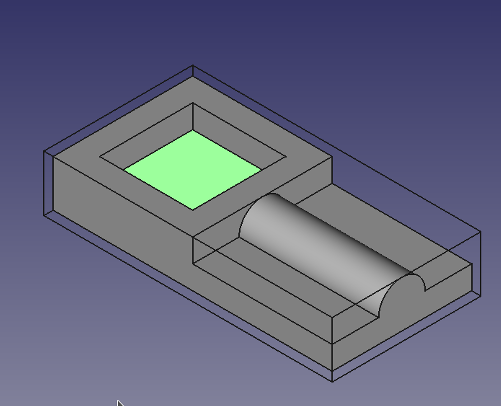
The  CAM Pocket Shape command creates a pocketing operation from selected bottom faces, or walls, of one or more pockets of the jobs base object.
The CAM Pocket Shape object is made to be part of a  CAM Job.
Применение
- Select the bottom or the wall(s) of a pocket. While it is usually easier to select the bottom, the walls have to be selected when a pocket goes through all.
- There are several ways to invoke the command:
- Press the Pocket Shape button.
- Select the CAM → Pocket Shape option from the menu.
- Press the
- Adjust the desired properties.
Свойства
Note : Not all of these Properties are available in the Task Window Editor. Some are only accessible in the Data tab of the Properties View panel for this Operation.
Base
Note: It is suggested that you do not edit the Placement property of path operations. Rather, move or rotate the CAM Job model as needed.
- ДанныеPlacement: Overall placement[position and rotation] of the object - with respect to the origin (or origin of parent object container)
- ДанныеAngle: Angle in degrees applied to rotation of the object around Axis property value
- ДанныеAxis: Axis (one or multiple) around which to rotate the object, set in sub-properties: X, Y, Z
- ДанныеX: X-axis value
- ДанныеY: Y-axis value
- ДанныеZ: Z-axis value
- ДанныеPosition: Position of the object, set in sub-properties: X, Y, Z - with respect to the origin (or origin of parent object container)
- ДанныеX: X-distance value
- ДанныеY: Y-distance value
- ДанныеZ: Z-distance value
- ДанныеLabel: User-provided name of the object (UTF-8)
Depth
- ДанныеClearance Height: The height needed to clear clamps and obstructions
- ДанныеFinal Depth: Final Depth of Tool- lowest value in Z
- ДанныеFinish Depth: Maximum material removed on final pass. The height (thickness) of the last cutting level - set for a better finish.
- ДанныеSafe Height: The height above which Rapid motions are allowed. (Rapid safety height between locations)
- ДанныеStart Depth: Starting depth of Tool - first cut depth in Z
- ДанныеStep Down: Incremental step down of Tool during operation
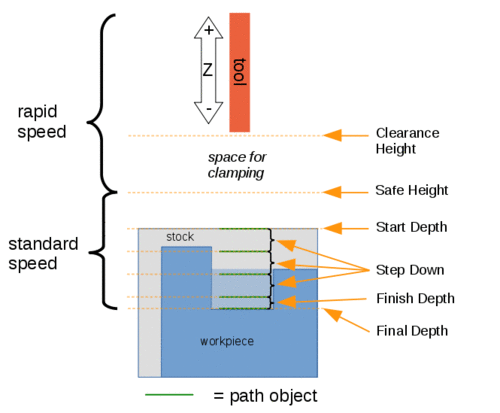
Visual reference for Depth properties (settings)
Extension
- ДанныеExtension Corners: When enabled connected extension edges are combined to wires.
- ДанныеExtension Length Default: Default length of extensions.
Face
- ДанныеOffset Pattern: Clearing pattern to use. (Select in which manner the horizontal movements should be done.)
Path
- ДанныеActive: Make False, to prevent operation from generating code
- ДанныеComment: An optional comment for this Operation
- ДанныеUser Label: User assigned label
- ДанныеTool Controller: Defines the Tool controller used in the Operation
- ДанныеCut Mode: Specifies a CW or CCW move for the cut
- ДанныеExtra Offset: Extra offset to apply to the operation. Direction is operation dependent. (Extra value to stay away from final profile good for roughing toolpath)
- ДанныеKeep Tool Down: Attempts to avoid unnecessary retractions.
- ДанныеMin Travel: Use 3D Sorting of Path (when multiple base geometries used).
- ДанныеStart At: Start pocketing at center or boundary.
- ДанныеStep Over: Select the horizontal step over (Percent of tool diameter: 100% = tool diameter).
- ДанныеUse Outline: Uses the outline of the base geometry.
- ДанныеZig Zag Angle: Angle of the zigzag pattern. (Select the path angle relative to X-axis.)
- ДанныеSortingMode: Controls how multiple selected base geometries are ordered.
Automaticuses automatic sorting.Manualfollows the selection order.
Rotation
- ДанныеAttempt Inverse Angle: Automatically attempt Inverse Angle if initial rotation is incorrect.
ДанныеB_Axis Error Override: Visually orient B(y) rotations to model (error in FreeCAD rendering).- ДанныеEnable Rotation: Enable rotation to gain access to pockets or areas not normal to Z axis.
- ДанныеInverse Angle: Inverse the angle of the rotation. Example: change a rotation from -22.5 to 22.5 degrees.
- ДанныеReverse Direction: Reverse orientation of Operation by 180 degrees.
Start Point
- ДанныеStart Point: The start point of this path.
- ДанныеUse Start Point: Make True, if manually specifying a Start Point, then enter Start Points in the property data Start Points field.
Tasks Window Editor Layout
Descriptions for the settings are provided in the Properties list above.
This section is simply a layout map of the settings in the window editor for the Operation.
Base Geometry
- Add: Adds selected element(s) which should be the base(s) for the path(s)
- Delete: Delete the selected item(s) in the Base Geometry list
- Clear: Clear all items in the Base Geometry list
Extensions
- ДанныеShow All: If selected, all potential extensions are visualized. Enabled extensions in purple, disabled extensions in yellow.
- ДанныеExtension Corners
- ДанныеExtension Length Default
- Enable
- Disable
- Clear
Depths
- ДанныеStart Depth
- ДанныеFinal Depth
- ДанныеStep Down
Heights
- ДанныеSafe Height
- ДанныеClearance Height
Operation
- ДанныеTool Controller
- ДанныеCut Mode
- ДанныеPattern (Offset Pattern)
- ДанныеAngle (Zig Zag Angle)
- ДанныеStep Over Percent (Step Over)
- ДанныеPass Extension: The distance the facing operation will extend beyond the boundary shape (base geometry)
Scripting
Программирование
Смотрите так же: Основы составления скриптов в FreeCAD.
#Place code example here.
Эта страница получена от https://wiki.freecad.org/CAM_Pocket_Shape