This documentation is not finished. Please help and contribute documentation.
GuiCommand model explains how commands should be documented. Browse Category:UnfinishedDocu to see more incomplete pages like this one. See Category:Command Reference for all commands.
See WikiPages to learn about editing the wiki pages, and go to Help FreeCAD to learn about other ways in which you can contribute.
 Tutorial Tutorial
|
| Topic |
|---|
| Transient FEM analysis |
| Level |
| Time to complete |
| Authors |
| FreeCAD version |
| Example files |
| See also |
| None |
Background
Creating the model
- Starting with a blank FreeCAD project, we build our bimetal strip in the
 Part Workbench
 - Draw a
 Cube Solid and rename it to
 aluminium. - Give it the dimensions 100 x 10 x 2 mm (length x width x height).
- Create a second Cube Solid 'steel' with the same dimensions
- Offset this part by 2 mm along the Z-axis (via Placement → Position → z).
- Select both solids (using the Shift key + mouse click) and create
 Boolean Fragments from them
 - Rename these Boolean Fragments to
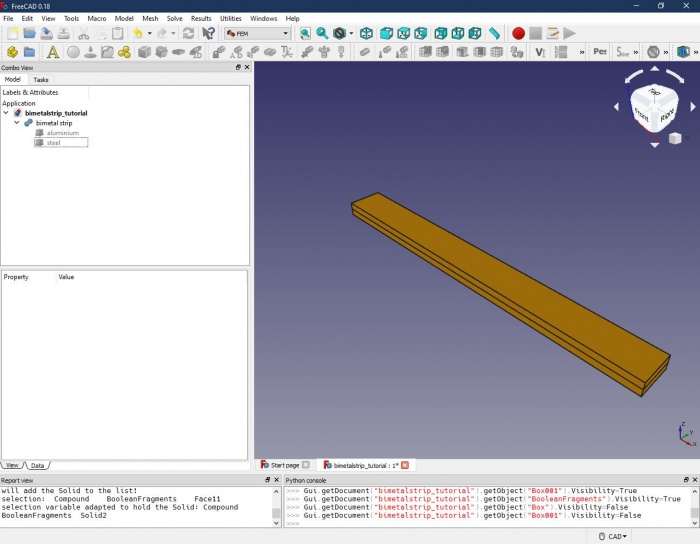
bimetal strip - In the Property editor, we change the mode from ViewStandard to ViewCompSolid. (It should also work by using the Part Compound command instead of Boolean Fragments, however, with more complex intersecting shapes, there might be trouble with the FEM analysis later. So, better get used to using Boolean Fragments in the first place.) The result should look like this:
Preparing and running the FEM analysis
Assigning the materials
In the FEM workbench we create a new  analysis and add a new
  material to the analysis. In the upcoming task window, we select one of the predefined aluminium alloys. Under 'geometry reference selector', we assign the material to the lower strip of our model by setting the selection mode to 'solid', clicking 'add' and selecting a face or an edge of the lower strip. In the list view, 'BooleanFragments:Solid1' should show up.
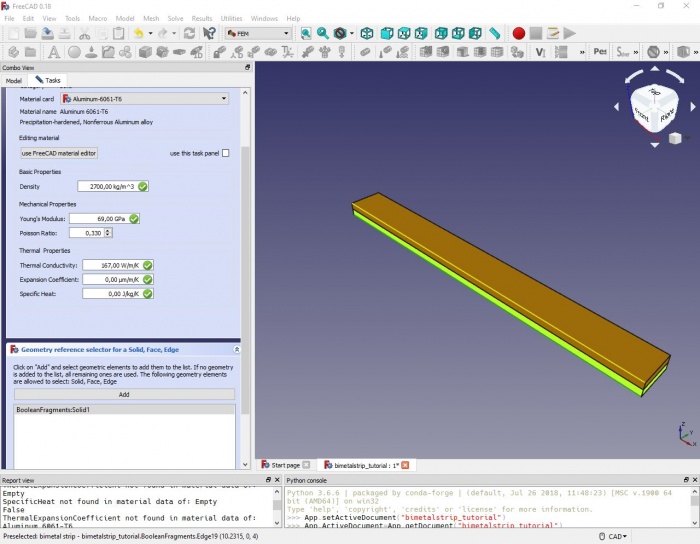
We close the task window and repeat the steps to create a second material 'Steel' (material card 'CalculiX-Steel') and assign it to the top strip ('BooleanFragments:Solid2').
Creating the mesh
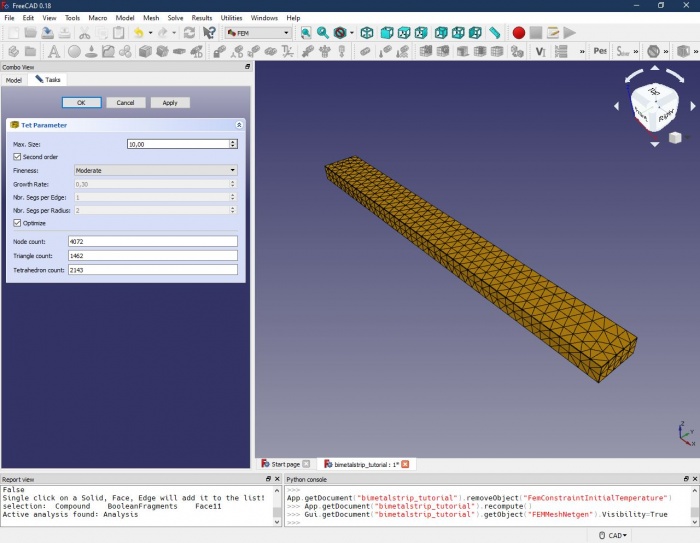
Since a Finite Element Analysis obviously needs elements to work with, we have to dissect our model into a so-called mesh. The FEM workbench offers two meshing tools: Netgen and GMSH. We will go with Netgen here: With the Boolean Fragments objects 'bimetal strip' selected, we click on the  Netgen icon in the FEM workbench. In the upcoming task window, we have to make different selections, starting from the top:
- Max. size is the maximum size (in millimetres) of an element. The smaller the maximum element size, the more elements we get – usually the result will get more precise, but with a dramatic increase in computing time. We set it to 10.
- Second order means, that in each element, additional nodes will be created. This increases computing time, but is usually a good choice if it comes to bending as in our analysis. We leave it checked.
- Fineness: Select, how finely the model should be cut into elements. For more complex models with curvatures and intersections, we can increase the element number in those regions to get better results (at the cost of more computing time, of course). Expert users can also set it to User-defined and set the following parameters. For our simple rectangular model, the fineness selection has not much of an impact, we keep it at moderate level.
- Optimize: Some kind of post-processing after meshing. We keep it checked.
A click on 'Apply' runs the mesher, and – the time depending on your computer – a wireframe appears on our model. The mesher should have created about 4,000 nodes.
Assigning boundary conditions
An FEM analysis now would result in nothing, because nothing is happening to our model yet. So let’s add some temperature: Use the  initial temperature from the FEM workbench and set the temperature to 300 K. Here, no parts of the model can be selected, since this setting applies to the complete model.
Next, we use  temperature acting on a face. We select the two faces at one end of the strip (Ctrl + Left mouse key) and click 'add' in the task window. Two faces of the Boolean Fragments object should appear in the list and little temperature icons on the model. We set the temperature to 400 K and close the task window. At the beginning of the analysis, the selected faces will get an instantaneous temperature rise from 300 to 400 K. The heat will be conducted along the metal strips and cause the bending of the strip.
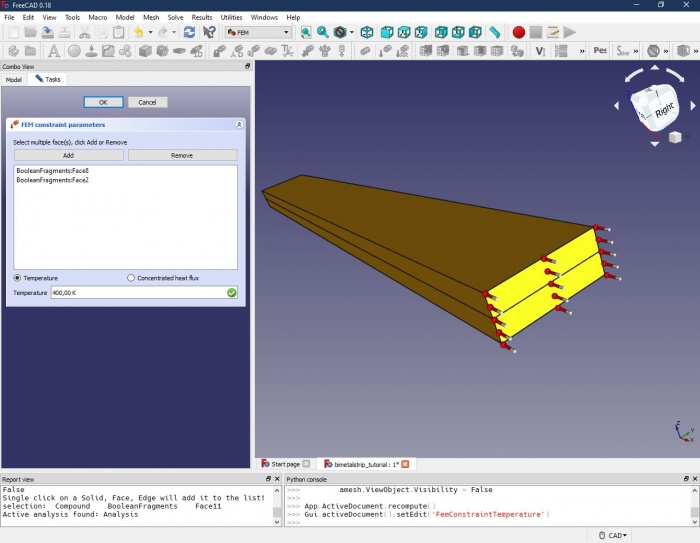
Before we can run the analysis, an additional boundary condition has to be set: The analysis can only run, if our model is fixed somewhere in space. With  we select the same two faces as for the 400 K above, and add them to the list. Red bars will appear on the model, visualising that those faces are fixed in space and not able to move around during the analysis.
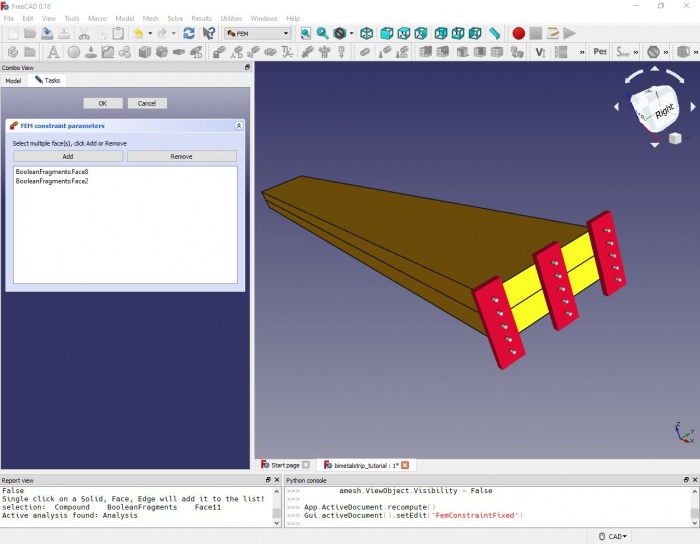
Running the analysis
The analysis should already contain a solver object 'CalculiXccx Tools'. If not, we add one by using the  solver icon from the toolbar. (There are two identical icons, the experimental solver should also work.) The solver object has a list of properties below in the left section of the window. Here we select the following options (leave the ones unmentioned unchanged):
- Analysis Type: We want to run a thermomechanical analysis. Other options would be only static (no temperature effects), frequency (oscillations), or only to check the model validity.
- Thermo Mech Steady State: Steady state means, the solver will return one single result with the physics reaching equilibrium. We do NOT want to do that, we would like to get multiple, time-resolved results (transient analysis). So set it to false.
- Time end: We would like our analysis to stop after 60 seconds (i.e., simulation time, not real time).
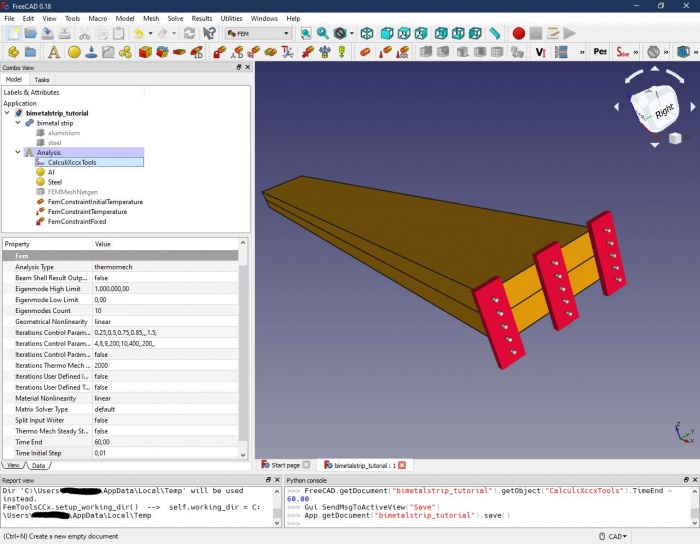
After double-clicking the solver object, we check that 'thermomechanical' is selected and run 'write .inp file'. This usually takes some seconds (or a lot more for bigger models) and returns a message 'write completed' in the box below. Now we start the calculation with 'run CalculiX'. After some time, the last messages 'CalculiX done without error!' and 'Loading result sets...' should appear. When the timer at the bottom has stopped, we close the task window. (With larger models and/or slower computers, FreeCAD may freeze and we won’t see the timer running. But be patient, in most of the cases, CalculiX is still running in the background and will eventually produce results.)
We should now have multiple  FEM result objects listed. By double-clicking, we can open each one of it and visualise the calculated temperatures, displacements, and stresses. We can visualise the bending by selecting 'Show' in the 'Displacement' section. Since the absolute displacements are small, we use the 'Factor' to exaggerate the values.
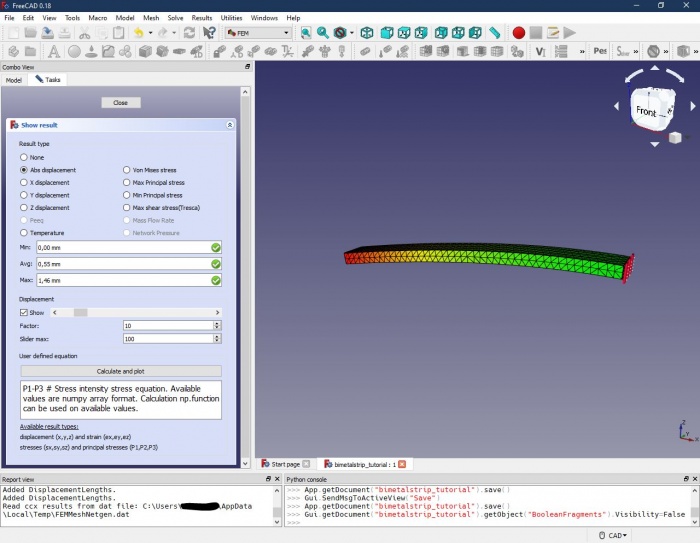
Within FreeCAD, we can use  pipelines to do some post-processing of the results. Alternatively, we can export the results in the VTK format and import them into dedicated post-processors like ParaView. For the export of multiple results (as for this analysis), there is a macro available.
Downloads
Other Example
- Analytical bimetall example. The analytical example presented in the forum is included in FreeCAD FEM examples. It can be started by Python with:
from femexamples.thermomech_bimetall import setup
setup()
This page is retrieved from https://wiki.freecad.org/Transient_FEM_analysis