


|
|
| Ubicación en el Menú |
|---|
| Croquis → Restricciones del Croquizador → Restricción de Simetría |
| Entornos de trabajo |
| Croquizador |
| Atajo de teclado por defecto |
| S |
| Introducido en versión |
| - |
| Ver también |
| Restricción Paralela |

Descripción
Descripción
La Restricción de Simetría restringe dos puntos seleccionados a ser simétricos con respecto a un eje dado. Los dos puntos seleccionados se restringen para situarse sobre la perpendicular al eje de simetría y situados a la misma distancia de este.
Funcionamiento
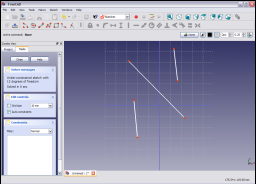
Selecciona dos puntos y una línea en el croquis. Los puntos y la línea seleccionados se volverán de color verde oscuro.
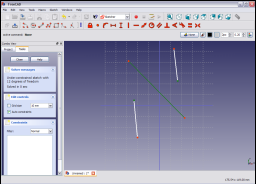
Pulsa sobre el icono  en la barra de herramientas del Croquizador o selecciona la Restricción de Simetría en el submenú de Restricciones del entorno del Croquizador (o del entorno de Diseño de Piezas).
Esto aplicará la restricción a los elementos seleccionados.
en la barra de herramientas del Croquizador o selecciona la Restricción de Simetría en el submenú de Restricciones del entorno del Croquizador (o del entorno de Diseño de Piezas).
Esto aplicará la restricción a los elementos seleccionados.
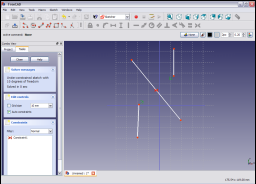
Esta es una restricción geométrica y no tiene parámetros editables.
See also: Drawing aids.
Continue mode
- Make sure there is no selection.
- There are several ways to invoke the tool:
- Press the
 Symmetric Constraint button.
 - Select the Sketch → Constraints → Symmetric Constraint option from the menu.
- introduced in 1.0: Right-click in the 3D View and select the Constrain → Symmetric Constraint option from the context menu.
- Use the keyboard shortcut: S.
- Press the
- The cursor changes to a cross with the tool icon.
- Do one of the following:
- Select two points and a symmetry point (in that order).
- Select two points and a symmetry line (idem).
- Select a point, a symmetry line and another point (idem).
- Select a line and a symmetry point (idem).
- introduced in 1.2: Select an element (line, arc, or open B-spline) and a symmetry line (idem).
- A constraint is added.
- Optionally keep creating constraints.
- To finish, right-click or press Esc, or start another geometry or constraint creation tool.
Run-once mode
- Do one of the following:
- Select two points and a symmetry point (in that order).
- Select two points and a symmetry line (in any order).
- Select a line and a symmetry point (idem).
- introduced in 1.2: Select an element (line, arc, or open B-spline) and a symmetry line (in that order).
- Invoke the tool as described above, or with one of the following additional options:
- introduced in 1.0: Right-click in the 3D View and select the Symmetric Constraint option from the context menu.
- Right-click in the Elements section of the Sketcher Dialog and select the Symmetric Constraint option from the context menu.
- introduced in 1.0: Right-click in the 3D View and select the
- A constraint is added.
Notes
- The arrows of this constraint have the same color as dimensional constraints.
Scripting
Two points and a symmetry line:
Sketch.addConstraint(Sketcher.Constraint('Symmetric', Line1, PointOfLine1, Line2, PointOfLine2, SymmetryLine))
Two points and a symmetry point:
Sketch.addConstraint(Sketcher.Constraint('Symmetric', Line1, PointOfLine1, Line2, PointOfLine2, LineS, PointOfLineS))
A line and a symmetry point (In the GUI one can select a line and a point, but it uses internally the same form as above, with the two extremities of the same line):
Sketch.addConstraint(Sketcher.Constraint('Symmetric', Line, 1, Line, 2, LineS, PointOfLineS))
The Sketcher scripting page explains the values which can be used for Line1, Line2, LineS, Line, PointOfLine1, PointOfLine2 and PointOfLineS, and contains further examples on how to create constraints from Python scripts.


Esta página ha sido recuperada de https://wiki.freecad.org/Sketcher_ConstrainSymmetric