Introducción
La vista de selección es un panel en la interfaz localizada por defecto en debajo de la vista combo. Justo como el editor de propiedades, muestra más información sobre los objetos seleccionados actualmente.
Se puede hacer una selección eligiendo un objeto en la vista 3D o en la vista de árbol. Se pueden seleccionar varios cuerpos manteniendo presionado Ctrl.
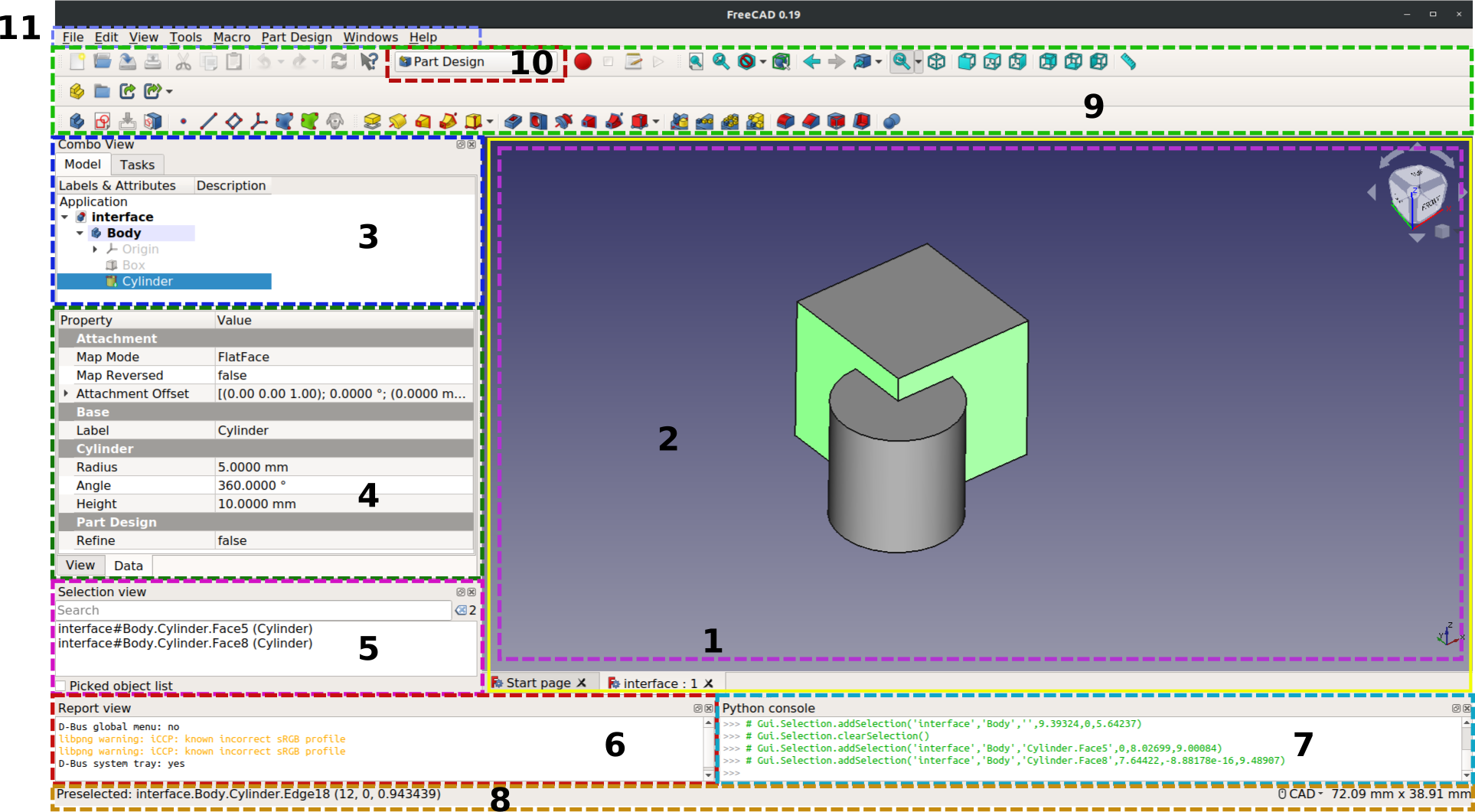
Selection View indicated by the number 5, in the standard interface.
Selección de objetos
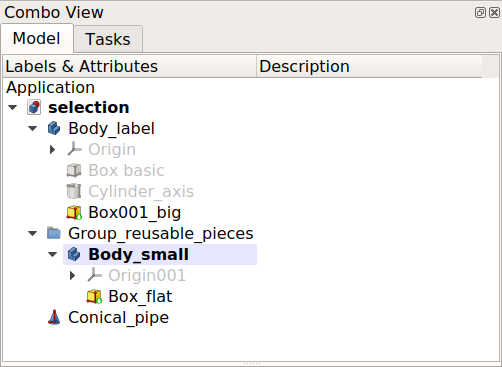
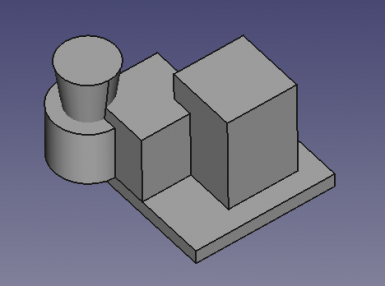
The Tree View of this example has two PartDesign Bodies, with several features each, and a simple Part Cone. The tree is as follows.
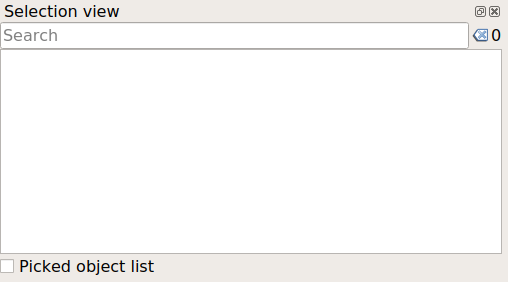
The Selection View is empty if no object is selected in the 3D View or in the Tree View.
If you select an object, it will appear in the list of objects, together with the document it belongs to. Both the read-only internal Name, and the user changeable Label will be displayed.
The Name can contain only basic alphanumeric characters [_0-9a-zA-Z], while the Label can contain any symbol including spaces and accented characters.
Document#Name (Label)
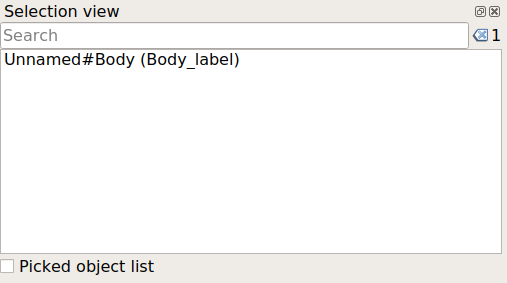
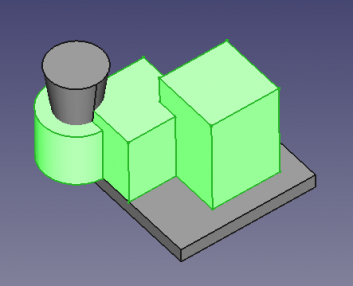
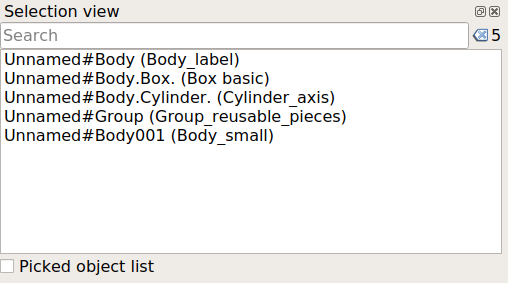
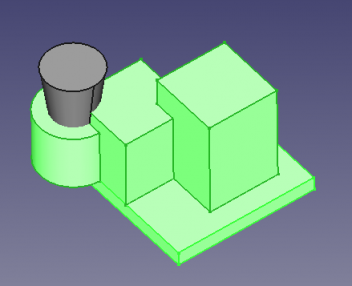
If you select various objects, they will be listed in the view. If these objects are located inside a type of container, for example, a PartDesign Body, the displayed name will be given in a hierarchical manner, that is, Document#Parent.Child. In this case, not only the child, but the entire parent will appear highlighted in the 3D View.
Document#Body.Feature. (Feature_label)
Individual body elements, that is, vertices, edges, and faces, can be selected, and they will be displayed in a hierarchical manner as well.
Document#Body.Feature.Vertex (Feature_label)
Document#Body.Feature.Edge (Feature_label)
Document#Body.Feature.Face (Feature_label)
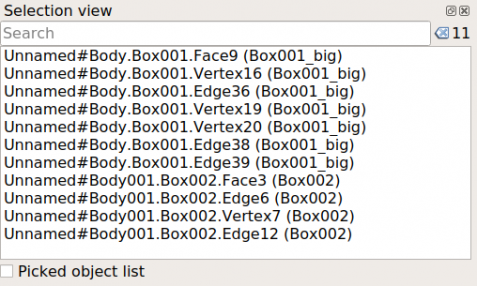
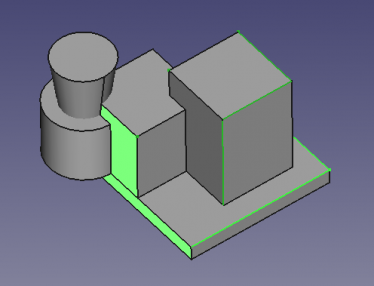
Barra de búsqueda
If you have many objects in your document and you cannot pick the one that you want from the 3D View or from the Tree View, you can write the partial name of the object in the search field; it will search all names in the document, and show a list of those that partially match the text that you entered. If you find the object that you are looking for, you may click on it to select it.
Acciones
Right-clicking an element in the list opens a context menu with the following commands:
- Select Only: deselects everything, and selects only the parent object that contains the given element.
- Deselect: completely removes the selection of all objects.
- Zoom Fit: deselect everything, and selects only the parent object that contains the given element. Moreover, the 3D View is panned and zoomed so that the parent object is centered on the screen. This is useful when selecting one object in the Tree View, and then quickly focus the camera on it in the 3D View.
- Go to Selection: deselects everything, and selects only the the parent object that contains the selected element. In this case, the Tree View is adjusted and expanded to show exactly where the selected object is in the tree. This is useful when the objects in the 3D View are contained inside many container objects in the Tree View, for example, Std Parts, Std Groups, PartDesign Bodies, Arch BuildingParts, and similar. When you have hundreds of bodies, it is easier to select the object in the 3D View, and then choose Go to Selection, to immediately locate the object in the Tree View, and then proceed to edit its properties in the Property View.
- Mark to Recompute: marks the selected object as "Touched", meaning that its properties will be updated next time the document is recomputed.
- To Python Console: this creates a variable
objthat holds a reference to the parent object. This is useful when writing scripts and testing commands in the Python console. Instead of using the full name of the object, it's easier to use the shorter and more compact nameobj. See also Std SendToPythonConsole.
Picked object
if the Picked object list checkbox is checked, a secondary list will appear showing all the sub-elements (vertices, edges, and faces) that could be selected by a single click, even those that are behind (hidden by) other objects.
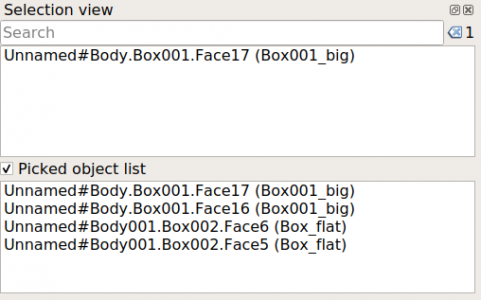
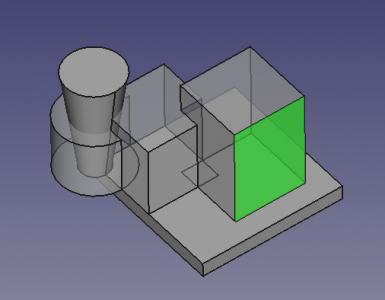
Esta página ha sido recuperada de https://wiki.freecad.org/Selection_View