


|
|
| Ubicación en el Menú |
|---|
| DiseñoPiezas → Additivo Tubo |
| Entornos de trabajo |
| DiseñoPiezas |
| Atajo de teclado por defecto |
| Ninguno |
| Introducido en versión |
| 0.17 |
| Ver también |
| DiseñoPiezas Additivo Loft, DiseñoPiezas Tubo sustractivo |
Descripción
El Tubo Aditivo crea un sólido en el Cuerpo activo barriendo uno o más bosquejos (también conocidos como secciones transversales) a lo largo de un camino abierto o cerrado. Si el Cuerpo ya contiene características, la tubería aditiva se fusionará con ellas.
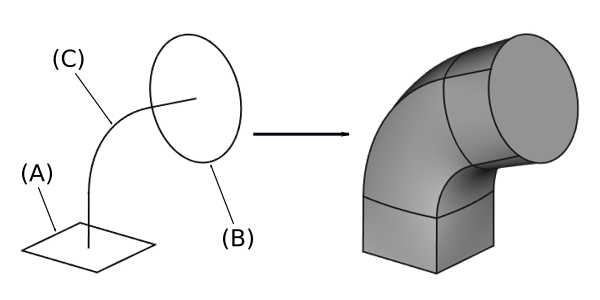
"A la izquierda: secciones transversales (A) y (B) para ser barridas a lo largo del camino (C); Tubo Aditivo resultante a la derecha.
Utilización
La imagen de ejemplo de arriba muestra dos formas de sección transversal diferentes. El texto a continuación describirá el procedimiento con una sola forma. Esto logrará una parte con la misma sección transversal a lo largo de todo el camino.
- Create two separate sketches;
- one for the path, e.g two lines connected by a curve as in the image above,
- one for the cross-section shape, e.g. a circle as the first shape in the image above. Instead of a sketch also the face of a 3D object can be used.
- Arrange the two shapes in 3D correctly. It is recommended to place the origin of the cross-section onto the line of the path. The two sketches should in most cases be orthogonal. This can be done with the 'Map Mode' function (make both sketches visible with Space. Select the cross-section sketch. Select Properties/DataTab/MapMode. Click the appearing … button at the right side. In the Attachment Dialog select a vertex of the path sketch and select the correct mode to get the two sketches aligned correctly.
- There are several ways to invoke the tool:
- Press the
 Additive Pipe button.
 - Select the PartDesign → Additive Features → Additive Pipe option from the menu.
- Press the
- In the Select Attachment dialog select a sketch to be used as a cross-section and click OK.
- Alternatively, a sketch or a face of a 3D object can be selected before starting the tool. You will not get this dialog then.
- In the Pipe Parameters under Path to Sweep Along, press the Object button.
- Select the sketch to be used as a path in the 3D View. In this case, the whole sketch will be used as a path.
- Alternatively, single edges of the sketch can be selected by pressing Add Edge and selecting edges in the 3D View. Note that you must press the Add Edge for each edge again. You must select a continuous line with no branches.
- The other settings should work with the default settings in most cases.
- Click OK.
To use more than one cross-section, start with the first cross-section sketch as described above. Then under Section Transformation set the transformation mode to Multisection; press Add Section then select a sketch in the 3D View. Repeat for each additional cross-section.
Options
Corner transition:
- Transformed
- Right corner
- Rounded corner
Section Orientation:
- Standard
- This keeps the cross-section shape perpendicular to the path. This is the default setting.
- Fixed
- Orientation set by the first profile and constant throughout. This deactivates the alignment to the path normal vector. That means that the cross-section shape will not rotate with the path. Sweep along a circle to see the effect.
- Frenet
- Create minimum possible twisting of profile. For more info, see Frenet-Serret Formulas
- Auxiliary
- Specify secondary path to guide pipe.
- For each point P along the sweep path, there will be a corresponding point Q on the auxiliary path.
- As the profile is swept, it will be transformed such that the PQ line is the normal of the sweep path.
- If Curvelinear equivalence is set, then the Q points are scaled proportionally along the sweep path, regardless of its length.
- Binormal
- Specify binormal vector in X, Y and Z
Section Transformation:
- Select Constant to use a single profile
- Select Multisection to use multiple profiles
Propiedades
See also: Property View.
A PartDesign AdditivePipe object is derived from a Part Feature object and inherits all its properties. It also has the following additional properties:
Data
Base
- Datos (Hidden)Add Sub Shape (
PartShape): - Datos (Hidden)Base Feature (
Link): - Datos (Hidden)_Body (
LinkHidden):
Part Design
- DatosRefine: true or false. If set to true, cleans the solid from residual edges left by features. See Part RefineShape for more details.
Sketch Based
- DatosProfile (
LinkSub): reference to sketch. - DatosMidplane (
Bool): extrude symmetrically to sketch face. - DatosReversed (
Bool): reverses extrusion direction. - DatosUp To Face (
LinkSub): face where feature will end. - DatosAllow Multi Face (
Bool): allow multiple faces in profile.
Sweep
- DatosSections (
LinkSubList): lists the sections used. - DatosSpine (
LinkSub): spine (path) to sweep along. - DatosSpine Tangent (
Bool): true or false (default). True extends the spine to include tangent edges. - Datos (Hidden)Auxiliary Spine (
LinkSub): secondary spine (path) to orient the Sweep. - DatosAuxiliary Spine Tangent (
Bool): true or false (default). True extends the auxiliary spine to include tangent edges. - DatosAuxiliary Curvelinear (
Bool): true or false (default). True calculates the normal between equidistant points on both spines. - DatosMode (
Enumeration): profile mode. Options are Fixed, Frenet, Auxiliary or Binormal. See Options. - DatosBinormal (
Vector): binormal vector for corresponding orientation mode. - DatosTransition (
Enumeration): transition mode. Options are Transformed, Right Corner or Round Corner. - DatosTransformation (
Enumeration): Constant uses a single cross-section. Multisection uses two or more cross-sections. Linear, S-shape and Interpolation are currently not functional.
Notes
- To better control the shape of the pipe, it is recommended that all cross-sections have the same number of segments. For example, for a pipe between a rectangle and a circle, the circle should be broken down into 4 connected arcs.
- You can pipe from or toward a single vertex from a sketch or the body.
- When you select a vertex as section, it must be the last section of the pipe. Otherwise the pipe body would consist of two solids connected at a single point. This would violates the CAD kernel's definition of a 3D object. You can change the order of the sections by dragging them in the list.
- The path can only be from a single sketch, feature or ShapeBinder. In case you want to sweep along several edges from different sketches, use a SubShapeBinder.
- The path must not contain branches or T-junctions etc. Loops are allowed.
- It can lead to issues if the cross-section is not perpendicular to the path in 3D.
- A cross-section cannot lie on the same plane as the one immediately preceding it.
- The cross-sections must not contain disjoint or crossing loops.
- If the sketch has inner geometry, then the order in which the sketch geometry is created should be the same for all sections. Either start all sections with the inner geometry, or start them all with the outer. Otherwise an invalid pipe will be created where inner and outer walls cross.
Esta página ha sido recuperada de https://wiki.freecad.org/PartDesign_AdditivePipe