|
|
| Description |
|---|
| This macro makes use of the Draft ShapeString tool to create a text line placed in different circular orientations, including circumferential and helical (in the fashion of a Trajan Column). It can also be used to create a clock face with Arabic numerals 1, 2, 3, etc., or Roman numerals I, II, III, etc. Macro version: 0.22f Last modified: 2025/09/23 FreeCAD version: 0.19 and more Download: ToolBar Icon Author: Mario52 |
| Author |
| Mario52 |
| Download |
| ToolBar Icon |
| Links |
| Macros recipes How to install macros How to customize toolbars |
| Macro Version |
| 0.22f |
| Date last modified |
| 2025/09/23 |
| FreeCAD Version(s) |
| 0.19 and more |
| Default shortcut |
| None |
| See also |
| None |

Description
This macro makes use of the  Draft ShapeString tool to create a text line placed in different circular orientations, including circumferential and helical in the fashion of a Trajan's Column. It can also be used to create a clock face with Arabic numerals 1, 2, 3, etc., or Roman numerals I, II, III, etc. This latter usage was inspired by the Forum thread Macro to Create Clock Face by FC community member, cblt2l.
Temporary code for external macro link. Do not use this code. This code is used exclusively by Addon Manager. Link for optional manual installation: Macro
# This code is copied instead of the original macro code
# to guide the user to the online download page.
# Use it if the code of the macro is larger than 64 KB and cannot be included in the wiki
# or if the RAW code URL is somewhere else in the wiki.

from PySide import QtGui, QtCore

diag = QtGui.QMessageBox(QtGui.QMessageBox.Information,
    "Information",
    "This macro must be downloaded from this link\n"
    "\n"
    "https://gist.githubusercontent.com/mario52a/a25e802498bae6959335/raw/3a7b030af1395ebe515b7ac7ff399636df55fbc8/Macro_FCCircularText.FCMacro" + "\n"
    "\n"
    "Quit this window to access the download page")

diag.setWindowFlags(QtCore.Qt.WindowStaysOnTopHint)
diag.setWindowModality(QtCore.Qt.ApplicationModal)
diag.exec_()

import webbrowser
webbrowser.open("https://gist.githubusercontent.com/mario52a/a25e802498bae6959335/raw/3a7b030af1395ebe515b7ac7ff399636df55fbc8/Macro_FCCircularText.FCMacro")
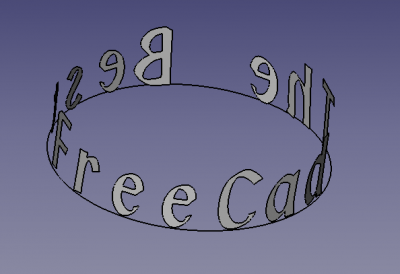
Example of the macro displaying text in a 360 degree orientation
Usage
Launch the macro folder FcString for created characters and a file FcClock for created clocks.
All the characters are and remain independent. When creating extrusions nothing is deleted. If a Compound is created with Run Comp it is copied out of the folder.
The options are shaded by default and are active in all functions if they are checked  :
:
 Extrude Char.
- Placement.
- SP. inclination.
Except for one Clock Service Placement box Z is activated and moves the text in the direction Z to place the text on the support surface.
Notes
- This macro will gray-out (deactivate) options that are not relevant for a selected function.
Interface
Overview
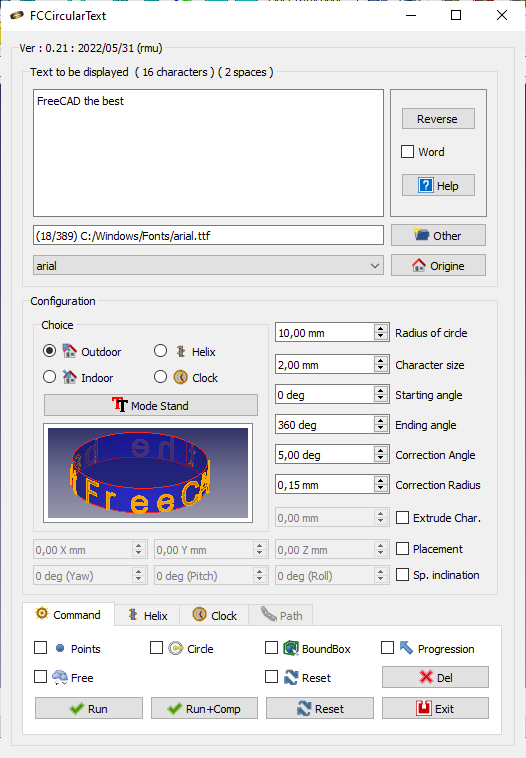
First section
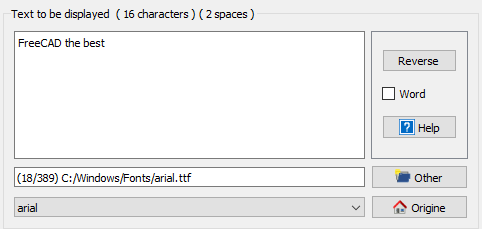
- TextEdit window that lets you copy the text to display (click on the Reset allows to know the number of the input string that is displayed in the window title)
- The Reverse button reverses the text
- Word checked, this option consider the text as word, the text is cut on space and write the text word by word (instead character by character in normal use)
- The Help button displays the wiki page in the FreeCAD browser
- LineEdit: display the path and name of file font
- Other button for search the font in other directory in case all directory is not discovery automatically
- ComboView to choose the font
- Origin return to origin system font path ex: "C:/Windows/Fonts/"
- Default ARIAL.TTF
Available options
After the first use, you must modify the following parameters:
User parameter:BaseApp/Preferences/Macros/FCMmacros/FCCircularText
switchModeTextList
- 0 = normal text mode (and black) cuts the switchFontComBox
- 1 = allows switchFontComBox 1
switchFontComBox
- 0 = (and switchModeTextList= 1) text mode (in color) in ComboBox list, faster
- 1 = (and switchModeTextList= 1) fontFamily, slower but more beautiful ComboBoxst!
setSystemFonts
- 0 = matplotlib.font_manager.findSystemFonts("C:/", "ttf")
- do all the fonts (in all folders and sub-folders of the DD) time!
- 1 = fontman.findSystemFonts(self.pathFont)
- do all the fonts in the directory (and in all the sub-folders)
seTtextAlignement
- 0 = AlignLeft (default)
- 1 = AlignCenter
- 2 = AlignRight
setFontByDefault
- Font by Default
switchResetFALSE
- 0 = reset (default)
- 1 = no reset (not recommended) some switches can remain open or close unexpectedly!
Example
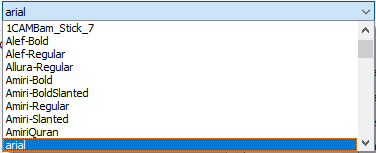
- switchModeTextList=
false - switchFontComBox =
false - setSystemFonts =
false - seTtextAlignement = 0
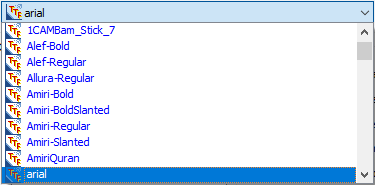
- switchModeTextList=
true - switchFontComBox =
false - setSystemFonts =
false - seTtextAlignement = 0
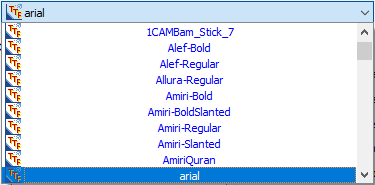
- switchModeTextList=
true - switchFontComBox =
false - setSystemFonts =
false - seTtextAlignement = 1 (0=Left, 1=Centered, 2=Right)
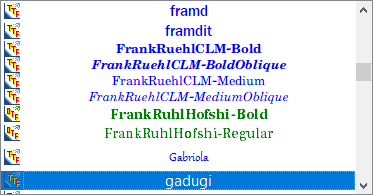
- switchModeTextList=
true - switchFontComBox =
true - setSystemFonts =
false - seTtextAlignement = 1
Second section
Configuring characters in FCCircularText
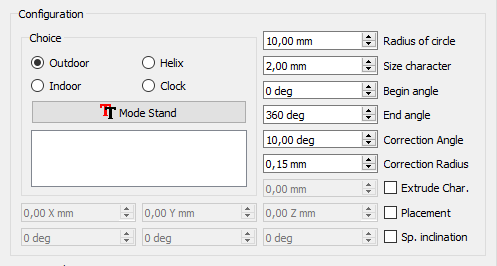
First zone
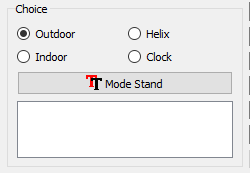
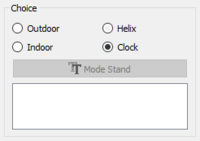
Your choice:
-
 Outdoor
 -
 Indoor
 -
 Helix
Helix -
 Clock
Clock
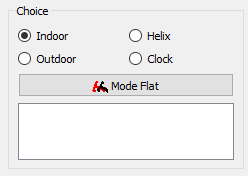
- Mode Stand or Mode Flat : The text will be placed standing or flat (same as clock) options Outdoor and Indoor are reversed.
-
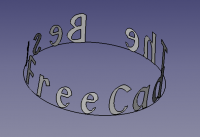 Mode Stand Outdoor The text will be written up.
 -
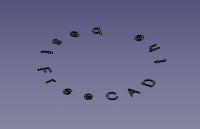 Mode Flat Outdoor The text will be placed flat.
-
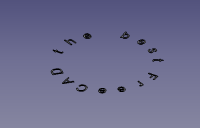 Mode Flat Indoor The text will be placed flat.
 -
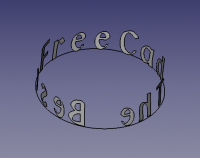 Mode Stand Indoor The text will stand registered (same as clock).
Second area
This section allows you to configure the overall behavior of characters in all the choices available but with some variation. If the command is not used in the chosen option, it will be grayed out.
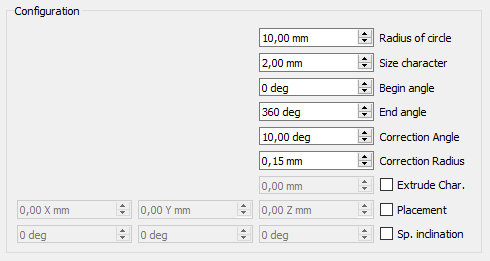
- 10.0 mm
 Radius of circle : Radius of the circle. (Default 10)
 - 2.0 mm Size character : Character height. (Default 2)
- 0 deg Begin angle : Starting angle of the first character in the circle. (Default 0°)
- 360 deg End angle : End angle of the last character of the text. (Default 360)
- 10.0 deg Correction angle : Character correction angle to make it tangent to the circle. (Default 10°)
- 0.15 mm Correction radius : Fixed the radius of the circle characters (optional). (Default 0.15)
- Extrude Char : Checkbox extrusion characters. (Inactive, Default)
- Placement : Text placement in the 3D view. (Inactive, Default)
- Sp. inclination : Inclination of characters in three axes X, Y and Z (example to cover such a cone). (Inactive, Default)
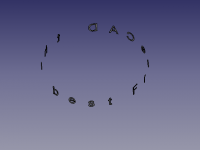
Outdoor
Default mode. The text is written on the outside of the circumference of the circle.
-
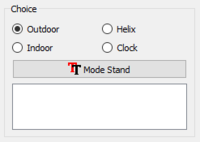 Outdoor
 -
-
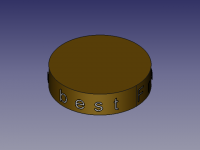
Indoor
The text is written on the inner side of the circumference of the circle
-
 Indoor
 -
-
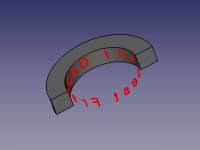
Helix
The text is entered on the outer circumference of a helix.
-
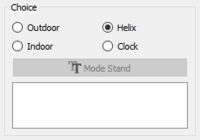 Helix
Helix -
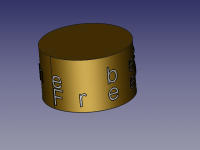
-
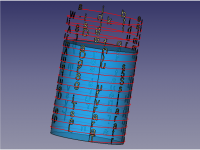
- The helix area is hidden by default. The window is visible if the radio button
 Helix is checked.
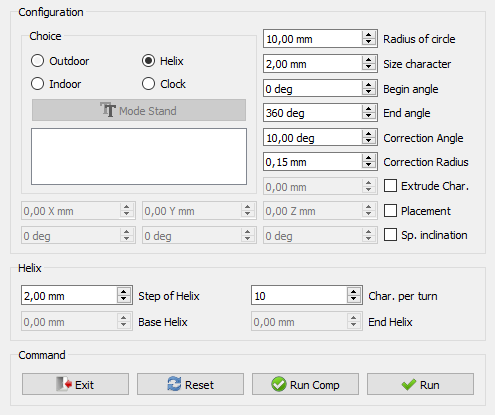
- All characters configuration options are available.
- Step of helix which corresponds to the pitch of the helix turns and displays 2 (character height) by default.
- Char. per turn activates and displays 10 by default, which corresponds to 10 characters per helical turn.

- If Step of helix (helix pitch) is zero, Spinboxes Base Helix and End Helix are activated.
- Base Helix provides the basis for starting the helix (even Placement Z). If 'Placement Z' is different from zero, the starting point is added to Z Placement
- End Helix End of the helix pitch of the helix will be calculated relative to the height and the number of characters per helical turn.
Clock
The figures are part of a circle with Arabic numerals or Romans.
-
 Clock
Clock -
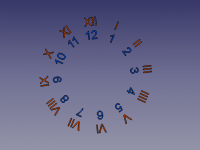 Axial
Axial -
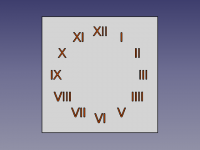 Redress
- By default, the section is hidden. The window is visible if the radio button Clock is checked
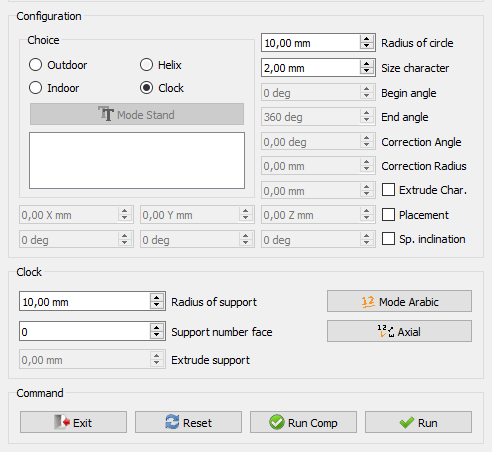
- When the selection is made, the following functions get dark and are usable:
- Begin angle.
- End angle.
- Correction angle.
- Correction radius.
- The button Mode Stand or Mode Flat.
- The area Clock is activated.
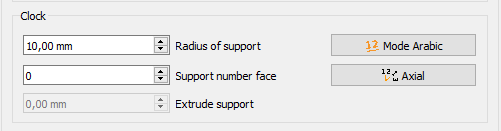
- Radius of support : If a value is given, support will be created (default 0).
- If Support number face is different from zero a support is created. (If Extrude support = zero then a face is created).
- 1 = A circle is created (circle appears).
- 2 = A rectangle is created (length = (Radius of media * 1.5) width = Radius of support) (Rectangle appears).
- 3 = A triangle is created (circumscribed) (Triangle appears).
- 4 = A square is created (Radius of support) (Square appears).
- 5 = A polygon with the number of faces displayed (circumscribed) (Polygon appears).
- Extrude support is activated and an extrusion dimension can be given.
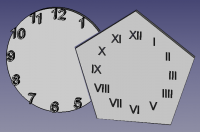
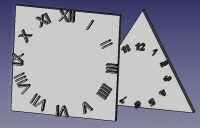
- If Support number face is equal to zero there is no support.
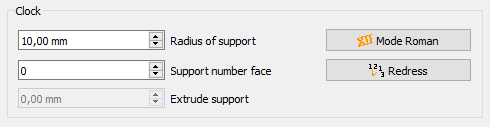
- Mode Roman : The writing will be in Roman figures I II III IIII V VI VII VIII IX X XI XII
- Axial : The figures will be written axially.
Path section
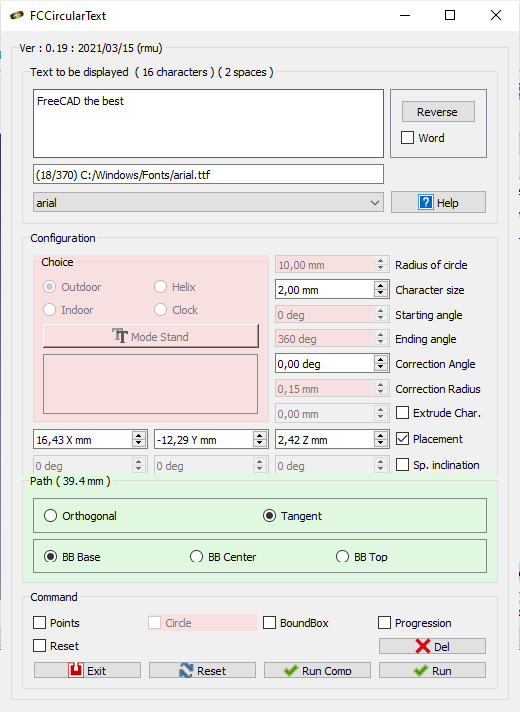
The title section changes and displays the length of the selected wire.
If you select one wire, arc, circle, line or edge the section Path is coloured in green and the unused command is coloured in red
 Orthogonal the character is Orthogonal to the view
- Tangent the character is Tangent to point path on wire
- BB Base the point base of the character is to point path on the wire
- BB Center the bounBox center of the character is to point path on the wire
- BB Top the top boundBox of the character is to point path on the wire
the last used Radio Button is saved in the parameters of FreeCAD
Command section
- Exit: Leaves the macro.
- Reset: Reset all values and displays the number of characters displayed in the window.
- Run Comp: Launches the macro and creates a Compound object of all characters.
- Run: Launches the macro.
Parameters available
Certain parameter are available in the parameters of FreeCAD, see: Menu → Tools → Edit Parameters
- User parameter: BaseApp/Preferences/Macros/FCMmacros/FCCircularText
switchModeTextList:falsenormal text mode (and black) turns off switchFontComBoxtrueallow switchFontComBox 1 (default)
switchFontComBox:false(and switchModeTextList = 1) text mode (in color) in Faster ComboBox list (default)true(and switchModeTextList = 1) font Family in ComboBox list, slower but more beautiful!
setSystemFonts:falsematplotlib.font_manager.findSystemFonts ("C: /", "ttf") do all fonts (in all folders and subfolders of the HD) time !!truefontman.findSystemFonts (self.pathFont)
make all the fonts in the directory (and in all the subfolders) (default)
seTtextAlignement: 0 = AlignLeft (default) 1 = AlignCenter 2 = AlignRightsetFontByDefault: Font by Default (the last used)switchResetFALSE:falsereset (default),trueno reset (not recommended) some switches can stay open or close unexpectedly!setPathOrthogonal:truefalsesetPathTangent:truefalsesetPositionBase:truefalsesetPositionCenter:truefalsesetPositionTop:truefalseswitchVersionSearch:truefalseVersion: FCCircularText version
Launch the macro folder FcString for created characters and a file FcClock for created clocks.
Script
The button icon:
- in .PNG 
- in .SVG 
(See Customize_Toolbars for more)
Script
Macro_Circular_Text.FCMacro
or download the script :
- on github Macro_FCCircularText.FCMacro
- at the forum Extrude from curved surface of cylinder
Examples
-
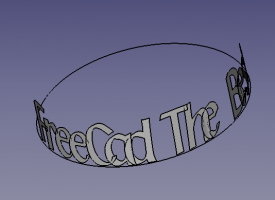 Text beginning at 180 degrees (Begin angle) end at 360 degrees (End angle) external curve.
 -
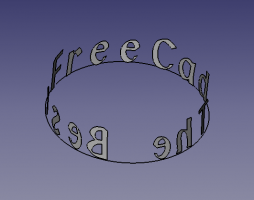 Text set in an inner curve.
-
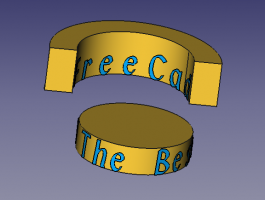 Circular text on internal and external curve.
 -
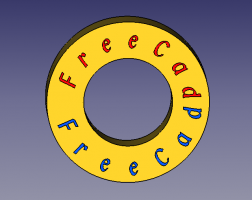 Circular text on a flat object.
-
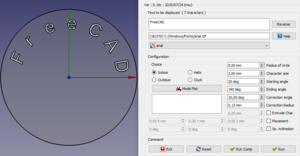 Configuration Superior.(click to elarge)
 -
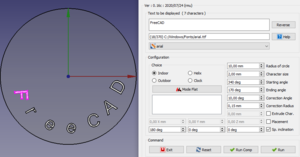 Configuration Inferior.(click to elarge)
-
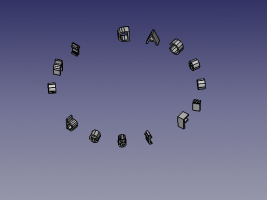 External curve.
 -
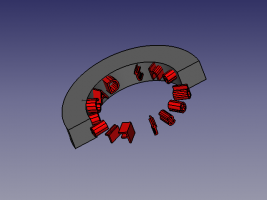 Internal curve.
-
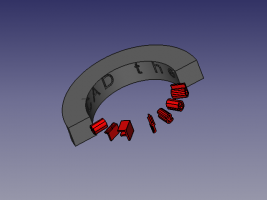 Internal curve extrusion material designated and subtraction.
 -
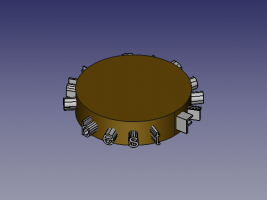 External curve.
-
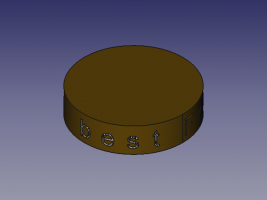 Internal curve with subtraction.
 -
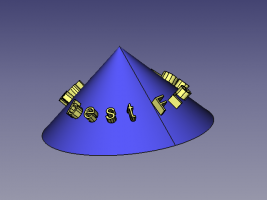 Extrusion on a cone with Sp. Inclination 45° axis Z.
-
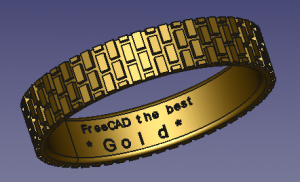 Ring Internal curve with subtraction.
 -
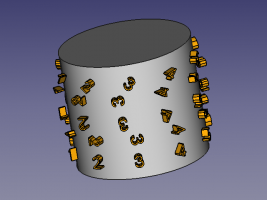 Pivot character 0°, 90°, etc.
-
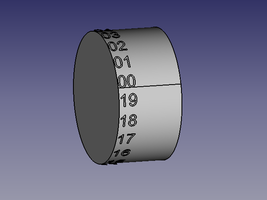 Word The text is cutting on space character
Example onto Ellipse
-
 Create your ellipse with dimensions of 100 x 50.
 -
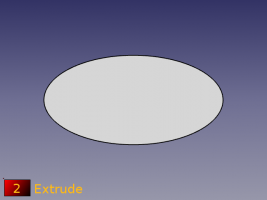 Extrude it 50 mm.
-
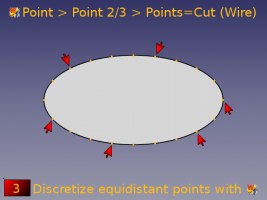 Discretize the perimeter and create points with the macro Work Features.
Tab Point > Point 2/3 > Points=Cut (Wire) -
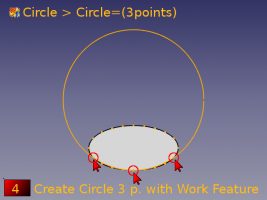 Create the circle to 3 points with the macro Work Features.
Tab Circle Circle=(3 Points)
-
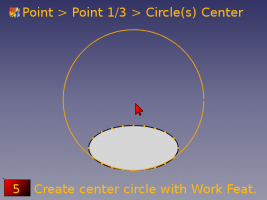 Create point center circle with the macro Work Features.
Tab Point > Point 1/3 > Circle(s) center. -
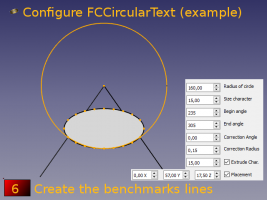 Create the benchmark lines and configure FCCircularText.
-
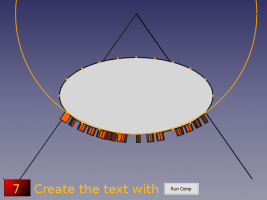 Create the text with Run Comp.
 -
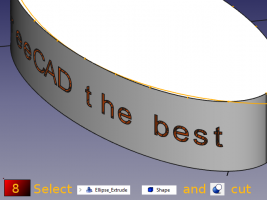 Select Ellipse Extrude, Shape and press the
 Part Cut button.
-
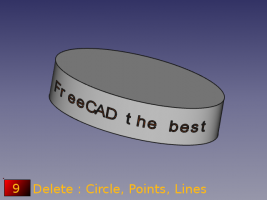 Delete the circle, points and lines.
 -
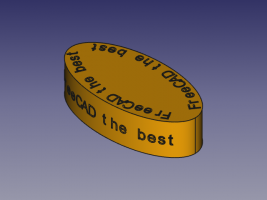 Ellipses.
Mode relief:
-
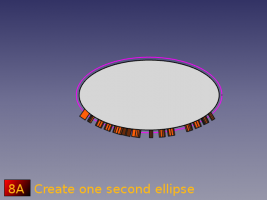 Create an ellipse.
-
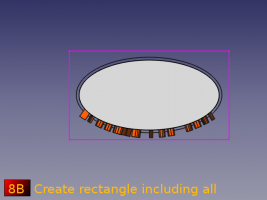 Create a rectangle that includes all objects.
-
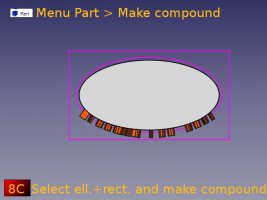 Select the rectangle, the ellipse and make a compound
Activate the Part module, then Menu Part > Make compound. -
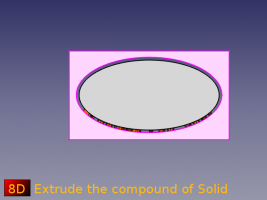 Extrude the compound of Solid.
-
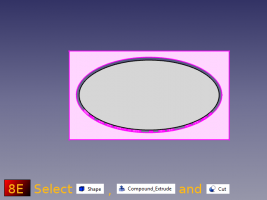 Select Shape (text), the compound and Cut.
 -
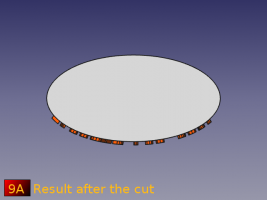 The text is cut in the shape of the ellipse.
-
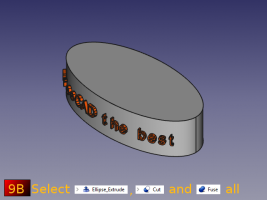 Select the extruded Ellipse, the Cut (text) and fuse them.
Example section path
-
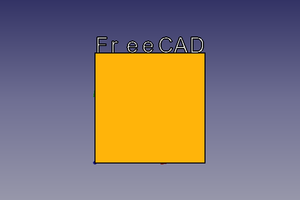 Text on BoundBox Base (normal)
 -
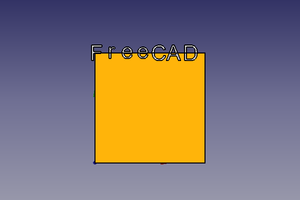 Text on BoundBox Center character
-
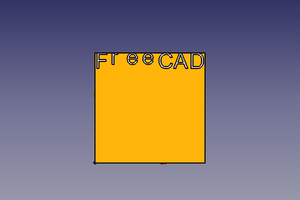 Text on BoundBox Top character
 -
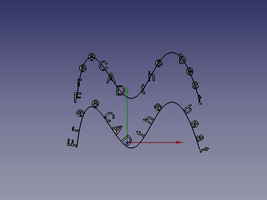 Text on selected line:
1: Orthogonal
2: Tangent
-
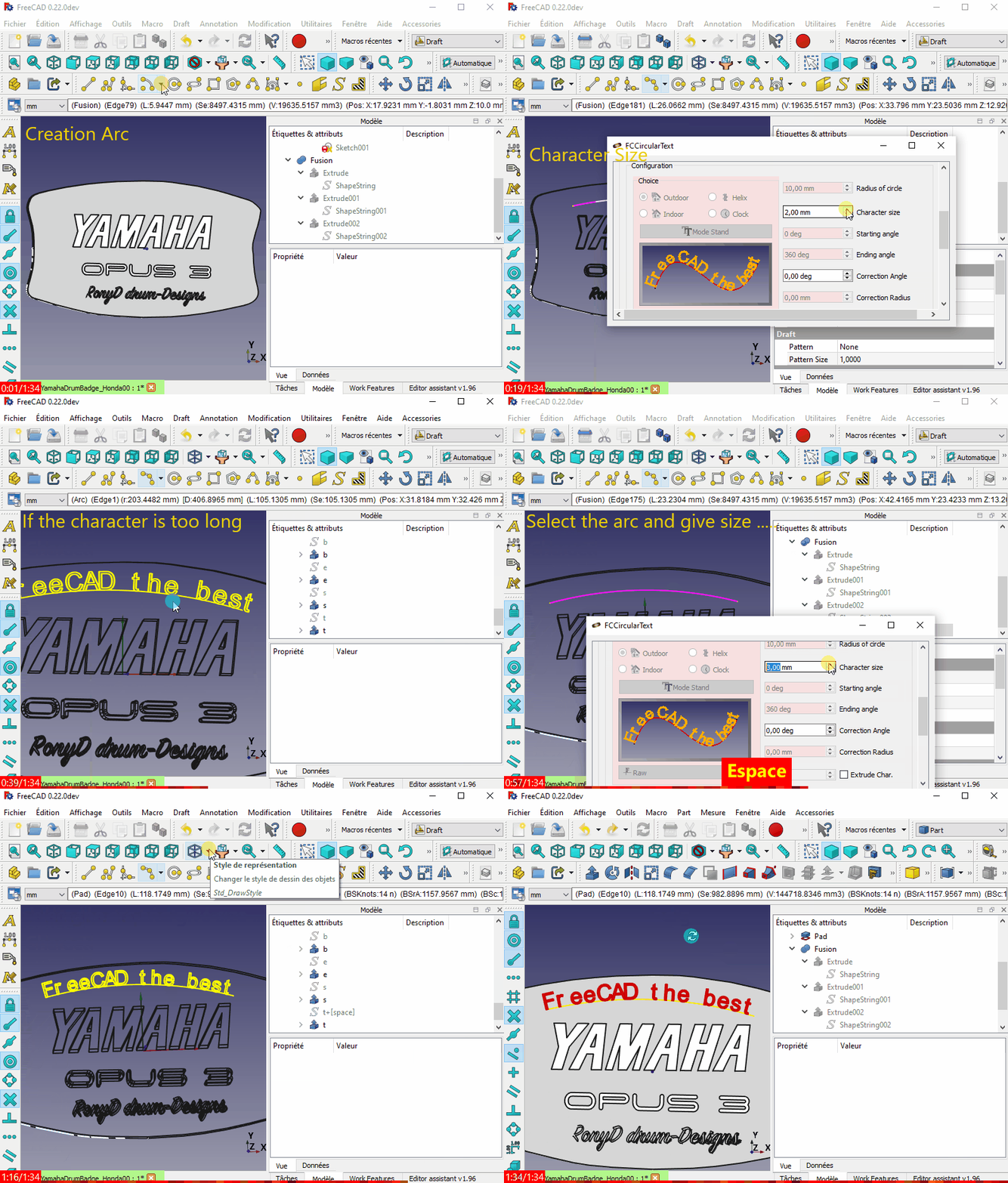 Example use (Curved text on a flat surface?)
Limitations
Note it is possible that an error may occur between versions. Please post the issue on the forum and wait for the updated fix or rollback to a previous version of the macro. Thank you.)
It is possible that two characters may overlap. If this happens, here's a workaround available using the Rotate-To-Point Macro.
-
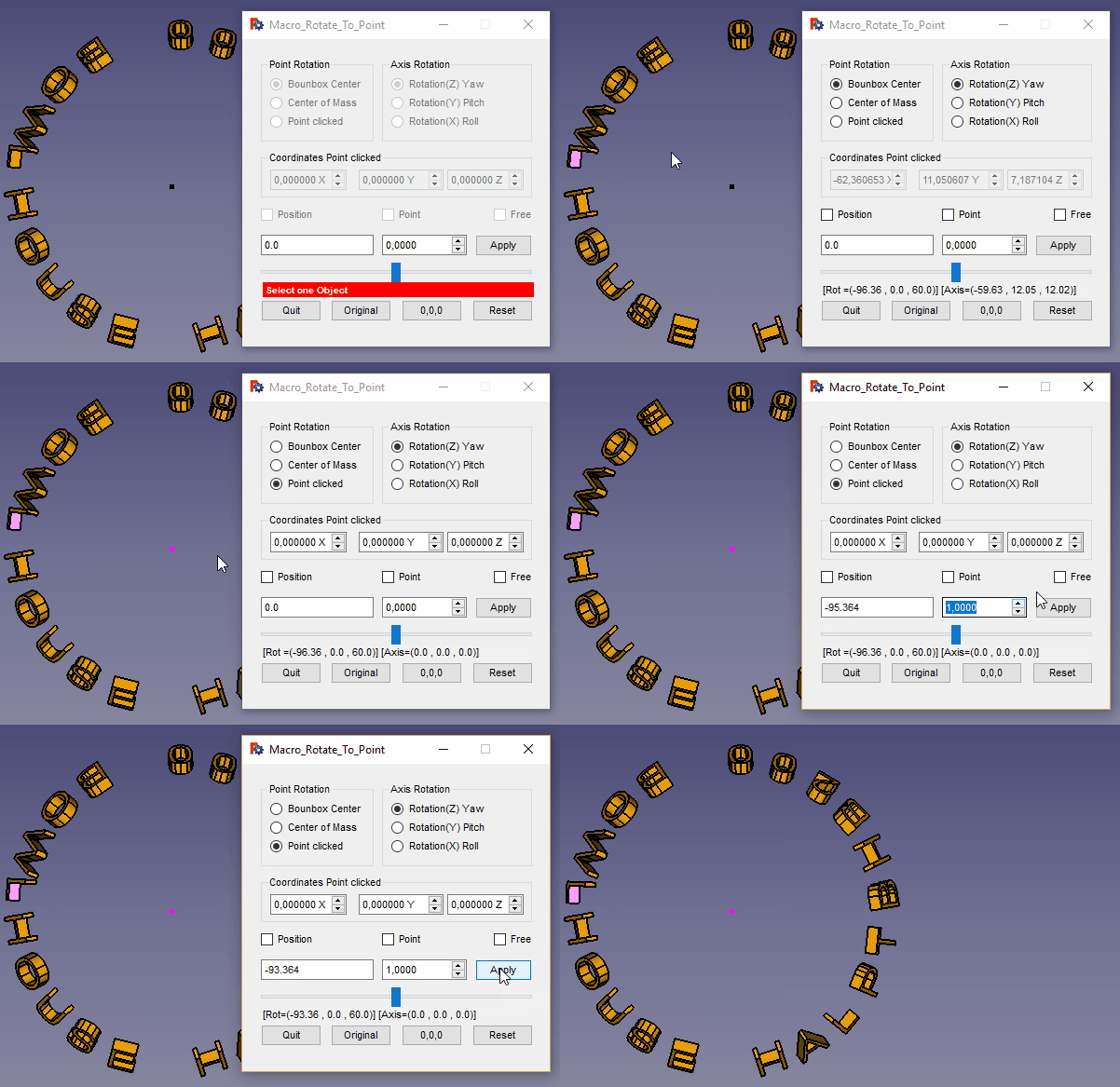 Character overlap issue and the workaround
(not fully developed)
Planned:
Writing circular text on a path of the selected position object.
Change log
- ver 0.22f 2025/09/25 : return to PySide, adding info for use of the MONOSPACE font
- ver 0.22e 2024/07/11 : delete "ss.support = None"
- ver 0.22d 2024/07/11 : delete "import WebGui" cause error in 0.22xxx FC and replaced by "import webbrowser"
- ver 0.22c 2023/11/17 : adding restore selection after delete the last object , by TheMarkster , thanks
see Curved text on a flat surface?
sel = Gui.Selection.getCompleteSelection()
#delete objects
#restore previous selection
Gui.Selection.clearSelection()
for s in sel:
    Gui.Selection.addSelection(s.Object,s.SubElementNames)
- ver 0.22b 2023/11/15 : upgrade correction stylesheet and FreeCAD.activeDocument().recompute(None,True,True)
- ver 0.22 2022/06/06 : adding QScrollArea cause : Unable to run FCCircularText [Problem with screen size]
- ver 0.21 2022/05/31 : adding button search other path fontmanuelly, and button return font origin of system
- ver 0.20 2021/04/05 : adding icone in macro, Tab for diminish the heigth of the macro, remove all dimensions of widgets now fully compatible with the stylesheet, revisite the search version for compatibility and other little change.
- ver 1.19 2021/03/15 : adding button Delete the last object created and the code
FreeCAD.ActiveDocument.openTransaction("FCCTc")for Undo/Redo system
- Adding CheckBox Reset for switched/activated (requested by users) the natural reset after all push button Runand Run comp. This use checkBox is not advised, is you constade one malfunction pusch the Reset button or quit FCCircularText and restart.
- Adding CheckBox
- ver 0.18 2021/01/19 : correction bug see FCCircularText Macro issues
- ver 0.17b 2020/09/28 : correction little bug (pl instead plm in path section) and arrange the window (dimension) Clock, Helix, Path
- ver 0.17 2020/09/26 : adding create circular text on wire (curve, arc, spline, line ...) selected, mode word
ver 16d 2020/09/15 : see the MasterCATZ commented Sep 14, 2020 message
delete the FC 0.18 test section:
#### Test FreeCAD.Version simple ############################################################################################################
if int(FreeCAD.Version()[1]) < 18:      # Version de FreeCAD
    FreeCAD.Console.PrintMessage("This version " + __Title__ + " rmu  work with the FreeCAD 0.18 or higher." + "\n\n")
    FreeCAD.Console.PrintMessage("For the precedent version see the page " + "\n\n")
    FreeCAD.Console.PrintMessage("https://gist.githubusercontent.com/mario52a/a25e802498bae6959335/raw/db47f78f2b20a35137ac213b8d1a62d30f525dcb/Macro_FCCircularText.FCMacro" + "\n\n")
#### Test FreeCAD.Version simple ############################################################################################################
- ver 0.16c 2020/07/24 : modify text proposed by Kunda1 Please review FCVerticalText Macro
- ver 0.16b 2020/07/24 : correct __title__ to __Title__ in 0.18 FC test (see Please review FCVerticalText Macro)
- ver 0.16 2020/06/07 : little bug in Linux with the path, impost PolicePath = "/usr/share/fonts/" (stay on path /xx/xx/xx/xx/xx/xx/ on entry)
- ver 0.15 2020/06/01 : For PySide2 Qt5 adding matplotlib fonts in comboView, config on parameter
- ver 0.14-4 2020/04/25 : corrected for "DisplayMode = u"Flat Lines" :
- ver 0.14-3 2020/04/25 : adapted for :
OS: Windows 10 (10.0)
Word size of OS: 64-bit
Word size of FreeCAD: 64-bit
Version: 0.19.20655 (Git)
Build type: Release
Branch: master
Hash: e8e67e8c5ebbc9f9ed9ea67aba5b891969595ece
Python version: 3.6.8
Qt version: 5.12.1
Coin version: 4.0.0a
OCC version: 7.3.0
- ver 0.14-2 2019/07/22 replace chr(176) (give error <FC 0.18) and replace with the wmayer code, see Fehler in Version 0.19 pre ??
       carDegrees = b' \xc2\xb0'.decode("utf-8")    #thanks wmayer	https://forum.freecad.org/viewtopic.php?f=13&t=36380&p=308476#p308357
       self.DS_InclinaisonX.setSuffix(carDegrees)
       self.DS_InclinaisonY.setSuffix(carDegrees)
       self.DS_InclinaisonZ.setSuffix(carDegrees)
- ver 0.14-1 2019/06/11 replace "°" to chr(176)
- ver 0.14 2019/04/27 compatible for Python 3.6.6 and Qt 5.6.2 (cause: unicode() )
latest testing:

#OS: Windows 10
#Word size of OS: 64-bit
#Word size of FreeCAD: 64-bit
#Version: 0.19.16523 (Git)
#Build type: Release
#Branch: master
#Hash: 9b3ec233c8b21e0df66fada487cd10f471d60cac
#Python version: 3.6.6
#Qt version: 5.6.2
#Coin version: 4.0.0a
#OCC version: 7.3.0
- ver 0.13 30/01/2018 add feature Pivot for rotate the character on himself
ver 0.13 09/08/2016 replace the button "New font" to "fontComboBox" cause , with Windows 10 the window Font stay empty the files are hidden
- ver 0.12 03/07/2016 optimize the code for accept the decimal number in determination angle
replace the line
for angleTr in range(debut,rotation,((rotation-debut)/nombre)):
to
for angleTrFloat in range((debut*10000),(rotation*10000),int((round(((float(rotation)-float(debut))/float(nombre)),4)*10000)) ):    # pour 4 decimales
                angleTr = (float(angleTrFloat)/10000)
- ver 0.10 17/05/2015 adding lines 1365, 1366 only created more clock face ?? ()
supp.MakeFace = True
            App.activeDocument().recompute()
- ver 0.9 11/05/2015 thank you NormandC for testing
replace
self.DS_InclinaisonX.setSuffix(" X°")
        self.DS_InclinaisonY.setSuffix(" Y°")
        self.DS_InclinaisonZ.setSuffix(" Z°")
to
self.DS_InclinaisonX.setSuffix(unicode(" X°"))
        self.DS_InclinaisonY.setSuffix(unicode(" Y°"))
        self.DS_InclinaisonZ.setSuffix(unicode(" Z°"))
- ver 0.8 10/05/2015 replace "String=texte[ii2]" to "String=unicode(texte[ii2])" line 1290. cause "TypeError: Property 'FontFile': type must be str or unicode, not QString"
# ver 0.8 10/05/2015 /_ # testing with OS :
##################################################################################################
# OS: Ubuntu 14.04.1 LTS                          # OS: Ubuntu 14.04.2 LTS
# Platform: 32-bit                                # Word size of OS: 32-bit
# Version: 0.14.2935 (Git)                        # Word size of FreeCAD: 32-bit
# Branch: master                                  # Version: 0.16.4928 (Git)
# Hash: eab159b6ee675012bf79de838c206a311e911d85  # Branch: master
# Python version: 2.7.6                           # Hash: d8f63bcfd10301f3d1e141cced4370f0782238d0
# Qt version: 4.8.6                               # Python version: 2.7.6
# Coin version: 4.0.0a                            # Qt version: 4.8.6
# SoQt version: 1.6.0a                            # Coin version: 4.0.0a
# OCC version: 6.7.0                              # OCC version: 6.8.0.oce-0.17
##################################################################################################
# OS: Windows Vista                               # OS: Windows Vista
# Word size of OS: 32-bit                         # Word size of OS: 32-bit
# Word size of FreeCAD: 32-bit                    # Word size of FreeCAD: 32-bit
# Version: 0.15.4527 (Git)                        # Version: 0.15.4671 (Git)
# Branch: master                                  # Branch: releases/FreeCAD-0-15
# Hash: 0da2e4c45a9a259c26abd54c2a35393e1c15696f  # Hash: 244b3aef360841646cbfe80a1b225c8b39c8380c
# Python version: 2.7.8                           # Python version: 2.7.8
# Qt version: 4.8.6                               # Qt version: 4.8.6
# Coin version: 4.0.0a                            # Coin version: 4.0.0a
# OCC version: 6.7.1                              # OCC version: 6.8.0.oce-0.17
##################################################################################################
- ver 0.7 02/02/2015 suppression 2 str App.Console.PrintMessage(str(PolicePath)+"\n") to App.Console.PrintMessage((PolicePath)+"\n") that caused an error with the characters above 128 in the police path.
- ver 0.6 23/11/2014 corrected "texte = unicode(self.textEdit.toPlainText())" now accept "'éèà@..."
- ver 0.5 19/11/2014 Gui
- ver 0.4 10/10/2014 add variable "rotation" in the loop (for i in range(0,rotation,(rotation/nombre)): # 360 a parametrer)
- ver 0.4 27/08/2014 correction error of de radius (exterieur=0, debout=1)
- ver 0.3 26/08/2014 add creation text of flat curve
- ver 0.2 26/08/2014 add creation text of internal curve
- ver 0.1
(2537)
Links
To comment on the Extrude from curved surface of cylinder
This page is retrieved from https://wiki.freecad.org/Macro_FCCircularText