


Beskrivning
Detta verktyg flyttar de markerade objekten från en punkt till en annan. Om inget objekt är valt, så kommer du ombes att välja ett.
The command can be used on 2D objects created with the Draft Workbench or Sketcher Workbench, but also on many 3D objects such as those created with the Part Workbench, PartDesign Workbench or BIM Workbench.
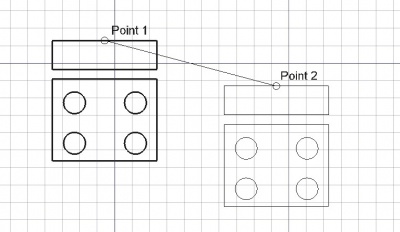
Moving an object from one point to another
Bruk
See also: Draft Snap and Draft Constrain.
- Markera punkter i ett tomt område i 3d vyn, eller på ett existerande objekt.
- Nedtryckning av CTRL kommer att snäppa din punkt till tillgängliga snäpp-punkter.
- Nedtryckning av SKIFT kommer att begränsa dig vertikalt eller horisontellt i relation till startpunkten.
- Om du trycker på ESC så avbryts funktionen.
- Skriv in siffror för att manuellt mata in en koordinat.
- C växlar kopieringsläget på/av. Med kopiering på, så kommer objekt(en) att kopieras istället för att flyttas.
- Nedtryckning av ALT kommer att skapa en kopia, även om kopieringsknappen är av.
- Om ALT är nedtryckt, så kan du göra multipla kopior ända tills ALT släpps.
Options
The single character keyboard shortcuts available in the task panel can be changed. See Draft Preferences. The shortcuts mentioned here are the default shortcuts.
- To manually enter coordinates enter the X, Y and Z component, and press Enter after each. Or you can press the
 Enter Point button when you have the desired values. It is advisable to move the pointer out of the 3D View before entering coordinates.
 - To use polar coordinates enter a value for the Length and a value for the Angle, and press Enter after each.
- Check the Angle checkbox to constrain the pointer to the specified angle.
- Press L to change the focus from the X input box to the Length input box and back. Depending on the input box that receives the focus the Angle checkbox is checked or unchecked.
- Press R or click the Relative checkbox to toggle relative mode. If relative mode is on, the coordinates of the second point are relative to the first point, else they are relative to the coordinate system origin.
- Press G or click the Global checkbox to toggle global mode. If global mode is on, coordinates are relative to the global coordinate system, else they are relative to the working plane coordinate system.
- Press N or click the Continue checkbox to toggle continue mode. If continue mode is on, the command will restart after finishing. This mode really only makes sense if copy mode is switched on. Depending on the Select base objects after copying preference, either the original objects are selected for the next command call or the copies that were created last. See Preferences.
- Press C or click the Copy checkbox to toggle copy mode. If copy mode is on, the command will create moved copies instead of moving the original objects.
- Press B or click the Modify subelements checkbox to toggle subelement mode. If subelement mode is on, the command will use the selected subelements instead of the whole objects. The subelements must belong to Draft Lines or Draft Wires.
- If copy mode and subelement mode are both on, and edges of Draft Wires are selected, new wires will be created from those edges.
- Holding down Alt after picking the base point will also toggle copy mode. While Alt is held down multiple target points can be picked. Release Alt to finish the command and see the created copies.
- Press S to switch Draft snapping on or off.
- Press Esc or the Close button to abort the command.
Notes
- An Object that is attached cannot be moved with the Draft Move command. To move it either its DataSupport object has to be moved, or its DataAttachment Offset has to be changed.
Preferences
See also: Preferences Editor and Draft Preferences.
- To change the initial focus of the task panel to the Length input box: Edit → Preferences → Draft → General → Set focus on Length instead of X coordinate. Note that you must move the pointer in the 3D View for the change to take effect.
- To reselect the base objects after copying objects: Edit → Preferences → Draft → General → Select base objects after copying.
Scripting
See also: Autogenerated API documentation and FreeCAD Scripting Basics.
To move objects use the move method of the Draft module.
moved_list = move(objectslist, vector, copy=False)
objectslistcontains the objects to be moved. It is either a single object or a list of objects.vectoris the displacement.- If
copyisTruecopies are created instead of moving the original objects. moved_listis returned with the original moved objects, or with the new copies. It is either a single object or a list of objects, depending onobjectslist.
Example:
import FreeCAD as App
import Draft

doc = App.newDocument()

polygon1 = Draft.make_polygon(5, radius=1000)
polygon2 = Draft.make_polygon(3, radius=500)
polygon3 = Draft.make_polygon(6, radius=220)

Draft.move(polygon1, App.Vector(500, 500, 0))
Draft.move(polygon1, App.Vector(500, 500, 0))
Draft.move(polygon2, App.Vector(1000, -1000, 0))
Draft.move(polygon3, App.Vector(-500, -500, 0))

list1 = [polygon1, polygon2, polygon3]

vector = App.Vector(-2000, -2000, 0)
list2 = Draft.move(list1, vector, copy=True)
list3 = Draft.move(list1, -2*vector, copy=True)

doc.recompute()
Denna sida hämtas från https://wiki.freecad.org/Draft_Move