FreeCAD Logo FreeCAD 1.0
  • Inglés Africano Árabe Bielorruso Catalán Checo Alemán Griego Español Español Euskera Finlandés Filipino Francés Gallego Croata Húngaro Indonesio Italiano Japonés Cabilio Coreano Lituano Neerlandés bokmal de Noruega Polaco Portugués Portugués Rumano Ruso Eslovaco Esloveno Serbio Sueco Turco Ucraniano Valenciano Vietnamita Chino Chino
  • Características
  • Descarga
  • Blog
  • Documentación
    Índice de documentación Primeros pasos Documentacion para el usuario El manual de FreeCAD Documentación de entornos de trabajo Documentación sobre FreeCAD + Python Documentación de codificación de C++ Tutoriales Preguntas frecuentes Política de privacidad Acerca de FreeCAD
  • Contribuir
    ¿Cómo puedo ayudar? Sponsor Informar de un error Hacer un pull request Trabajos y financiación Pautas de contribución Manual de desarrolladores Traducciones
  • Comunidad
    Código de conducta Foro The FPA GitHub GitLab Codeberg Mastodon Matrix IRC IRC via Webchat Gitter Discord Reddit Twitter Facebook LinkedIn Calendario
  • ♥ Donate

Donate

$
Información de SEPA
Configure su transferencia bancaria SEPA a:
Beneficiary: The FreeCAD project association
IBAN: BE04 0019 2896 4531
BIC/SWIFT: GEBABEBBXXX
Agencia bancaria: BNP Paribas Fortis
Dirección: Rue de la Station 64, 1360 Perwez, Belgium

While Stripe doesn't support monthly donations, you can still become a sponsor! Simply make a one-time donation equivalent to 12 months of support, and you'll gain access to the corresponding sponsoring tier. It's an easy and flexible way to contribute.

If you are not sure or not able to commit to a regular donation, but still want to help the project, you can do a one-time donation, of any amount.

Choose freely the amount you wish to donate one time only.

You can support FreeCAD by sponsoring it as an individual or organization through various platforms. Sponsorship provides a steady income for developers, allowing the FPA to plan ahead and enabling greater investment in FreeCAD. To encourage sponsorship, we offer different tiers, and unless you choose to remain anonymous, your name or company logo will be featured on our website accordingly.

from 1 USD / 1 EUR per month. You will not have your name displayed here, but you will have helped the project a lot anyway. Together, normal sponsors maintain the project on its feet as much as the bigger sponsors.

from 25 USD / 25 EUR per month. Your name or company name is displayed on this page.

from 100 USD / 100 EUR per month. Your name or company name is displayed on this page, with a link to your website, and a one-line description text.

from 200 USD / 200 EUR per month. Your name or company name and logo displayed on this page, with a link to your website and a custom description text. Companies that have helped FreeCAD early on also appear under Gold sponsors.

Instead of donating each month, you might find it more comfortable to make a one-time donation that, when divided by twelve, would give you right to enter a sponsoring tier. Don't hesitate to do so!

Choose freely the amount you wish to donate each month.

Please inform your forum name or twitter handle as a notein your transfer, or reach to us, so we can give you proper credits!

Pos Proceso
Trayectoria

Trayectoria Pedido

Ubicación en el Menú
Trayectoria → Pedido
Entornos de trabajo
Trayectoria
Atajo de teclado por defecto
P F
Introducido en versión
-
Ver también
Ninguno

Inicia el proyecto CAM configurando los elementos esenciales.

La herramienta Job crea un nuevo proyecto CAM en el documento activo. El proyecto CAM contiene la siguiente información:

  1. Una lista de definiciones del controlador de la máquina, especificando la geometría, materiales, y velocidades de la herramienta CNC.
  2. Un flujo secuencial de las operaciones a realizar.
  3. Una base clon de la pieza a construir usada para offset.
  4. A Stock, representing the raw material that will be milled to CAM Workbench.
  5. A SetupSheet, containing inputs used by the Path Operations, including static values and formulas.
  6. Configuration parameters specifying the output G-Code job's destination path, file name, and extension, and the postprocessor (used to generate the appropriate dialect for the target CNC Controller, and customize Units, Tool Changes, Parking, etc.).

Usage

  1. There are several ways to invoke the command:
    • Press the New Job button.
    • Select the CAM → New Job option from the menu.
    • Use the keyboard shortcut: P then J.

The Job GUI dialog box has five horizontally aligned tabs: General, Output, Setup, Tools, and Workplan. The user can at any time utilize the OK or Cancel options within the dialog.

General
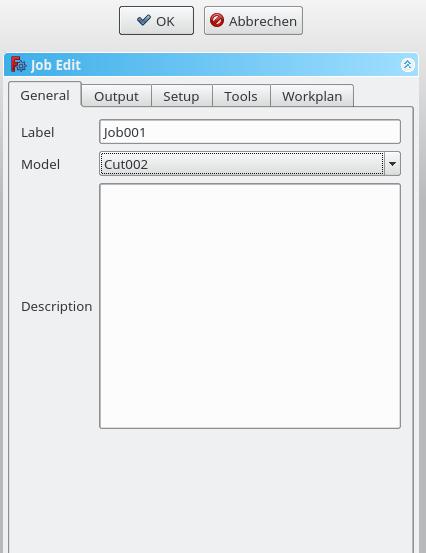
  • Label: The label of the Job as displayed in the Tree View.
  • Model: The Base Object which defines by its shape the paths of the job. If it is a Part Design object, it is usually the Body you select here. If you have an element selected in the tree before you click the "Add Job" icon that element is already entered here. You can change it by selecting a different element from the dropdown menu.
  • Description: You can add some notes to the job here. Notes are only for your information and have no effect on the path.

Resultado

  • Output File: Set the name, extension, and the file path of the G-Code output. You can use the following placeholders:
    • %D directory of the active document
    • %d name of the active document (without extension)
    • %M user macro directory
    • %j name of the job
  • Processor: Select the postprocessor for your machine.
  • Arguments: Add arguments for the postprocessor as needed.
  • Machine: Optionally select a machine configuration. When a machine is selected, it defines the postprocessor and related output settings for the job.

Configuración
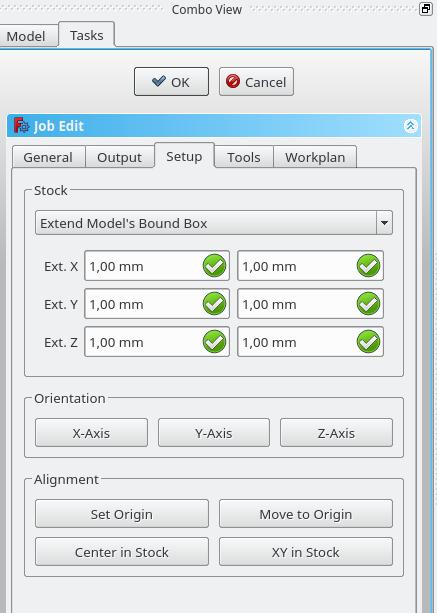
  • Stock: set the size and shape of the raw material.
  • Orientation: Selected Edge or Face is used to orient Base or Stock accordingly.
  • Alignment: select a Vertex to set origin or move Base or Stock

Herramientas
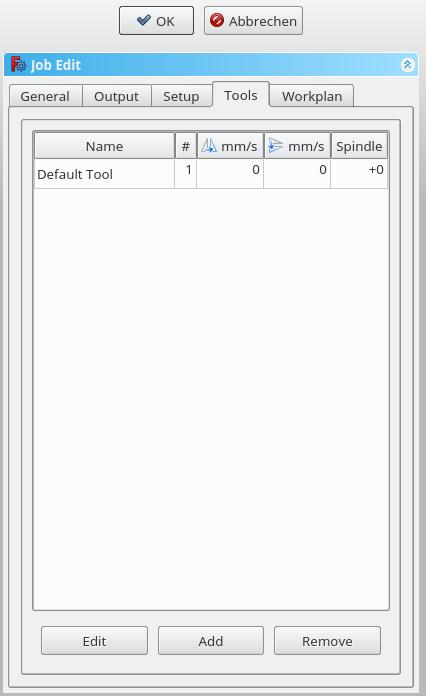
Add the tool(s) from your Tooltable that you need for the operations at this job.

After adding a tool, you can set/change the feedrate and spindle speed if you need a different feedrate in this job. A change here doesn't change the parameters stored in the tooltable.

You can delete the default tool if you have your own tool added.

Programa de trabajo
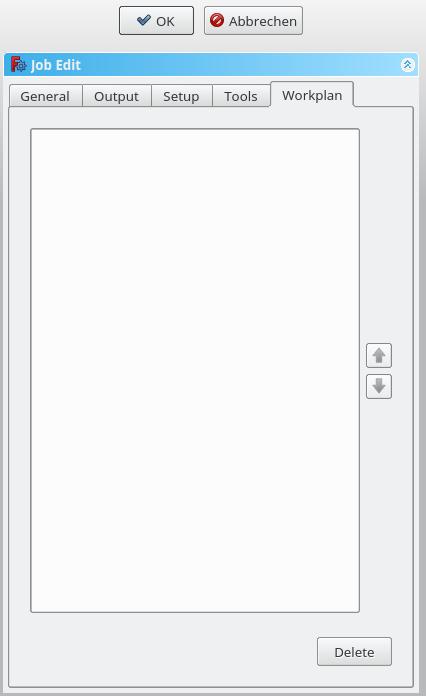
If you have a job that contains more than one path operation, you can determine in which order the operations should be done. To reorder, select an operation and push the up or down button.


Pos Proceso
Trayectoria

Esta página ha sido recuperada de https://wiki.freecad.org/CAM_Job

¡Contáctanos!
Forum GitHub Mastodon Matrix IRC Gitter.im Discord Reddit Twitter Facebook LinkedIn

© El equipo de FreeCAD. Créditos de imagen de la página principal (de arriba a abajo): ppemawm, r-frank, epileftric, regis, rider_mortagnais, bejant.

Este proyecto es apoyado por: , KiCad Services Corp. y otros patrocinadores

GitHubMejora esta página en GitHub