


|
Std ViewDockUndockFullscreen |
| Menu location |
|---|
| View → Document Window → Docked/Undocked |
| Workbenches |
| All |
| Default shortcut |
| V D / V U |
| Introduced in version |
| - |
| See also |
| Std ViewFullscreen, Std MainFullscreen |
Introduction
3D Views can be undocked from the main FreeCAD interface and moved to a different display for example.
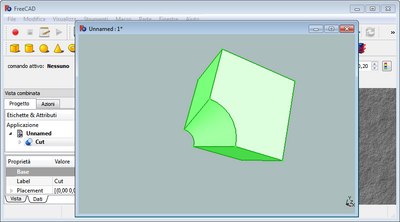
An undocked 3D View
Docked
Description
The Docked menu option docks the active 3D View inside the main FreeCAD interface.
Usage
- Activate an undocked 3D View.
- There are several ways to invoke the option:
- If there are no docked 3D Views: select the View → Document Window → Docked option from the menu.
- Select the Document window → Docked option from the 3D View context menu.
- Use the keyboard shortcut: V then D.
Undocked
Description
The Undocked menu option undocks the active 3D View from the main FreeCAD interface.
Usage
- Activate a docked 3D View.
- There are several ways to invoke the option:
- Select the View → Document Window → Undocked option from the menu.
- Select the Document Window → Undocked option from the 3D View context menu.
- Use the keyboard shortcut: V then U.
Notes
- Multiple 3D Views for the same document can be created with the Std ViewCreate command.
- 3D Views can also be docked and undocked with the Std ViewFullscreen command.
This page is retrieved from https://wiki.freecad.org/Std_ViewDockUndockFullscreen